The Best Free macOS Apps in 2026: 30 Essential Tools + Homebrew Guide
Setting up a new Mac? Here are 30 essential free apps for productivity, creativity, and system utilities, plus a Homebrew beginner's guide.

Buying a Mac is expensive enough. Setting it up shouldn’t be.
Whether you’re a pro user or just trying to look busy at work, the right software can make or break your experience. Fortunately, some of the best tools for macOS don’t cost a dime.
Here are 30 essential free apps organized by category, plus a complete guide to Homebrew — the tool that makes installing everything effortless.
Productivity & Utilities
These are the apps you’ll use every day. They fill gaps Apple left in macOS.
1. Raycast (Spotlight Replacement)
Stop using Spotlight. Raycast is a faster, more extensible launcher that does everything Spotlight does, plus:
- Clipboard history — Never lose something you copied
- Window management — Snap windows with commands
- Extensions — Spotify control, GitHub, Notion, hundreds more
- Snippets — Type shortcuts for frequently used text
- Calculator — More powerful than Spotlight’s
Install: brew install --cask raycast or raycast.com
Paid alternative it replaces: Alfred (~$42 Powerpack)
2. Rectangle (Window Management)
macOS window management is terrible. Rectangle fixes it:
- Drag windows to screen edges to snap
- Keyboard shortcuts for any window position
- Works with multiple monitors
- Completely free and open source
Install: brew install --cask rectangle or rectangleapp.com
Paid alternative it replaces: Magnet ($5), Moom ($15)
3. Obsidian (Notes)
If you’re still using Apple Notes, it’s time for an upgrade. Obsidian is a powerful note-taking app that:
- Stores notes as local Markdown files (you own your data)
- Links notes together like a wiki (“second brain”)
- Supports plugins for almost any feature you want
- Syncs via iCloud, Dropbox, or their paid sync
- Works offline, no account required
Install: brew install --cask obsidian or obsidian.md
Paid alternative it replaces: Notion (for personal use), Roam Research ($15/mo). See how Obsidian and Notion compare for AI features.
4. AppCleaner (Uninstaller)
Dragging an app to Trash doesn’t actually delete everything. macOS leaves behind:
- Preference files
- Caches
- Application support folders
- Login items
AppCleaner finds all these hidden files and removes them cleanly.
Install: brew install --cask appcleaner or freemacsoft.net/appcleaner
Paid alternative it replaces: CleanMyMac (~$40/year)
Power user upgrade: If you use Homebrew heavily, check out Pearcleaner — it does everything AppCleaner does plus full Homebrew cask management, App Lipo (strip unused Intel code), and an automatic Sentinel monitor that catches leftover files when you drag apps to Trash.
5. Maccy (Clipboard Manager)
macOS doesn’t have clipboard history. Maccy adds it:
- Remembers everything you copy
- Search through clipboard history
- Pin frequently used items
- Lightweight, sits in menu bar
Install: brew install --cask maccy or maccy.app (free via Homebrew/website; $9.99 on the App Store to support the developer)
Alternative: Raycast includes clipboard history, so you may not need both.
6. Hidden Bar (Menu Bar Manager)
Too many menu bar icons? Hidden Bar lets you hide the ones you don’t need to see constantly:
- Click to expand/collapse hidden icons
- Choose which icons to always show
- Free and simple
Install: brew install --cask hiddenbar or Mac App Store
Paid alternative it replaces: Bartender ($25 — though its 2024 acquisition by an unknown company raised trust concerns; many users switched away)
7. Amphetamine (Keep Mac Awake)
Need to prevent your Mac from sleeping during a presentation or download?
- One-click to keep Mac awake
- Set duration or trigger conditions
- Works from menu bar
Install: Mac App Store (free)
Paid alternative it replaces: None needed, this is the best option
Writing & Documents
8. Notion (All-in-One Workspace)
Notion’s free tier is generous enough for most personal use:
- Notes, wikis, databases, kanban boards
- Real-time collaboration
- Web clipper
- Cross-platform sync
Install: brew install --cask notion or notion.so
Limitation: Free tier is for personal use; teams need paid plans.
9. Zettlr (Academic Writing)
Writing papers, articles, or books? Zettlr is a Markdown editor designed for long-form writing:
- Reference management (Zotero integration)
- Citation support
- Focus mode
- Export to PDF, Word, HTML
Install: brew install --cask zettlr or zettlr.com
Paid alternative it replaces: Scrivener ($60), Ulysses ($40/year)
10. LibreOffice (Office Suite)
Need Word, Excel, and PowerPoint but don’t want to pay Microsoft?
- Full office suite
- Compatible with Microsoft formats
- Regular updates
- Cross-platform
Install: brew install --cask libreoffice or libreoffice.org
Paid alternative it replaces: Microsoft Office ($100/year)
11. Grammarly (Writing Assistant)
The free tier catches most grammar and spelling errors:
- Works in browsers, most apps
- Tone suggestions
- Clarity improvements
Install: grammarly.com (browser extension + desktop app)
Note: Premium adds advanced suggestions, but free is enough for most people. See how Grammarly compares to other AI writing tools.
Creative & Media
12. DaVinci Resolve (Video Editing)
This is genuinely insane: DaVinci Resolve is industry-standard video editing software used in Hollywood, and the free version includes:
- Full editing suite
- Professional color grading
- Audio editing (Fairlight)
- Visual effects (Fusion)
- 4K export
The paid Studio version adds some features, but 95% of users will never need them.
Install: brew install --cask davinci-resolve or blackmagicdesign.com
Paid alternative it replaces: Final Cut Pro ($300 or $12.99/mo via Apple Creator Studio), Premiere Pro ($23/mo)
13. Audacity (Audio Editing)
Record and edit audio for podcasts, music, or voice-overs:
- Multi-track editing
- Effects and plugins
- Noise reduction
- Export to any format
Install: brew install --cask audacity or audacityteam.org
Paid alternative it replaces: Adobe Audition ($23/mo), Logic Pro (for basic editing)
14. GIMP (Image Editing)
Need Photoshop but not the subscription?
- Layer-based editing
- Advanced selection tools
- Filters and effects
- Plugin support
Install: brew install --cask gimp or gimp.org
Paid alternative it replaces: Photoshop ($23/mo)
Note: GIMP’s interface takes some getting used to. Consider Photopea (free web-based Photoshop clone) if GIMP feels too different.
15. ImageOptim (Image Compression)
Shrink images without visible quality loss:
- Drag and drop interface
- Lossless and lossy compression
- Strips metadata
- Supports PNG, JPEG, GIF
Install: brew install --cask imageoptim or imageoptim.com
16. HandBrake (Video Conversion)
Convert video between any formats:
- Rip DVDs/Blu-rays
- Compress video files
- Batch processing
- Presets for devices
Install: brew install --cask handbrake or handbrake.fr
17. VLC (Media Player)
Plays literally anything:
- Every video and audio format
- Network streaming
- Subtitle support
- No codecs to install
Install: brew install --cask vlc or videolan.org
Development & Power Users
18. Visual Studio Code (Code Editor)
The most popular code editor, for good reason:
- Syntax highlighting for everything
- Extensions for any language
- Integrated terminal
- Git integration
- Free and open source
Install: brew install --cask visual-studio-code or code.visualstudio.com
19. iTerm2 (Terminal)
The default Terminal is fine, but iTerm2 is better:
- Split panes
- Search
- Autocomplete
- Profiles and themes
- Better performance
Install: brew install --cask iterm2 or iterm2.com
20. Stats (System Monitor)
See CPU, memory, disk, network, and battery in your menu bar:
- Customizable widgets
- Lightweight
- Open source
Install: brew install --cask stats or GitHub
Paid alternative it replaces: iStat Menus ($12)
21. Keka (File Archiver)
Better than macOS’s built-in Archive Utility:
- Supports more formats (7z, RAR, ZIP, etc.)
- Create password-protected archives
- Split large files
Install: brew install --cask keka or keka.io
Security & Privacy
22. Bitwarden (Password Manager)
Don’t reuse passwords. Bitwarden is free and excellent:
- Unlimited passwords
- Cross-platform sync
- Browser extensions
- Secure password generator
- Open source
Install: brew install --cask bitwarden or bitwarden.com
Paid alternative it replaces: 1Password ($36/year), LastPass ($36/year)
Privacy-first AI: If you want AI assistance without sending data to the cloud, OpenClaw is a self-hosted AI assistant you can run on your own Mac via Docker.
23. LuLu (Firewall)
See and control which apps access the internet:
- Block outgoing connections
- Get alerts for new connections
- See what’s phoning home
- Open source
Install: brew install --cask lulu or objective-see.com/products/lulu
Paid alternative it replaces: Little Snitch ($59)
24. Mullvad Browser (Private Browsing)
For when you want maximum privacy:
- Based on Firefox
- Pre-configured for privacy
- No account needed
- From the Tor Project team
Install: brew install --cask mullvad-browser or mullvad.net
Browsers
25. Zen Browser (Privacy-Focused Firefox Alternative)
A beautifully designed, open-source browser built on Firefox:
- Sidebar tab management (vertical tabs)
- Workspaces for organizing projects
- Built-in ad blocking
- Customizable interface with “Mods”
- Privacy-focused with Firefox’s tracking protection
Install: brew install --cask zen-browser or zen-browser.app
26. Firefox (Privacy-Focused)
Still the best browser for privacy:
- Blocks trackers by default
- Container tabs
- Excellent extension support
- Not based on Chrome
Install: brew install --cask firefox or mozilla.org
27. Brave (Chrome Without Google)
Want Chrome’s compatibility without Google’s tracking?
- Built-in ad blocking
- Chromium-based (same extension support)
- Privacy-focused
Install: brew install --cask brave-browser or brave.com
Communication
28. Discord (Communities)
Not just for gamers anymore:
- Voice, video, and text
- Screen sharing
- Communities and servers
- Works great for work teams too
Install: brew install --cask discord or discord.com
29. Telegram (Messaging)
Better than WhatsApp in almost every way:
- Unlimited cloud storage for files
- Cross-platform with real sync
- Channels and groups
- Better privacy options
Install: brew install --cask telegram or telegram.org
30. Zoom (Video Calls)
Love it or hate it, you probably need it:
- Free tier allows 40-minute group calls
- Works well
- Everyone has it
Install: brew install --cask zoom or zoom.us
Homebrew: The Missing Package Manager
Notice how many apps above have a brew install command? That’s Homebrew — and it’s the best way to install software on macOS.
What Is Homebrew?
Homebrew is a package manager for macOS. Instead of:
- Googling the app
- Finding the download page
- Downloading a DMG
- Dragging to Applications
- Deleting the DMG
You just type one command: brew install --cask appname
How to Install Homebrew
- Open Terminal (Cmd + Space, type “Terminal”)
- Paste this command and press Enter:
/bin/bash -c "$(curl -fsSL https://raw.githubusercontent.com/Homebrew/install/HEAD/install.sh)"- Enter your Mac password when prompted
- Follow the on-screen instructions (may need to add Homebrew to your PATH)
Essential Homebrew Commands
# Install a GUI app (called a "cask")
brew install --cask raycast

# Install a command-line tool
brew install git

# Update Homebrew and all apps
brew update && brew upgrade

# Search for an app
brew search notion

# See what's installed
brew list

# Uninstall an app
brew uninstall --cask raycast

# Clean up old versions
brew cleanup
One-Command Setup
Install all the essentials at once:
brew install --cask raycast rectangle obsidian appcleaner \
  visual-studio-code iterm2 bitwarden vlc imageoptim
Homebrew Tips
- Homebrew updates apps too — Run
brew upgraderegularly - It tracks everything — Won’t mess up your system
- It’s safe — Used by millions of developers
- Works offline — Once apps are installed, no internet needed
The Bottom Line
You don’t need to spend hundreds on software to have a great Mac experience. This list covers almost everything most people need — productivity, creativity, security, development.
Start with these five:
- Raycast — Better launcher
- Rectangle — Window management
- Obsidian — Notes
- AppCleaner — Uninstaller
- Bitwarden — Passwords
Then add others as you need them.
Pro tip: Install Homebrew first, then use it for everything else. Your future self will thank you when it’s time to set up a new Mac.
Running macOS Tahoe? Don’t miss our 25 macOS Tahoe tips and hidden features to get the most out of the new Liquid Glass interface. Looking to upgrade your hardware setup? Check out our Desk Upgrade Guide for keyboard, monitor, and ergonomic recommendations.
Related Articles

Pearcleaner: The Ultimate Homebrew and App Management Guide
Meet Pearcleaner: the free, source-available Mac app uninstaller with Homebrew integration. Clean leftover files, adopt apps, and manage casks in one GUI.
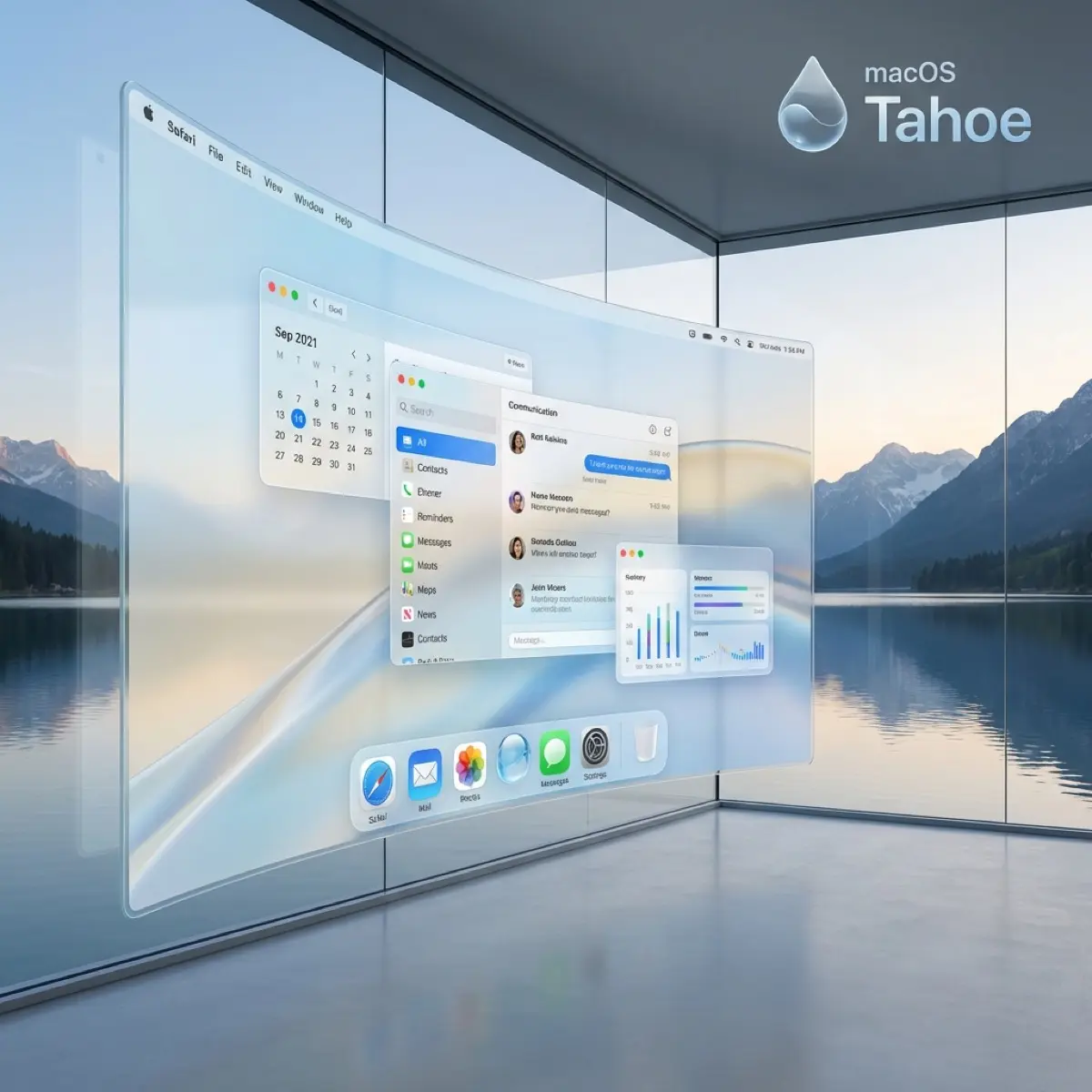
macOS Tahoe: 25 Tips, Tricks & Hidden Features
Discover 25 essential macOS 26 Tahoe tips and hidden features. Liquid Glass customization, Apple Intelligence tricks, and productivity hacks explained.

Best AI PDF Summarizers (2026): Chat With Your Documents
The best AI tools for summarizing PDFs and long documents. Upload a 100-page report, get key insights in seconds. Free and paid options compared.