7 Best Webcams for Working From Home (I Tested Them)
The best webcams for working from home compared. From 4K options to budget picks under $70, I tested 7 webcams so you don't look terrible on your next call.
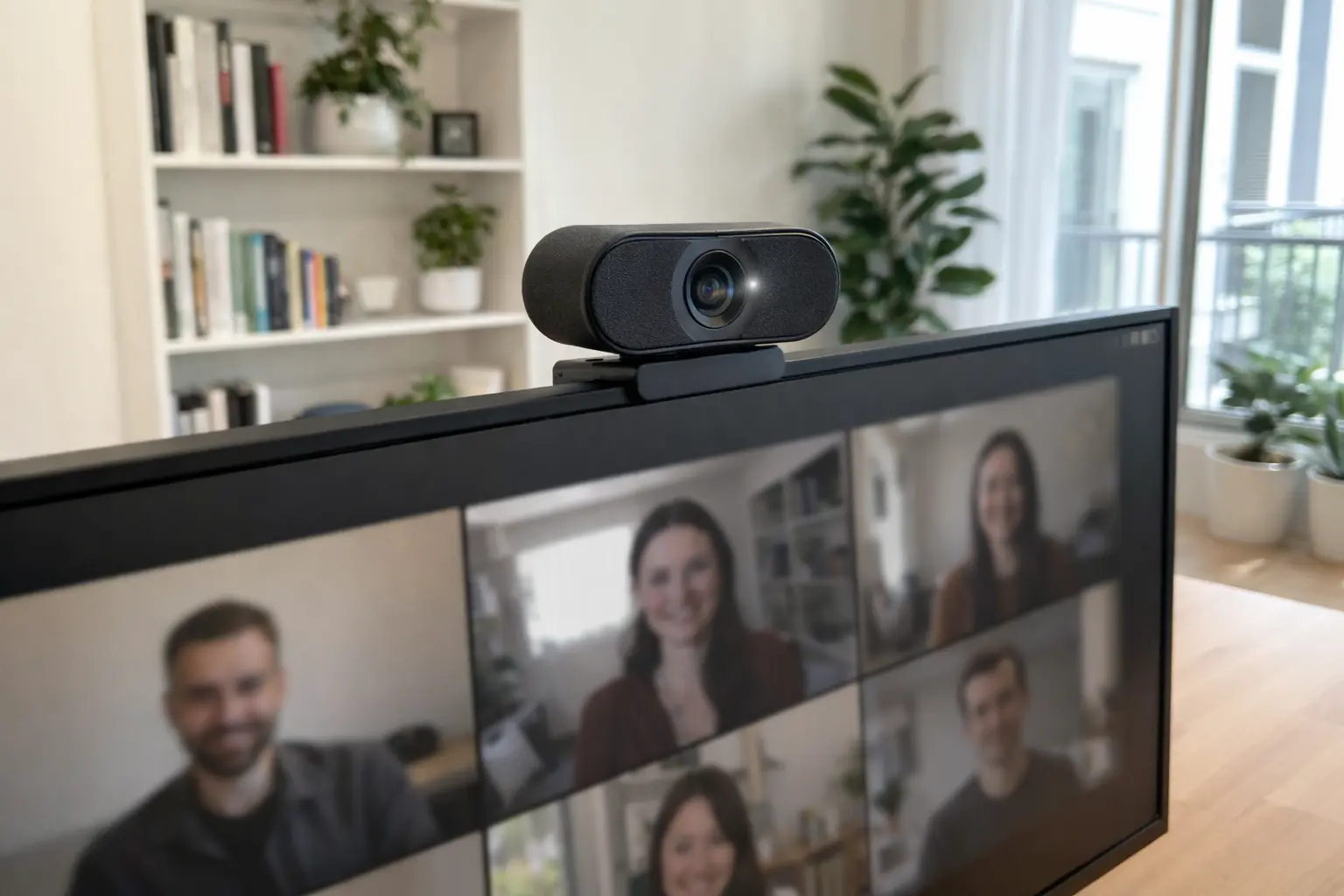
Your laptop webcam makes you look like you’re on a 2012 Skype call. The grainy 720p sensor, the unflattering nostril-cam angle, the way your face turns into a dark shadow the moment there’s a window behind you — we’ve all been there.
After spending most of my workdays on video calls (and the rest pretending to work), I finally decided to test a bunch of external webcams to figure out which ones actually make a difference. Some of these I’ve been using daily as part of my desk upgrade project, and the improvement over a built-in laptop camera is honestly embarrassing.
Here are the 7 best webcams for working from home in 2026 — from budget picks under $70 to AI-powered 4K monsters.
Quick Comparison: Best Webcams for Working From Home 2026
| Webcam | Price | Resolution | Best For | Key Feature |
|---|---|---|---|---|
| Logitech Brio 4K | ~$170 | 4K/30fps | Best overall | Windows Hello, HDR, adjustable FOV |
| Logitech C920s | ~$70 | 1080p/30fps | Best budget classic | Reliable, dual mics, privacy shutter |
| Elgato Facecam MK.2 | ~$150 | 1080p/60fps | Best for streamers | Sony sensor, uncompressed video, no mic |
| Insta360 Link 2 | ~$199 | 4K/30fps | Best AI tracking | 2-axis gimbal, gesture control, PDAF |
| Razer Kiyo Pro Ultra | ~$300 | 4K/30fps | Best low light | Largest sensor (1/1.2”), f/1.7 lens |
| Anker PowerConf C200 | ~$70 | 2K/30fps | Best ultra-budget | 2K for under $80, adjustable FOV |
| Opal Tadpole | ~$99 | 1080p/30fps | Best portable | Tiny clip-on, 48MP Sony sensor, USB-C |
Prices fluctuate — check current listings before buying.
The 7 Best Webcams for Working From Home (Detailed Reviews)
1. Logitech Brio 4K — Best Overall
Price: ~$170
The Logitech Brio 4K has been the gold standard webcam for remote workers for a reason: it does everything well without any weird quirks. The 4K resolution is overkill for Zoom calls (which cap at 1080p anyway), but it means the image is sharp even after cropping, and HDR keeps you looking good whether you’re in a dimly lit home office or sitting in front of a bright window.
What sets the Brio apart for office use is Windows Hello support via its built-in infrared sensor. You can log into your PC with face recognition — no password typing required. It’s a small thing, but it adds up when you unlock your computer 15 times a day.
The adjustable field of view (65, 78, or 90 degrees) is genuinely useful too. Narrow it down for a tight headshot on calls, or go wide when you need to show your whole desk setup in a presentation.
Key Specs:
| Spec | Logitech Brio 4K |
|---|---|
| Resolution | 4K/30fps, 1080p/60fps, 720p/90fps |
| Sensor | HDR-enabled |
| FOV | 65/78/90 degrees (adjustable) |
| Autofocus | Yes (infrared-based) |
| Microphone | Dual omnidirectional, noise-canceling |
| Mount | Monitor clip + tripod thread |
| Connection | USB-A |
| Extras | Windows Hello, RightLight 3, privacy shutter |
What I Like:
- Windows Hello face recognition is surprisingly convenient
- Adjustable FOV lets you frame yourself perfectly
- RightLight 3 HDR handles mixed lighting well
- 5x digital zoom in 4K stays sharp
- Certified for Teams, Zoom, and Google Meet
- Privacy shutter included
What Could Be Better:
- USB-A only (no USB-C native)
- Logitech’s companion software is bloated
- 4K is wasted on most video call platforms
- The clip mount feels a bit plasticky for the price
Best For: Remote workers who want a reliable, do-everything webcam with Windows Hello support. This is the safe choice.
2. Logitech C920s — Best Budget Classic
Price: ~$70
There’s a reason the C920s has been the default webcam recommendation for over a decade. It’s not exciting, it’s not flashy, and it doesn’t have AI anything — but it delivers solid 1080p video with decent color accuracy, and it just works. Every time.
The dual stereo microphones are surprisingly passable for calls. You won’t sound like a podcast host, but you’ll sound clear enough that nobody will ask “can you repeat that?” every five minutes. The 78-degree field of view is sensible — wide enough to frame your head and shoulders without showing your messy room.
The privacy shutter is a nice touch. Slide it closed and the lens is physically covered. No need to trust software or stick a Post-it over the camera.
Key Specs:
| Spec | Logitech C920s |
|---|---|
| Resolution | 1080p/30fps, 720p/30fps |
| Sensor | Full HD glass lens |
| FOV | 78 degrees |
| Autofocus | Yes |
| Microphone | Dual stereo, noise-reducing |
| Mount | Monitor clip + tripod thread |
| Connection | USB-A (5 ft cable) |
| Extras | Privacy shutter |
What I Like:
- Under $70 and genuinely reliable
- Dual mics are good enough for most calls
- Privacy shutter built in
- Plug-and-play, no software needed
- Compatible with literally everything
What Could Be Better:
- 30fps only — no 60fps option
- No HDR or advanced light correction
- Struggles in low light (grainy and noisy)
- Plastic build quality is what you’d expect at this price
Best For: Anyone who wants a solid webcam for video calls without overthinking it. If you just need to look better than your laptop camera, this is the answer.
3. Elgato Facecam MK.2 — Best for Streamers and Content Creators
Price: ~$150
The Elgato Facecam MK.2 is the webcam for people who care about image quality more than convenience features. It delivers uncompressed 1080p at a full 60fps, which means your video looks smooth and artifact-free — something you’ll notice immediately if you’re streaming or recording content.
The Sony STARVIS CMOS sensor (1/2.5 inch) punches above its weight class in terms of detail and color accuracy, and the fixed-focus f/2.4 prime lens keeps everything in your focus range (30-120cm) consistently sharp. HDR support is new to the MK.2 and makes a noticeable difference in mixed lighting.
Here’s the deliberate catch: there’s no built-in microphone. Elgato’s reasoning is “webcam mics stink” — and honestly, they’re right. If you’re serious enough about your setup to buy this webcam, you probably already have a dedicated mic (or should get one).
Key Specs:
| Spec | Elgato Facecam MK.2 |
|---|---|
| Resolution | 1080p/60fps, 720p/120fps |
| Sensor | Sony STARVIS CMOS, 1/2.5” |
| FOV | 84 degrees |
| Focus | Fixed focus (f/2.4, 30-120cm range) |
| Microphone | None (by design) |
| Mount | Monitor clip + 1/4” tripod thread |
| Connection | USB-C |
| Extras | Privacy shutter, onboard memory, 4x digital zoom, HDR |
What I Like:
- Uncompressed 1080p/60fps looks noticeably smoother
- Sony sensor delivers great color and detail
- USB-C connection (finally)
- Onboard memory saves your settings to the camera itself
- Privacy shutter built into the redesigned body
- Camera Hub software gives deep control over exposure, white balance, zoom
What Could Be Better:
- No microphone at all — need an external mic for calls
- Fixed focus means no autofocus tracking
- 1080p max (no 4K option)
- Overkill for basic video calls
Best For: Streamers, content creators, and anyone who already has a dedicated microphone and wants the best possible 1080p image quality.
4. Insta360 Link 2 — Best AI Tracking
Price: ~$199
The Insta360 Link 2 is the most impressive webcam on this list from a technology standpoint. It has a physical 2-axis gimbal that pans and tilts to follow you around the room — not just digital cropping like other “AI tracking” cameras, but actual mechanical movement. Walk to your whiteboard, pace around your office, stand up at your standing desk — it follows you.
The 1/2-inch sensor with f/1.8 aperture captures solid 4K video, and Phase Detection Autofocus (PDAF) means the camera locks onto your face fast. Gesture control lets you trigger features with hand signals — hold up a palm to pause tracking, draw a “V” to zoom out for a group view.
You can also set tracking boundaries so the camera won’t follow you past a certain point (useful if there’s something behind you that you don’t want on camera). It’s a bit like having a dedicated camera operator for your video calls.
Key Specs:
| Spec | Insta360 Link 2 |
|---|---|
| Resolution | 4K/30fps, 1080p/60fps |
| Sensor | 1/2” sensor, f/1.8 |
| FOV | 79.5 degrees |
| Autofocus | Phase Detection (PDAF) |
| Microphone | AI noise-canceling mic |
| Mount | 2-axis gimbal + desk stand |
| Connection | USB-C |
| Extras | AI tracking, gesture control, whiteboard mode, overhead mode |
What I Like:
- Physical gimbal tracking is genuinely impressive
- 1/2” sensor produces clean, detailed 4K video
- PDAF locks onto faces instantly
- Gesture control works surprisingly well
- Overhead mode for showing documents or desk work
- AI noise canceling on the built-in mic is decent
What Could Be Better:
- The gimbal motor makes a faint whirring noise when tracking
- ~$199 is a lot for a webcam
- The software has a learning curve
- Tracking can occasionally lose you in fast movements
Best For: Presenters, teachers, anyone who moves around during calls, and standing desk users. If your job involves demos, whiteboard sessions, or walking while talking, this is the one.
5. Razer Kiyo Pro Ultra — Best Low Light Performance
Price: ~$300
The Razer Kiyo Pro Ultra is the most expensive webcam on this list, and for good reason: it has the largest sensor of any consumer webcam — a 1/1.2-inch Sony STARVIS 2 sensor paired with an f/1.7 lens. In plain English, it captures more light than anything else here, which means your video looks clean and natural even in a dim room.
The result is genuinely DSLR-like background blur at close range, without any software-based “portrait mode” trickery. Your face stays sharp while your background goes slightly soft. It’s subtle but looks noticeably more professional than the flat, everything-in-focus look of most webcams.
4K/30fps and 1080p/60fps modes cover all bases, and the AI-powered face tracking, auto-exposure, and autofocus keep you looking good without manual adjustments.
Key Specs:
| Spec | Razer Kiyo Pro Ultra |
|---|---|
| Resolution | 4K/30fps, 1440p/30fps, 1080p/60fps |
| Sensor | Sony STARVIS 2, 1/1.2” |
| FOV | 72-82 degrees (varies by resolution) |
| Autofocus | AI-powered |
| Microphone | Built-in omnidirectional |
| Mount | Monitor clip + tripod thread |
| Connection | USB-C |
| Extras | Physical shutter, natural background blur, HDR |
What I Like:
- Largest sensor on any consumer webcam — exceptional low light
- Natural background blur without software processing
- 4K video quality is genuinely DSLR-like
- Built-in privacy shutter
- USB-C connection
What Could Be Better:
- ~$300 is hard to justify for video calls
- The omnidirectional mic picks up everything (fans, keyboard, etc.)
- Razer Synapse software is hit-or-miss
- It’s physically large — dominates the top of your monitor
- FOV varies by resolution (82 degrees at 1080p, narrower at 4K)
Best For: Content creators, streamers, and remote workers in dimly lit environments who want the absolute best image quality. Also great if you hate software background blur and want the real thing.
6. Anker PowerConf C200 — Best Ultra-Budget
Price: ~$60
The Anker PowerConf C200 is proof that you don’t need to spend $200+ to look decent on video calls. At around $60, you get 2K resolution (2560x1440 at 30fps), which is sharper than the 1080p webcams in this price range. The adjustable field of view (65, 78, or 95 degrees) is a feature you usually only see on webcams costing twice as much.
The dual AI noise-canceling microphones are surprisingly effective at filtering out background noise. They won’t replace a dedicated mic, but they handle the ambient sounds of a home office (AC, keyboard clicks, the neighbor’s dog) better than you’d expect.
Low-light performance is the weak point, as it is with all budget webcams. The adaptive light sensor helps, but if your room isn’t well-lit, you’ll get noticeable grain. Still — for the price, this webcam punches way above its weight.
Key Specs:
| Spec | Anker PowerConf C200 |
|---|---|
| Resolution | 2K (2560x1440)/30fps |
| Sensor | 5MP |
| FOV | 65/78/95 degrees (adjustable) |
| Autofocus | Yes |
| Microphone | Dual stereo, AI noise-canceling |
| Mount | Monitor clip + tripod thread |
| Connection | USB-A |
| Extras | Privacy cover, adaptive light correction |
What I Like:
- 2K resolution at a budget price point
- Adjustable FOV is rare at this price
- Dual AI noise-canceling mics work well
- Built-in privacy cover
- Simple plug-and-play setup
What Could Be Better:
- Low-light performance is mediocre
- USB-A only
- 30fps cap — no 60fps option
- Color accuracy isn’t as good as Logitech or Elgato
Best For: Budget-conscious remote workers who want a noticeable upgrade from their laptop camera without spending more than ~$70. Best value on this list.
7. Opal Tadpole — Best Portable Webcam
Price: ~$99
The Opal Tadpole is the most unusual webcam on this list. It’s tiny — about 3.5 x 4.5 cm, weighing under 50 grams — and clips directly onto your laptop screen like a little badge. The idea is simple: give laptop users a webcam that matches the quality of a desktop setup without requiring a monitor mount or desk space.
Inside that tiny body is a 48MP Sony IMX582 Exmor RS sensor with an f/1.8 six-element glass lens. The 4K sensor pixel-bins down to 1080p output, which means each pixel gets more light data — resulting in cleaner, more detailed video than a native 1080p sensor would produce.
The directional VisiMic microphone uses AI to focus on your voice and filter out background noise. It’s not a studio mic, but it’s better than most webcam microphones, partly because the directional design rejects sound from the sides and behind the camera.
Key Specs:
| Spec | Opal Tadpole |
|---|---|
| Resolution | 1080p/30fps (from 48MP 4K sensor) |
| Sensor | Sony IMX582 Exmor RS, 48MP |
| FOV | ~70 degrees |
| Autofocus | Phase Detection (PDAF) |
| Microphone | Directional VisiMic, AI noise-canceling |
| Mount | Clip-on (for laptop screens) |
| Connection | USB-C (with capacitive mute button on cable) |
| Extras | Ultra-portable, woven cable, f/1.8 aperture |
What I Like:
- Incredibly small and portable — perfect for hybrid workers
- 48MP sensor pixel-binning produces surprisingly clean 1080p
- f/1.8 aperture handles varied lighting well
- Directional mic is better than typical webcam mics
- USB-C with a mute button on the cable
- Beautiful industrial design
What Could Be Better:
- 1080p output only — no native 4K video output
- Designed for laptops, awkward on desktop monitors
- ~$99 is a lot for a 1080p camera
- Limited software features compared to Logitech or Elgato
- No privacy shutter
Best For: Hybrid workers who split time between home and office, frequent travelers, and MacBook users who want a significant camera upgrade in a tiny package.
Do You Even Need an External Webcam?
Honest answer: it depends on how much time you spend on camera.
Your laptop camera is probably fine if:
- You’re on video calls less than an hour a day
- Your room has good natural lighting
- You’re usually on mute with camera off anyway
- You don’t present or lead meetings often
An external webcam is worth it if:
- You’re on camera for 2+ hours daily
- You lead meetings, present, or do client-facing calls
- Your room has poor or mixed lighting (overhead fluorescents, backlighting from windows)
- You use a standing desk (laptop cameras look up your nose when the screen is at standing height)
- You want to look professional without thinking about it
The biggest difference isn’t even resolution — it’s the sensor size and light handling. A dedicated webcam with a proper sensor produces a cleaner, more natural-looking image, especially in imperfect lighting. And since most home offices have imperfect lighting, that’s where the upgrade really shows.
If you do upgrade, pair it with a good monitor that you can mount the webcam on top of — the elevated camera angle is instantly more flattering than a laptop screen angle.
How to Choose a Webcam: What Actually Matters
Resolution: 1080p Is the Sweet Spot
Don’t get seduced by 4K marketing. Most video conferencing platforms compress your video to 720p or 1080p regardless. A solid 1080p/30fps webcam is all most remote workers need. 4K only matters if you record content, stream, or want headroom for digital zoom/crop.
Frame Rate: 30fps vs 60fps
For video calls, 30fps is standard and perfectly smooth. 60fps makes a visible difference for streaming and content creation — movement looks more natural and the video feels “alive.” If you’re only doing Zoom calls, don’t pay extra for 60fps.
Field of View: Narrower Is Usually Better
Most people think wider FOV = better, but for video calls, a 70-80 degree field of view frames your face nicely without showing too much of your room. Ultra-wide (90+ degrees) is great for group calls or showing your desk, but solo callers look small and distant. Adjustable FOV (like the Brio or Anker C200) gives you the best of both worlds.
Low Light Performance: The Sensor Matters Most
If your office lighting is mediocre, prioritize sensor size and aperture over resolution. A 1/2-inch sensor at 1080p will look dramatically better in low light than a tiny sensor at 4K. Webcams with f/1.7 or f/1.8 apertures let in more light, reducing grain and noise. HDR also helps balance bright backgrounds with darker foregrounds.
Microphone: Built-in vs External
Built-in webcam microphones are convenient but rarely great. They’ll pick up keyboard sounds, room echo, and ambient noise. For casual calls, they’re fine. For client presentations or frequent meetings, consider pairing your webcam with a dedicated mic or headset — or check out AI meeting assistants that can help with transcription and noise suppression.
Mount Type: Check Your Setup
Most webcams use a monitor clip with a tripod thread for flexibility. If you use a laptop without an external monitor, check whether the webcam fits your screen thickness. The Opal Tadpole is specifically designed for laptop screens, while most others work best on a monitor bezel.
Final Recommendations by Use Case
“I just want to look better on Zoom calls” Get the Logitech C920s (~$70). It’s been the reliable standard for years, and at under $70, it’s hard to argue with.
“I want the best all-around webcam for remote work” The Logitech Brio 4K (~$170) covers everything — 4K for future-proofing, HDR for tricky lighting, Windows Hello for convenience, and adjustable FOV. It’s the safe bet.
“I present, teach, or move around during calls” The Insta360 Link 2 (~$199) with its physical gimbal and AI tracking is built for this. Whiteboard mode and overhead mode are genuine productivity features, not gimmicks.
“I need the best image quality, period” The Razer Kiyo Pro Ultra (~$300) has the largest sensor and produces genuinely DSLR-like video with natural background blur. Overkill for calls — perfect for content creation.
“I stream or create content” The Elgato Facecam MK.2 (~$150) gives you uncompressed 1080p/60fps with a Sony sensor and deep software control. Just bring your own microphone.
“I need something portable for my laptop” The Opal Tadpole (~$99) clips onto your laptop screen, weighs nothing, and produces surprisingly good video from its 48MP Sony sensor.
“I want the cheapest upgrade that actually works” The Anker PowerConf C200 (~$60) gives you 2K resolution and adjustable FOV for less than a nice lunch for two. Best bang for your buck.
Wrapping Up
A good webcam is one of those upgrades that pays for itself in how you come across on calls. You don’t need to spend $300 — even a ~$60-70 external webcam is a massive step up from what’s hiding in your laptop bezel.
If you’re building out a proper home office, a webcam pairs nicely with a solid desk setup and a quality monitor. And if you want to make the most of all those video calls, AI meeting assistants can handle the note-taking while you focus on actually participating.
Now stop reading webcam reviews and get back to looking busy.
Related Articles
![7 Best Monitors for Working From Home in 2026 [Tested]](/images/best-monitors-working-from-home.webp)
7 Best Monitors for Working From Home in 2026 [Tested]
I compared 27-inch 4K and ultrawide monitors for WFH setups. Here are the 7 best picks for every budget, from $240 to $1,020, with USB-C and hub options.
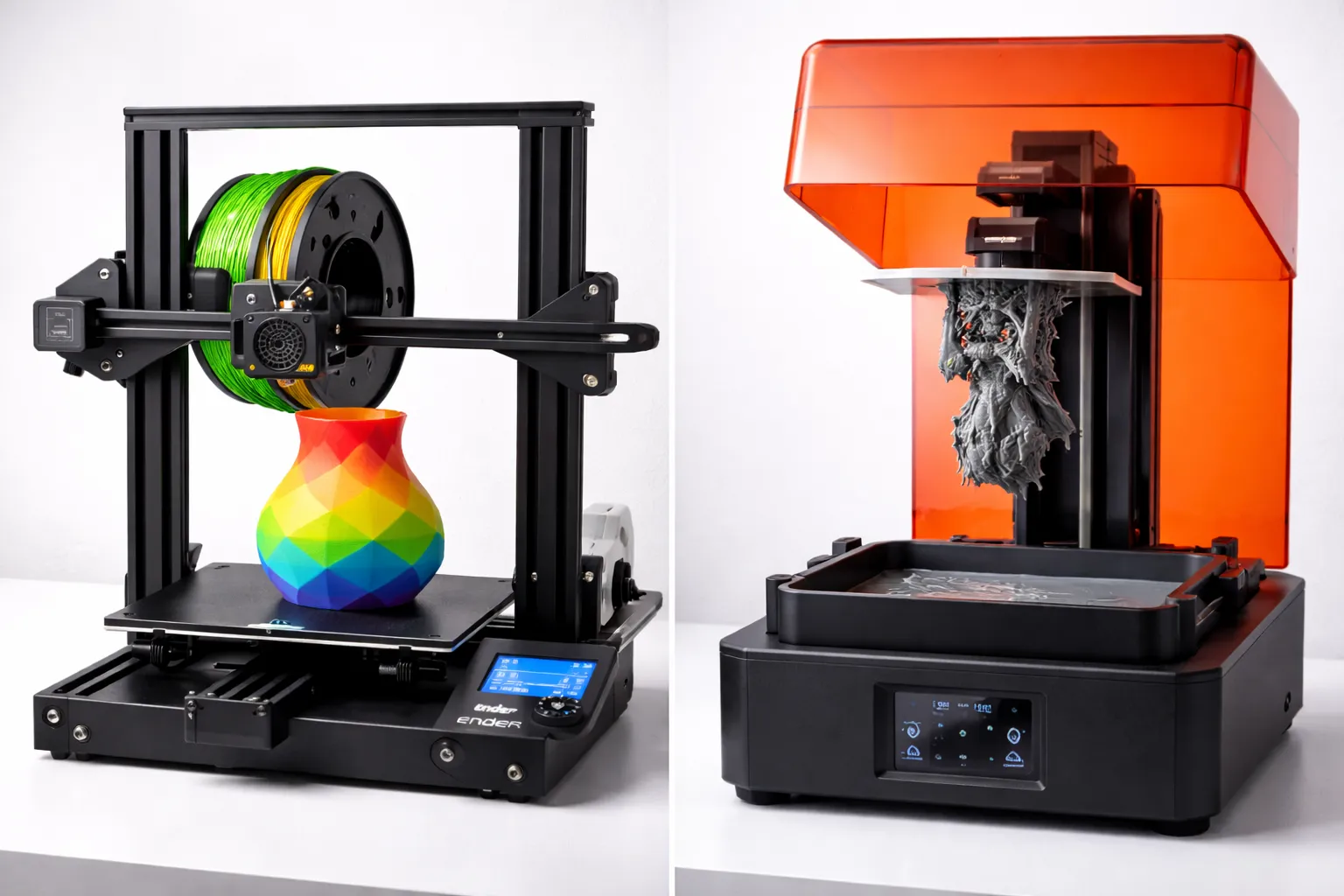
FDM vs Resin 3D Printing: Which One Should You Choose?
FDM vs resin 3D printing — we compare cost, print quality, safety, and ease of use with real examples to help you pick the right technology for your project.
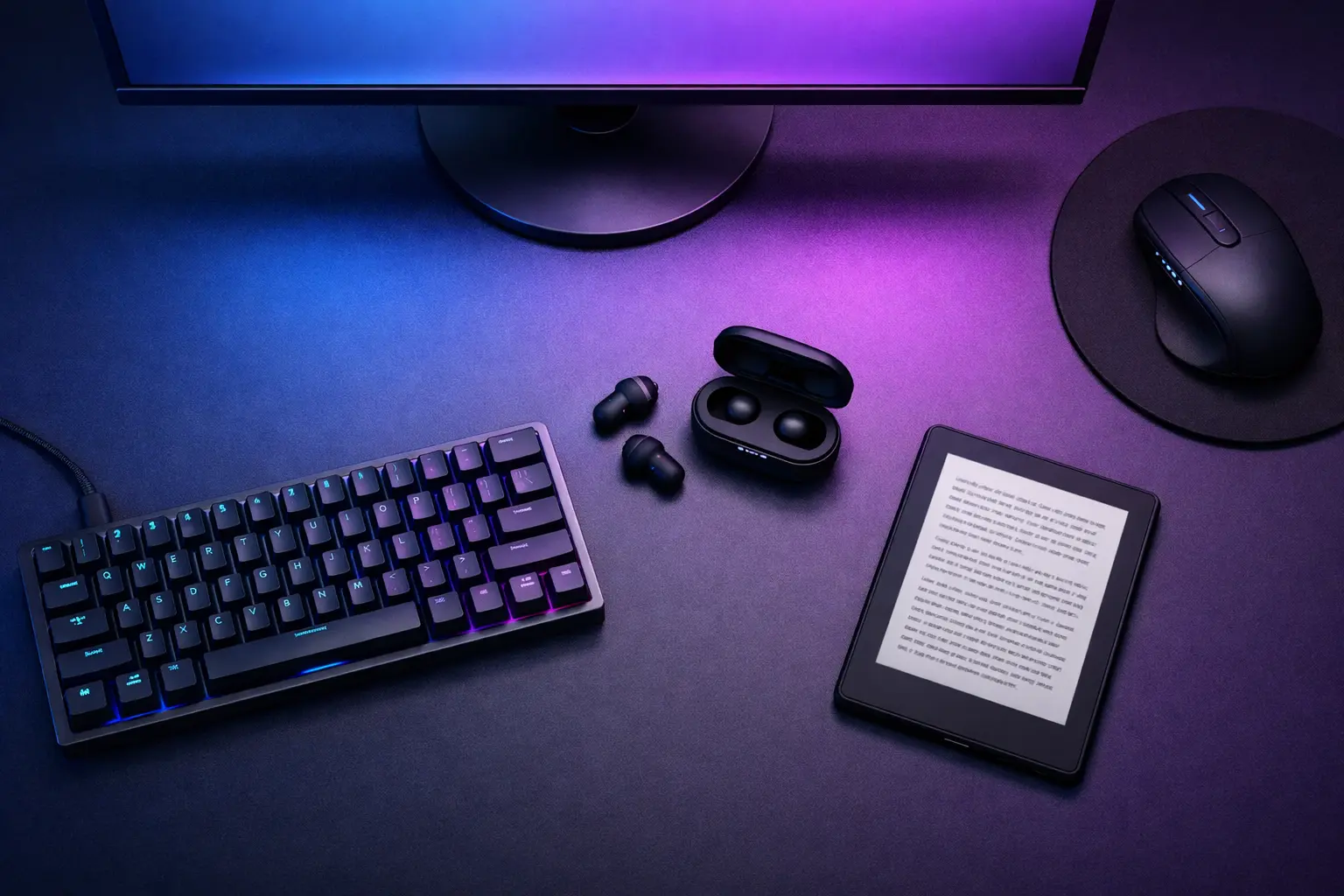
The Ultimate Desk Upgrade Guide: Build Your Perfect Home Office (2026)
Upgrade your home office desk setup. Standing desks, ergonomic chairs, monitor arms, and cable management for a productive workspace.