
The Ultimate Desk Upgrade Guide: Build Your Perfect Home Office (2026)
Upgrade your home office desk setup. Standing desks, ergonomic chairs, monitor arms, and cable management for a productive workspace.

Your desk setup affects your health, productivity, and mood more than almost any other purchase. Yet most people use whatever desk came with their apartment and a $50 chair that destroys their back.
This guide covers everything you need to build a workspace that’s comfortable for 8+ hour days, looks professional on video calls, and doesn’t require a second mortgage.
How to Use This Guide
This is a hub page—a central starting point for your desk upgrade journey.
If you’re starting from scratch: Read this page for the big picture, then dive into the detailed guides for each component.
If you know what you need: Jump directly to the relevant guide:
- Best Standing Desks — Desk recommendations
- Best Office Chairs — Chair recommendations
- Best Monitor Arms — Monitor positioning
- Cable Management Tips — Hide the mess
If you’re on a budget: Check the Budget Setup section below, or jump straight to our home office setup budget guide with complete shopping lists at $500, $1,000, and $2,000.
The Four Pillars of a Great Desk Setup
| Component | Why It Matters | Budget | Good | Premium |
|---|---|---|---|---|
| Chair | Prevents back pain, supports posture | $400 | $500 | $1,400+ |
| Desk | Work surface + standing option | $300 | $550 | $700+ |
| Monitor Position | Reduces neck strain | $40 | $110 | $180+ |
| Cable Management | Clean look, organization | $30 | $50 | $80+ |
Total range: $770 (budget) to $2,360+ (premium)
Part 1: The Desk
Your desk is the foundation. In 2026, standing desks have become affordable enough that there’s little reason to buy a fixed-height desk.
Why Standing Desks?
| Benefit | How It Helps |
|---|---|
| Movement | Alternate sitting/standing reduces stiffness |
| Energy | Standing increases alertness |
| Back health | Reduces pressure on spine |
| Flexibility | Adjust to perfect height for any task |
The key: You don’t stand all day. You alternate. Most people stand 2-4 hours total, in 30-60 minute intervals.
Standing Desk Recommendations
| Desk | Price | Best For |
|---|---|---|
| FlexiSpot E7 Pro | ~$500 | Best overall — stability + value |
| Uplift V2 | ~$599+ | Best customization — 20+ desktop materials |
| Branch Duo | ~$549 | Best budget — includes storage shelf |
What to look for:
- Dual motors (not single motor)
- 300+ lb weight capacity
- 10+ year frame warranty
- Height range that fits you (25” to 50”+)
Deep dive: Best Standing Desks Under $600
Part 2: The Chair
Your chair matters more than your desk. You can work at a mediocre desk, but a bad chair will wreck your back.
What Makes a Good Office Chair?
| Feature | Why It Matters |
|---|---|
| Adjustable lumbar support | Supports your lower back curve |
| Seat height adjustment | Feet flat on floor, thighs parallel |
| Armrest adjustment | Prevents shoulder strain |
| Seat depth adjustment | Fits different leg lengths |
| Quality build | Lasts 7-15 years |
Red flag: If it has a fixed lumbar pillow instead of adjustable support, skip it.
Office Chair Recommendations
| Chair | Price | Best For |
|---|---|---|
| Branch Ergonomic Chair Pro | ~$500 | Best value — 14 adjustment points |
| Herman Miller Aeron | ~$1,400+ | Best premium — 12-year warranty, lasts forever |
| Secretlab Titan Evo | ~$550+ | Best for gaming + work |
| HON Ignition 2.0 | ~$400 | Best budget — solid ergonomics |
Upgrade order: If budget is tight, get the chair first. Add the desk later.
Deep dive: Best Office Chairs for Long Hours
Part 3: Monitor Position
Most people put their monitor on its included stand. This is almost always wrong—the screen ends up too low, causing neck strain.
The Problem with Monitor Stands
| Issue | Why It’s Bad |
|---|---|
| Too low | Forces you to look down, strains neck |
| Fixed position | Can’t adjust for sitting vs standing |
| Wastes desk space | Stand footprint takes valuable real estate |
The Solution: Monitor Arm
A monitor arm lets you:
- Position screen at perfect eye level
- Push monitor back for more desk space
- Easily adjust between sitting and standing
- Swivel screen for collaboration or reading
Monitor Arm Recommendations
| Arm | Price | Best For |
|---|---|---|
| Ergotron LX | ~$179 | Best quality — 10-year warranty |
| Amazon Basics Premium | ~$110 | Best mid-range |
| VIVO Premium Aluminum | ~$40 | Best budget — handles most monitors |
For dual monitors: VIVO Dual ($45) or Ergotron LX Dual ($350)
Deep dive: Best Monitor Arms
Part 4: Cable Management
Cable management is the finishing touch that makes your setup look professional instead of chaotic.
Why Bother?
| Benefit | Impact |
|---|---|
| Looks clean | Professional video call background |
| Easier cleaning | No cables on floor |
| Less stress | Organized space = organized mind |
| Safer | No trip hazards |
Essential Cable Management Products
| Product | Price | What It Does |
|---|---|---|
| Under-desk cable tray | ~$20-35 | Hides power strip + excess cables |
| Velcro ties (50-pack) | ~$10 | Bundles cables together |
| Adhesive cable clips | ~$10 | Routes cables along surfaces |
| J-channel raceway | ~$15 | Hides cables on desk underside |
Total investment: ~$50 for a dramatically cleaner setup
Deep dive: Cable Management Tips
Complete Setup Examples
Budget Setup (~$1,000)
| Component | Product | Price |
|---|---|---|
| Desk | Branch Duo | $549 |
| Chair | HON Ignition 2.0 | $400 |
| Monitor Arm | VIVO Premium | $40 |
| Cable Management | Starter kit | $45 |
| Total | ~$1,034 |
What you get: Standing desk, decent ergonomics, clean look. Solid foundation to upgrade from.
Mid-Range Setup (~$1,500)
| Component | Product | Price |
|---|---|---|
| Desk | FlexiSpot E7 Pro | $500 |
| Chair | Branch Ergonomic Pro | $500 |
| Monitor Arm | Amazon Basics Premium | $110 |
| Cable Management | Full kit | $60 |
| Total | ~$1,170 |
What you get: Premium-feeling setup without premium prices. Excellent chair, stable desk, smooth monitor arm.
Premium Setup (~$2,500)
| Component | Product | Price |
|---|---|---|
| Desk | Uplift V2 (walnut top) | $900 |
| Chair | Herman Miller Aeron | $1,400 |
| Monitor Arm | Ergotron LX | $179 |
| Cable Management | Premium kit | $80 |
| Total | ~$2,559 |
What you get: Buy-it-for-life quality. 12-15 year warranties. The setup you’ll still love in 2036.
Upgrade Priority Order
If you can’t buy everything at once, upgrade in this order:
1. Chair (First Priority)
Why: Directly affects your health. A bad chair causes back pain that compounds over time. You can work at any desk, but you can’t work with chronic back pain.
Budget: At least $400. Don’t go cheaper.
2. Monitor Position (Second Priority)
Why: Neck strain from looking down is almost as bad as back pain. A $40 monitor arm fixes this immediately.
Budget: $40-180 depending on quality preference.
3. Desk (Third Priority)
Why: A standing desk adds healthy movement, but it’s less critical than chair and monitor. Your current desk works fine while you save up.
Budget: $500-700 for a good standing desk.
4. Cable Management (Last Priority)
Why: Purely cosmetic. Nice to have, not need to have. Do this when everything else is sorted.
Budget: $50-80 covers everything.
Ergonomic Setup Checklist
Once you have your gear, set it up correctly:
Chair Setup
- Feet flat on floor (or footrest)
- Thighs parallel to floor
- Lumbar support in lower back curve
- Armrests at elbow height
- Back fully supported
Monitor Setup
- Top of screen at or slightly below eye level
- Screen at arm’s length (~20-26 inches)
- Slight backward tilt (10-20°)
- Centered in front of you
Desk Setup
- Keyboard at elbow height when typing (upgrading? See our mechanical keyboard guide)
- Mouse at same level as keyboard
- Frequently used items within arm’s reach
- Standing height: elbows at 90° while typing
Habits
- Alternate sitting/standing every 30-60 minutes
- Take short breaks every hour
- Look away from screen every 20 minutes (20-20-20 rule)
Common Mistakes to Avoid
1. Buying the Desk First
The chair affects your health more. A great desk with a terrible chair is worse than a basic desk with a great chair.
2. Skipping the Monitor Arm
“My monitor stand is fine” — it’s almost certainly too low. Spend $40 on a basic arm and your neck will thank you.
3. Cheaping Out on the Chair
A $100 chair that lasts 2 years and hurts your back costs more than a $500 chair that lasts 10 years and feels great.
4. Over-Buying on Day One
Start with the basics. You can always upgrade. Many people buy premium everything and realize they didn’t need it.
5. Ignoring Ergonomics
The best gear set up wrong is worse than average gear set up right. Spend 10 minutes adjusting everything properly.
All Home Office Guides
Desk & Chair:
- Best Standing Desks Under $600
- Best Office Chairs for Long Hours
Monitors & Display:
- Best Monitors for Working from Home
- Best Monitor Arms
- Best Monitor Light Bars
- Dual Monitor Setup Guide
Peripherals:
- Best USB-C Docking Stations
- Best Ergonomic Mice
- Best Webcams for Working from Home
- Best Noise-Canceling Headphones for the Office
- Best Mechanical Keyboards for Beginners
Desk Accessories:
- Best Desk Mats
- Best Laptop Stands
- Best Under-Desk Footrests
- Cable Management Tips
The Bottom Line
Building a great home office doesn’t require unlimited budget—it requires smart priorities.
The formula:
- Get a good chair (~$500)
- Get a monitor arm (~$40-180)
- Get a standing desk (~$500-600)
- Clean up cables (~$50)
Total: ~$1,100-1,400 for a setup that supports your health, looks professional, and lasts 10+ years.
Your next step: If you don’t have a good chair, start there. Read our office chair guide and pick one that fits your budget. Everything else can wait.
This guide is updated as new products release and prices change. Last updated: March 2026.
Questions not covered here? Let us know.
Related Articles
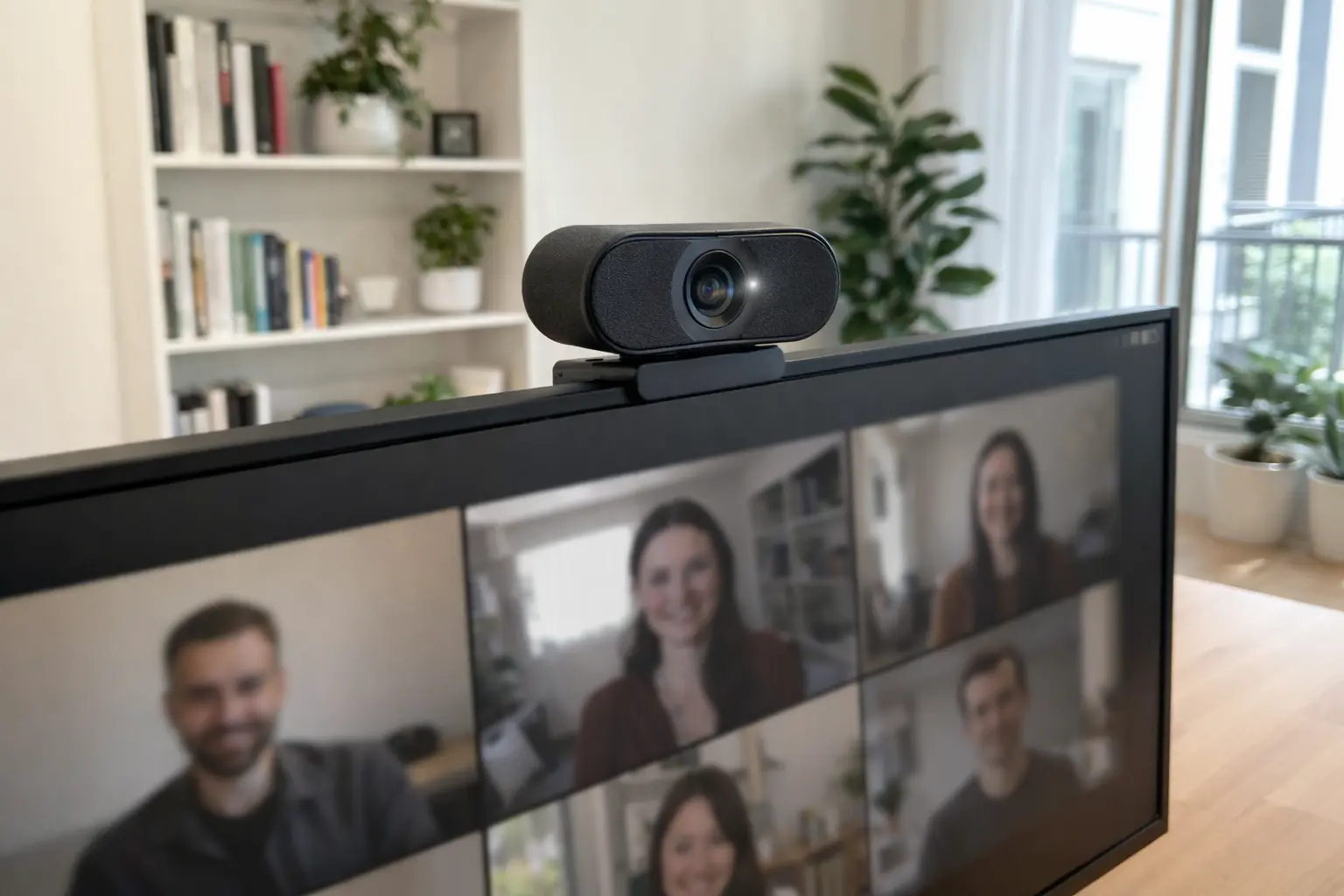
7 Best Webcams for Working From Home (I Tested Them)
The best webcams for working from home compared. From 4K options to budget picks under $70, I tested 7 webcams so you don't look terrible on your next call.
![7 Best Monitors for Working From Home in 2026 [Tested]](/images/best-monitors-working-from-home.webp)
7 Best Monitors for Working From Home in 2026 [Tested]
I compared 27-inch 4K and ultrawide monitors for WFH setups. Here are the 7 best picks for every budget, from $240 to $1,020, with USB-C and hub options.

Photography for Beginners: The Complete Guide (2026)
Your complete guide to photography—from choosing your first camera to taking better photos. Everything beginners need to start their photography journey.