
macOS Tahoe: 25 Tips, Tricks & Hidden Features
Discover 25 essential macOS 26 Tahoe tips and hidden features. Liquid Glass customization, Apple Intelligence tricks, and productivity hacks explained.
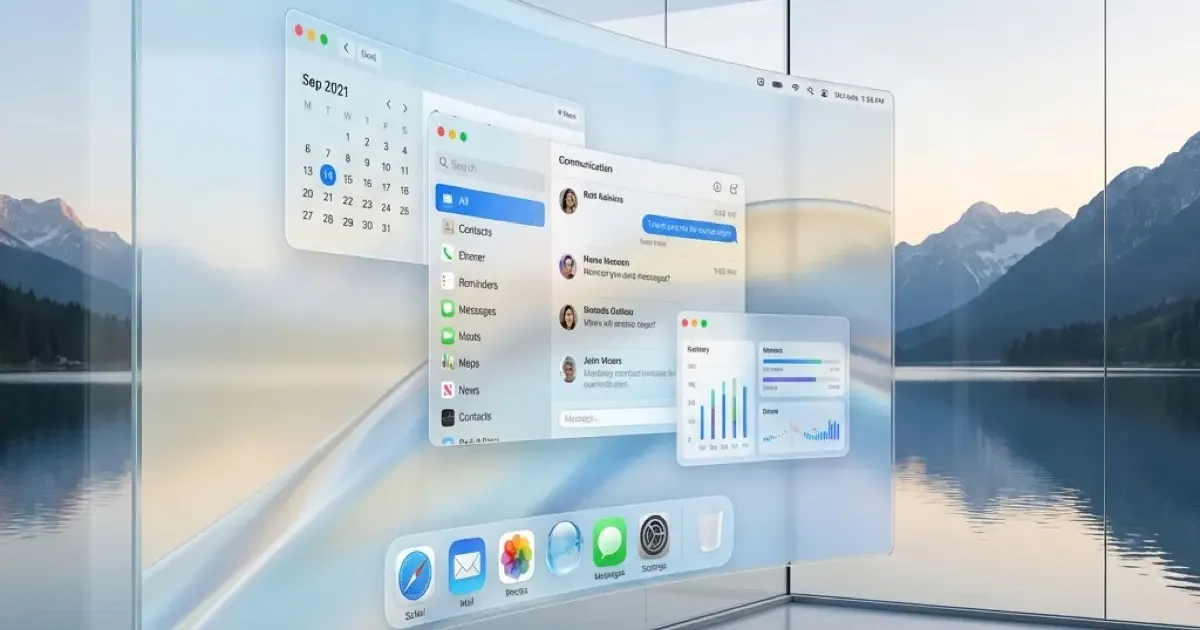
Just when we thought we’d settled into Sequoia, Apple dropped its most radical visual overhaul in years: macOS 26 Tahoe.
Named after the serene alpine lake, Tahoe brings a design language Apple calls “Liquid Glass.” It’s airy, translucent, and looks like it was plucked straight out of a sci-fi movie. But beyond the eye candy, there are serious productivity features and hidden tricks worth knowing.
Here are 25 tips and hidden features to master macOS Tahoe.
The Liquid Glass Visual Overhaul
1. Understand What Changed
Liquid Glass isn’t just a coat of paint. The entire interface now uses:
- Translucent materials — Windows show hints of what’s behind them
- Dynamic reflections — UI elements reflect light based on your wallpaper
- Depth layers — Active windows feel “closer” to you
- Continuous curves — Rounded corners everywhere, inspired by visionOS
The effect is stunning on Retina displays, but can be distracting if you’re not used to it.
2. Reduce Transparency (If It’s Too Much)
Not everyone loves the glass effect. If you find it distracting or your Mac feels sluggish:
System Settings > Accessibility > Display > Reduce Transparency
This makes windows more solid and opaque. It also improves performance on older Macs by reducing GPU load.
3. Customize the Theme Color
Tahoe’s Liquid Glass reflects your theme color more prominently than before. In Tahoe, “Accent Color” has been renamed to just “Color” in the redesigned Appearance settings:
System Settings > Appearance > Color
Try different colors with your wallpaper — some combinations look stunning with the new transparency effects. There’s also a separate Text highlight color option now, so you can make selected text a different shade from buttons and menus.
4. Use Dark Mode with Liquid Glass
The Liquid Glass effect looks completely different in Dark Mode. The translucency shows darker, moodier backgrounds through the windows.
System Settings > Appearance > Dark
Or use Auto to switch based on time of day.
5. Change Your Wallpaper Strategically
Your wallpaper now affects the entire look of the OS. Liquid Glass tints windows based on the colors behind them.
- Solid colors — Clean, consistent window tints
- Gradients — Windows change tint as you move them
- Dynamic wallpapers — The whole OS shifts throughout the day
Apple Intelligence & the Upcoming LLM Siri
6. Enable Apple Intelligence
Apple Intelligence powers many of Tahoe’s smartest features. Make sure it’s enabled:
System Settings > Apple Intelligence & Siri > Apple Intelligence
This requires an Apple Silicon Mac (M1 or later). Basic features like Writing Tools and notification summaries are available now. The much-anticipated LLM-powered Siri — with personal context, on-screen awareness, and the ability to take actions across apps — is expected to arrive in macOS 26.4 (spring 2026).
7. What LLM Siri Will Bring
When the full LLM Siri arrives, Apple has promised complex, context-aware requests like:
- “Find that PDF about marketing from last week and email it to Sarah”
- “What did John say in yesterday’s meeting notes?”
- “Remind me about this email tomorrow morning”
Siri will be able to reference files, emails, and conversations — not just web searches. For now, Siri handles basic requests and integrates with Apple Intelligence for summarization and writing tasks.
8. Type to Siri (The Better Way)
Don’t want to talk to your computer in the office? Type to Siri is much better now:
Double-press the Command key (or change the shortcut in System Settings > Apple Intelligence & Siri > Keyboard Shortcut)
A sleek Siri interface appears in the top-right corner of the screen. Type your request and press Enter. No more awkward voice commands at your desk.
9. Use Writing Tools for Summarization
Select any text, right-click, and choose Writing Tools (part of Apple Intelligence). From there you can:
- Summarize — Get a concise summary
- Key Points — Extract the most important takeaways
- List or Table — Reorganize the text into structured formats
Writing Tools work in most apps, including Mail, Notes, Pages, and many third-party apps.
10. Siri + Shortcuts Integration
Siri now works much better with Shortcuts. You can create complex automations and trigger them with natural language:
“Run my morning routine” → Opens apps, plays music, shows calendar, etc.
The New Phone App
11. Manage Calls from Your Mac
Tahoe introduces a dedicated Phone app (finally). No more digging for your iPhone when a call comes in.
Features:
- View and manage voicemail
- See recent call history
- Make and receive regular cellular calls (routed through your iPhone)
- Call Screening — for unknown numbers, Siri asks who’s calling and why, then shows a live transcription so you can decide whether to pick up
- Hold Assist — AI monitors hold music and alerts you when a human picks up
- Send calls to voicemail with a tap
12. Visual Voicemail on Mac
The Phone app includes visual voicemail. Play, delete, or transcribe voicemails directly on your Mac without touching your iPhone.
13. Quick Reply to Missed Calls
On your iPhone, you can send a quick text reply to missed calls directly from the notification. On Mac, missed call notifications appear in the Phone app, where you can call back or start a message.
iPhone Mirroring Improvements
14. Drag and Drop Between Mac and iPhone
If you haven’t tried it yet, iPhone Mirroring supports bi-directional drag and drop (added in macOS Sequoia 15.1). You can:
- Drag a photo from your Mac into an iPhone app
- Drag a file from your iPhone to your Mac desktop
- Works with almost any app on either device
In Tahoe, the mirroring experience feels smoother overall, with better performance and reduced latency.
15. Control iPhone with Keyboard
While mirroring, your Mac keyboard works in iPhone apps:
- Type in iPhone text fields
- Use keyboard shortcuts (Cmd+C, Cmd+V work)
- Arrow keys navigate some interfaces
16. iPhone Mirroring Is Wireless (Always Has Been)
A common misconception: iPhone Mirroring has been wireless since it launched in macOS Sequoia. Your iPhone and Mac just need Bluetooth and Wi-Fi turned on, signed into the same Apple ID. No cable required — your iPhone can be in another room.
Productivity Features
17. Window Tiling Gets Smart
Tahoe refines the window tiling introduced in Sequoia with smoother snap-to-edge behavior:
- Drag a window to the edge → See layout previews for halves and quarters
- The green zoom button shows all available tiling options
- Hover over a corner to snap into quarter-screen layouts
Keyboard shortcuts:
- Fn + Control + ←/→ — Tile left/right half
- Fn + Control + ↑/↓ — Tile top/bottom half
- Fn + Control + F — Fill the entire screen
- Fn + Control + C — Center the window
18. Focus Modes and Desktop Customization
Focus modes in Tahoe let you filter notifications, apps, and even customize which Home Screen pages appear. Combined with Focus Filters, you can show specific Safari Tab Groups, Mail accounts, or Messages conversations per Focus mode.
System Settings > Focus > [Your Focus] > Filters
Combining Focus modes with Stage Manager gets you close to automatic workspace switching.
19. Better Stage Manager
Stage Manager continues to improve in Tahoe:
- Independent stages per display for multi-monitor setups
- Visual refinements with the Liquid Glass aesthetic
- Toggle via Control Center > Stage Manager (or assign a keyboard shortcut in System Settings > Keyboard > Keyboard Shortcuts > Mission Control)
For full workspace management (saving/restoring window arrangements), you’ll still want a third-party tool like Moom or Rectangle Pro.
20. Smart Actions Across macOS
Tahoe combines Apple Intelligence with existing macOS features for a smoother workflow:
- Writing Tools — Select text in any app, right-click, and use Writing Tools to summarize, extract key points, or rewrite
- Remove Background — Right-click any image in Finder > Quick Actions (available since Ventura, still handy)
- Transcribe in Notes — Record audio in Notes and get an automatic transcript, then use Apple Intelligence to summarize it
- Translate — Works through Apple Intelligence in supported apps and via Writing Tools
Performance & System
21. Background App Management
Tahoe is more aggressive about managing background apps:
- Unused apps are suspended faster
- Less RAM used by background processes
- Better battery life on MacBooks
You can see what’s suspended in Activity Monitor > CPU > (sort by Energy Impact).
22. Optimized Charging Gets Smarter
For MacBooks, optimized charging now learns from multiple locations:
- Knows to charge fully before your commute
- Adapts to changing schedules
- Works even if you don’t have a consistent routine
Check status in System Settings > Battery > Battery Health.
23. Memory Pressure Improvements
Tahoe manages memory better, especially on 8GB Macs:
- More aggressive memory compression
- Better swap file management
- Apps resume faster from suspension
If you have an 8GB Mac that felt cramped in Sequoia, Tahoe may feel smoother.
Hidden Features & Easter Eggs
24. The Tahoe Screensaver
A gorgeous new screensaver shows aerial footage of Lake Tahoe with the Liquid Glass aesthetic:
System Settings > Wallpaper > Screen Saver…
Look for the Tahoe options in the list. They dynamically adjust based on time of day and match the new design language beautifully.
25. Terminal Gets a Glass Makeover
Even Terminal embraces Liquid Glass:
- New translucent background
- Updated default color schemes
- Better font rendering
To customize: Terminal > Settings > Profiles — explore the redesigned themes that align with the Liquid Glass aesthetic.
Compatibility Notes
Supported Macs
Apple Silicon (Full Support):
- MacBook Air (M1, 2020 and later)
- MacBook Pro (M1, 2020 and later)
- Mac mini (M1, 2020 and later)
- Mac Studio (All)
- Mac Pro (M2 Ultra, 2023)
- iMac (M1, 2021 and later)
Intel (Final Version — Limited Support):
- MacBook Pro (16-inch, 2019)
- MacBook Pro (13-inch, 2020, Four Thunderbolt 3 ports)
- iMac (Retina 5K, 27-inch, 2020)
- Mac Pro (2019)
What Intel Macs Don’t Get
- Apple Intelligence features (requires Neural Engine)
- Some Liquid Glass animations (simplified on Intel)
- Future feature updates (security updates only)
If you’re on Intel, this is a good time to consider upgrading — especially with Apple Silicon Macs now available refurbished at good prices.
Performance Tips for Tahoe
If Your Mac Feels Slow
- Reduce Transparency (Settings > Accessibility > Display)
- Reduce Motion (same location)
- Close unused apps (Tahoe is better at this, but still helps)
- Check Activity Monitor for runaway processes
- Restart — Tahoe has some memory leaks in early builds
For Best Battery Life
- Use Safari (still more efficient than Chrome)
- Enable Low Power Mode (menu bar battery icon)
- Let background apps suspend (don’t force-quit everything)
- Use Focus modes to limit notifications
The Bottom Line
macOS Tahoe is Apple’s most significant visual update since Big Sur, and the AI features through Apple Intelligence are genuinely useful. The Liquid Glass design takes some getting used to, but it’s gorgeous once you adapt.
Worth upgrading? Yes, especially on Apple Silicon Macs. Intel users should update for security but won’t get the full experience.
Best new features:
- Apple Intelligence (Writing Tools, notification summaries — with LLM Siri coming in macOS 26.4)
- The Phone app (finally!)
- Liquid Glass design overhaul
- Window tiling and Stage Manager improvements
Take a weekend to explore. There’s a lot here, and the hidden features are worth discovering.
Related Articles
- Best Free macOS Software — Essential apps for your Mac that won’t cost you anything
- Best AI Tools for Office Work — AI tools that actually boost your productivity
- Pearcleaner: The Best Free Mac App Uninstaller — Keep your Mac clean with this source-available tool
Related Articles
30 Best Free macOS Apps in 2026 (+ Homebrew Guide)
The 30 best free macOS apps for productivity, creativity, and system utilities — plus a complete Homebrew setup guide for beginners in 2026.
Pearcleaner: The Ultimate Homebrew and App Management Guide
Meet Pearcleaner: the free, source-available Mac app uninstaller with Homebrew integration. Clean leftover files, adopt apps, and manage casks in one GUI.
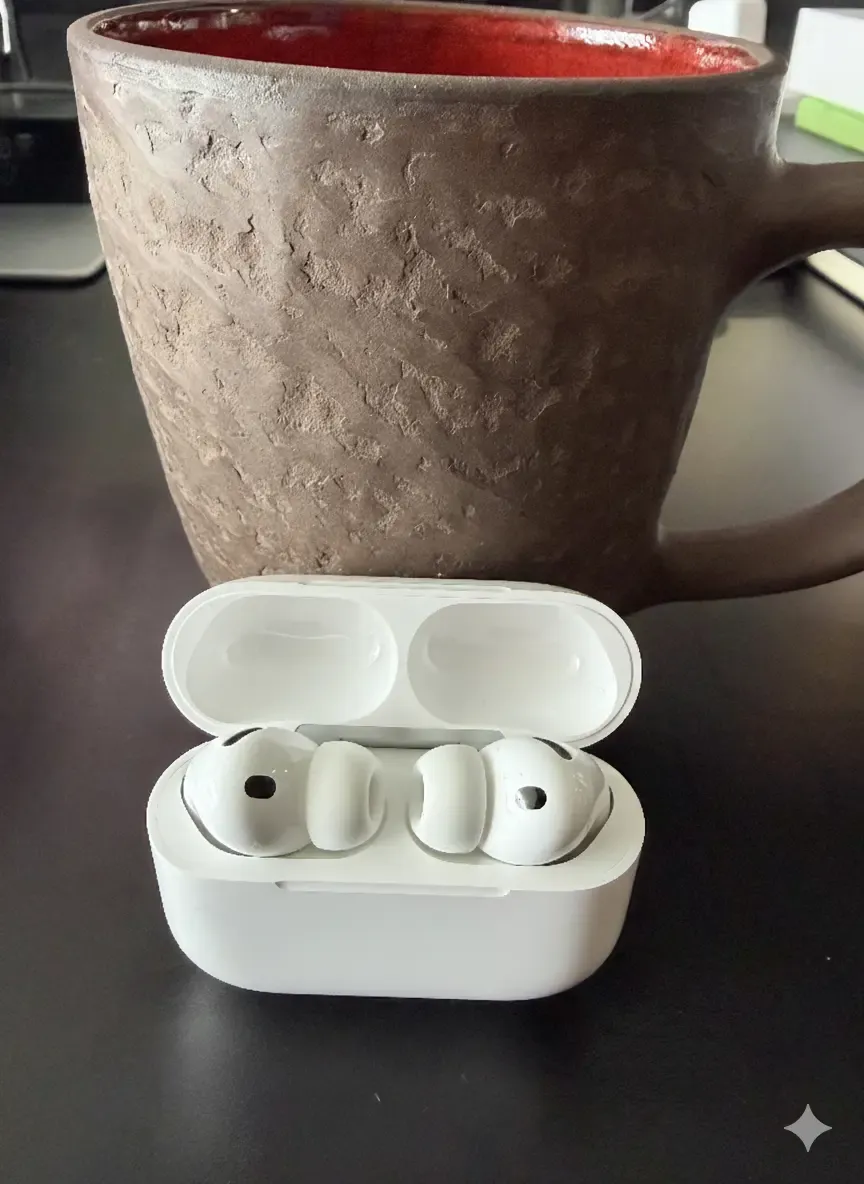
AirPods Pro 3 Review: First Impressions After One Week
Hands-on AirPods Pro 3 review after one week. What's new, what's improved, sound quality, ANC, and whether they're worth the upgrade.