
10 Best AI Chrome Extensions (2026) — Actually Worth Installing
These 10 AI Chrome extensions actually save time. Summarize pages, write emails, research faster — I use #3 and #7 every day.
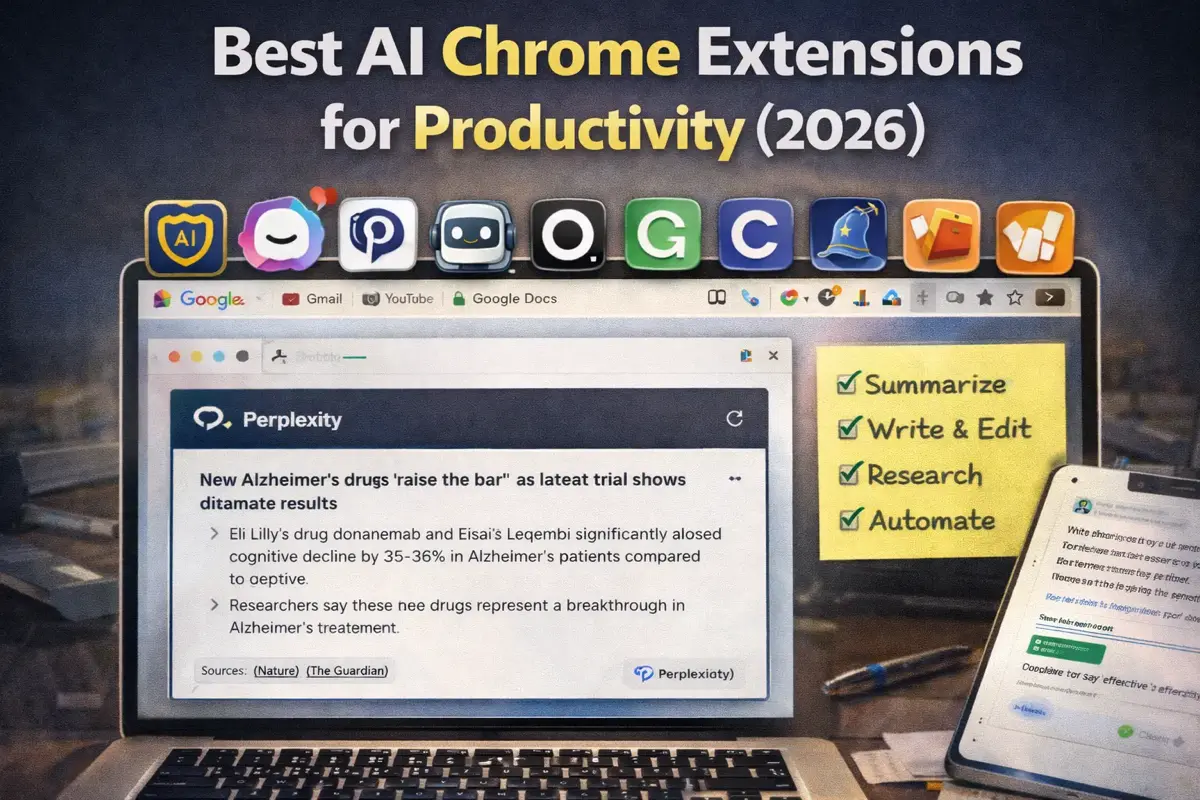
Your browser is where you spend most of your work day. Email, documents, research, communication — it all happens in Chrome.
AI Chrome extensions bring AI capabilities directly into that workflow. No switching apps, no copy-pasting — just AI assistance wherever you need it.
Here are the 10 extensions worth installing.
The Essential List
| Extension | Best For | Price | Rating |
|---|---|---|---|
| Sider | AI sidebar anywhere | Free/~$12mo | ★★★★★ |
| Monica | All-in-one AI | Free/~$8mo | ★★★★☆ |
| Merlin | Quick AI access | Free/$19mo | ★★★★☆ |
| Perplexity | Research | Free | ★★★★★ |
| Grammarly | Writing | Free/$12mo | ★★★★★ |
| Tactiq | Meeting notes | Free/$12mo | ★★★★☆ |
| Glasp | Highlighting | Free/$10mo | ★★★★☆ |
| MaxAI | Summarization | Free/$12mo+ | ★★★★☆ |
| Compose AI | Email writing | Free/$15mo | ★★★☆☆ |
Sider — Best Overall AI Sidebar
Price: Free tier / ~$12/month Pro (annual)
Sider adds a powerful AI sidebar to any webpage. It’s become my most-used extension.
What It Does
- Chat with Claude, GPT-4, or other models
- Summarize any page
- Explain selected text
- Translate content
- Generate and edit text
- Analyze images on pages
Why It’s Great
Always Available Click the icon or use a keyboard shortcut — AI appears instantly alongside any webpage.
Model Choice Switch between Claude, GPT-4, Gemini, and others. Use the best model for each task.
Context Aware Sider can see the page you’re on. “Summarize this article” works without copy-pasting.
Selection Actions Highlight text, right-click, and get AI options: explain, translate, rewrite, expand.
Best Uses
- Summarizing long articles before reading
- Quick translations
- Explaining technical content
- Drafting replies to emails
- Research assistance while browsing
Limitations
- Free tier has limited daily queries
- Some features require Pro subscription
- Can feel overwhelming with so many options
Verdict
Install this first. If you only get one AI extension, make it Sider. The sidebar approach feels natural and the model flexibility is valuable.
Monica — Best All-in-One
Price: Free tier / ~$8/month Pro (annual)
Monica packs ChatGPT, Claude (how do they compare?), image generation, and more into one extension.
What It Does
- AI chat (multiple models)
- Text generation and rewriting
- Image generation
- Translation
- Grammar checking
- Web search with AI
- PDF and YouTube summarization
Why It’s Great
Feature Dense Almost every AI capability in one extension. No need for multiple installs.
Good Free Tier Daily free queries are generous enough for light use.
Clean Interface Despite many features, the UI isn’t cluttered.
Quick Actions Keyboard shortcut triggers AI anywhere. Fast for quick tasks.
Best Uses
- Users who want one extension for everything
- Quick content generation
- Summarizing YouTube videos
- PDF analysis
Limitations
- Jack of all trades, master of none
- Some features feel like afterthoughts
- Can be resource-heavy
Verdict
Great for minimalists. If you hate having multiple extensions, Monica consolidates well. Power users might prefer specialized tools.
Merlin — Best for Speed
Price: Free tier / $19/month Pro
Merlin focuses on fast AI access through keyboard shortcuts.
What It Does
- Instant AI chat via shortcut (Cmd+M)
- Summarize any content
- Generate responses
- Code assistance
- Web search integration
Why It’s Great
Speed Keyboard shortcut → AI appears → type query → get answer. Fastest workflow.
Non-Intrusive Small popup that doesn’t take over your screen.
Works in Forms Use AI directly in email compose boxes for faster email writing, comment fields, etc.
Best Uses
- Power users who hate reaching for the mouse
- Quick answers while working
- Composing responses in any text field
Limitations
- Less powerful than Sider or Monica
- Premium is pricier ($19 vs $10)
- Fewer model options
Verdict
Best for keyboard-first users. If you want the fastest path to AI assistance, Merlin’s shortcut-driven approach is unmatched.
Perplexity — Best for Research
Price: Free (extension) / $20/month (Pro features)
Perplexity’s extension brings their excellent search engine to your browser.
What It Does
- AI-powered search from any page
- Summarize current page
- Ask questions about page content
- Quick answers with sources
Why It’s Great
Research Quality Perplexity’s search is superior to ChatGPT for factual questions. Answers include sources.
Page Integration Ask questions about the article you’re reading. Great for complex topics.
Fast Access Right-click any text to ask Perplexity about it.
Best Uses
- Fact-checking while reading
- Quick research without leaving current tab
- Understanding complex articles
- Finding sources on topics
Limitations
- Extension is simpler than full Perplexity site
- Some features require Pro subscription
- Not for content generation
Verdict
Essential for researchers. If you do any research while browsing, Perplexity’s extension is invaluable. Pairs well with a general AI extension like Sider. Also great for stock research and financial analysis alongside ChatGPT.
See our full Perplexity AI guide for more.
Grammarly — Best for Writing
Price: Free / $12/month Pro
You probably already know Grammarly. The Chrome extension is why.
What It Does
- Real-time grammar and spelling checks
- Tone suggestions
- Clarity improvements
- GrammarlyGO for AI text generation
Why It’s Great
Everywhere Works in Gmail, Google Docs, social media, forms — any text field.
Real-Time Catches errors as you type. No need to run checks manually.
Unobtrusive Underlines errors without disrupting flow. Fix when ready.
Best Uses
- Email composition
- Any professional writing
- Social media posts
- Form submissions
Limitations
- GrammarlyGO is mediocre for generation
- Pro plan required for advanced suggestions
- Occasionally suggests wrong “corrections”
Verdict
Install and forget. Grammarly’s passive error-catching is valuable for everyone who writes in a browser. The free tier is sufficient for most.
See our AI Writing Tools comparison for more.
Tactiq — Best for Meetings
Price: Free tier / $12/month Pro
Tactiq transcribes your video meetings directly in Chrome.
What It Does
- Live transcription of Google Meet, Zoom, Teams (web)
- AI-generated meeting summaries
- Highlight important moments
- Export notes to Notion, Google Docs, etc.
Why It’s Great
No Bot Required Unlike Otter or Fireflies, Tactiq runs locally in your browser. No “recording bot” joins the call.
Real-Time See transcription as the meeting happens. Tag important moments live.
Privacy-Friendly Transcription runs locally in your browser — no audio is recorded or stored. AI-powered summaries use cloud processing (OpenAI’s enterprise API).
Best Uses
- Google Meet users
- Anyone wanting transcription without visible bots
- Privacy-conscious meeting recording
- Quick meeting summaries
Limitations
- Less accurate than dedicated tools (Otter)
- Web meetings only (not desktop apps)
- Limited free tier
Verdict
Best browser-based meeting tool. If you use Google Meet and want transcription without a bot joining, Tactiq is the answer.
See our AI Meeting Assistants guide for alternatives.
Glasp — Best for Highlighting & Learning
Price: Free / from ~$10/month Pro
Glasp lets you highlight web content and uses AI to help you learn from it.
What It Does
- Highlight text on any webpage
- Organize highlights by topic
- AI summaries of your highlights
- Share highlights with others
- Build a personal knowledge base
Why It’s Great
Learning-Focused Not just highlighting — Glasp helps you remember and connect ideas.
Social Element See what others highlight. Discover perspectives you might miss.
Export Options Send highlights to Notion, Readwise, Obsidian.
Generous Free Tier Core highlighting and AI summaries are free. Pro plan adds private highlights and advanced features.
Best Uses
- Active reading and learning
- Research projects
- Building a personal knowledge base
- Sharing insights with colleagues
Limitations
- Highlights are public by default (privacy consideration)
- AI features are basic compared to dedicated tools
- Requires account creation
Verdict
Great for intentional reading. If you want to retain what you read online, Glasp’s highlighting + AI combination helps. Best for learners and researchers.
MaxAI — Best for Summarization
Price: Free tier / ~$12/month Pro (annual, $30/mo monthly)
MaxAI specializes in summarizing web content quickly.
What It Does
- One-click page summaries
- YouTube video summaries
- PDF summaries
- Selected text summarization
- Multiple summary styles
Why It’s Great
Speed Click → summary appears. Minimal interaction required.
Format Options Get summaries as bullets, paragraphs, key points, or TL;DR.
YouTube Support Summarize videos without watching them.
Best Uses
- Quickly deciding if content is worth reading
- Summarizing long articles
- YouTube video triage
- PDF overviews
Limitations
- One-trick pony (just summarization)
- Other extensions include this feature
- Quality varies by content type
Verdict
Good if summarization is your main need. If you frequently triage long content, MaxAI’s focused approach is efficient. Otherwise, Sider or Monica covers this plus more.
Compose AI — Best for Email Automation
Price: Free tier / ~$15/month Premium
Compose AI focuses specifically on helping you write emails faster.
What It Does
- Autocomplete suggestions as you type
- Generate full email responses
- Rephrase existing text
- Personalized writing style learning
Why It’s Great
Autocomplete Like GitHub Copilot, but for emails. Suggestions appear as you type.
Email-Specific Trained on email writing patterns. Suggestions feel appropriate for the medium.
Learning Gets better at matching your style over time.
Best Uses
- High-volume email users
- Repetitive email responses
- Non-native English speakers writing emails
- Anyone wanting to speed up email composition
Limitations
- Autocomplete can be distracting
- Sometimes suggests wrong tone
- Overlaps with Grammarly
Verdict
Niche but useful. If email is a significant time sink, Compose AI’s autocomplete genuinely speeds things up. For most users, Grammarly or Sider’s email features are sufficient.
Honorable Mentions
ChatGPT Official Extension
OpenAI’s official extension for quick ChatGPT access. Decent but basic compared to Sider or Monica.
Claude for Chrome (Official Extension)
Anthropic began piloting Claude for Chrome in August 2025, then expanded to all paid plans (Pro, Max, Team, Enterprise) in December 2025. It can read pages, draft emails, manage calendars, and navigate websites. A solid official option alongside third-party tools like Sider.
Otter.ai Extension
Meeting transcription when visiting Google Meet. Good but the standalone app is better.
Copy.ai Extension
Quick marketing copy generation. Useful for marketers, overkill for everyone else.
Wordtune
Writing enhancement focused on rephrasing. Good if rewriting is your main need.
My Recommended Setup
For Most Users
- Sider — Primary AI assistant
- Grammarly — Always-on writing help
- Perplexity — Research and fact-checking
Total cost: ~$24/month (or free with limitations)
For Power Users
- Sider — AI sidebar with model choice
- Grammarly — Writing assistance
- Perplexity — Research
- Glasp — Knowledge capture
- Tactiq — Meeting notes (if using Google Meet)
Total cost: ~$36/month
For Budget-Conscious
- Perplexity (free) — Research
- Grammarly Free — Basic writing help
- Glasp (free) — Highlighting
- MaxAI Free — Summarization
Total cost: $0
Installation Tips
Performance Management
- Don’t install everything — pick 3-4 extensions max
- Disable extensions you’re not actively using
- Review permissions periodically
Privacy Considerations
- Extensions can see your browsing data
- Avoid using sensitive AI extensions on banking/healthcare sites
- Check what data each extension collects
- Use incognito mode to disable extensions temporarily
Work Computer Considerations
- Check your company’s policy on browser extensions
- IT may block certain extensions
- Some companies require pre-approval
- Be cautious with confidential data in any extension
The Bottom Line
AI Chrome extensions bring AI assistance into your existing workflow without friction. Instead of switching to ChatGPT or Claude, you get AI help right where you’re working.
Start with Sider — It’s the most capable and flexible option.
Add Grammarly — Passive writing help with zero effort.
Add Perplexity — When you need to research or fact-check.
Beyond that, install based on specific needs. More extensions isn’t better — a few well-chosen tools beat a cluttered browser.
The goal isn’t to AI-ify everything. It’s to remove friction from tasks that benefit from AI assistance, so you can focus on work that requires your human judgment.
Related Articles
- AI Tools Guide — Complete hub for all AI tools
- ChatGPT Alternatives — 10 AI assistants compared
- Perplexity AI Guide — AI-powered research
- Best AI Tools for Office Work — Curated productivity tools
- How to Learn AI in 2026 — Your complete AI learning roadmap
Related Articles

Best AI PDF Summarizers (2026): Chat With Your Documents
The best AI tools for summarizing PDFs and long documents. Upload a 100-page report, get key insights in seconds. Free and paid options compared.
AI Tools for Work: The Only Guide You Need (2026)
Every AI tool worth using at work in 2026. ChatGPT, Claude, Copilot, and 20+ specialized tools — organized by task, with honest ratings and free alternatives.

15 Best AI Tools for Office Work (I Tested 50+)
I tested 50+ AI tools and these 15 actually boost productivity. Email, meetings, writing, research — ranked by real-world results.