
7 Best Ergonomic Mice for Work & Productivity (2026)
The best ergonomic mice for work and productivity in 2026: vertical, trackball and sculpted picks tested for every budget, from Logitech Lift to MX Master 3S.

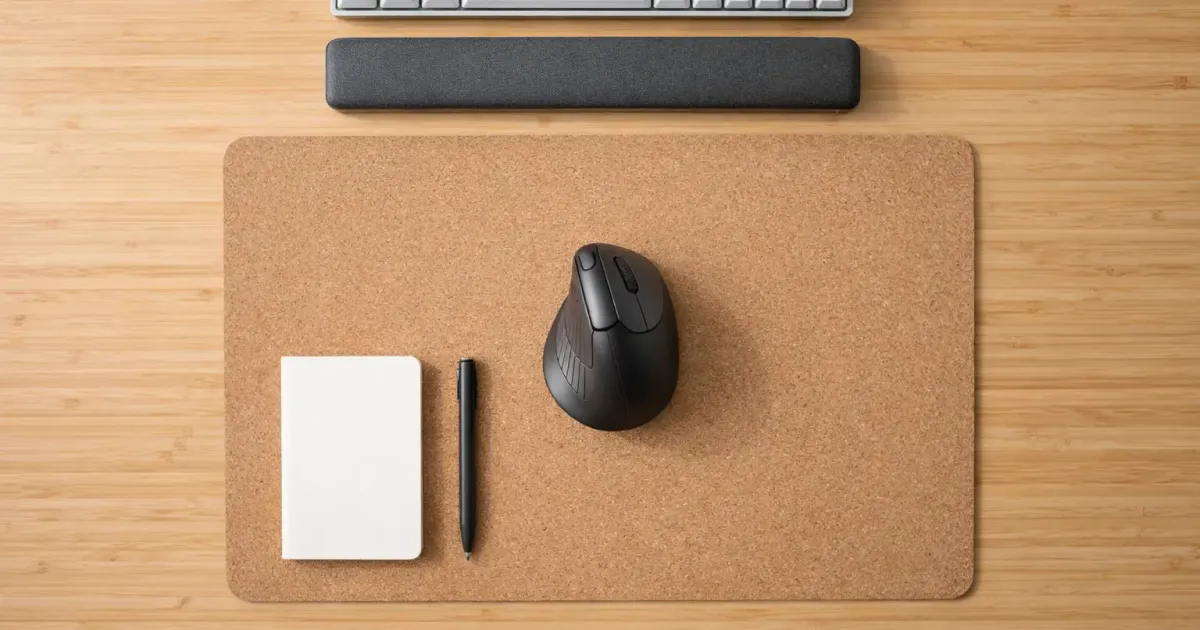
Your wrist hurts. Maybe it’s a dull ache after a long spreadsheet session, or that weird tingling when you reach for your coffee. Either way, something isn’t right.
I ignored those signals for about two years. Then I switched to an ergonomic mouse and wondered why I hadn’t done it sooner.
If you’re building out your home office setup, the mouse is one of the most overlooked upgrades. People spend $500 on a chair and $600 on a desk, then use a $15 mouse that slowly destroys their wrist. That’s backwards.
Here are the 7 best ergonomic mice, compared on specs, pricing, and what long-term owners report, with honest thoughts on each.
Quick Comparison
| Mouse | Type | Price | DPI | Battery | Weight | Best For |
|---|---|---|---|---|---|---|
| Logitech MX Master 3S | Ergonomic sculpted | ~$100 | 8000 | 70 days (rechargeable) | 141g | Best overall |
| Logitech Lift | Vertical | $79.99 | 4000 | 24 months (AA) | 125g | Best vertical mouse |
| Logitech MX Ergo S | Trackball | ~$110 | 2048 | 120 days (rechargeable) | 164g | Best trackball |
| Microsoft Sculpt Ergonomic | Sculpted dome | ~$40 | 1000 | ~9 months (AA) | 155g | Best budget |
| Razer Pro Click Mini | Compact | ~$60 | 12000 | 725 hrs (AA) | 88g | Best portable |
| Kensington Pro Fit Ergo | Vertical | ~$32 | 1600 | ~12 months (AA) | 95g | Best value vertical |
| Logitech MX Anywhere 3S | Compact travel | ~$80 | 8000 | 70 days (rechargeable) | 99g | Best travel mouse |
1. Logitech MX Master 3S, Best Overall
Price: ~$100 (frequently on sale for ~$80) DPI: 8000 | Battery: 70 days (USB-C rechargeable) | Weight: 141g Connectivity: Bluetooth + Logi Bolt USB receiver
The Logitech MX Master 3S isn’t technically a “vertical” or “ergonomic-specific” mouse, but its sculpted shape is one of the most comfortable designs you’ll use for 8-hour work days. It’s the mouse I keep coming back to.
What makes it special:
The MagSpeed scroll wheel is genuinely life-changing for spreadsheet work. Flick it and it goes into free-spin mode, ripping through thousands of rows in seconds. Switch back to precise ratcheted scrolling for regular browsing. Once you’ve used it, every other scroll wheel feels primitive.
The thumb rest creates a natural, relaxed hand position that reduces forearm tension. Not as dramatic as a full vertical mouse, but enough to make a difference, and without the learning curve.
Key features:
- Track on Glass sensor works on virtually any surface (yes, even glass tables)
- App-specific button customization, different controls for Photoshop vs. Excel vs. Chrome
- Flow lets you move your cursor between two computers seamlessly
- 1-minute charge = 3 hours of use when you forget to charge it
- Quiet clicks, 90% quieter than the MX Master 3
Who it’s for: Anyone who wants the best all-around productivity mouse without committing to a full vertical design. Power users, spreadsheet warriors, and multi-device workers.
Who should skip it: If you have active wrist pain or carpal tunnel symptoms, a vertical mouse (like the Lift) is a more aggressive ergonomic solution.
2. Logitech Lift, Best Vertical Mouse
Price: ~$70 DPI: 4000 | Battery: 24 months (1x AA) | Weight: 125g Connectivity: Bluetooth + Logi Bolt USB receiver
The Logitech Lift is the vertical mouse that actually convinced me vertical mice aren’t just a gimmick. Most vertical mice feel awkward and cheap. The Lift feels like a regular mouse that happens to be tilted 57 degrees.
What makes it special:
The 57-degree angle puts your forearm in a natural “handshake” position, which eliminates the inward twist (pronation) that causes most mouse-related wrist pain. But unlike many vertical mice, the Lift is small enough to feel nimble rather than unwieldy.
It’s specifically designed for small to medium hands, which is refreshing, because most ergonomic mice are built for giant hands. If you found the MX Vertical too bulky, the Lift is the answer.
Key features:
- 57-degree ergonomic angle, clinically shown to reduce muscle strain
- Quiet SmartWheel scrolling with line-by-line precision
- 24-month battery life from a single AA, you’ll forget batteries exist
- Available in left-hand version (rare for vertical mice)
- Logi Options+ software for button customization
Who it’s for: Anyone with wrist pain, carpal tunnel concerns, or who wants to prevent repetitive strain injury. Also great for people with smaller hands who find most ergonomic mice too big.
Who should skip it: Power users who need high DPI (4000 max is fine for work, limiting for design) or those who rely heavily on horizontal scrolling.
3. Logitech MX Ergo S, Best Trackball
Price: ~$110 (MX Ergo S Plus: ~$120 with extra wedge) DPI: 512–2048 | Battery: 120 days (USB-C rechargeable) | Weight: 164g Connectivity: Bluetooth + Logi Bolt USB receiver
Trackball mice are the most “ergonomic” option because you don’t move your wrist at all, your thumb does all the cursor work. The MX Ergo S is the only trackball that doesn’t feel like it’s from 2004.
What makes it special:
The adjustable hinge lets you tilt the mouse at 0 or 20 degrees, so you can ease into the ergonomic position instead of going cold turkey. The MX Ergo S Plus version comes with an extra wedge for even more tilt angles.
The trackball itself is precise enough for real work. Not pixel-perfect Photoshop work, but plenty accurate for documents, browsing, and even casual design.
Key features:
- 20-degree adjustable tilt, customize your wrist angle
- Thumb-controlled trackball, zero wrist movement required
- Quiet clicks, 80% quieter than previous MX Ergo
- 120-day battery life with USB-C quick charging (1 min = 24 hours of use)
- Flow cross-computer control, same as MX Master 3S
- Reduces forearm strain by 27% vs. standard mice (Logitech’s claim)
Who it’s for: People with serious wrist issues who need to eliminate wrist movement entirely. Also great for tight desk spaces, the mouse never moves, so you don’t need a mousepad.
Who should skip it: The 2048 DPI max is low by modern standards. Creative professionals and anyone who does precise cursor work will feel limited. There’s also a real adjustment period, expect a week before you stop wanting to throw it out the window.
4. Microsoft Sculpt Ergonomic Mouse, Best Budget
Price: ~$40 (often found for ~$30 on sale) DPI: 1000 | Battery: ~9 months (2x AA) | Weight: 155g Connectivity: 2.4 GHz wireless (USB nano receiver)
The Microsoft Sculpt Ergonomic Mouse has been around for years, and for good reason, it’s one of the cheapest ways to get genuine ergonomic relief. The dome shape looks weird, but it works.
What makes it special:
The rounded, dome-like design tilts your hand into a semi-vertical position naturally. It’s not as aggressive as a full vertical mouse, which makes it an easier transition from a regular mouse. Think of it as “ergonomic training wheels.”
At ~$40, it’s half the price of the Logitech Lift ($79.99 at Logitech in October 2026) and a third of the MX Master 3S. If you’re not sure ergonomic mice are for you, this is the risk-free way to find out.
Key features:
- Natural dome shape positions your hand at a comfortable angle
- 4-way scroll wheel, scrolls up/down and left/right
- Windows button for quick Start Menu access (Windows users only)
- BlueTrack sensor works on most surfaces
- Thumb scoop for comfortable resting position
Who it’s for: Budget-conscious buyers, people who want to try ergonomic mice without a big investment, and Windows users who like the integrated Windows button.
Who should skip it: Mac users (the Windows button is useless), anyone who needs Bluetooth (it’s USB receiver only), and people who want high DPI or premium build quality. The 1000 DPI is also noticeably sluggish on high-resolution monitors.
5. Razer Pro Click Mini, Best Portable
Price: ~$60 (MSRP ~$80, frequently discounted) DPI: 12000 | Battery: Up to 725 hours on Bluetooth (AA batteries) | Weight: 88g Connectivity: Bluetooth + Razer HyperSpeed 2.4 GHz
If you split time between office and coffee shops, or you travel with a laptop, the Razer Pro Click Mini is the best balance of portability and ergonomic design I’ve found. It’s small, light, and surprisingly comfortable.
What makes it special:
At 88g (with one AA battery), it’s the lightest mouse on this list by a wide margin. But Razer didn’t sacrifice features, you get mechanical switches with silent tactile clicks, 12000 DPI precision, and HyperScroll technology (Razer’s take on free-spinning scroll).
The battery situation is flexible: use one AA for lighter weight, or two AAs for up to 725 hours of battery life on Bluetooth. That’s nearly a month of continuous use.
Key features:
- 12000 DPI sensor, highest on this list, excellent for multi-monitor setups
- Razer HyperScroll, line-by-line or free-spin scrolling
- Silent mechanical switches, tactile click without the noise
- Connect to 4 devices simultaneously via Bluetooth
- 7 programmable buttons despite the compact size
- White clean aesthetic fits any desk setup
Who it’s for: Mobile workers, laptop users, people with smaller hands, and anyone who needs a high-performance mouse that fits in a jacket pocket.
Who should skip it: The compact size means less ergonomic support than full-size options. If you’re at a desk 8 hours a day, a larger mouse like the MX Master 3S or Lift will be more comfortable long-term.
6. Kensington Pro Fit Ergo, Best Value Vertical
Price: ~$32 DPI: 1600 | Battery: ~12 months (1x AA) | Weight: 95g Connectivity: 2.4 GHz wireless (USB nano receiver)
At roughly $32, the Kensington Pro Fit Ergo delivers a proper vertical mouse experience for less than half the price of the Logitech Lift. If you’re vertical-curious but don’t want to spend $80 to find out, start here.
What makes it special:
The 46.7-degree angle isn’t as aggressive as the Lift’s 57 degrees, which some people actually prefer, it’s a gentler transition from a flat mouse. The extended lip at the bottom supports your pinky finger, which most cheap vertical mice ignore.
For the price, the build quality is solid. Not premium, but definitely not flimsy. The rubberized grip prevents your hand from sliding, and the button placement feels natural.
Key features:
- 46.7-degree ergonomic slope, slightly less extreme than the Logitech Lift
- Extended pinky support lip, small detail, big comfort difference
- 6 buttons including forward/back and DPI adjustment
- Plug-and-play nano receiver, no software required
- 20-meter wireless range, covers any desk situation
Who it’s for: Budget shoppers who want to try vertical mice, people transitioning from regular mice (the gentler angle helps), and anyone who doesn’t need advanced features like Bluetooth multi-device pairing.
Who should skip it: The 1600 DPI maximum is basic, and the lack of Bluetooth means you’re tied to the USB receiver. If you need multi-device support or plan to use this for creative work, spend more on the Lift.
7. Logitech MX Anywhere 3S, Best Travel Mouse
Price: ~$80 (sometimes ~$75 on sale) DPI: 8000 | Battery: 70 days (USB-C rechargeable) | Weight: 99g Connectivity: Bluetooth + USB receiver
The MX Anywhere 3S is basically the MX Master 3S that went to the gym and lost 40 grams. Same sensor, same quiet clicks, same MagSpeed scroll, just in a compact body that slips into any bag.
What makes it special:
The 8000 DPI “Darkfield” sensor tracks on literally any surface, glass, marble, lacquered wood, airplane tray tables. I’ve used it on a leather couch armrest and it tracked perfectly. When you’re working from random locations, this matters more than you’d think.
The shape isn’t aggressively ergonomic, but the slight contour and low profile reduce wrist strain compared to a flat travel mouse. It’s the pragmatic choice: not the most ergonomic mouse here, but the most ergonomic mouse you’ll actually bring everywhere.
Key features:
- 8000 DPI any-surface tracking, works on glass and every other surface
- MagSpeed electromagnetic scroll, same premium scroll as MX Master 3S
- 70-day battery life with USB-C quick charging
- Quiet clicks throughout
- 99g, light enough for daily carry
- Pair up to 3 devices and switch with a button
Who it’s for: People who work from multiple locations, frequent travelers, hot-deskers, and anyone who wants MX Master-level features in a portable package.
Who should skip it: If you only work at one desk, the MX Master 3S is more comfortable for all-day use. The smaller body means less hand support over extended sessions.
How to Choose an Ergonomic Mouse
Not all ergonomic mice solve the same problem. Here’s what to consider:
Grip Style
Your grip determines which mouse shape will feel natural:
- Palm grip (hand flat on mouse): Go for full-size mice like the MX Master 3S or Microsoft Sculpt. You need the surface area.
- Claw grip (fingertips + palm heel): Compact mice like the MX Anywhere 3S or Razer Pro Click Mini work well. You don’t need full palm support.
- Fingertip grip (only fingertips touch): Lighter, smaller mice are better. The Razer Pro Click Mini (88g) is your best bet.
Hand Size
Measure from the base of your palm to the tip of your middle finger:
- Under 17cm: Logitech Lift, Razer Pro Click Mini, Kensington Pro Fit Ergo
- 17-20cm: Any mouse on this list
- Over 20cm: MX Master 3S or MX Ergo S, avoid the Lift (too small)
Wireless vs. Wired
Every mouse on this list is wireless, and for good reason, cables add drag and restrict movement, which is the opposite of ergonomic. If you’re worried about latency, modern 2.4 GHz receivers (like Logi Bolt and Razer HyperSpeed) have sub-1ms response times. You won’t notice a difference.
The real question is Bluetooth vs. USB receiver:
- Bluetooth: No dongle needed, pairs with laptops and tablets, slightly higher latency
- USB receiver: Lower latency, more reliable, uses a USB-A port
Most Logitech mice support both, so you can use Bluetooth for your laptop and the receiver for your desktop. If you’re going wireless and want a clean desk, check out our cable management guide, a wireless mouse is only half the battle.
DPI, How Much Do You Actually Need?
DPI (dots per inch) measures how far your cursor moves relative to physical mouse movement. Higher DPI = less wrist movement = more ergonomic.
For office work: 1000-1600 DPI is plenty for a single monitor. 2000-4000 DPI works better for dual or ultrawide monitors.
For creative work: 4000+ DPI gives you the precision you need for design tools.
For everything else: The MX Master 3S and MX Anywhere 3S (both 8000 DPI) are overkill for most tasks, but having the headroom means you’ll never feel limited.
The real trick: Set your DPI high enough that you can navigate your entire screen with small wrist movements. If you’re swinging your arm across the mousepad to reach the corner of your monitor, your DPI is too low.
Ergonomic Mouse vs. Regular Mouse, Is It Worth Switching?
Let me be direct: if you use a mouse less than 3 hours a day, a regular mouse is probably fine. But if you’re clocking 6-8 hours of mouse time daily, which most office workers are, an ergonomic upgrade pays for itself in comfort.
The Science (Simplified)
When you use a regular flat mouse, your forearm rotates inward (pronation). Hold that position for 8 hours, 5 days a week, 50 weeks a year, and you’re compressing the same tendons, nerves, and muscles repeatedly. That’s how repetitive strain injuries (RSI) develop.
Ergonomic mice address this in different ways:
| Mouse Type | How It Helps | Wrist Movement |
|---|---|---|
| Vertical | Eliminates forearm pronation | Normal (side to side) |
| Trackball | Eliminates all wrist movement | None (thumb only) |
| Sculpted | Partially reduces pronation | Normal (but relaxed) |
| Compact/travel | Lighter = less strain | Normal |
The Adjustment Period
Switching to an ergonomic mouse, especially a vertical or trackball, feels weird at first. Your brain has years of muscle memory with flat mice.
Expect:
- Days 1-3: Frustrating. You’ll feel clumsy and slow.
- Days 4-7: Getting comfortable. Accuracy improves.
- Week 2+: Feels natural. Regular mice start feeling wrong.
My advice: Don’t switch during a busy work week. Start on a Friday or over a weekend when you can afford to be slower.
My Recommendations by Use Case
Best for most people: The Logitech MX Master 3S (~$100) is the safest choice. It’s comfortable, feature-packed, and doesn’t require any adjustment period. If you only buy one mouse, make it this one.
Best for wrist pain: The Logitech Lift ($79.99 at Logitech, checked October 12, 2026) is the most effective ergonomic solution that still feels like a normal mouse. The vertical design directly addresses the pronation that causes pain.
Best for serious wrist issues: The Logitech MX Ergo S (~$110) eliminates wrist movement entirely. Steep learning curve, but nothing else reduces strain as aggressively.
Best on a budget: The Kensington Pro Fit Ergo (~$32) proves you don’t need to spend $100 for genuine ergonomic benefits. A proper vertical mouse at an impulse-buy price.
Best for travel: The Logitech MX Anywhere 3S (~$80) gives you 90% of the MX Master 3S experience in a bag-friendly package.
Final Thoughts
An ergonomic mouse isn’t a miracle cure. If your entire desk setup is working against you, bad chair height, monitor too low, keyboard too high, fixing just the mouse won’t solve everything. Start with our desk upgrade guide for the full picture, and pair your new mouse with a proper mechanical keyboard for the complete peripheral upgrade.
But if your wrist is telling you something’s wrong, listen to it. A $32-100 mouse is a lot cheaper than physical therapy.
Your future wrist will thank you.
Related Articles

Best Home Office Gifts Under $100 (2026)
The best home office gifts under $100 for 2026: desk upgrades, ergonomic extras, and comfort boosters that any remote worker will actually use every day.

Best Desk Upgrades Under $100 That Are Actually Worth It
The best desk upgrades under $100 in 2026, ranked by real impact on comfort and focus. Small, high-ROI changes that make working at your desk noticeably better.

Standing Desk vs Sitting Desk: What Science Says
Is a standing desk actually worth it? We dig into the real studies behind the hype, debunk overhyped claims, and help you decide what works for your body.