Designing Your Own Gear: Best CAD Software for 3D Printing (2026 Guide)
Want to design your own 3D prints? We compare Tinkercad, Fusion 360, Onshape, and Blender to help you find the best CAD software for your needs and skill level.
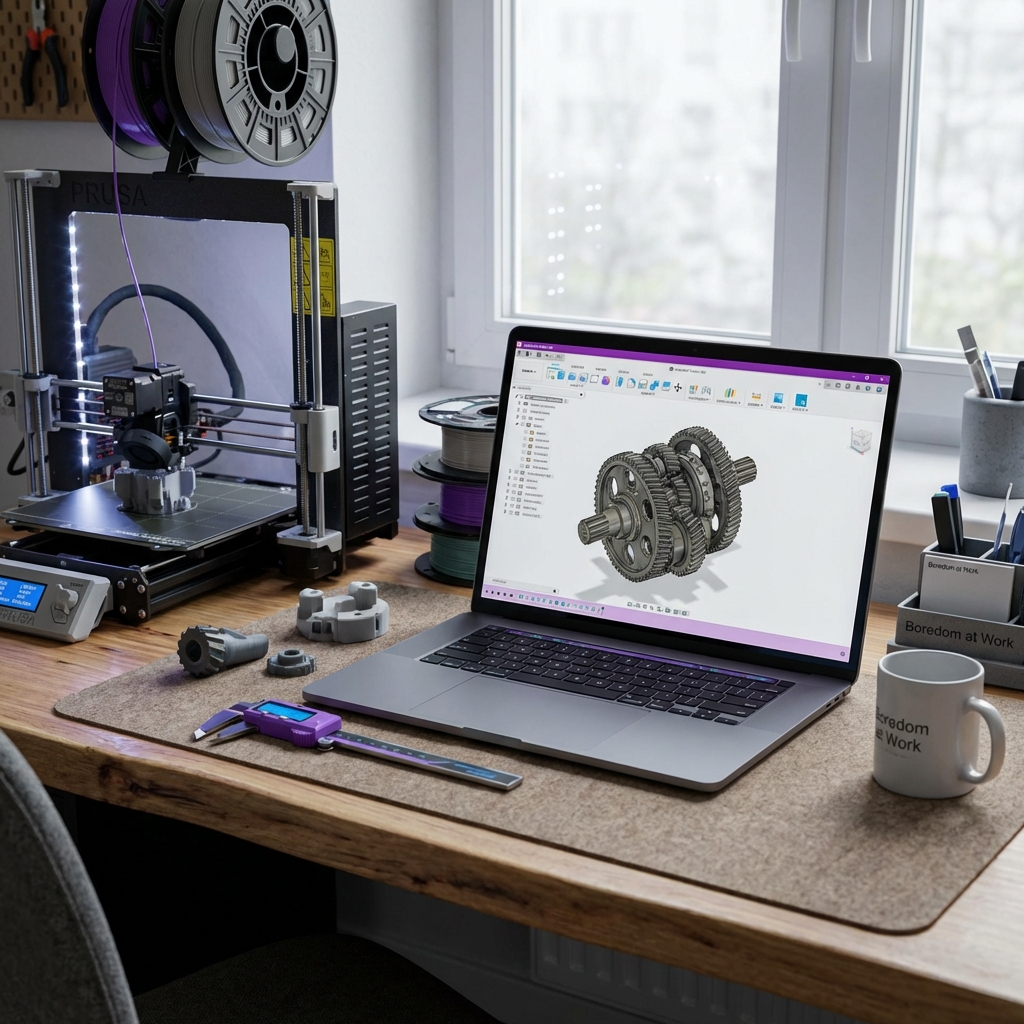
You’ve got the 3D printer. You’ve printed a dozen “benchys” and a handful of articulated dragons from Thingiverse. But now, you want to make something real. Something custom. Maybe it’s a replacement part for your dishwasher, a custom desk organizer, or a specific bracket for your photography gear.
To do that, you need to learn CAD (Computer-Aided Design).
If you’re reading this at your desk during a slow Tuesday afternoon, you’re in the perfect position. Researching CAD software is one of the most productive ways to “waste” time at work. It’s a high-value skill that bridges the gap between being a “button-pusher” and a true maker.
In this guide, we’re going to break down the best CAD software for 3D printing in 2026, ranging from “my kid could do this” to “I can design a rocket engine.”
CAD Software for 3D Printing: 2026 Comparison
| Software | Difficulty | Platform | Price | Best For |
|---|---|---|---|---|
| Tinkercad | Very Easy | Browser | Free | Absolute beginners / Kids |
| Fusion 360 | Medium | Windows/Mac | Free (Personal) | The hobbyist standard |
| Onshape | Medium | Browser | Free (Public) | Work laptops / Collaboration |
| Blender | Hard | Win/Mac/Linux | Free (Open Source) | Organic shapes / Art |
| FreeCAD | Medium/Hard | Win/Mac/Linux | Free (Open Source) | Privacy purists |
1. Tinkercad (tinkercad.com): The “Gateway Drug” to Design
If the thought of “engineering software” makes you sweat, start here. Tinkercad is owned by Autodesk (the same people who make Fusion 360), but it looks like a video game.
How it works
Instead of drawing complex lines and curves, you work with “Primitives.” You take a cube, you take a cylinder, you resize them, and you group them together. If you want a hole in the cube, you turn the cylinder into a “Hole” and group it with the solid cube. It’s digital LEGO.
Why research this at work?
It runs entirely in your browser. No installation needed. You can log in, mess around with a design for 15 minutes, and close the tab without your IT department ever knowing you were “working” on a 3D model.
Pros:
- Zero learning curve
- Runs in any browser
- Huge library of pre-made shapes
Cons:
- Very difficult to make complex, precise mechanics
- No “History” (you can’t easily change a dimension you set 10 steps ago)
2. Fusion 360 (autodesk.com): The Gold Standard
If you find yourself watching 3D printing YouTube, you’ve seen Fusion 360. It is a “Parametric” modeler, which is a fancy way of saying everything is based on measurements and history.
What makes it special?
Precision. If you want to design a part that is exactly 45.5mm wide with a 3mm hole dead-center, Fusion 360 makes that trivial. Even better, if you decide later that the hole should be 4mm, you just edit that one number, and the entire model updates automatically.
The “Work” Angle
Fusion 360 is a professional-grade skill. Learning this isn’t just a hobby; it’s an addition to your resume. It’s heavy software, though, so don’t try to run it on a 2015 Chromebook.
Pros:
- Professional features for free
- Massive amount of YouTube tutorials
- Integrated “Slicing” and CAM features
Cons:
- Steep learning curve for the first few hours
- Requires a decent computer
- Personal license needs renewing every year
3. Onshape (onshape.com): The “Work-Friendly” Powerhouse
Onshape was started by the same people who created SolidWorks (the industry standard for mechanical engineers). It is essentially Fusion 360, but it lives entirely in the cloud.
Why it’s the king of productive procrastination
Because it’s browser-based, Onshape is incredibly stealthy. There is no software to install. It saves automatically to the cloud. You can start a design on your work PC during lunch and finish it on your phone while on the train home.
The Privacy Catch
The free version of Onshape requires all your designs to be “Public.” This means anyone can search for and see your models. For most hobbyists making a GoPro mount, this doesn’t matter. If you’re designing the next multi-billion dollar patent, you’ll need the paid version (which is… expensive).
Pros:
- No installation required
- Professional-grade parametric modeling
- Best-in-class version control (basically Git for CAD)
Cons:
- All free models are public
- Requires a constant internet connection
4. Blender (blender.org): For the Artists
All the software we’ve mentioned so far is “Mechanical CAD.” Blender is “Mesh Modeling.”
Think of Mechanical CAD like building with wood and screws. Think of Blender like sculpting with clay. If you want to design a miniature of your Dungeons & Dragons character or a decorative vase with intricate swirls, you want Blender.
Pros:
- Unbeatable for organic, artistic shapes
- Completely free and open-source forever
- Massive community and plugins
Cons:
- The interface is notoriously intimidating
- Not great for “dimensionally accurate” engineering parts
- Very high learning curve
5. FreeCAD (freecad.org): The Open Source Engineering Alternative
All the software we’ve mentioned so far is either cloud-based or artistic. FreeCAD is the heavy hitter for those who want a professional, parametric mechanical CAD tool that is 100% free and open-source.
Pros:
- Completely free and open-source forever
- Professional-grade parametric features
- Privacy-focused (all data stays local)
Cons:
- Interface can be clunky compared to Fusion 360
- Learning curve is quite steep
- Slower development cycle
Practical Tips for Your First Design
- Measure Twice, Print Once: Invest $15 in a pair of digital calipers. You cannot design functional parts without them.
- Think in 2D First: Most CAD models start as a 2D sketch that you then “Extrude” into 3D. Master the 2D sketch tools first.
- Tolerance is Key: If you design a 10mm peg to fit into a 10mm hole, it will not fit. Plastic expands. Always leave a “clearance” (usually 0.2mm - 0.4mm) between parts that need to fit together.
- Use “Fillets” and “Chamfers”: Rounding off your corners makes your parts stronger and look much more professional.
Comparison: Price & Requirements
| Software | Price | System Requirements | Learning Time (to first part) |
|---|---|---|---|
| Tinkercad | $0 | Low (Any browser) | 15 Minutes |
| Fusion 360 | $0 (Personal) | Medium/High | 5-10 Hours |
| Onshape | $0 (Public) | Low/Medium | 5-10 Hours |
| Blender | $0 | Medium | 20+ Hours |
Things to Research Further
If you’ve finished reading this and still have an hour left before your next meeting, here are some deep-dive topics to keep you busy:
- Parametric Design: Learn how to make models that change shape based on variables.
- Topology Optimization: Research how software can “grow” the most efficient shape for a part.
- Slicing Software: Check out our OrcaSlicer guide or “PrusaSlicer” — this is the software that turns your CAD model into code for the printer.
- 3D Scanning: For the truly ambitious, look at how to turn real-world objects into CAD models using just your phone.
FAQ
1. Can I use CAD on my iPad?
Yes! Tinkercad and Onshape both have excellent iPad apps. Onshape, in particular, is surprisingly powerful with an Apple Pencil.
2. Do I need to be good at math?
Not really. The software handles the geometry. You just need to be able to read a ruler and understand basic shapes.
3. I’m bored right now. Where should I start?
Go to Tinkercad.com, create a free account, and follow the “Starters” tutorial. You’ll be designing a name tag or a simple house in less than 10 minutes.
Conclusion: Your Next Step
Stop downloading other people’s designs. The true magic of 3D printing happens when you realize you can create anything you can imagine.
Actionable Next Steps:
- The 15-Minute Task: Open Tinkercad and make a cube with your name “cut out” of the top.
- The 1-Hour Task: Watch “Fusion 360 for Absolute Beginners” by Paul McWhorter on YouTube.
- The 1-Week Task: Design and print a simple solution for a problem in your house (e.g., a spacer for a wobbly table).
Mastering CAD is the ultimate “bored at work” project. It’s quiet, it looks like you’re doing serious engineering work, and by the end of the month, you’ll have a superpower.
Happy designing!
Want to learn more about 3D printing? Check out our 3D Printing Guide for the complete overview, or read the 3D Printing Beginner Guide to get started with your first prints.
Related Articles
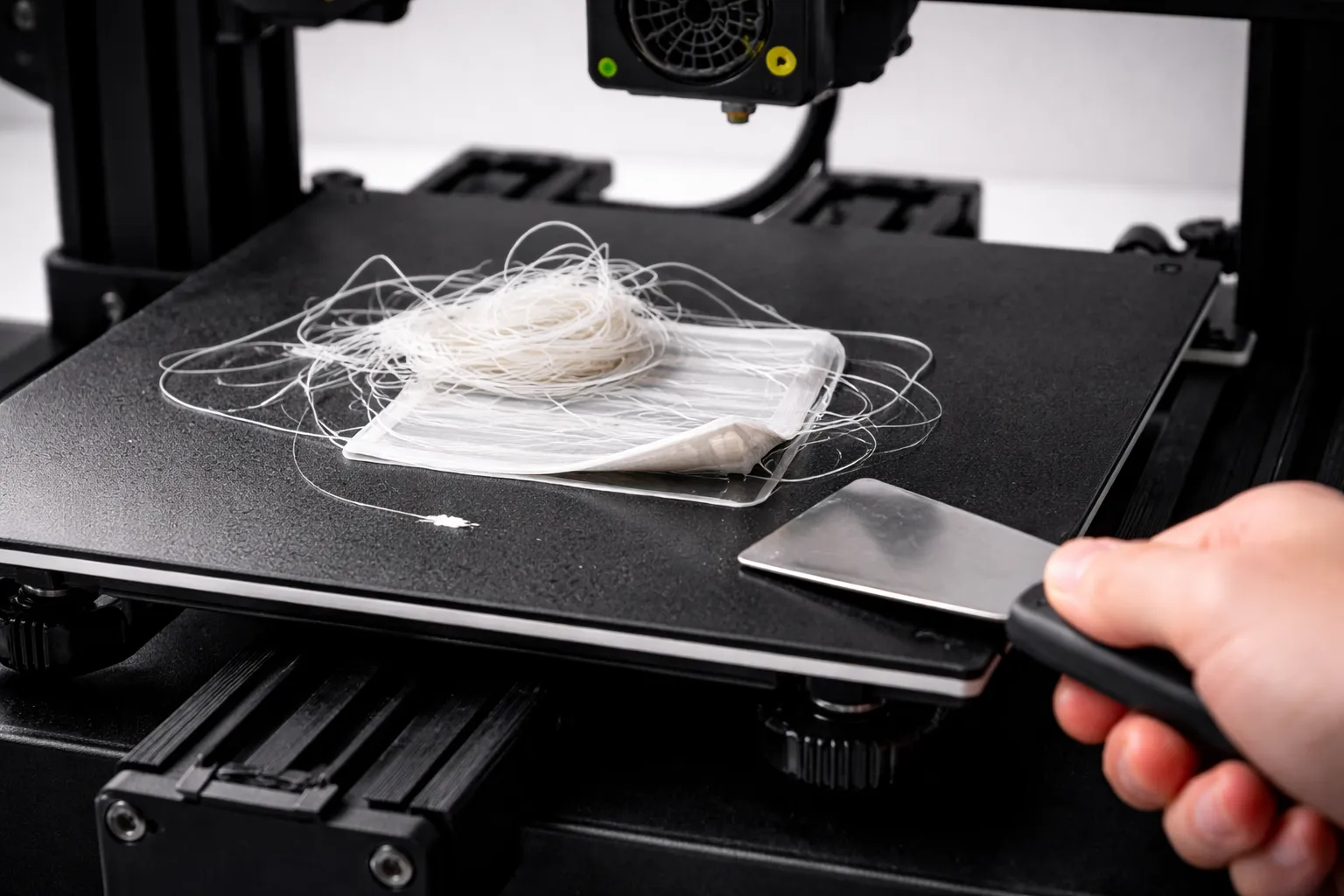
3D Print Not Sticking to Bed? Every Fix You Need
First layer keeps failing? Here's every reason your 3D print won't stick to the bed and how to fix it—from bed leveling to adhesion helpers.
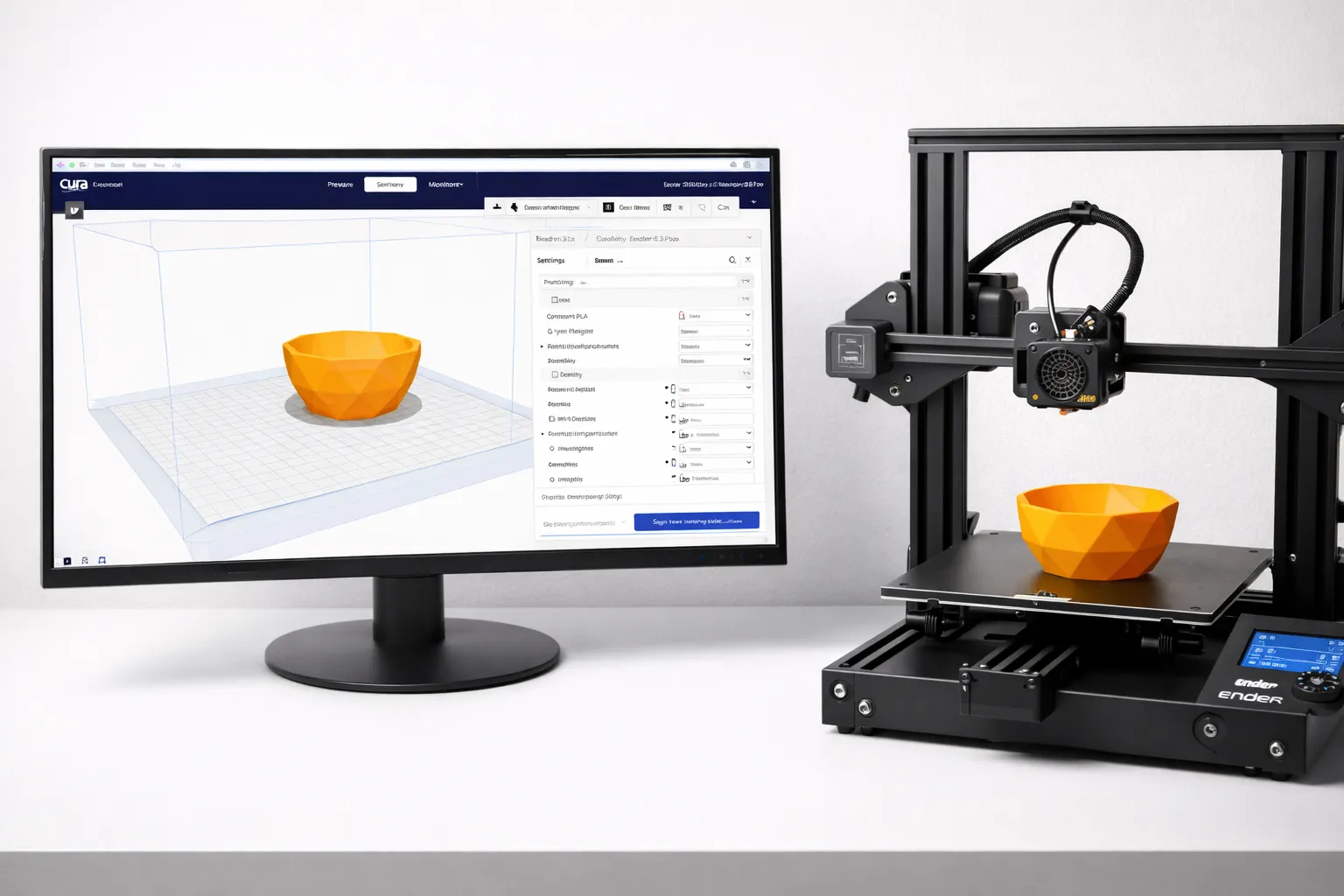
Cura Settings for Beginners: The Only Guide You Need
Confused by Cura's 400+ settings? Learn the 10 settings that actually matter, what they do, and the best values for your first prints.
3D Printing for Beginners (2026): From Zero to First Print
Start 3D printing today. Printer recommendations under $300, material guide, and step-by-step to your first successful print.