
Microsoft Copilot in Word: Complete Tutorial (2026)
Master Copilot in Word. From drafting documents to rewriting sections—everything you need to use AI directly in Microsoft Word.
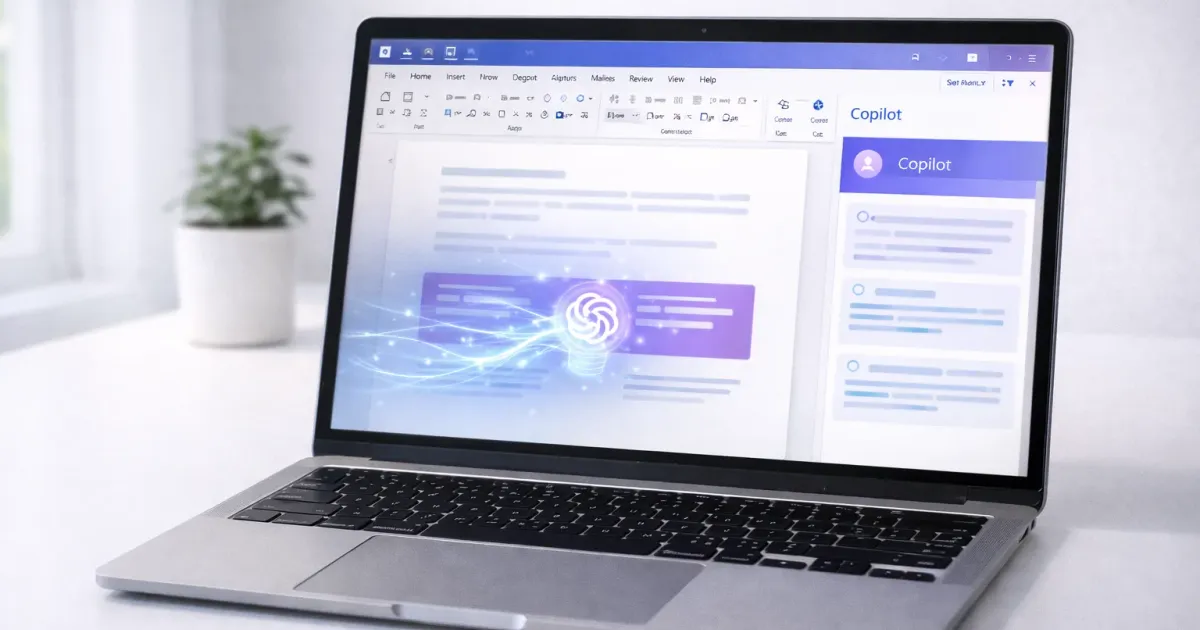
Microsoft put AI directly into Word. No more copying to ChatGPT and back—Copilot works right where you write.
Here’s everything you need to know to actually use it well.
What You Need
Requirements:
- Microsoft 365 subscription (Personal, Family, or Business)
- Microsoft 365 Personal/Family (includes Copilot) or Copilot Business ($30/user/month for organizations)
- Word for Windows, Mac, or Word Online
Don’t have Copilot yet?
You can still use the free Copilot for writing help—just copy/paste between Copilot and Word. Not as smooth, but it works.
Finding Copilot in Word
Once you have a Copilot subscription, you’ll see:
- Copilot button in the Home tab (ribbon)
- Copilot icon that appears when you select text
- Draft with Copilot option in empty documents
If you don’t see Copilot, check:
- Your Microsoft 365 subscription is active
- Your Copilot subscription is active
- You’re signed in with the right account
- Word is updated to the latest version
The Four Main Features
1. Draft New Content
Start with an empty document or place your cursor where you want new content.
How to use:
- Click the Copilot icon or press Alt+I
- Type what you want: “Write a project proposal for…”
- Copilot generates a draft
- Keep it, regenerate, or adjust
Example prompts:
Write a 500-word executive summary for a quarterly sales report.
Include sections for highlights, challenges, and next quarter outlook.
Draft a professional email to a client explaining a project delay.
Tone: apologetic but confident. Include proposed new timeline.Create an outline for a training document about our new CRM system.
Target audience: sales team with no technical background.2. Rewrite Selected Text
Already have text but it’s not quite right? Select it and let Copilot improve it.
How to use:
- Select the text you want to change
- Click the Copilot icon that appears
- Choose “Rewrite” or type specific instructions
- Review suggestions and accept or modify
What you can ask:
- “Make this more concise”
- “Make this more formal”
- “Make this more engaging”
- “Simplify for a general audience”
- “Make this sound more confident”
- “Fix the grammar and flow”
3. Summarize Documents
Have a long document? Get the key points fast.
How to use:
- Open the Copilot pane (click Copilot in ribbon)
- Ask: “Summarize this document”
- Or be specific: “What are the main recommendations in this report?”
Useful summary prompts:
Summarize this document in 5 bullet pointsWhat are the key action items mentioned?List all deadlines mentioned in this documentWhat questions does this document leave unanswered?4. Chat About Your Document
Ask questions, get explanations, find specific information.
How to use:
- Open the Copilot pane
- Ask questions about your document
- Copilot responds with context from your content
Example questions:
What's the main argument in section 3?Are there any inconsistencies between the introduction and conclusion?Find all mentions of "budget" in this documentWhat data sources are cited?Prompting Tips for Better Results
Be Specific About Format
Vague: “Write about our product”
Better: “Write a 300-word product description for our project management software. Include: key features (3-4 bullets), target audience, and a compelling opening line. Tone: professional but approachable.”
Include Context
Copilot knows what’s in your document, but not what’s in your head.
Add context like:
- Who will read this
- What you’re trying to achieve
- Any constraints (length, tone, format)
- Examples of what you want
Use Two-Step Prompting
For complex tasks, break it down:
Step 1: “Create an outline for a proposal about switching to remote work”
Step 2: “Now expand section 2 into full paragraphs”
Ask for Options
“Give me 3 different opening paragraphs for this report” works better than asking for one perfect version.
Common Tasks: Step by Step
Task 1: Write a Professional Email
- New document or cursor where you want the email
- Click Copilot icon
- Prompt:
Write a professional email to [recipient] about [topic].
Context: [situation]
Tone: [formal/friendly/apologetic/etc.]
Length: [short/medium/detailed]- Review and edit
- Copy to Outlook or email client
Task 2: Improve Existing Writing
- Select the paragraph or section
- Click Copilot icon → Rewrite
- Or type specific instruction: “Make this more concise and remove jargon”
- Compare original and suggestion
- Accept, reject, or try again
Task 3: Create a Report from Notes
- Paste your rough notes into Word
- Select all notes
- Copilot prompt:
Transform these notes into a structured report with:
- Executive summary
- Main findings (organized by theme)
- Recommendations
- Next steps
Use professional language suitable for senior management.- Review and refine each section
Task 4: Change Document Tone
- Select the content
- Copilot prompt:
Rewrite this to be more [formal/casual/confident/empathetic].
Keep the same information but adjust the tone for [audience].
Task 5: Generate a Table
- Place cursor where you want the table
- Copilot prompt:
Create a table comparing [items] with columns for:
[column 1], [column 2], [column 3]
Include [number] rows with realistic example data.
What Copilot Does Well
✅ First drafts — Gets you past the blank page fast
✅ Rewriting — Great for fixing awkward phrasing
✅ Tone adjustment — Formal ↔ casual conversions
✅ Summarizing — Quick extraction of key points
✅ Formatting suggestions — Tables, bullets, structure
✅ Brainstorming — “Give me 5 ways to open this proposal”
What Copilot Struggles With
❌ Highly creative writing — Tends toward generic
❌ Very long documents — Better for sections than whole books
❌ Specialized jargon — May not know your industry’s terms
❌ Factual accuracy — Don’t trust statistics or claims without verification
❌ Your voice — Needs training to match your style
Copilot vs. Alternatives
| Task | Copilot | ChatGPT | Claude |
|---|---|---|---|
| In-Word convenience | ⭐⭐⭐ | ⭐ (copy/paste) | ⭐ (copy/paste) |
| Writing quality | ⭐⭐ | ⭐⭐ | ⭐⭐⭐ |
| Long documents | ⭐⭐ | ⭐⭐ | ⭐⭐⭐ |
| Speed | ⭐⭐⭐ | ⭐⭐ | ⭐⭐ |
| Price | Included in M365 | Free / $20/mo | Free / $20/mo |
The verdict: Use Copilot for quick edits and drafts within Word. Use Claude or ChatGPT for important writing where quality matters most.
Many people use both: Copilot for convenience, ChatGPT/Claude for quality.
Keyboard Shortcuts
| Action | Windows | Mac |
|---|---|---|
| Open Copilot | Alt + I | ⌘ + I |
| Copilot pane | Click ribbon button | Click ribbon button |
Privacy & Data
What Microsoft says:
- Your prompts and document content are processed by Azure OpenAI
- Enterprise customers: data isn’t used to train models
- Consumer (M365 Personal/Family): check current privacy policy
Best practices:
- Don’t use for highly confidential documents without checking your org’s policy
- Enterprise/business licenses have stronger data protections
- When in doubt, use the free Copilot website instead (still requires caution)
Is Copilot Worth the Subscription?
Copilot is now included with Microsoft 365 Personal ($9.99/mo) and Family ($12.99/mo) subscriptions with limited AI credits per month. For unlimited Copilot access, you’ll need Microsoft 365 Premium ($30/mo).
Worth it if you:
- Write in Word daily
- Value time over perfection
- Already have Microsoft 365 (basic Copilot is included)
- Do lots of emails, reports, proposals
Not worth upgrading to Premium if you:
- Rarely use Word
- Need highest quality writing (use Claude instead)
- Are on a tight budget (free ChatGPT + copy/paste works)
- Mostly do creative writing
Start with the included Copilot in your M365 subscription. If you hit the monthly credit limit regularly, consider upgrading to Premium.
Quick Reference: Prompt Templates
Draft from scratch:
Write a [document type] about [topic].
Audience: [who will read this]
Tone: [formal/casual/technical/friendly]
Length: approximately [X] words
Include: [specific elements]
Rewrite:
Rewrite this to be more [quality].
Keep: [what to preserve]
Change: [what to adjust]
Summarize:
Summarize this document in [format: bullets/paragraph/table].
Focus on: [specific aspects]
Length: [constraint]
Expand:
Expand this [outline/notes/section] into full paragraphs.
Add: [details, examples, transitions]
Tone: [description]
Related Articles
Related Articles

Microsoft Copilot Review: Is It Worth $30/Month?
Honest review of Microsoft 365 Copilot after months of use. What it does well, where it fails, and whether it's worth the steep price tag.

Best AI PDF Summarizers (2026): Chat With Your Documents
The best AI tools for summarizing PDFs and long documents. Upload a 100-page report, get key insights in seconds. Free and paid options compared.

AI for Email Writing: Templates, Tools & Prompts That Work
Write better emails faster with AI. Templates, prompts, and tools for every situation—from cold outreach to difficult conversations.