
How Gemini CLI Changed My Daily Coding Workflow Forever
Stop wasting time copy-pasting code into browser windows. Discover how a CLI-based AI agent transformed my development speed and reclaimed my work-life balance.

We’ve all been there. You’re stuck on a weird TypeScript error or trying to remember the syntax for an Astro content collection. Your routine looks like this:
- Highlight the code.
Cmd+C.- Alt-Tab to Chrome.
Cmd+Vinto a ChatGPT or Claude window.- Wait.
- Copy the fix.
- Alt-Tab back.
- Realize the AI missed a local dependency.
- Repeat until frustrated.
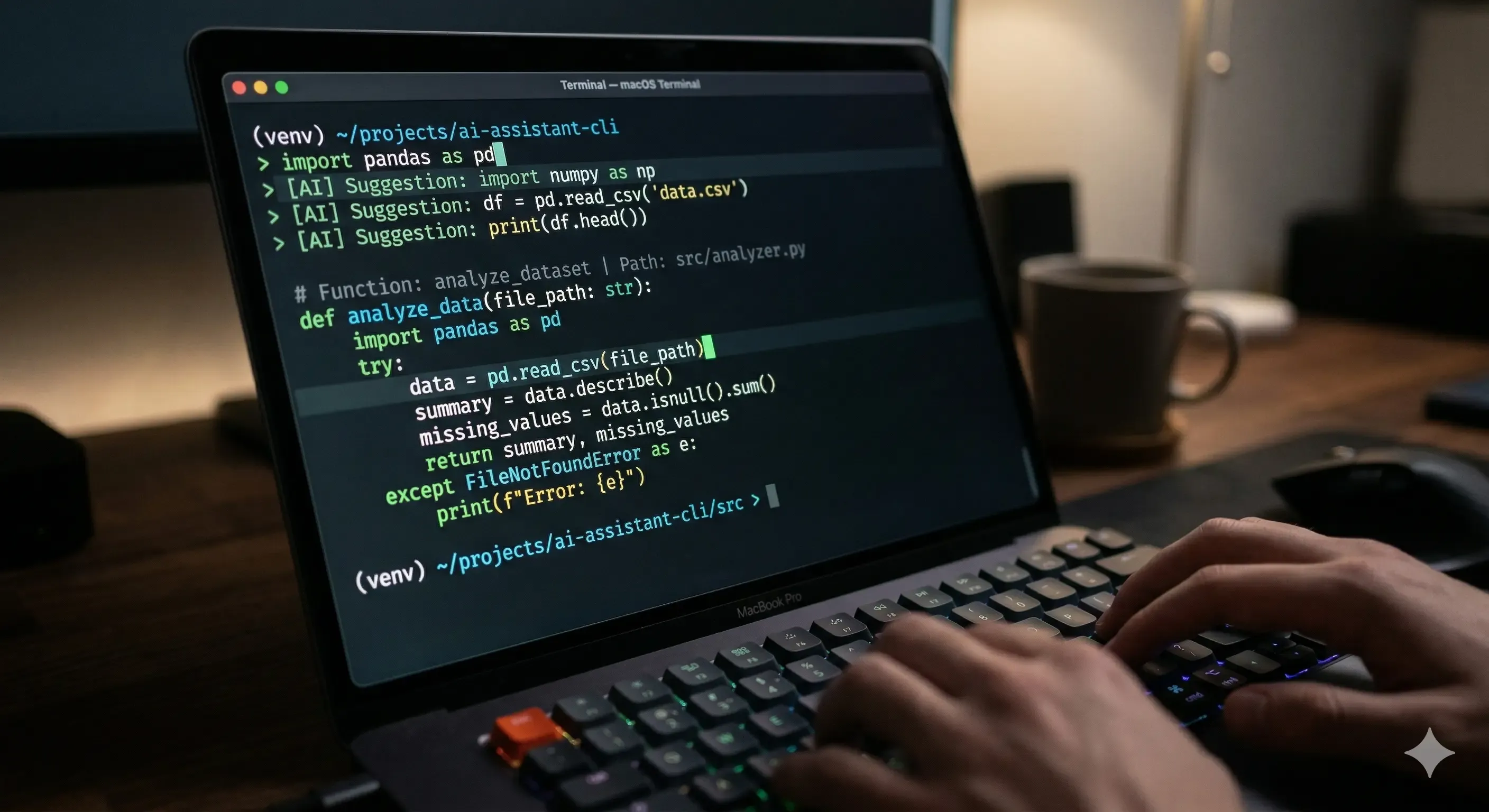
For the last few months, I’ve been testing a different way: Gemini CLI. It’s not just another chatbot; it’s an agent that lives inside my terminal. Here is how it fundamentally changed how I build Boredom at Work.
1. The Death of the “Context Switch”
The biggest killer of productivity isn’t a lack of knowledge—it’s context switching. Every time you leave your IDE to go to a browser, your brain “reloads.” It takes minutes to get back into “the zone.” Psychological studies on flow state suggest that even a minor interruption can cost you up to 20 minutes of deep focus.
When you Alt-Tab to a browser, you aren’t just looking for an answer; you’re opening a gateway to distractions—email notifications, news tabs, and social media. With Gemini integrated directly into my CLI, I don’t leave the environment. I can stay in my terminal and say: “Analyze my src/config.ts and tell me if a new category for ‘Anime’ fits the current structure.”
The AI doesn’t just guess; it reads the file. It looks at the existing categories, understands the TypeScript interface, and gives me a grounded answer without me ever touching the mouse. It sees my project structure exactly as it is, not as a theoretical example from a 2023 training set.
2. The Agent’s Toolbelt: Why it Beats a Browser
When you use a browser-based AI, you are the bridge between your code and the intelligence. You are the “copy-paste monkey” doing the manual labor of moving data back and forth. In the CLI, the AI has its own “toolbelt.” This turns the AI from a consultant into a collaborator.
grep: The agent can scan my entire project for every instance of a specific component or function. It understands global dependencies better than I do. If I change a prop in a shared component, the agent can find all 15 files where that component is used and suggest updates.read_file: It reads exactly what it needs, often looking at several files in parallel to understand a complex bug. It can trace a variable from the API route all the way to the frontend component.run_shell_command: It can runnpm run dev, check for errors, and even run my test suite to verify its own work. If a build fails, it sees the exact error message and starts debugging immediately.edit: This is the game-changer. It identifies the exact lines that need to change, shows me a diff, and applies it surgically.
3. Surgical Edits vs. Full Rewrites
Standard LLMs love to rewrite your entire file. If you have a 300-line component and ask for a small change, they spit back 300 lines. This leads to “truncation errors” where the AI cuts off the end of the file, or worse, “hallucinations” where it accidentally deletes imports or changes logic it wasn’t supposed to touch.
Using the edit tool is surgical. If I want to change a single div to a section in a complex Astro component, the agent only touches those lines. It maintains the integrity of the rest of the file, keeping my custom logic, specific formatting, and comments intact. This precision is what allows me to trust an AI agent with a production codebase.
4. The Art of the Feedback Loop (Troubleshooting)
One of the most misunderstood parts of working with AI is what happens when it gets things wrong. In a browser window, an error is a dead end that requires more copy-pasting. In the CLI, it’s just the beginning of a feedback loop.
If the agent applies a fix that causes a TypeScript error, I don’t have to explain the error. I simply say: “The build failed with the following error. Fix it.” The agent then:
- Reads the error log.
- Re-evaluates its previous change.
- Checks the documentation of the library involved.
- Applies a corrected fix.
This “self-correction” is where the real speed comes from. I’m no longer the one doing the debugging; I’m the one supervising the debugger. It’s the difference between being a mechanic and being the owner of an automated repair shop.
5. Case Study: Adding a New Feature in 60 Seconds
Yesterday, I wanted to add a “Reading Progress Bar” to my blog posts. Here was the workflow:
Old Way:
- Find a tutorial online.
- Copy the CSS.
- Manually create
ReadingProgressBar.astro. - Import it into
BlogPost.astro. - Debug the Z-index because it was hidden behind the header.
- Realize it doesn’t work on mobile because the scroll listener is wrong.
- Time spent: 45 minutes.
New Way (Gemini CLI):
- Directive: “Create a new component
ReadingProgressBar.astro, style it with Tailwind to be fixed at the top, and integrate it intoBlogPost.astro. Ensure it handles mobile responsiveness and uses a smooth transition for the width.” - Action: The AI created the file, added the logic, and updated the layout.
- Validation: It ran a quick build to check for errors.
- Result: Done.
- Time spent: 60 seconds.
6. Security and the “AI Guardrail”
A major concern for developers is security. You don’t want to accidentally send your .env files or your AWS keys to an LLM. When you work in a browser, it’s easy to accidentally paste a whole file that contains a secret.
In a well-configured CLI environment, the agent respects your .geminiignore file to exclude sensitive directories. It won’t read your secrets unless you explicitly tell it to. More importantly, because you are using an API-based tool, you often have more control over data retention policies than you do with a consumer-facing chat website. I’ve built a habit of keeping my secrets strictly in the environment, and the agent is trained to never print or log them.
7. Self-Validation: The “Build or Bust” Rule
The most powerful part of this workflow is Validation. When I ask the AI to fix a bug, I don’t just take its word for it. My instructions to the agent are clear: “Fix the bug, then run the project-specific build or linting command.”
Watching the terminal run npm run lint or tsc automatically after a code change is like magic. It removes the “guesswork” from AI-generated code. If the code is wrong, the compiler catches it, and the AI fixes itself before I even look at the results. This moves the “Definition of Done” from “the AI gave me an answer” to “the code actually works and passes the build.”
8. The Mindset Shift: From Coder to Architect
The biggest change hasn’t been in the code itself, but in my head. I’ve stopped thinking about how to write a map() function or how to style a grid. Instead, I think about the System Architecture.
I spend my time thinking about:
- How should these data models relate to each other?
- What is the best user experience for this feature?
- Is this the most maintainable way to structure the project?
The “boring” work of typing out the implementation is handled by the agent. This is the true meaning of “Boredom at Work.” It’s about automating the repetitive so you can focus on the high-level strategy. You become an architect who directs a team of invisible, ultra-fast builders.
9. Reclaiming the 9-to-5
The name of this blog is Boredom at Work. The irony is that since I started using Gemini in the CLI, I’m rarely “bored” in a negative way—I’m efficient.
Tasks that used to take my whole afternoon now take 20 minutes of “orchestration.” This gives me the downtime to actually learn new things (like 3D printing or Japanese proxies) rather than fighting with boilerplate code. It has turned my job from “fighting the machine” to “managing the fleet.” It allows me to finish my work by 2:00 PM and spend the rest of the day researching my next hobby.
My Advice for You
If you are still copy-pasting code into a browser window, you are working harder than you need to. You are using a Ferrari as a grocery getter.
- Step 1: Stop treating AI as a “Google replacement” and start treating it as an “Extension of your Terminal.”
- Step 2: Move your interaction to the command line. Use the API.
- Step 3: Think in Directives (actions) rather than just Inquiries (questions). Instead of asking “How do I do X?”, tell the machine: “Do X and verify it works.”
The “Bored Chap” way isn’t about doing less work—it’s about doing the work so fast that you have time for everything else.
What’s your AI workflow? Have you made the jump to the CLI yet? Join the discussion on our Reddit or shoot me an email!
Related Articles
Gemini CLI Guide: How to Use Google's AI in Your Terminal
How to install and use Gemini CLI for AI-powered coding, task automation, and project analysis. A complete guide to Google's terminal AI agent.

AI Tools for Work: The Only Guide You Need (2026)
Every AI tool worth using at work in 2026. ChatGPT, Claude, Copilot, and 20+ specialized tools — organized by task, with honest ratings and free alternatives.

Best E-Readers in 2026: Every Major Option Compared
The best e-readers in 2026 compared — Kindle, Kobo, Boox, and reMarkable. Specs, prices, and a clear recommendation for every type of reader.