
Gemini CLI Guide: How to Use Google's AI in Your Terminal
How to install and use Gemini CLI for AI-powered coding, task automation, and project analysis. A complete guide to Google's terminal AI agent.

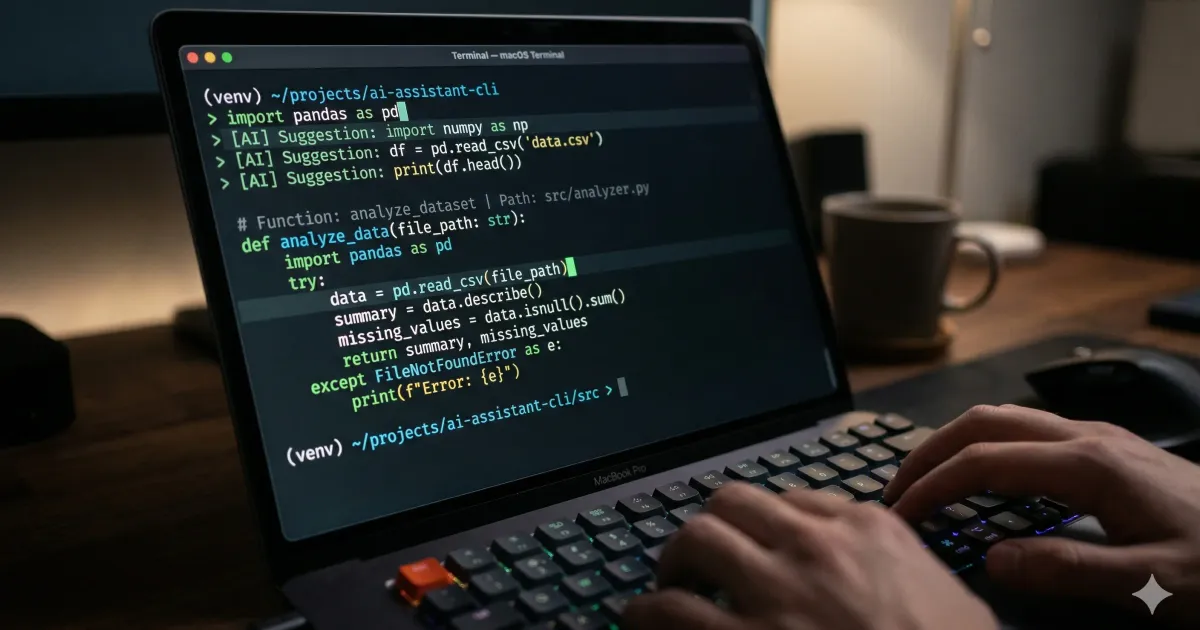
Update (August 2026): Gemini CLI has been officially superseded by Antigravity CLI. The new tool offers the same terminal-based AI features with vastly improved context handling and direct filesystem manipulation. Read the full guide on Antigravity CLI here.
If you’re a developer, you probably spend a huge chunk of your day in the terminal. Whether it’s running builds, managing git, or tailing logs, the command line is home.
But when you need AI help, you usually have to context-switch: copy code, alt-tab to a browser, paste it into ChatGPT or Claude, get an answer, and then alt-tab back.
Gemini CLI changes that by bringing the power of Google’s most capable AI models directly into your shell.
What is Gemini CLI?
Gemini CLI is more than just a wrapper for an API. It’s a context-aware AI agent designed specifically for the command line. Unlike a web-based chat, it “sees” your local environment, your files, your directory structure, and your project’s specific configurations.
It understands that when you ask “Why is this test failing?”, you’re talking about the code in your current directory, not some abstract concept.
Key Features That Matter
1. Local Project Context
The “magic” of Gemini CLI is its ability to index and understand your local project. It uses your file system as context, meaning it can answer questions across multiple files. It even respects your .gitignore and .geminiignore files, so your secrets and build artifacts stay private.
2. Interactive and Non-Interactive Modes
You can use it as a conversational REPL (like a chat interface in your terminal) or as a one-off command.
For example, you can pipe logs directly into it:
cat error.log | gemini "What's causing this crash?"3. Task Automation & Shell Execution
Gemini CLI can do more than just talk; it can act. It can propose and execute shell commands (with your approval) to fix bugs, refactor code, or move files. This makes it a powerful tool for repetitive tasks that are hard to script but easy for an AI to understand.
4. Agent Skills and Sub-Agents
The CLI can be extended with specialized “skills”,pre-configured sets of instructions for specific tasks like frontend development, database management, or security auditing. It can even delegate complex tasks to specialized sub-agents.
Installation & Integration
Getting Gemini CLI onto your machine is straightforward, fitting right into the standard developer toolchain.
Homebrew (Recommended for macOS)
For Mac users, the easiest way to manage your CLI tools is through Homebrew. If you already have Brew installed, you can typically install Gemini CLI via its official tap:
brew install gemini-cliNode.js (NPM/PNPM)
Since Gemini CLI is built with TypeScript/Node.js, you can also install it globally using your favorite package manager:
npm install -g @google/gemini-cli# orpnpm add -g @google/gemini-cliHow It Compares to Other AI CLIs
Gemini CLI isn’t the only player in the terminal AI space. Here is how it stacks up against the most popular alternatives:
Gemini CLI vs. Claude Code
Claude Code is Anthropic’s primary terminal assistant. While both are powerful, they have different philosophies:
- Context: Both offer massive context windows, Gemini CLI leverages Gemini’s 1M+ token context, while Claude Code also supports 1M tokens with Opus 4.6 and Sonnet 4.6. In practice, Gemini CLI indexes your project upfront, while Claude Code loads files on demand.
- Search: Gemini CLI has native Google Search built-in, allowing it to research real-time documentation or library updates directly.
- Cost: Gemini CLI offers a generous free tier (1,000 requests/day with a Google account), whereas Claude Code requires an Anthropic Max subscription or API credits.
Gemini CLI vs. Aider
- Focus: Aider is a specialized “AI pair programmer” for heavy-duty coding. Gemini CLI is a more general-purpose terminal assistant that handles everything from code to system administration and log analysis.
- Models: Aider is model-agnostic and works with most major LLMs. Gemini CLI is built to showcase the unique strengths of Google’s Gemini models, including Gemini 2.5 Pro and Flash.
Gemini CLI vs. ShellGPT
- Interface: ShellGPT is a lightweight wrapper for OpenAI’s models. Gemini CLI offers a much richer ecosystem of “Agent Skills” and sub-agents for specialized tasks.
Why Use It Over a Browser?
- Zero Context Switching: Stay in your flow.
- Better Context: It knows your project structure better than you could ever explain in a copy-paste.
- Piping & Scripting: Integrate AI into your existing shell workflows and scripts.
- Privacy: Better control over what context is sent to the model via ignore files.
Real-World Workflows That Actually Save Time
The marketing pitch is generic. Here are the workflows where Gemini CLI consistently saves developers real time.
Debugging a Failing Test
Instead of reading through stack traces line by line, pipe the output directly:
npm test 2>&1 | gemini "Why is this failing? Show me the file and line"Because Gemini CLI has access to the actual files referenced in the stack trace, it can read them and identify the root cause without you having to copy code back and forth.
Refactoring a Legacy Function
Pick a function you don’t fully understand:
gemini "Read src/utils/dateformat.js and explain what it does, then suggest a cleaner version"Gemini reads the file, walks through it, and proposes a refactor. Approve the refactor and it writes the new file.
Understanding a New Codebase
Just cloned a repo you’ve never seen?
gemini "What does this project do? Walk me through the entry point and main modules."This is the fastest way to onboard onto an unfamiliar codebase, faster than reading the README and skimming files manually.
Generating Boilerplate from a Spec
Have a feature spec in a Markdown file?
gemini "Read SPEC.md and scaffold the API endpoints described there in src/routes/"Gemini reads the spec, plans the file structure, and creates the boilerplate. You review and adjust.
Log Analysis
Production issue, 10,000-line log file:
cat production.log | gemini "Summarize the errors and group by frequency"Faster than grep patterns when you don’t yet know what you’re looking for.
Power User Tips
A few configuration details that make a noticeable difference once you’re past the basics.
Use .geminiignore Aggressively
By default Gemini CLI respects .gitignore, but it also reads a .geminiignore file for additional exclusions. Useful patterns:
*.lockfiles (package-lock.json, yarn.lock, pnpm-lock.yaml) which add tokens without context valuedist/,build/,coverage/directories- Test snapshots (
__snapshots__/,*.snap) - Generated documentation (
docs/_build/, etc.) - Anything binary or media you don’t want sent to the API
The smaller and more focused the context window, the better Gemini’s responses, and the less you pay if you’re on a paid plan.
Custom Agent Skills for Repeated Workflows
If you find yourself writing the same kind of prompt repeatedly, save it as an Agent Skill. A skill is a Markdown file in your project’s .gemini/skills/ directory that bundles instructions plus optional file references. For example, a code-review.md skill could include your team’s review checklist and style guide, then any future “review this PR” command automatically uses those rules.
Pin a Model Version
The default model rotates as Google updates Gemini. For reproducible workflows (especially in scripts), pin a specific model:
gemini --model gemini-2.5-pro "your prompt here"This prevents your scripts from breaking when Google quietly upgrades the default to a new model with different behavior.
Stay Inside the Free Tier
The free tier on a Google account gives you 1,000 requests per day, which is more than enough for most personal coding. Two habits keep you under that ceiling:
- Use one-shot commands (
gemini "question") instead of long REPL sessions, which can rack up requests through follow-ups - Keep
.geminiignoretight so each request sends less context, models can sometimes refuse oversized requests rather than charging for them
Getting Started
To get started, you’ll need to install the CLI and provide it with a Google AI API key. Once set up, just type gemini to start a session or gemini "your question" for a quick answer. If you’re new to AI tools in general, our guide to using AI at work safely covers the basics of responsible AI usage.
Conclusion
Gemini CLI is a significant step forward for developer productivity. By meeting developers where they already are, in the terminal, and adding deep project awareness, it transforms the AI from a distant consultant into a local pair programmer.
If you find yourself constantly jumping between your IDE and your browser, give Gemini CLI a try. Your terminal will thank you.
Related Reading
Related Articles

Antigravity CLI Guide: Ultimate AI Agent for Terminal
Google's Gemini CLI has been deprecated and replaced by Antigravity CLI. Here is everything you need to know about setting up and mastering the new terminal AI.
OpenCode vs Cursor vs Codex vs Antigravity: AI Coding Tools
Compare OpenCode, Cursor, Codex, and Antigravity. Discover features, workflow fits, agentic capabilities, and pricing to pick the best AI coding tool.

Antigravity 2 with Gemini 3.5: The AI Coding Assistant
Antigravity 2 with Gemini 3.5 is changing how developers work. Explore the new Planning Mode, Knowledge Items, and multi-file context in this 2026 guide.