
Microsoft Copilot Review: Is It Worth $30/Month?
Honest review of Microsoft 365 Copilot after months of use. What it does well, where it fails, and whether it's worth the steep price tag.

Microsoft Copilot promises to revolutionize how you work with Office apps. After using it daily for several months, I can tell you: it’s genuinely useful, occasionally magical, and frustratingly inconsistent.
Here’s my honest review — what works, what doesn’t, and whether it’s worth the hefty price tag.
What Is Microsoft Copilot?
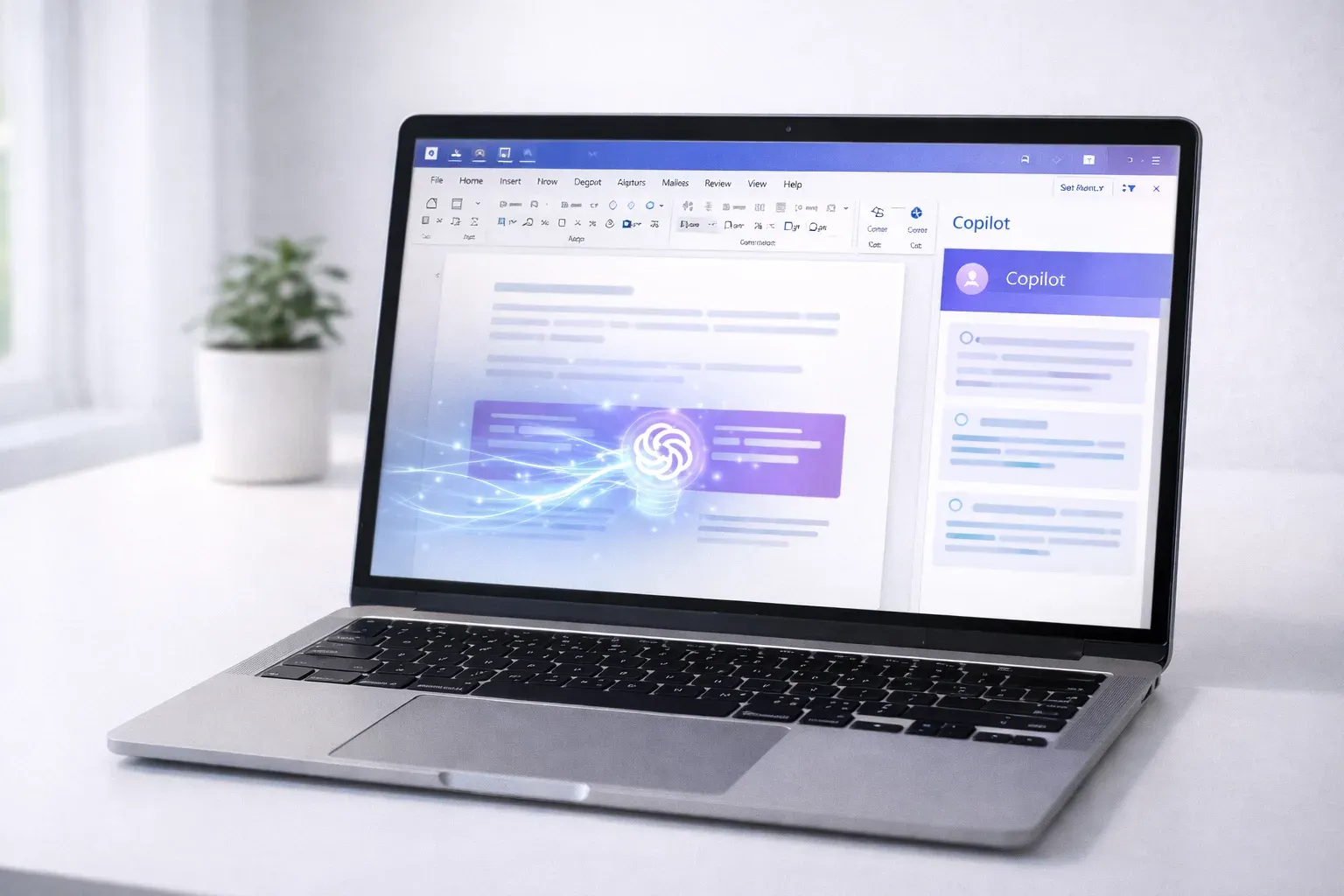
Microsoft Copilot is AI assistance built directly into Microsoft 365 apps:
- Word — Draft documents, rewrite text, summarize
- Excel — Analyze data, create formulas, generate charts
- PowerPoint — Generate presentations from prompts or documents
- Outlook — Draft emails, summarize threads, schedule meetings
- Teams — Meeting summaries, catch-up on missed discussions
- OneNote — Summarize notes, generate content
It’s powered by OpenAI’s latest models — currently GPT-5.2 with real-time model routing that picks the best model for each task — and has deep access to your Microsoft 365 data: your emails, documents, calendar, and Teams conversations.
The Price Reality
Let’s talk money first, because it’s significant.
Business Pricing
| Component | Cost |
|---|---|
| Microsoft 365 Business Basic | ~$6/user/month |
| Microsoft 365 Business Standard | ~$12.50/user/month |
| Microsoft 365 Business Premium | $22/user/month |
| Copilot Add-on (Business) | $21/user/month |
| Copilot Add-on (Enterprise) | $30/user/month |
Total minimum cost: ~$27/user/month (Basic + Copilot Business) Realistic cost: ~$33.50-43/user/month (Standard/Premium + Copilot Business)
For a team of 10, that’s $335-430/month just for Copilot.
Note: Microsoft is raising base M365 business prices effective July 1, 2026 (e.g., Business Basic to $7, Business Standard to $14). Check Microsoft’s pricing page for the latest numbers.
Individual Pricing
Since January 2025, Copilot is also available for individuals:
| Plan | Cost | Copilot Access |
|---|---|---|
| Microsoft 365 Personal | $9.99/month | Included (basic) |
| Microsoft 365 Family | $12.99/month | Included (owner only) |
| Microsoft 365 Premium | $19.99/month ($199.99/year) | Enhanced Copilot |
This is a big change — Copilot is no longer business-only. Individual users get Copilot in Word, Excel, PowerPoint, Outlook, and OneNote right out of the box, though with usage limits compared to the full business add-on.
What Copilot Does Well
1. Email Drafting in Outlook (Excellent)
This is Copilot’s killer feature. Describe what you want to say, and it drafts a professional email.
Example prompt: “Reply declining the meeting politely, suggest next week instead, mention I’m traveling this week”
Result: A well-written email that sounds like you wrote it, not a robot.
It can also:
- Summarize long email threads
- Adjust tone (more formal, more casual)
- Translate and reply in other languages
Time saved: 2-5 minutes per complex email × many emails = significant
2. Meeting Summaries in Teams (Excellent)
Miss a meeting? Copilot gives you:
- Key discussion points
- Decisions made
- Action items with owners
- Full searchable transcript
Example: “What was decided about the Q3 budget in yesterday’s meeting?”
Copilot finds the answer in the transcript. No more “can someone send me the notes?”
Caveat: Only works for recorded Teams meetings.
3. Document Summarization (Very Good)
Drop a 50-page document into Word, ask Copilot to summarize it.
Works well for:
- Contracts and legal documents
- Research reports
- Meeting notes compilations
- Long email threads
Example: “Summarize the key terms and any red flags in this contract”
It’s not perfect, but it gets you 80% there in seconds.
4. First Drafts in Word (Good)
Copilot can generate first drafts based on prompts:
Example: “Write a project proposal for migrating our CRM to Salesforce, include timeline and risks”
The output needs editing, but it’s a solid starting point. Better than staring at a blank page.
5. Data Analysis in Excel (Good, With Caveats)
Ask questions about your data in plain English:
Examples:
- “What were total sales by region last quarter?”
- “Create a pivot table showing monthly revenue trends”
- “Highlight rows where margin is below 20%”
Works well when:
- Data is clean and well-structured
- Column headers are clear
- You’re asking straightforward questions
Struggles when:
- Data is messy
- Multiple sheets with complex relationships
- Advanced statistical analysis
Where Copilot Falls Short
1. PowerPoint Generation (Disappointing)
The promise: “Create a presentation from this document” The reality: Generic slides with your content awkwardly inserted
Problems:
- Designs are bland and corporate
- Often misses the key points
- Requires significant manual cleanup
- Images are hit-or-miss
My take: Use it for a rough first draft, but expect to rebuild most slides.
2. Inconsistent Quality
Copilot’s output varies wildly:
- Same prompt, different results each time
- Sometimes brilliant, sometimes useless
- No way to predict which you’ll get
This makes it hard to rely on for time-sensitive work.
3. Limited Customization
You still can’t:
- Train it on your writing style
- Adjust its behavior preferences
However, Microsoft has improved here. The Prompt Gallery now lets you save, reuse, and share prompts with colleagues — a welcome addition. Custom templates for repeated tasks are also rolling out (in Public Preview as of late 2025). These are steps in the right direction, but Copilot still doesn’t learn your preferences over time the way tools like Notion AI adapt to your workspace.
4. Slow Response Times
Copilot is noticeably slower than ChatGPT or Claude:
- 5-15 seconds for simple requests
- 30+ seconds for complex tasks
- Occasional timeouts
When you’re in flow, waiting 15 seconds for a response is jarring.
5. Privacy and Data Concerns
Copilot has access to everything in your Microsoft 365:
- All emails (including sensitive ones)
- All documents (including confidential files)
- Calendar details
- Teams conversations
For most business use, this is fine (the data stays within Microsoft’s ecosystem). But:
- You can’t easily exclude specific files or folders
- Copilot might surface information you’d rather not share
- IT admins need to configure permissions carefully
Real-World Productivity Gains
After months of use, here’s my honest assessment:
| Task | Time Without Copilot | Time With Copilot | Savings |
|---|---|---|---|
| Email drafting | 5-10 min | 1-3 min | 60-70% |
| Meeting catch-up | 15-30 min | 3-5 min | 80% |
| Document summary | 20-60 min | 2-5 min | 90% |
| First draft (Word) | 30-60 min | 10-20 min | 50-60% |
| Excel analysis | 10-30 min | 5-15 min | 30-50% |
| PowerPoint | 60-120 min | 40-90 min | 20-30% |
Overall: I estimate Copilot saves me 3-5 hours per week on a heavy Microsoft 365 workflow.
At $21-30/month (depending on your plan), that’s $4-10 per hour saved. Worth it if your time is valuable; questionable if you could accomplish the same with free tools.
Copilot vs. The Competition
Copilot vs. ChatGPT Plus ($20/month)
Copilot advantages:
- Direct integration with your files and email
- Works inside the apps you already use
- Meeting transcription and summaries
ChatGPT advantages:
- Better raw writing quality
- Web browsing
- Image generation
- Works outside Microsoft ecosystem
- Cheaper
Verdict: Different tools for different jobs. Copilot for Microsoft-integrated work, ChatGPT for everything else.
Copilot vs. Claude ($20/month)
Copilot advantages:
- Microsoft integration
- Meeting features
Claude advantages:
- Superior writing quality
- Larger context window (200K tokens standard, up to 1M via API)
- Better reasoning and analysis
- Cheaper
Verdict: For pure writing and analysis, Claude is better. Copilot wins on integration.
Copilot vs. Google Workspace + Gemini
Copilot advantages:
- More mature features
- Better meeting summaries
- Stronger enterprise adoption
Google advantages:
- Gemini included in some Workspace plans
- Better collaboration features
- Lower total cost
Verdict: Depends on your ecosystem. Don’t switch ecosystems just for AI features.
Who Should Buy Copilot?
Buy It If:
- Your company is deeply invested in Microsoft 365
- You spend 4+ hours/day in Outlook, Word, Excel, Teams
- You attend many meetings and need catch-up summaries
- Your company is paying (not you personally)
- Time savings of 3-5 hours/week is worth $21-30/month
Skip It If:
- You mostly use Google Workspace
- You’re an individual and don’t want to pay $9.99+/month (try the free Copilot in Windows/Edge first)
- Your work is creative rather than document-heavy
- You can accomplish the same with free AI tools
- $21-30/month per person strains your budget
Wait If:
- You want to see competitors catch up
- Your company is evaluating multiple options
- You’re unsure if AI tools will stick in your workflow
Tips for Getting Value from Copilot
1. Use Specific Prompts
Weak: “Summarize this document” Better: “Summarize the key financial metrics and any risks mentioned in this quarterly report”
2. Start with Email and Meetings
These are Copilot’s strongest features. Build habits here first before expanding to other apps.
3. Don’t Trust Blindly
Always review Copilot’s output, especially for:
- Numbers and data
- Legal or compliance content
- External communications
4. Learn Keyboard Shortcuts
Alt + Iopens Draft with Copilot in Word (on a blank line)- Use the Copilot button in the ribbon for other Office apps
5. Combine with Other Tools
Use Copilot for Microsoft-integrated tasks, but keep Claude or ChatGPT for:
- Creative writing
- Research
- Coding help
- Tasks outside Microsoft ecosystem
The Verdict
Microsoft Copilot is genuinely useful but not magical.
It excels at:
- Email drafting and summarization
- Meeting catch-up
- Document summarization
- Getting past blank-page syndrome
It disappoints at:
- PowerPoint generation
- Consistent quality
- Customization
- Value for money (for some users)
Is it worth $21-30/month?
If your company is paying and you’re a heavy Microsoft 365 user, yes. The time savings on email and meetings alone justify it.
If you’re paying personally or have a light Microsoft 365 usage, the combination of Claude ($20) + Perplexity ($20) gives you more versatility for the same money.
Rating: 3.5/5 stars
Good enough to use daily, not good enough to be transformative. Microsoft has built a solid foundation — now they need to execute on consistency and customization.
Related Articles
- Copilot in Word Tutorial — Complete guide to Copilot in Word
- AI Tools Guide — Compare all AI tools for work
- ChatGPT Mastery Guide — The main alternative to Copilot
- ChatGPT Alternatives — 10 options compared
- Best AI Tools for Office Work — Curated productivity tools
Related Articles
Microsoft Copilot in Word: Complete Tutorial (2026)
Master Copilot in Word. From drafting documents to rewriting sections—everything you need to use AI directly in Microsoft Word.

Google Gemini Review: Is It Better Than ChatGPT in 2026?
Honest review of Google Gemini after months of daily use. What it does well, where it falls short, and whether it's worth switching from ChatGPT.

Best AI PDF Summarizers (2026): Chat With Your Documents
The best AI tools for summarizing PDFs and long documents. Upload a 100-page report, get key insights in seconds. Free and paid options compared.