
7 Best USB-C Docking Stations for Home Office (2026)
I compared Thunderbolt 4, USB-C, and DisplayLink docks for every budget. Here are the 7 best docking stations for your home office, from ~$25 to ~$400.

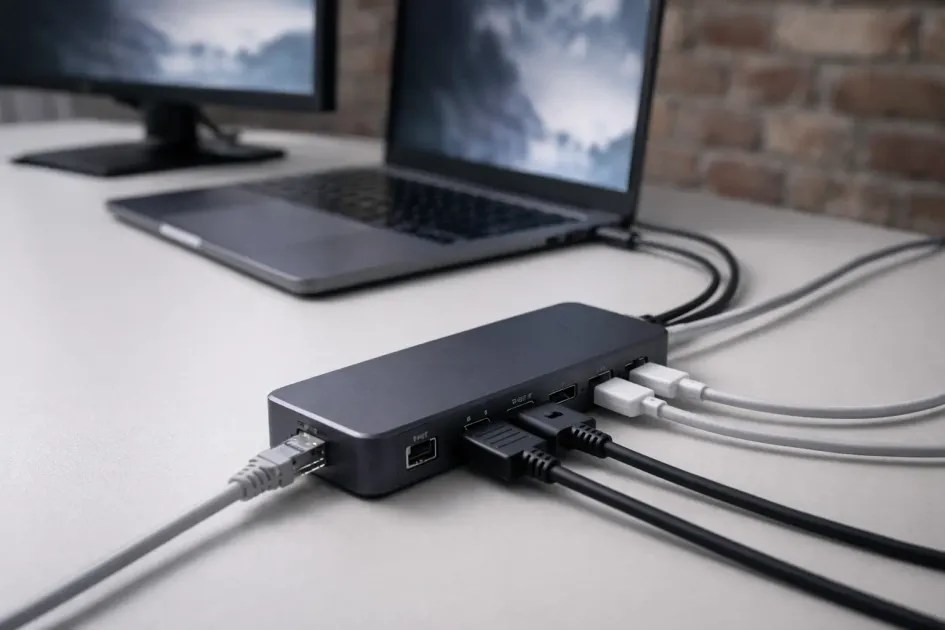
If you work from a laptop at home, a docking station is the upgrade that ties everything together. One cable plugs into your laptop and suddenly you have your monitor, keyboard, ergonomic mouse, webcam, Ethernet, and charging all connected. Unplug that one cable at the end of the day and you’re mobile again. If a second computer sits on the same desk, a dock alone will not share the keyboard; see how to share one keyboard and mouse between Mac and PC. But shopping for a dock in 2026 is confusing. Thunderbolt 4, USB-C, USB4, DisplayLink, the terminology alone is enough to make you close the browser tab. And prices range from $25 to $500, which doesn’t help narrow things down.
I researched the most recommended docking stations across categories and budgets. Here are the 7 best picks, plus an honest breakdown of what you actually need.
Already upgrading your whole setup? Our desk upgrade guide covers everything from standing desks to monitor arms.
Quick Answer: Best USB-C Docking Stations 2026
| Dock | Type | Ports | Displays | Power Delivery | Price | Best For |
|---|---|---|---|---|---|---|
| CalDigit TS4 | Thunderbolt 4 | 18 | Dual 6K or Single 8K | 98W | ~$380 | Best overall |
| Plugable TBT4-UDZ | Thunderbolt 4 | 16 | Quad 4K (Win) / Dual 4K (Mac) | 98W | ~$300 | Best for multi-monitor |
| Dell Universal Dock UD22 | USB-C (DisplayLink) | 10 | Up to Quad 4K | 96W | ~$250 | Best for Dell laptops |
| Anker 575 (13-in-1) | USB-C | 13 | Triple (1080p) or Dual (1440p) | 85W | ~$200 | Best mid-range |
| UGREEN Revodok Pro 209 | USB-C (DisplayLink) | 9 | Dual 4K@60Hz | 100W | ~$170 | Best for MacBook dual monitors |
| Anker 563 (10-in-1) | USB-C (DisplayLink) | 10 | Triple display | 100W | ~$150 | Best budget full dock |
| Anker 332 (5-in-1) | USB-C Hub | 5 | Single 4K@30Hz | 85W pass-through | ~$25 | Best compact/travel |
Prices as of early 2026. They fluctuate, check current prices before buying.
Thunderbolt 4 vs USB-C vs DisplayLink: What You Actually Need
This is where most people get confused, so let me break it down simply.
USB-C (DP Alt Mode)
This is what most laptop USB-C ports support. A USB-C dock uses your laptop’s built-in graphics to output video. It’s straightforward: plug in the dock, your laptop sends video, data, and receives power through that one cable.
Limitations: Typically supports one 4K display at 60Hz. Bandwidth is shared between video, data, and peripherals, so connecting a lot of devices can create bottlenecks.
Best for: Most people. If you use one external monitor and a few peripherals, USB-C is all you need.
Thunderbolt 4
Thunderbolt 4 uses the same USB-C connector (yes, the same physical plug) but guarantees 40Gbps bandwidth, roughly 4x more than standard USB-C. This means dual 4K displays at 60Hz, faster data transfers, and more headroom for peripherals.
Limitations: Your laptop needs a Thunderbolt 4 port (check your specs). Thunderbolt docks cost $100-200 more than USB-C equivalents.
Best for: Power users with dual monitors, external storage, and multiple high-bandwidth peripherals. Also required for daisy-chaining monitors.
DisplayLink
DisplayLink is a software-based solution that compresses and sends video data over a standard USB connection. It installs a driver on your system and uses your CPU (not GPU) to process the display output.
Why it matters: DisplayLink is the only way to run dual or triple monitors on base-model Apple Silicon Macs (M1/M2/M3/M4), which natively support only one external display. It’s also cheaper than Thunderbolt.
Limitations: Slight image compression (barely noticeable for office work, but not ideal for photo/video editing). Uses some CPU resources. Requires a driver installation.
Best for: MacBook Air and base MacBook Pro users who need multiple monitors. Also great as a budget multi-monitor solution on any laptop.
The Quick Decision
- One monitor + basic peripherals → USB-C dock ($25-200)
- Dual 4K monitors + lots of peripherals → Thunderbolt 4 dock ($300-400)
- Multiple monitors on a MacBook Air/base Pro → DisplayLink dock ($150-250)
The 7 Best Docking Stations for Home Office
1. CalDigit TS4, Best Overall
~$380 | Thunderbolt 4 | 18 Ports | 98W PD
The CalDigit TS4 has been the gold standard for Thunderbolt docks since it launched, and nothing has really knocked it off that throne. With 18 ports, the most of any Thunderbolt 4 dock, it handles virtually any setup you can throw at it.
What makes it special:
- 18 ports total: 3 Thunderbolt 4 (40Gbps), 3 USB-C (10Gbps), 5 USB-A (10Gbps), DisplayPort 1.4, 2.5GbE Ethernet, SD + microSD (UHS-II), front + rear audio
- Dual display support: up to two 6K@60Hz monitors or one 8K@30Hz via Thunderbolt ports
- 98W Power Delivery, charges MacBook Pro 14” at full speed, MacBook Pro 16” at near-full
- 2.5 Gigabit Ethernet, faster than most docks’ standard Gigabit
- All USB ports are 10Gbps, no sneaky USB 2.0 ports hidden in the back
- Solid aluminum build, sits vertical or horizontal, no wobble
The TS4’s one notable absence is a dedicated HDMI port. You’ll need a Thunderbolt-to-HDMI cable or adapter if your monitor doesn’t have DisplayPort or USB-C input. For most modern monitors, this isn’t an issue, but check your monitor’s inputs before buying.
Who it’s for: Anyone who wants the best dock money can buy and has a Thunderbolt 4 laptop. Especially great for MacBook users, it’s practically the default recommendation in the Mac community for a reason.
2. Plugable TBT4-UDZ, Best for Multi-Monitor Setups
~$300 | Thunderbolt 4 | 16 Ports | 98W PD
If you need to drive more than two monitors, the Plugable TBT4-UDZ is the dock to look at. On Windows, it supports up to four 4K@60Hz displays simultaneously. On Mac (with M-series Pro/Max chips), you get dual 4K@60Hz.
Key specs:
- 16 ports: Thunderbolt 4 host, USB-C 10Gbps, 2 HDMI + 2 DisplayPort outputs, 3 USB-A (10Gbps + 5Gbps), 2.5GbE Ethernet, SD + microSD, audio
- Quad 4K display on Windows, four monitors from a single dock
- Dual 4K display on Mac (M-series Pro/Max/Ultra chips)
- 98W Power Delivery for laptop charging
- 2.5 Gigabit Ethernet
The big advantage over the CalDigit TS4 is the dedicated HDMI and DisplayPort outputs, two of each. No adapters needed, no guessing. You plug in your monitors and they just work.
The catch: Base M1/M2/M3/M4 MacBooks (non-Pro/Max) are still limited to one external display natively. Plugable’s drivers don’t bypass that Apple limitation, you’d need a DisplayLink dock for that (see picks #5 and #6).
Who it’s for: Windows power users who want quad-monitor setups, or Mac Pro/Max users who need dual 4K without compromises.
3. Dell Universal Dock UD22, Best for Dell Laptop Users
~$250 | USB-C with DisplayLink | 10 Ports | 96W PD
The Dell UD22 is a universal dock that works with any USB-C laptop, but it’s especially seamless with Dell systems. It uses DisplayLink technology to support up to four 4K displays from a single USB-C connection, no Thunderbolt required.
What you get:
- 10 ports: 4 USB-A (10Gbps), 2 USB-C (10Gbps), 2 DisplayPort 1.2, 1 HDMI, Gigabit Ethernet, 3.5mm combo audio
- Up to quad 4K display at 60Hz with DisplayLink drivers
- 96W Power Delivery, handles most business laptops comfortably
- 130W power adapter included
- Compact and clean design, typical Dell business aesthetic
The UD22 shines in corporate environments. Dell’s driver integration is rock-solid on Dell laptops (auto-detected, often pre-installed), and the dock pairs perfectly with Dell monitors for a unified setup. It also works with MacBooks and other brands, you just need to install the DisplayLink driver manually.
Who it’s for: Dell laptop users who want a plug-and-play experience, or anyone who needs multi-monitor support without paying Thunderbolt prices. Great for corporate WFH setups where IT standardizes on Dell hardware.
4. Anker 575 USB-C Docking Station (13-in-1), Best Mid-Range
~$200 | USB-C | 13 Ports | 85W PD
The Anker 575 is the sweet spot between a basic USB-C hub and a full Thunderbolt dock. It gives you 13 ports including triple display output, 85W laptop charging, and SD card slots, all without requiring Thunderbolt.
Key features:
- 13 ports: 2 HDMI, 1 DisplayPort, 3 USB-A, 1 USB-C (10Gbps), 1 USB-C (18W charging), Gigabit Ethernet, SD + microSD, 3.5mm audio, DC power input
- Triple display at 1080p@60Hz or dual display at 1440p@60Hz (via DP Alt Mode, not DisplayLink)
- 85W Power Delivery for laptop charging + 18W USB-C for phone charging
- 135W power adapter included
The display resolution is the main trade-off here. The Anker 575 uses your laptop’s native DP Alt Mode for video output, no DisplayLink driver needed, but that means the bandwidth is split across monitors. Triple 4K isn’t possible. If you need triple 1080p monitors or dual 1440p, it’s great. If you need dual 4K, step up to a Thunderbolt dock.
Who it’s for: Home office workers who want more ports than a basic hub but don’t need (or want to pay for) Thunderbolt. The 13-port count and triple display make it a strong mid-range choice.
5. UGREEN Revodok Pro 209, Best for MacBook Dual Monitors
~$170 | USB-C with DisplayLink | 9 Ports | 100W PD
This is the dock that solves Apple’s most annoying limitation. If you have a MacBook Air or base MacBook Pro (M1/M2/M3/M4) and want two external monitors, the UGREEN Revodok Pro 209 uses DisplayLink to make it happen.
What you get:
- 9 ports: 2 HDMI + 2 DisplayPort (mix and match for dual 4K@60Hz), USB-C (10Gbps), USB-A (10Gbps), 100W PD, Gigabit Ethernet
- Dual 4K@60Hz on any USB-C laptop, including base Apple Silicon Macs
- 100W Power Delivery, charges even a MacBook Pro 16” adequately
- 10Gbps data ports, no slow USB 2.0 compromises
- DisplayLink driver required, installs in minutes, runs in the background
At ~$170, it’s significantly cheaper than any Thunderbolt dock that can do dual 4K. The trade-off is image quality: DisplayLink compresses the video signal, so there’s a tiny quality loss compared to native Thunderbolt output. For documents, spreadsheets, Slack, email, and video calls, you genuinely will not notice. For color-critical design or video editing, stick with Thunderbolt.
Who it’s for: MacBook Air and base MacBook Pro users who need dual monitors. Also a great affordable dual-4K dock for any USB-C laptop.
6. Anker 563 USB-C Docking Station (10-in-1), Best Budget Full Dock
~$150 | USB-C with DisplayLink | 10 Ports | 100W PD
The Anker 563 takes the DisplayLink approach and pairs it with Anker’s build quality and brand reliability. It supports triple displays (including on M-series Macs) and delivers 100W of charging power.
Key specs:
- 10 ports: 2 HDMI, 1 DisplayPort, 3 USB-A (2x USB 2.0, 1x USB 3.1), 1 USB-C (5Gbps), Gigabit Ethernet, 3.5mm audio
- Triple display support on both Windows and Mac (via DisplayLink)
- 100W Power Delivery for laptop + 30W USB-C port for phone
- 180W power adapter included
The display resolution per monitor is lower than the UGREEN, 4K@30Hz via HDMI plus 2048x1152@60Hz on the other outputs. For spreadsheets and documents, this is fine. If you specifically want dual 4K@60Hz, the UGREEN Revodok Pro 209 is the better pick.
Where the Anker 563 wins is the triple-display capability and the 30W phone charging port, handy if you want to charge your phone at your desk without a separate charger.
Who it’s for: Budget-conscious home office workers who want a full docking experience with triple-monitor support. A great entry point into the “real dock” category.
7. Anker 332 USB-C Hub (5-in-1), Best Compact / Travel
~$25 | USB-C Hub | 5 Ports | 85W Pass-Through
Sometimes you don’t need 18 ports. You need one HDMI output, a couple of USB ports, and charging. The Anker 332 does exactly that, weighs 78 grams, and costs about $25.
What you get:
- 5 ports: 1 HDMI (4K@30Hz), 1 USB-C (5Gbps), 2 USB-A (5Gbps), 1 USB-C PD pass-through (85W)
- 78 grams, lighter than your phone
- 0.59 inches thick, disappears into any bag
- No external power needed, bus-powered from your laptop
- Plug and play, no drivers, works with Mac/Windows/ChromeOS
The 4K@30Hz HDMI output is fine for a single monitor used for documents and web browsing, but if you do anything with motion (scrolling quickly, video playback), you’ll want 4K@60Hz, which this hub doesn’t support. For a desk-bound setup, consider one of the docks above. For travel, coworking spaces, conference rooms, and “I just need to connect a monitor real quick,” it’s perfect.
Who it’s for: Anyone who needs a minimal, portable hub for travel or as a backup. Also great for workers who dock at the office (using a full dock there) but want something light for home or travel.
Full Comparison Table
| Feature | CalDigit TS4 | Plugable TBT4-UDZ | Dell UD22 | Anker 575 | UGREEN Revodok Pro | Anker 563 | Anker 332 |
|---|---|---|---|---|---|---|---|
| Type | Thunderbolt 4 | Thunderbolt 4 | USB-C + DisplayLink | USB-C | USB-C + DisplayLink | USB-C + DisplayLink | USB-C Hub |
| Total Ports | 18 | 16 | 10 | 13 | 9 | 10 | 5 |
| Max Displays | Dual 6K | Quad 4K (Win) | Quad 4K | Triple 1080p | Dual 4K@60Hz | Triple | Single 4K@30Hz |
| HDMI | None | 2 | 1 | 2 | 2 | 2 | 1 |
| DisplayPort | 1 (DP 1.4) | 2 | 2 | 1 | 2 | 1 | None |
| USB-A | 5 (10Gbps) | 6 (mixed) | 4 (10Gbps) | 3 | 1 (10Gbps) | 3 (mixed) | 2 (5Gbps) |
| USB-C Data | 3 (10Gbps) | 1 (10Gbps) | 2 (10Gbps) | 1 (10Gbps) | 1 (10Gbps) | 1 (5Gbps) | 1 (5Gbps) |
| Ethernet | 2.5GbE | 2.5GbE | 1GbE | 1GbE | 1GbE | 1GbE | None |
| SD Card | SD + microSD | SD + microSD | None | SD + microSD | None | None | None |
| Power Delivery | 98W | 98W | 96W | 85W | 100W | 100W | 85W pass-through |
| External PSU | Yes | Yes | Yes (130W) | Yes (135W) | Separate | Yes (180W) | No (bus-powered) |
| Price | ~$380 | ~$300 | ~$250 | ~$200 | ~$170 | ~$150 | ~$25 |
Things to Check Before You Buy
1. Does Your Laptop Support Thunderbolt 4?
Not every USB-C port is Thunderbolt. Check your laptop’s specs page or look for the Thunderbolt logo (a lightning bolt) next to the port. If your laptop only has standard USB-C, a Thunderbolt dock will still work, but only as a USB-C dock, losing the dual-display and bandwidth advantages.
2. How Much Power Does Your Laptop Need?
| Laptop Size | Typical Charging Wattage | Minimum PD to Look For |
|---|---|---|
| 13-14” ultrabooks | 45-65W | 65W |
| 14-15” mainstream | 65-90W | 85W |
| 15-16” performance | 90-140W | 96W+ |
If the dock delivers less wattage than your laptop needs, it’ll charge slowly, or drain under heavy workloads.
3. What Monitor Connections Do You Need?
Check your monitor’s inputs before buying a dock. If you just upgraded to a new work monitor, most modern 4K panels have HDMI, DisplayPort, and USB-C. Older monitors might only have HDMI. Make sure the dock’s output matches your monitor’s input, or budget $10-15 for an adapter.
4. Do You Need Ethernet?
WiFi is fine for most work. But if you do large file transfers, video calls that can’t afford to stutter, or your WiFi is unreliable, built-in Ethernet on a dock is a real convenience. Most docks include Gigabit Ethernet; the CalDigit TS4 and Plugable TBT4-UDZ include 2.5GbE for faster local network speeds.
Which Docking Station Should You Buy?
Just need the basics for cheap? The Anker 332 at ~$25 connects one monitor, charges your laptop, and adds a few USB ports. It’s all most people need if they have a single-monitor setup.
Want a real dock without breaking the bank? The Anker 563 at ~$150 gives you triple display, 100W charging, and enough ports for a full desk setup. Best value in the roundup.
MacBook user who needs dual monitors? The UGREEN Revodok Pro 209 at ~$170 is the answer. DisplayLink makes dual 4K@60Hz work on any Mac, including the ones Apple says can’t do it.
Want the best mid-range dock? The Anker 575 at ~$200 offers 13 ports and triple display without needing DisplayLink drivers. Clean, no-fuss setup.
Dell laptop in a corporate setup? The Dell UD22 at ~$250 is purpose-built for this. Plug-and-play with Dell systems, and the DisplayLink integration handles multi-monitor beautifully.
Power user with lots of peripherals? The CalDigit TS4 at ~$380. Eighteen ports, 98W charging, 2.5GbE, and bulletproof build quality. It’s the dock you buy once and never think about again.
Need quad monitors on Windows? The Plugable TBT4-UDZ at ~$300 drives four 4K displays from a single Thunderbolt cable. Nothing else at this price matches that.
Whatever you pick, a good dock transforms your work-from-home experience. One cable in, one cable out. No more dongle chains, no more crawling under the desk to plug in cables. Pair it with a solid monitor setup and some proper cable management, and your home office will finally feel like it was designed on purpose.
Building your home office from scratch? Start with our desk upgrade guide, it covers standing desks, monitors, chairs, and everything in between.
Related Articles

Best Desk Upgrades Under $100 That Are Actually Worth It
The best desk upgrades under $100 in 2026, ranked by real impact on comfort and focus. Small, high-ROI changes that make working at your desk noticeably better.

IKEA 3D Printing Hacks: Upgrade Your Furniture in 2026
Transform standard IKEA furniture with 3D printing. Discover custom Skadis hooks, Alex drawer dividers, Kallax modifiers, and desk cable management clips.

AI Room Redesign: How to Redesign Your Home with AI
Learn how to redesign your home using AI tools like Interior AI, RoomGPT, and Midjourney. Step-by-step 2026 guide to spatial prompts and 3D visual staging.