
6 Best CAD Software for 3D Printing (2026 Free & Paid)
Discover the 6 best CAD software for 3D printing in 2026. Compare Tinkercad, Fusion 360, Onshape, Blender, FreeCAD, and Plasticity for custom 3D prints.

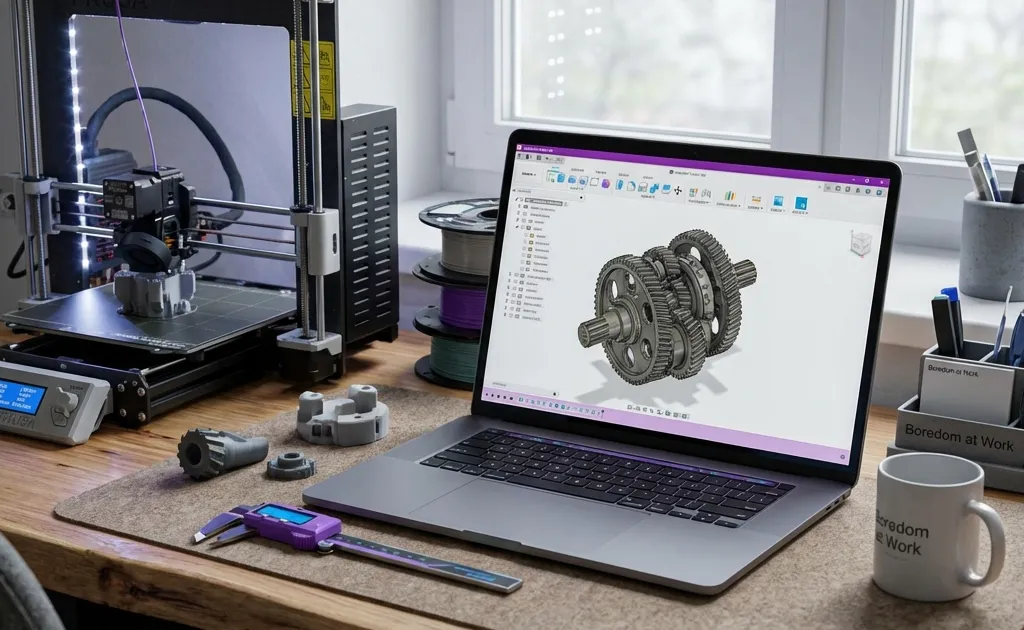
Absolute beginners should start with Tinkercad, hobbyists who want real parametric modeling with Fusion 360’s free personal tier or Onshape’s free public plan, and open-source purists with FreeCAD 1.0. All four cost nothing for hobby use, and Tinkercad takes about 15 minutes to learn. The only paid pick in this list is Plasticity at about $149 one-time, and it is for organic NURBS modeling, not brackets. Which one you choose depends less on features than on whether you need to run it on a locked-down work laptop, which is where the browser-based tools win.
You have got the 3D printer. You have printed a dozen “benchys” and a handful of articulated dragons from Thingiverse. But now, you want to make something custom, whether it is a replacement bracket, a tailored desk organizer, or a functional enclosure.
To do that, you need to learn CAD (Computer-Aided Design).
Master 3D printing from start to finish: Dive into our complete 3D Printing Guide for Beginners covering slicers, filament types, and maintenance tips.
Quick Picks: Best CAD Software at a Glance
In a hurry? Here are our top tested CAD tools for 3D printing:
- Best for Absolute Beginners: Tinkercad (100% Free) – Browser-based, intuitive drag-and-drop interface, zero installation required.
- Best for Serious Hobbyists: Autodesk Fusion 360 (Free Personal Tier) – The gold-standard parametric modeling tool with immense community support.
- Best for Work Laptops: Onshape (Free Public Plan) – Full professional-grade parametric CAD that runs smoothly inside any web browser.
- Best for Organic & Artistic Models: Blender (Free & Open Source) – Unrivaled for sculpting miniatures, character figurines, and artistic meshes.
- Best for Open-Source Privacy: FreeCAD 1.0 (Free & Open Source) – 100% offline, local parametric modeling without cloud lock-in.
- Best Modern NURBS Modeler: Plasticity (~$149 One-Time) – Ultra-fluid direct NURBS modeling bridging the gap between CAD and Blender.
CAD Software for 3D Printing: 2026 Comparison
| Software | Difficulty | Platform | Price | Best For |
|---|---|---|---|---|
| Tinkercad | Very Easy (15 min) | Web Browser | Free | Absolute beginners, quick prototypes |
| Fusion 360 | Medium (5–10 hrs) | Windows / Mac | Free (Personal) | Functional parts, career skill |
| Onshape | Medium (5–10 hrs) | Web Browser (Cloud) | Free (Public) | Work laptops, no installation |
| Blender | Hard (20+ hrs) | Win / Mac / Linux | Free (Open Source) | Miniatures, organic sculpting |
| FreeCAD 1.0 | Medium / Hard (10+ hrs) | Win / Mac / Linux | Free (Open Source) | Privacy purists, 100% offline |
| Plasticity | Medium (5–10 hrs) | Windows / Mac | $149 One-Time | Artists wanting clean CAD fillets |
1. Tinkercad (tinkercad.com): The “Gateway Drug” to Design
If the thought of “engineering software” makes you sweat, start here. Tinkercad is owned by Autodesk (the same people who make Fusion 360), but it looks like a video game.
How it works
Instead of drawing complex lines and curves, you work with “Primitives.” You take a cube, you take a cylinder, you resize them, and you group them together. If you want a hole in the cube, you turn the cylinder into a “Hole” and group it with the solid cube. It’s digital LEGO.
Why research this at work?
It runs entirely in your browser. No installation needed. You can log in, mess around with a design for 15 minutes, and close the tab without your IT department ever knowing you were “working” on a 3D model.
Pros:
- Zero learning curve
- Runs in any browser
- Huge library of pre-made shapes
Cons:
- Very difficult to make complex, precise mechanics
- No “History” (you can’t easily change a dimension you set 10 steps ago)
2. Fusion 360 (autodesk.com): The Gold Standard
If you find yourself watching 3D printing YouTube, you’ve seen Fusion 360. It is a “Parametric” modeler, which is a fancy way of saying everything is based on measurements and history.
What makes it special?
Precision. If you want to design a part that is exactly 45.5mm wide with a 3mm hole dead-center, Fusion 360 makes that trivial. Even better, if you decide later that the hole should be 4mm, you just edit that one number, and the entire model updates automatically.
The “Work” Angle
Fusion 360 is a professional-grade skill. Learning this isn’t just a hobby; it’s an addition to your resume. It’s heavy software, though, so don’t try to run it on a 2015 Chromebook.
Pros:
- Professional features for free
- Massive amount of YouTube tutorials
- Integrated “Slicing” and CAM features
Cons:
- Steep learning curve for the first few hours
- Requires a decent computer
- Personal license needs renewing every year
3. Onshape (onshape.com): The “Work-Friendly” Powerhouse
Onshape was started by the same people who created SolidWorks (the industry standard for mechanical engineers). It is essentially Fusion 360, but it lives entirely in the cloud.
Why it’s the king of productive procrastination
Because it’s browser-based, Onshape is incredibly stealthy. There is no software to install. It saves automatically to the cloud. You can start a design on your work PC during lunch and finish it on your phone while on the train home.
The Privacy Catch
The free version of Onshape requires all your designs to be “Public.” This means anyone can search for and see your models. For most hobbyists making a GoPro mount, this doesn’t matter. If you’re designing the next multi-billion dollar patent, you’ll need the paid version (which is… expensive).
Pros:
- No installation required
- Professional-grade parametric modeling
- Best-in-class version control (basically Git for CAD)
Cons:
- All free models are public
- Requires a constant internet connection
4. Blender (blender.org): For the Artists
All the software we’ve mentioned so far is “Mechanical CAD.” Blender is “Mesh Modeling.”
Think of Mechanical CAD like building with wood and screws. Think of Blender like sculpting with clay. If you want to design a miniature of your Dungeons & Dragons character or a decorative vase with intricate swirls, you want Blender.
Pros:
- Unbeatable for organic, artistic shapes
- Completely free and open-source forever
- Massive community and plugins
Cons:
- The interface is notoriously intimidating
- Not great for “dimensionally accurate” engineering parts
- Very high learning curve
5. FreeCAD (freecad.org): The Open Source Engineering Heavyweight
FreeCAD is the go-to solution for makers who want an offline, fully parametric mechanical CAD platform that is 100% free and open-source. With the historic FreeCAD 1.0 release, the software underwent a massive UI overhaul that resolved the long-standing “Topological Naming Problem” (TNP), making sketch edits vastly more stable.
Why choose FreeCAD?
- Zero Cloud or Account Lock-In: Your STEP, IGES, and FCStd design files remain strictly on your local hard drive. If your internet goes down or an Autodesk policy changes, you still have total ownership.
- Modular Workbenches: FreeCAD organizes functionality into dedicated modules (Part Design, Sketcher, SheetMetal, CAM, and FEM stress analysis), allowing you to tailor the interface to your workflow.
Pros:
- 100% free, open-source, and offline forever
- FreeCAD 1.0 resolves major stability and topological naming issues
- Cross-platform support for Linux, macOS (Apple Silicon native), and Windows
Cons:
- Steeper initial learning curve than Tinkercad or Fusion 360
- Less polished visual rendering engine
6. Plasticity (plasticity.xyz): The Modern “CAD for Artists”
A rising star in 2026, Plasticity bridges the gap between precision mechanical NURBS modeling and the fluid, intuitive ergonomics of digital sculpting tools like Blender.
- How it works: Built specifically for concept artists, industrial designers, and makers who hate complex menus. It uses mathematically pure NURBS curves and fillets that export directly to ultra-clean 3D printable meshes.
- Pricing: One-time perpetual license with a generous free 30-day trial.
AI Text-to-3D and Generative CAD: What Works in 2026?
With generative AI exploding across design workflows, can AI create 3D printable CAD models from text prompts yet?
- Current State: AI tools like Meshy, Tripo3D, and Rodin generate impressive organic mesh models (.OBJ/.STL) suitable for decorative figurines and miniatures.
- The Limitation: AI cannot yet replace parametric mechanical engineering. Text-to-3D tools lack dimensional accuracy, thread tolerances, and snap-fit clearance capabilities. For functional, load-bearing parts, traditional parametric CAD (Fusion 360, Onshape, FreeCAD) remains indispensable.
Practical Tips for Designing Your First 3D Printable Part
- Measure Twice, Print Once: Invest $15 to $25 in a pair of digital stainless-steel calipers. You cannot design functional replacement parts without exact physical measurements.
- Think in 2D First: 90% of mechanical CAD models start as a 2D sketch (lines, rectangles, constraints) that you subsequently “Extrude” or “Revolve” into a solid 3D body. Master sketch constraints (tangent, concentric, coincident) before diving into 3D sculpting.
- Tolerance and Clearances: If you design a 10.0mm peg to fit into a 10.0mm hole, it will not fit. Thermoplastics expand and contract during cooling. Always design a clearance gap (typically 0.2mm to 0.4mm for FDM printers) between interlocking parts.
- Use Fillets and Chamfers Wisely: Sharp interior corners create stress concentration points where layer lines easily snap under mechanical load. Adding a 1mm to 2mm fillet inside joints dramatically reinforces structural rigidity.
- Design for 3D Printing Orientation: Keep overhang angles below 45 degrees where possible to minimize support material and achieve pristine surface finishes.
CAD Software Feature Matrix & Comparison
| Software | License Model | Offline Use | Parametric History | Platform | Recommended RAM |
|---|---|---|---|---|---|
| Tinkercad | Free (Autodesk) | No (Browser) | No | Any Web Browser | 4 GB |
| Fusion 360 | Free Personal / $680/yr | Hybrid (Cloud Sync) | Yes | Windows / macOS | 8–16 GB |
| Onshape | Free Public / $1,500/yr | No (Browser) | Yes (Git-style) | Any Browser / iPad | 4–8 GB |
| FreeCAD 1.0 | 100% Free Open Source | Yes (100% Local) | Yes | Win / Mac / Linux | 8 GB |
| Blender | 100% Free Open Source | Yes (100% Local) | No (Mesh/Modifiers) | Win / Mac / Linux | 8–16 GB |
| Plasticity | $149 One-Time Buy | Yes (100% Local) | Direct NURBS | Windows / macOS | 8–16 GB |
Things to Research Further
If you have downtime at work and want to take your maker skills to the next level:
- Parametric Design Formulas: Learn how to drive entire CAD assemblies from a shared spreadsheet or user parameters.
- Topology Optimization & Generative Design: Explore how engineering software can automatically remove excess material while maintaining structural load ratings.
- Slicing Software Mastery: Read our OrcaSlicer guide to fine-tune your wall loops, infill patterns, and seam placements for the parts you design.
- Thread Standards: Learn the difference between metric ISO threads and custom 3D-printable trapezoidal lead screw threads for brackets and tool holders.
FAQ
Can I Use CAD on My iPad?
Yes! Tinkercad and Onshape both have excellent iPad apps. Onshape, in particular, is surprisingly powerful with an Apple Pencil.
Do I Need to Be Good at Math?
Not really. The software handles the geometry. You just need to be able to read a ruler and understand basic shapes.
Where Should Beginners Start Right Now?
Go to Tinkercad.com, create a free account, and follow the “Starters” tutorial. You’ll be designing a name tag or a simple house in less than 10 minutes.
Conclusion: Your Next Step
Stop downloading other people’s designs. The true magic of 3D printing happens when you realize you can create anything you can imagine.
Actionable Next Steps:
- The 15-Minute Task: Open Tinkercad and make a cube with your name “cut out” of the top.
- The 1-Hour Task: Watch “Fusion 360 for Absolute Beginners” by Paul McWhorter on YouTube.
- The 1-Week Task: Design and print a simple solution for a problem in your house (e.g. a spacer for a wobbly table).
Mastering CAD is the ultimate “bored at work” project. It’s quiet, it looks like you’re doing serious engineering work, and by the end of the month, you’ll have a superpower.
Happy designing!
Want to learn more about 3D printing? Check out our 3D Printing Guide for the complete overview, or read the 3D Printing Beginner Guide to get started with your first prints.
Related Articles
OpenSCAD for Beginners: Design 3D Prints with Code (2026 Guide)
Learn how to use OpenSCAD to design custom 3D prints by writing code. This beginner-friendly guide covers the basics, key commands, and your first real project.
OrcaSlicer Guide (2026): Best Features, Setup & Tuning
Is OrcaSlicer better than Cura and PrusaSlicer? Discover built-in calibration, multi-plate slicing, and optimal print settings in our complete 2026 guide.

The Real Dangers of 3D Printing: Fumes, Fires & Safety
Understand the hidden hazards of 3D printing. Learn about VOCs, ultrafine particles, fire risks, resin toxicity, and essential home workshop safety.