
5 Essential Mac Apps You Didn't Know You Needed (2026 Edition)
Elevate your macOS experience with these 5 must-have apps. From window management to cloud storage, these tools are game-changers for productivity.

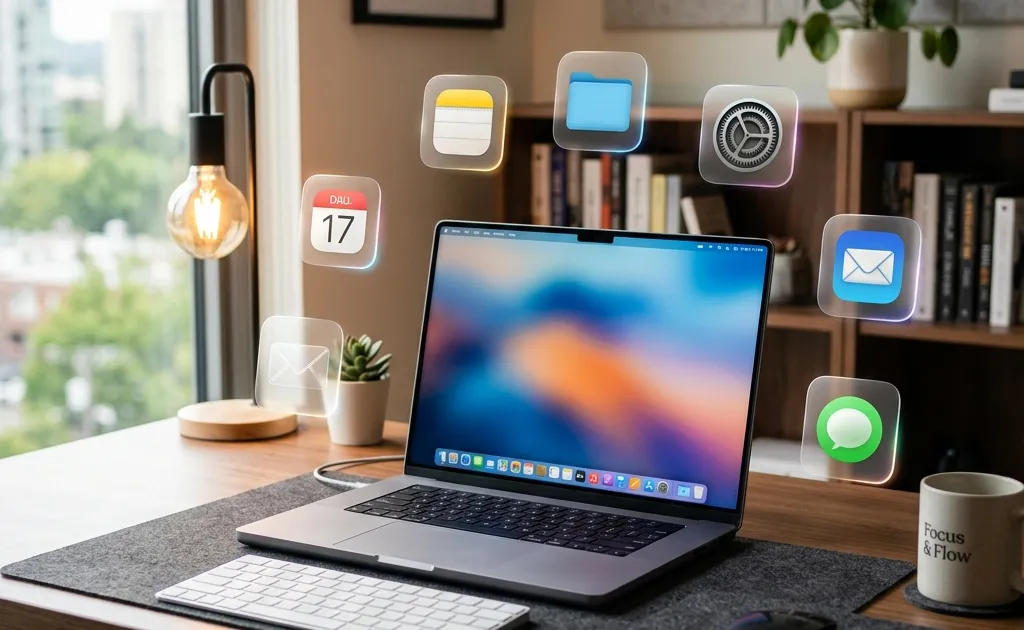
MacOS is widely considered the pinnacle of desktop operating systems, but even perfection has its blind spots. If you’re a power user, you’ve likely felt the friction: the awkwardness of window management, the fear of a corrupted drive, or the clutter of a dozen cloud storage clients fighting for your CPU cycles.
In the world of Productive Procrastination, we don’t just want tools that work; we want tools that feel like they belong. We want utilities that disappear into the OS, appearing only when they can save us ten seconds of clicking or five minutes of frustration.
Want a structured roadmap? Check out our comprehensive Guide to Learning AI in 2026 with step-by-step milestones, free courses, and career advice.
After testing dozens of utilities throughout the first half of 2026, these are the five apps that haven’t just earned a spot in my menu bar, they’ve changed how I use my Mac. This is the 1,400-word deep dive into the software that will make your MacBook feel like it’s finally living in the future.
1. DockDoor: The Windows Feature Apple Refuses to Steal
Let’s address the elephant in the room: Windows has better taskbar management than macOS. For decades, Windows users have enjoyed the ability to hover over an app icon and see a live preview of every open window within that app. On a Mac? You get a right-click menu or you have to jump into Mission Control, which breaks your flow. Upgrading soon? The macOS 27 and iOS 27 release guide lists the new system features before you add apps on top.
DockDoor is the open-source hero we’ve been waiting for. It brings high-fidelity, glass-morphism window previews to the macOS Dock. But it doesn’t just copy Windows; it “Mac-ifies” the experience.
The Deep Dive
When you hover over an icon with DockDoor active, a small, elegant window pops up showing you exactly what’s happening in that app. If you have five Chrome windows open, you don’t have to guess which one is your bank and which one is YouTube. You see them clearly.
Why it’s essential in 2026:
- Dynamic Previews: These aren’t static screenshots. If a video is playing in a window, you see it playing in the preview.
- Fast Window Management: You can click the ‘X’ on a preview to close a window without ever bringing the app to the foreground.
- The Alt-Tab Killer: DockDoor includes an optional window switcher (Command-Tab replacement) that shows large, clear previews instead of just icons.
Pro Tip: The “Stealth” Switcher
If you’re a keyboard ninja, you can configure DockDoor to replace the native Cmd + Tab behavior. This gives you a much more visual way to navigate your open apps, especially useful on large monitors like the Studio Display or a 49-inch ultrawide where “just an icon” isn’t enough context.
2. Disk Drill 5: Your Digital Insurance Policy
Data loss isn’t a matter of if, it’s a matter of when. Whether it’s a corrupted SD card from your camera, an accidental Command + Delete on a crucial folder, or a drive that decided to stop mounting, you need a recovery plan that actually works.
Disk Drill has long been the gold standard for macOS data recovery, but the 2026 versions have taken it to another level with AI-powered file reconstruction.
How it Works
Disk Drill uses several scanning methods. It starts with a “Quick Scan” that looks for file system metadata. If that fails, it moves to “Deep Scan,” which looks for binary signatures of over 400 file types. Even if the drive’s directory structure is gone, Disk Drill can often rebuild the files piece by piece.
The Power User Features:
- S.M.A.R.T. Monitoring: It watches your drive health in the background and warns you before the hardware fails.
- Recovery Vault: This is a background service that keeps a record of where files were located before they were deleted, making future recovery nearly 100% successful.
- Byte-to-Byte Backups: You can create a disk image of a failing drive to scan the image instead of the physical hardware, preventing further wear and tear.
Real-World Scenario
Imagine you’re editing a video for a client. You clear your “Downloads” folder to save space, only to realize your main project file was in there. With Disk Drill’s Recovery Vault, you can open the app, find the file, and click “Recover” in less than 30 seconds. It turns a potential heart attack into a minor inconvenience.
3. DockPops: iPhone-Style Magic for Your Desktop
We’ve all seen the “Desktop of Shame”,a Mac screen covered in hundreds of icons because the user wants “quick access.” DockPops solves this by bringing the organizational logic of the iPhone to your Mac’s Dock.
The Philosophy of “Pops”
A “Pop” is a custom, swipeable, interactive folder that lives in your Dock. Unlike standard macOS Stacks (which feel clunky and limited), Pops are designed to be high-speed launchers.
Why you’ll love it:
- App Grouping: Instead of having Slack, Discord, Mail, and Messages taking up four slots in your Dock, you can have one “Comms” Pop. Click it, and a beautiful mini-launcher opens with all four apps.
- Project Buckets: Working on a new website? Create a Pop that holds the browser shortcuts, the Figma files, and the local dev folders. When you’re done with the project, delete the Pop.
- Dynamic Content: Some Pops can even show you the contents of a folder or a recent files list that updates in real-time.
The Workflow Boost
I use DockPops for my “Current Focus.” I have a Pop called “Daily” that houses my calendar, my to-do list, and a specific Notion page. It stays hidden until I need it, keeping my Dock clean and my mind focused. It’s the ultimate tool for the “minimalist but capable” desktop.
4. SkreenMe: Aesthetics Meet Communication
In a world of remote work and digital collaboration, how you share information matters. A raw, jagged screenshot of a bug or a code snippet looks unprofessional. SkreenMe is the app that ensures everything you share looks like it was designed by an agency.
The “Beautification” Engine
SkreenMe lives in your menu bar. When you take a screenshot (or copy an image to your clipboard), SkreenMe detects it and wraps it in a customizable frame.
The Customization Options:
- Backgrounds: Add lush gradients, solid brand colors, or subtle patterns behind your image.
- Shadows & Corners: Dial in the perfect amount of depth and roundness to make your screenshot “pop” off the page.
- Annotations: Add clean, professional arrows and text that don’t look like they were drawn in MS Paint.
Better Than Loom?
While tools like Loom are great for video, most communication still happens via static images. SkreenMe makes those images high-impact. If you’re a developer sharing a code snippet on Twitter or a designer showing a UI tweak on Slack, SkreenMe adds that “premium” feel that makes people take your work more seriously.
5. CloudMounter: The End of Local Storage Anxiety
If you’re rocking a Mac with a 256GB or 512GB SSD, you know the struggle. You have 2TB of Google Drive, 1TB of Dropbox, and a home NAS, but you can’t sync all of them because your Mac will run out of space.
CloudMounter fixes this by mounting your cloud storage as virtual local drives.
The Technical Magic
CloudMounter uses the macOS FileProvider API (or FUSE for older versions) to make your remote storage appear in Finder exactly like a USB drive. You can see all your files, but they aren’t taking up space on your Mac. When you open a file, CloudMounter downloads it on the fly, and when you save it, it uploads it back to the cloud.
Supported Services:
- Google Drive & Google Shared Drives
- Dropbox & OneDrive
- Amazon S3 & S3-compatible storage
- FTP, SFTP, and WebDAV servers
- Backblaze B2
The Performance Edge
Unlike the official Google Drive or Dropbox apps, which can be resource-heavy and install deep system extensions, CloudMounter is a single, lightweight app that handles everything. It’s cleaner, faster, and much more integrated into the native Finder experience. You can even move files between Dropbox and S3 by simply dragging them from one Finder window to another.
Bonus: How to Build the Ultimate “Productive Procrastination” Setup
Now that you have the tools, how do you use them? The goal isn’t just to install apps; it’s to create a system that reduces friction.
- The Dock Strategy: Use DockDoor to keep your open windows organized, and DockPops to keep your app count low. Your Dock should never have more than 10 icons.
- The Storage Strategy: Use CloudMounter to keep your “Cold Storage” (old projects, media libraries) in the cloud, but accessible. Use your local SSD only for “Active” work.
- The Communication Strategy: Use SkreenMe for every single screenshot you share. It builds a reputation for quality and attention to detail.
- The Safety Strategy: Install Disk Drill and enable the Recovery Vault. It’s the “Set it and forget it” protection that you’ll thank yourself for in six months.
Comparison: The 2026 Power User Stack
| App | Category | Key Strength | Price |
|---|---|---|---|
| DockDoor | UI Utility | Window previews on hover | Free (Open Source) |
| Disk Drill | System Tool | AI-powered data recovery | Premium (Free Trial) |
| DockPops | Organization | Swipeable app/file groups | Free Tier / Pro |
| SkreenMe | Design/Comms | Beautiful screenshot framing | Subscription |
| CloudMounter | Storage | Mounts clouds as local drives | Premium / Setapp |
Final Thoughts: Why These Apps Matter
In 2026, the barrier between “work” and “life” is thinner than ever. Our Macs are our offices, our studios, and our entertainment centers. By investing a small amount of time into optimizing the OS, you’re not just being a “tech geek”,you’re reclaiming your focus.
Every time you don’t have to search for a window, every time you don’t have to wait for a sync, and every time you don’t have to worry about a lost file, you’re buying back a few seconds of your life. And in the world of Productive Procrastination, those seconds add up to something significant.
What’s the one Mac app you can’t live without in 2026? Let’s discuss in the comments below.
Related Articles
Related Articles
30 Best Free macOS Apps in 2026 (+ Homebrew Guide)
The 30 best free macOS apps for productivity, creativity, and system utilities, plus a complete Homebrew setup guide for beginners in 2026.
iPad Air 11 M4 Review: iPadOS 27 Powerhouse in 2026
Apple iPad Air 11-inch M4 review with iPadOS 27: benchmark performance, Apple Intelligence, Stage Manager 3.0, Apple Pencil Pro, and real battery life.

Is the West Losing Its AI Lead? Global Shifts Explained
Explore why open-source breakthroughs, hardware shifts, and efficiency gains are challenging Western AI dominance. Here is what the global race means for 2026.