
Kindle Scribe Review: Is It Worth It for Work Notes? (2026)
After months of using the Kindle Scribe at work, here's my honest review. Meeting notes, PDF annotations, and reading, can it replace your notebook?

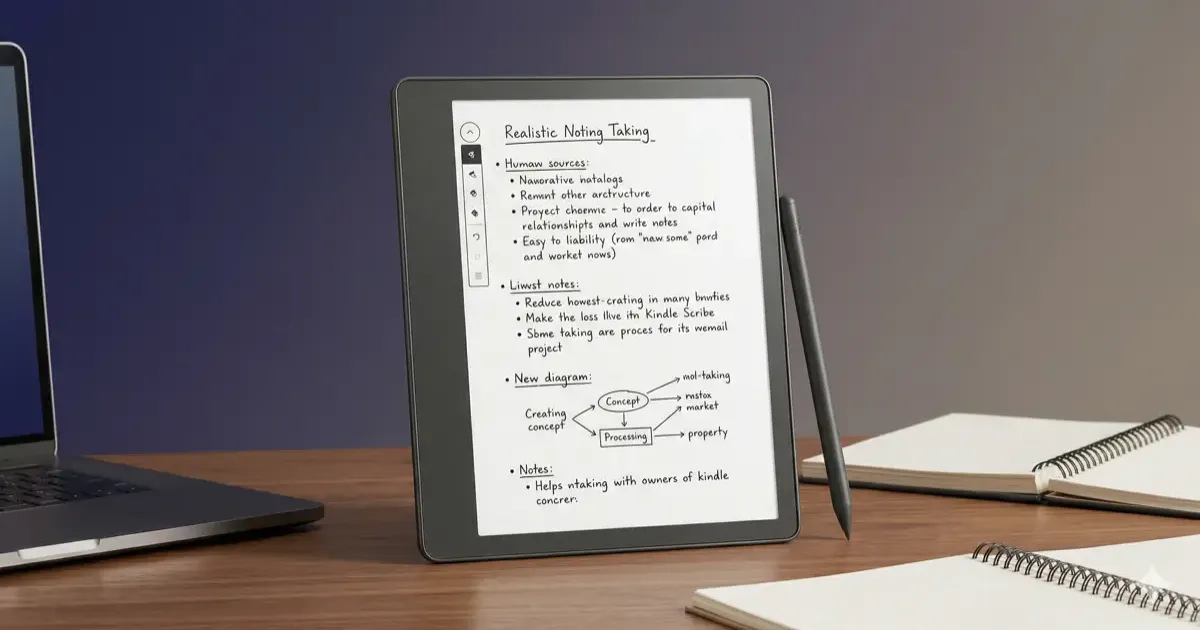
I’ve been carrying the Kindle Scribe to every meeting for months now. The pitch is simple: one device that replaces both your Kindle and your notebook. No more juggling a Paperwhite for reading and a Moleskine for notes.
But does it actually deliver? And more importantly, is a $500 e-reader with a pen something an office worker actually needs?
Here’s my honest take after putting it through real work scenarios.
What the Kindle Scribe Actually Is
The Kindle Scribe (2025) is Amazon’s largest Kindle ever. It’s an 11-inch E Ink tablet with a 300 PPI glare-free display and a bundled Premium Pen that supports pressure sensitivity, an eraser, and a shortcut button.
The key specs:
| Spec | Detail |
|---|---|
| Display | 11” E Ink, 300 PPI, glare-free |
| Storage | 32GB ($499.99) / 64GB ($549.99) |
| Weight | 400g (~0.88 lbs) |
| Thickness | 5.4mm |
| Pen | Premium Pen included (eraser + shortcut) |
| Charging | USB-C |
| Battery | Weeks of use |
Compared to the 2024 model, the 2025 Scribe is 40% faster for both writing and page turns. That speed bump is noticeable, there’s less of that “writing through syrup” feeling that plagued earlier E Ink tablets.
If you’re not sure whether an e-reader makes sense for you at all, start with our guide on whether a Kindle is worth it.
The Writing Experience
Let’s get the big question out of the way: does writing on the Scribe feel good?
It feels good. Not perfect, nothing on E Ink matches real paper, but good enough that I stopped carrying a physical notebook within a week.
The Premium Pen has a slight texture at the tip that creates friction against the screen. It’s not the glassy, ice-rink feel you get writing on an iPad. There’s actual resistance. Combined with the matte display, it’s closer to writing on a slightly glossy magazine page.
What works well for office use:
- Meeting notes. I create a new notebook for each week and jot down action items, decisions, and follow-ups. The lack of a backlit, attention-grabbing screen means it looks professional in meetings, nobody thinks you’re scrolling Twitter.
- Handwriting recognition. The Scribe converts your handwriting to text, which you can then share or export. It’s not flawless with messy handwriting, but it handles my semi-legible scrawl about 85% of the time.
- AI-powered summaries. This is the killer feature for work. The Scribe can summarize your handwritten notes using AI, pulling out key points and action items. After a 45-minute strategy meeting, getting a clean bullet-point summary saves me from deciphering my own writing later.
- To-do lists and journals. Built-in templates let you create checklists, planners, and journals without any setup.
Where it falls short:
- No real-time sync to Notion, Google Docs, or Microsoft 365. You export notes manually.
- The pen occasionally loses tracking at the very edges of the screen.
- No palm rejection issues for me, but some users with a heavier writing hand have reported occasional ghost strokes.
The Reading Experience
This is where the Scribe flexes its Kindle DNA. It’s a Kindle first, note-taker second.
You get the full Kindle ecosystem: millions of books, Kindle Unlimited, Whispersync, and the same clean reading interface you already know. If you’ve used any Kindle before, you’ll feel at home immediately. (New to the ecosystem? Check out our Kindle tips and tricks to get the most out of it.)
The 11-inch screen is a genuine upgrade for reading. PDFs and technical documents that look cramped on a Paperwhite actually breathe here. Full-page layouts render properly. Charts are legible. This alone makes the Scribe worth considering if you read a lot of work documents.
Active Canvas is the standout reading feature. You can write directly inside Kindle books, margin notes, underlines, circled paragraphs. The book reformats around your handwriting so your notes stay attached to the relevant text. It’s like scribbling in a physical book, except you can search your annotations later.
For more on how the Kindle ecosystem compares to the competition, read our Kindle vs Kobo breakdown.
Real Work Use Cases
Here’s how the Scribe fits into an actual office workflow:
Meeting Notes
This is the Scribe’s sweet spot. Open a notebook, write freely, and use the AI summary feature afterward. The e-paper screen is distraction-free, no notifications, no temptation to check Slack. In back-to-back meetings, the battery is a non-issue. It lasts weeks.
PDF Annotation
Import PDFs via email or USB-C and annotate directly on the document. This works well for reviewing contracts, proposals, or research papers. The 11-inch screen means you’re not constantly zooming and panning like on a phone.
Reading During Breaks
Lunch break reading on the Scribe is a genuine pleasure. The glare-free display works under office fluorescent lights without any reflection. Switch from your annotated quarterly report to your current novel without picking up a different device.
Whitepaper and Report Review
If your job involves reviewing long documents, compliance reports, technical specs, market research, the Scribe handles these better than a standard Kindle. Write your comments directly on the document and export the annotated version.
What About the Colorsoft?
Amazon also sells the Kindle Scribe Colorsoft at $629.99 (32GB) and $679.99 (64GB). Same size, same pen, same features, but with a color E Ink display.
Is the $130 premium worth it? For most office workers, no. Color helps with charts, graphs, and color-coded PDFs, but if you’re primarily taking text notes and reading books, the standard Scribe’s grayscale display is sharper and has better contrast.
If you review a lot of visual documents, design mockups, financial charts with color coding, or highlighted legal documents, the Colorsoft starts to make more sense.
What’s Missing
No device is perfect, and the Scribe has real gaps:
- No app ecosystem. You can’t install Notion, OneNote, or any third-party app. It’s Amazon’s software or nothing. This is the single biggest limitation for power users.
- Export friction. Getting notes out of the Scribe involves emailing PDFs or using Amazon’s Send to Kindle infrastructure. There’s no seamless cloud sync to your favorite productivity tools.
- No audio. No speakers, no Bluetooth audio. You can’t listen to Audible books on this Kindle.
- Pen-only input. No keyboard attachment option. If you type faster than you write (most of us do), long-form note-taking is slower than on a laptop.
- Price. $500 is steep for a device that’s essentially a Kindle plus a notebook. You need to use both functions regularly to justify it.
Kindle Scribe vs reMarkable vs Boox: Comparison
If you’re shopping E Ink tablets for work, here are your three main options:
| Feature | Kindle Scribe (2025) | reMarkable Paper Pro | Boox Tab Ultra C |
|---|---|---|---|
| Price | ~$499 | ~$579 | ~$600 |
| Screen | 11” grayscale | 11.8” color E Ink | 10.3” color E Ink |
| Writing feel | Very good | Best in class | Good |
| Book store | Kindle Store (millions) | None | Google Play Books |
| App support | None | None | Full Android apps |
| PDF handling | Good | Excellent | Excellent |
| Note export | Email/PDF | Cloud sync + integrations | Multiple options |
| Best for | Reading + notes | Pure note-taking | Versatility |
The short version:
- Get the Kindle Scribe if you want the best reading experience combined with solid note-taking. The Kindle ecosystem is unmatched.
- Get the reMarkable Paper Pro if writing is your primary use and you don’t care about ebooks. Its paper-like feel is still the gold standard. The original reMarkable 2 at ~$449 is a solid budget pick if you don’t need color.
- Get the Boox Tab Ultra C if you want a full Android tablet experience on E Ink. It’s the most versatile but also the least focused.
For a broader look at all e-reader options, check our best e-readers guide.
The Verdict
The Kindle Scribe is the best all-in-one device for office workers who both read and take notes. It won’t replace a dedicated note-taking tablet like the reMarkable for heavy writers, and it won’t replace a laptop for typing-intensive work. But it nails the middle ground.
Here’s who should buy it:
- You read books and take meeting notes. The Scribe eliminates one device from your desk and your bag.
- You review PDFs and long documents. The 11-inch screen and annotation tools make document review genuinely pleasant.
- You want distraction-free focus. No apps, no notifications, no doom-scrolling temptation.
Here’s who should skip it:
- You rarely read ebooks. At $500, the note-taking alone doesn’t justify the price over a $20 notebook.
- You need tight app integration. If your workflow depends on syncing notes to Notion or OneNote in real time, the Scribe will frustrate you.
- You already own a Kindle Paperwhite. Unless you specifically need the writing features, the Paperwhite is a better pure reader at a fraction of the price.
My rating: 4 out of 5. The Kindle Scribe is a genuinely useful work tool that I reach for every day. The note-taking is good enough, the reading is excellent, and the battery life means I never think about charging. The missing app ecosystem and clunky export workflow keep it from a perfect score, but for the hybrid reader-and-writer, nothing else comes this close.
Looking for accessories to go with your Scribe? Browse our best Kindle accessories roundup. New to the Kindle ecosystem? Our complete Kindle guide covers setup, books, and customization for every model.
For digital-side note-taking that complements handwritten notes, see our ChatGPT custom instructions templates for setting up an AI workflow that captures and organizes ideas. For ergonomic upgrades around the Scribe, the best laptop stands double well as e-reader stands when you’re reading at your desk.
Related Articles

Kindle Paperwhite Review 2026: Still the One to Buy?
Our 2026 Kindle Paperwhite review: 7-inch screen, waterproofing, warm light, and weeks of battery for $159.99. Here is who should buy it and who should not.

Best Kindle Cases 2026: Tested Picks for Every Model
The best Kindle cases in 2026 for Paperwhite, basic Kindle, Colorsoft, and Scribe. Genuine leather, slim covers, origami stands, and budget picks tested.

Is Kindle Unlimited Worth It? I Did the Math (2026)
I tracked 6 months of reading and crunched the numbers. Here's whether Kindle Unlimited is worth $11.99/month, and who should skip it.