
Install iOS 27 & macOS 27 Developer Betas Guide
Eager to try the new Apple Intelligence? Learn how to safely install the iOS 27 and macOS 27 developer betas and what to expect from the Golden Gate release.
 Mehdi
Mehdi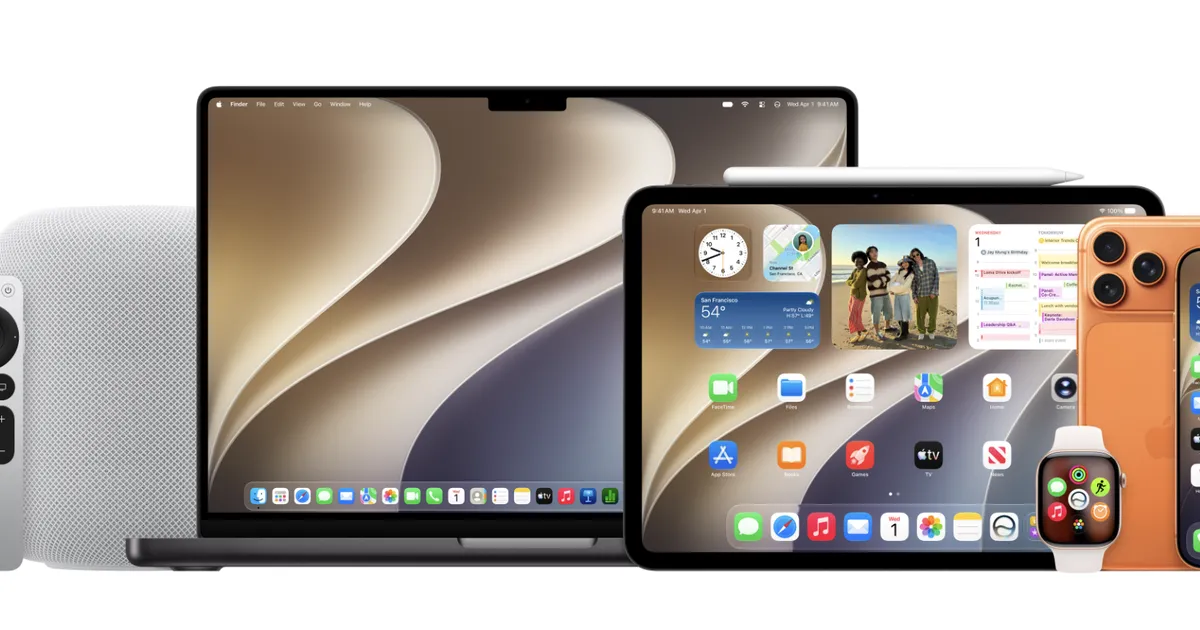
How to Install the iOS 27 & macOS 27 Developer Betas: A Step-by-Step Guide
The annual release of new Apple operating systems is always a highlight for tech enthusiasts. This year, with the unveiling of iOS 27 and macOS 27 “Golden Gate” at WWDC 2026, the excitement is palpable, largely driven by the promised integration of the new Apple Intelligence and a vastly improved Siri AI.
If you are eager to experience these features before the public release in September, you can join the developer preview. However, navigating the beta landscape requires caution. This guide will walk you through the installation process and manage your expectations for this early-stage software. For more details on the features themselves, refer to our Siri AI & Apple Intelligence Guide.
Important Precautions Before You Begin
Before you proceed, understand that developer betas are fundamentally different from the public betas released later in the summer. They are intended for developers to test their apps against new APIs.
Rule Number One: Do not, under any circumstances, install these betas on your primary “daily driver” device. They can, and often do, cause severe issues, including:
- Battery Drain: Significant degradation in battery life is common in early builds.
- App Incompatibility: Many of your daily apps may crash or fail to function entirely.
- Data Loss: While rare, major OS updates carry a risk of data corruption. Always perform a full backup before starting.
How to Install the iOS 27 Developer Beta
Apple has simplified the process significantly, no longer requiring a $99/year developer account.
1. Back Up Your Device
Perform a full backup of your iPhone to iCloud or your computer. This is non-negotiable.
2. Register as a Developer
Go to developer.apple.com and sign in with your Apple ID. You will need to accept the Apple Developer Agreement.
3. Enable Beta Updates on your iPhone
- Open Settings on your iPhone.
- Go to General > Software Update.
- Tap on Beta Updates.
- Ensure your Apple ID is signed in, and select iOS 27 Developer Beta.
4. Install the Update
Return to the main Software Update screen. The iOS 27 Developer Beta should appear. Tap Download and Install.
How to Install the macOS 27 “Golden Gate” Developer Beta
1. Back Up Your Mac
Use Time Machine to create a full system backup of your Mac.
2. Enable Beta Updates
- Open System Settings.
- Navigate to General > Software Update.
- Click the Info (i) icon next to “Beta Updates.”
- Select macOS 27 Developer Beta from the dropdown menu and click Done.
3. Upgrade
Click Upgrade Now to begin the download and installation process.
Note: macOS 27 requires Apple Silicon (M1 chip or later). Intel-based Macs are officially no longer supported.
What to Expect: The 2026 Developer Preview
The 2026 updates are often compared by the community to the “Snow Leopard” era, a period focused on foundational performance refinement and stability, rather than just flashy new features.
Apple Intelligence and the New Siri
The headline feature is Apple Intelligence. The new Siri AI has been rebuilt from the ground up, featuring a dedicated app, deep on-screen awareness, and complex agentic capabilities.
Expectations: The beta experience will be a work in progress. You may find that some advanced Siri features are initially limited or on a “waitlist” to manage server load. The AI may sometimes struggle with complex requests, and you should provide feedback through the Feedback Assistant app to help Apple refine these models.
Liquid Glass Design
iOS 27 and macOS 27 introduce a new UI refinement language dubbed “Liquid Glass.” This brings a more cohesive, transparent, and fluid look to windows, menus, and system elements. It’s subtle, but it makes the OS feel significantly more modern and responsive.
Performance and Stability
Because the focus is on refinement, these builds are generally smoother and faster than their predecessors. However, you will still encounter “edge case” bugs. Don’t be surprised if your device runs hotter than usual during the first few days as the system re-indexes your files and photos to support the new Apple Intelligence features.
Managing Your Beta Experience
Being part of a developer beta is a commitment to the process of software development. To get the most out of it:
- Use the Feedback Assistant: This is your primary tool. If you encounter a bug, report it. Include as much detail as possible, including screenshots or screen recordings.
- Stay Updated: Developer betas receive frequent updates. Always keep an eye on Software Update to ensure you are running the latest version, which often includes critical bug fixes.
- Know When to Opt Out: If the experience becomes too frustrating, you can always opt out of beta updates in settings. However, returning to a stable release usually requires a full device wipe and restore from your pre-beta backup.
Conclusion
Installing the iOS 27 and macOS 27 developer betas is an excellent way to see the future of Apple’s ecosystem firsthand. The advancements in AI integration, combined with the “Golden Gate” refinement, signal a powerful new direction for Apple.
Just remember: enjoy the features, but respect the beta. Protect your data with backups, be patient with bugs, and help the developer community by reporting the issues you find. Enjoy the ride.
Related Articles
Related Articles
Rumored iPhone Fold: Specs, Release Date & Price
Everything about Apple's rumored iPhone Fold: supply chain leaks, crease-free display patents, expected launch windows, pricing, and custom iOS features.
iOS 27 & macOS 27 Public Beta: Features & Install Guide
Discover the upcoming iOS 27 and macOS 27 updates. We break down the new features, performance upgrades, and how to safely install the public beta.

Siri AI & Apple Intelligence Guide (2026)
Discover the power of Siri AI and Apple Intelligence. From on-screen awareness to app integration, learn how the 2026 update changes your Apple experience.