15 Kindle Tips and Tricks You Probably Didn't Know
Hidden Kindle features from custom fonts to Vocabulary Builder. 15 tips to get more out of your e-reader.
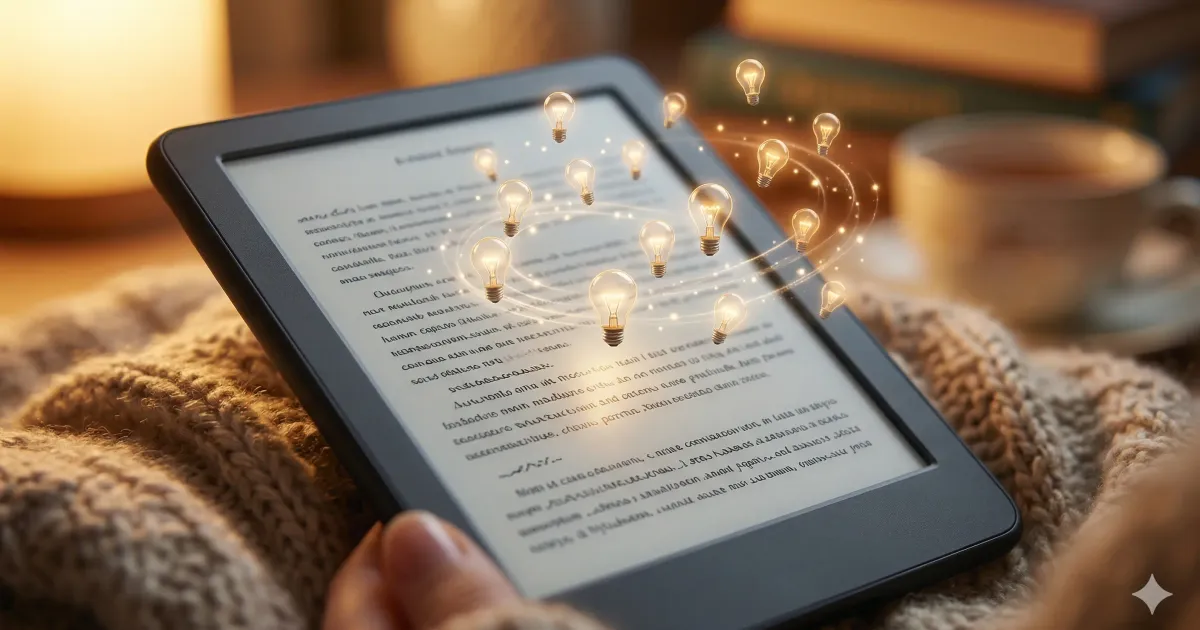
Most people use about 10% of what their Kindle can do. They buy books, read books, and that’s it. Nothing wrong with that — but you’re leaving some genuinely useful features on the table.
Here are 15 tips that make the Kindle experience noticeably better. No jailbreaking required (though we have a guide for that too).
Reading Features
1. Vocabulary Builder
Every time you look up a word on your Kindle, it automatically saves it to Vocabulary Builder. You’ll find it under Menu > Vocabulary Builder.
It creates flashcards from the words you’ve looked up, with the sentence you found them in as context. If you’re reading in a second language or just want to expand your vocabulary, this feature is gold — and most people don’t even know it exists.
2. X-Ray
Tap the top of the screen while reading, then hit the X-Ray button. It shows you every character, term, and concept mentioned in the book — with a frequency map showing where they appear across chapters.
Incredibly useful for dense novels with large casts (looking at you, War and Peace). Forgot who a character is? X-Ray tells you instantly without spoilers.
Not available for every book, but most popular titles support it.
3. Word Wise
Go to Aa > More Options > Word Wise and turn it on. Short, simple definitions appear above difficult words as you read — inline, without interrupting the text.
This is a game-changer for ESL readers or anyone tackling challenging literature. You can adjust the difficulty level so it only shows hints for the hardest words.
4. Custom Fonts
The built-in fonts are fine, but you can add your own. Connect your Kindle via USB, open the fonts folder (create it if it doesn’t exist), and drop in any .ttf or .otf file.
Popular choices: Literata (designed specifically for e-readers), Bookerly (Amazon’s default but the updated version), or Atkinson Hyperlegible (designed for low-vision readers). Restart your Kindle and the new fonts appear in the Aa menu.
5. Page Flip
Tap the bottom of the screen while reading to bring up the Page Flip toolbar. You can scrub through the book quickly, jump to specific chapters, or peek ahead without losing your place.
Long-press on a page in the Page Flip view to preview it. When you close Page Flip, you’re back exactly where you were. Great for flipping to the appendix or checking a map in a fantasy novel.
Organization and Setup
6. Collections
Swipe down from the library view and tap “Collections” to organize your books into folders. You can create collections by genre, reading status, mood — whatever makes sense to you.
A book can belong to multiple collections. I use: “Currently Reading,” “Up Next,” “Favorites,” and genre-based collections. Keeps the library manageable once you have 100+ books.
7. Send to Kindle
Your Kindle has a unique email address (find it in Settings > Your Account > Send-to-Kindle Email). Email any EPUB, PDF, DOC, or TXT file to that address, and it shows up on your device within minutes.
This is how you get free ebooks from sites like Project Gutenberg and Standard Ebooks onto your Kindle. For the full list of free sources, check our guide on how to get free books on Kindle.
8. Dark Mode
All current Kindles have dark mode — white text on a black background. Toggle it from the quick settings (swipe down from the top) or go to Settings > Accessibility.
Useful for nighttime reading with the light turned low. Combined with the warm frontlight, it’s extremely easy on the eyes. Some people find it actually reduces eye strain during long sessions.
9. Goodreads Integration
Some Kindle models let you link your Goodreads account in Settings > Your Account > Social Networks. When connected, your Kindle can mark books as “Currently Reading” and “Read” on your Goodreads profile.
You can also rate and review books directly from the Kindle when you finish them. Note: Amazon has been scaling back this integration on newer firmware — the feature may not be available on all models. Check your settings to see if the option appears.
10. Airplane Mode for Battery
Your Kindle’s battery lasts weeks. But if you want to stretch it even further, turn on airplane mode when you’re actively reading. The biggest battery drain is the background Wi-Fi connection syncing your position and downloading recommendations.
With airplane mode on, expect 8–10+ weeks on a single charge with daily reading. Useful for long trips where you won’t have a charger. Just toggle Wi-Fi back on when you need to download new books.
Power User Tips
11. Screenshots
Press opposite corners of the screen simultaneously (top-left and bottom-right, or top-right and bottom-left). The screen will flash — that’s your screenshot.
Screenshots save to the root directory when you connect via USB. Useful for sharing quotes, saving book recommendations, or documenting reading stats.
12. Export Your Highlights
Every highlight and note you make is stored at read.amazon.com/notebook. Log in with your Amazon account and you can see, search, copy, and export every highlight from every book.
This is a hidden gem for students, researchers, or anyone who highlights a lot. You can copy highlights into Notion, Obsidian, or any note-taking app for reference.
13. Kindle Kids Profile
Go to Settings > Your Account > Household & Family Library. You can set up a kid’s profile with age filters, vocabulary goals, and achievement badges.
Even if you don’t have kids, the “Profile” feature lets you create separate reading profiles on one device — handy if you share a Kindle with a partner.
14. Custom Screensavers (No Jailbreak)
On newer Kindle models (2022+), go to Settings > Device Options > Display Cover. Turn it on, and your Kindle shows the cover of the book you’re currently reading as the lock screen.
It’s not fully custom screensavers (that still requires jailbreaking), but it looks much better than Amazon’s default promotional images.
15. Sideloading with Calibre
Calibre (free, open-source) is the ultimate companion app for any Kindle owner. Connect via USB and you can:
- Convert between ebook formats (EPUB → AZW3, PDF → EPUB)
- Edit metadata and covers
- Organize your entire library
- Remove DRM (legal gray area — be aware)
- Send books wirelessly to your Kindle
If you buy ebooks from multiple sources or download free books regularly, Calibre is essential. See our Kindle modding guide for a full Calibre setup walkthrough.
The One Setting Most People Miss
Reading progress: switch from “Location” to “Page numbers.”
Tap the bottom-left corner of the screen while reading. You can cycle through: location number, page number, time left in chapter, and time left in book.
Most Kindles default to showing “Location” — a meaningless number that tells you nothing. Switch it to “Page X of Y” and you’ll actually know how far along you are. Or set it to “Time left in chapter” if you’re the “just one more chapter” type.
It’s a tiny change that makes reading feel more natural. You’re welcome.
Still deciding which Kindle to get? Check our best e-readers guide or the classic Kindle vs Kobo comparison. And once you have one, our best Kindle accessories guide covers the only add-ons actually worth buying.
Related Articles
Best E-Readers in 2026: Every Major Option Compared
The best e-readers in 2026 compared — Kindle, Kobo, Boox, and reMarkable. Specs, prices, and a clear recommendation for every type of reader.
Kindle Paperwhite vs Kobo Clara BW: Which One to Buy?
Kindle Paperwhite vs Kobo Clara BW compared — specs, display, ecosystem, library support, and value. A clear recommendation for each type of reader.

How to Get Free Books on Kindle: 7 Legit Ways in 2026
Seven legal ways to get free ebooks on your Kindle — from Libby and Project Gutenberg to Amazon First Reads, Prime Reading, and Standard Ebooks.