
Ultrawide vs Dual Monitors: Which Setup Wins?
I used both an ultrawide and dual monitor setup for months of remote work. Here's my honest comparison on productivity, cost, desk space, and video calls.

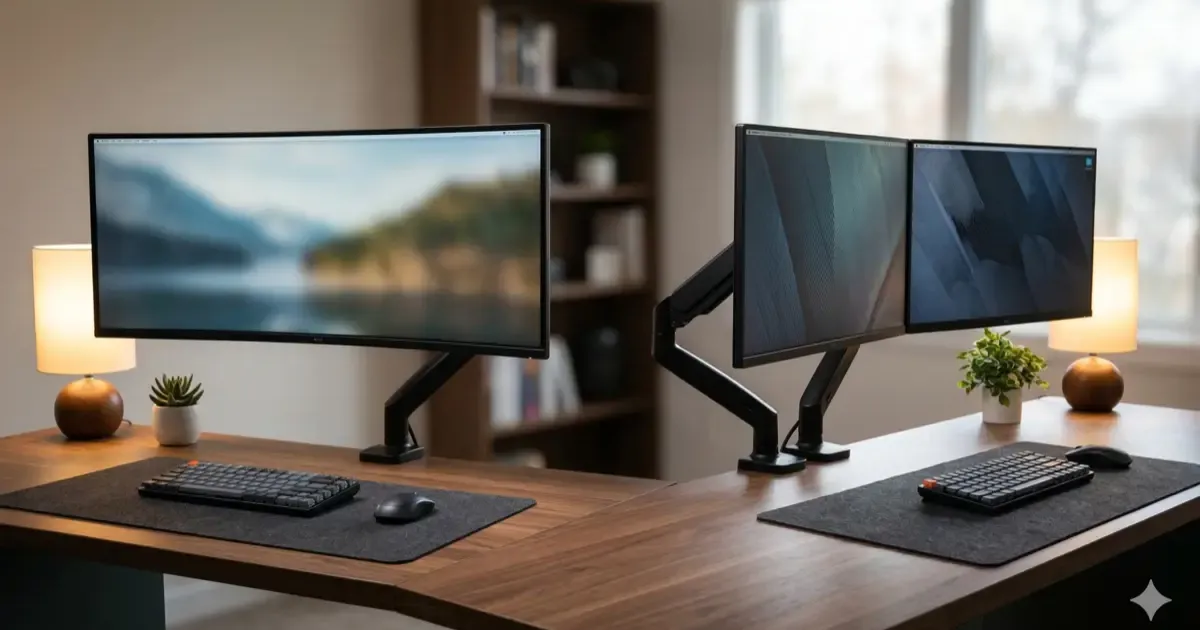
I switched from dual 27-inch monitors to a single 34-inch ultrawide. Then, after four months, I switched back to dual monitors. Then I tried a 38-inch ultrawide. It’s been a journey.
The ultrawide-vs-dual debate gets treated like a religion online. People pick a side and defend it like they’re arguing about tabs vs spaces. But after living with both setups through real workdays, spreadsheets, video calls, research rabbit holes, writing sessions, I can tell you the honest answer: neither setup is universally better. But one is probably better for you, and I’ll help you figure out which.
Quick Comparison Table
| Category | Dual Monitors | Ultrawide |
|---|---|---|
| Screen real estate | More total pixels (two 27” 4K = 15.3M px) | Less total (34” UW = 4.9M px) |
| Desk space needed | ~48-52 inches wide | ~32-36 inches wide |
| Cost (comparable quality) | $480-900 for two | $600-1,300 for one |
| Cable clutter | 2 power + 2 video cables minimum | 1 power + 1 video cable |
| Window management | Built-in (one app per screen) | Needs third-party tools |
| Video call screenshare | Easy, share one screen | Awkward unless you share a window |
| Aesthetics | Functional but busy | Clean, minimal look |
| Flexibility | Can angle screens independently | Fixed curved panel |
If you’re still in the research phase for monitors in general, our best monitors for working from home roundup covers specific models at every price point.
Productivity: Where You Actually Feel the Difference
Let me break this down by real work scenarios instead of abstract “productivity” claims.
Spreadsheets and Data Work
Dual monitors win. Here’s why: I keep the spreadsheet full-screen on my primary monitor and have the source data, email, or a browser open on the secondary. The physical bezel between the screens acts like a wall between “work zone” and “reference zone.” My eyes know exactly where to look.
On an ultrawide, you can split the spreadsheet and browser side by side, and it works. But a 34-inch ultrawide at 3440x1440 gives you roughly the same horizontal space as two 24-inch monitors, not two 27-inch ones. Your spreadsheet columns are a bit cramped if you also want a browser panel visible. A 38-inch ultrawide fixes this, but at that point you’re spending $900+.
Writing and Research
Ultrawide has an edge. When I’m writing an article with research open beside it, the seamless screen is genuinely nice. No bezel cutting through your field of view. You can have your document at a comfortable width in the center, with notes or sources tucked to the side. It feels more focused than dual monitors, where your eyes ping-pong between two separate rectangles.
That said, this advantage is subtle. I wrote plenty of articles on dual monitors without feeling limited.
Video Calls
Dual monitors win, clearly. This is where the ultrawide setup gets annoying fast.
With dual monitors, you keep the video call on your secondary screen and your notes or presentation on the primary. Clean, simple, no fiddling around.
With an ultrawide, Zoom or Teams opens and you have to manually resize it to take up a third of the screen. If someone asks you to screenshare, sharing your full ultrawide screen means everyone else sees a super-wide, hard-to-read letterboxed mess on their normal monitor. You learn to always share a specific window instead of the full screen, which is fine, but it’s an extra step you never think about with dual monitors.
The webcam angle is also slightly worse on an ultrawide. Your camera sits above the center of a very wide panel. If you’re looking at something on the far left or right edge of the screen, you’re visibly looking away from the camera. On a 27-inch monitor, the viewing angle stays tighter.
Coding and Development
Toss-up. Dual monitors let you put your editor on one screen and the browser/terminal on the other. An ultrawide lets you do a three-column split, editor, browser, terminal, all on one screen without bezels. Both work great. If you code full-time, I’d lean ultrawide for the seamless split. If you code part-time and do other office tasks, dual monitors are more versatile.
General Office Multitasking (Email, Slack, Docs)
Dual monitors win on convenience. The most common WFH workflow is dead simple: main work on the left screen, email and Slack on the right screen. You glance over, check a message, glance back. The two-screen setup maps naturally to “primary task” and “everything else.” No window management software needed, no manual snapping. It just works.
For a detailed walkthrough of getting this right, the dual monitor setup guide covers positioning, cables, and display settings step by step.
Desk Space and Aesthetics
Here’s something nobody talks about enough: an ultrawide takes up less desk space than dual monitors.
Two 27-inch monitors side by side need roughly 48-52 inches of horizontal desk space when you account for their stands. That eats most of a standard 60-inch desk. An ultrawide, even a 34-inch curved one, sits on a single stand that takes up maybe 10 inches of depth and 32 inches of width.
The ultrawide also looks better. One sleek curved panel versus two rectangular screens with a gap in the middle. If you care about your desk looking clean, and let’s be honest, we all do a little, the ultrawide wins on pure aesthetics. It’s the kind of setup that looks good on a video call background.
But here’s the trade-off: dual monitors with a good monitor arm can actually free up more desk surface than an ultrawide on its stock stand. Arms clamp to the back edge and float the screens above your desk, opening up the entire area underneath. An ultrawide arm exists too, but it needs to hold more weight and costs more.
If you’re planning either setup, the desk upgrade guide maps out how to prioritize your whole workspace, monitor choice is just one piece.
The Cost Breakdown (Real Numbers)
Let’s compare actual prices rather than vague “ultrawides cost more” statements.
Dual Monitor Setup
| Item | Cost |
|---|---|
| Two 27” 4K monitors (mid-range, e.g. Dell P2725QE) | ~$840 |
| Dual monitor arm | ~$40-80 |
| Extra cables (if needed) | ~$15-30 |
| Total | ~$895-950 |
Budget option: Two Dell S2725QS (no USB-C) at ~$240 each = ~$480, plus a $40 arm = ~$520 total.
Ultrawide Setup
| Item | Cost |
|---|---|
| 34” ultrawide (e.g. LG 34WQ75C-B) | ~$600 |
| Single monitor arm (heavy-duty) | ~$50-80 |
| Total | ~$650-680 |
Premium option: Dell U3425WE (34” Thunderbolt) at ~$1,020, plus arm = ~$1,080 total.
The verdict on cost: A budget dual setup is cheaper. A mid-range ultrawide costs about the same as one good dual monitor. Two premium monitors will always cost more than one premium ultrawide. But the dual setup gives you more total pixels and screen area per dollar.
One thing I didn’t expect: the ultrawide saved me money on accessories. One cable, one arm (or just the stock stand), no docking station needed since many ultrawides have USB-C hubs built in. With dual monitors, I needed a docking station to drive both screens from my laptop, which added another $80-150.
Window Management: The Hidden Dealbreaker
This is the thing that made me switch back from my first ultrawide attempt.
Dual Monitors: Zero Effort
With two screens, window management is brain-dead simple. Drag an app to the left screen. Drag another to the right screen. Done. Your operating system already knows how to maximize a window on one monitor. You don’t need to install anything, learn keyboard shortcuts, or configure snap zones.
Ultrawide: Needs Software Help
On an ultrawide, maximizing a window makes it comically wide. A full-screen browser on a 34-inch ultrawide has so much empty space on the sides that text becomes a thin column in a sea of white. You need a window tiling tool.
On macOS: Rectangle (free) is essential. It lets you snap windows to halves, thirds, or custom zones with keyboard shortcuts. Without it, an ultrawide on a Mac is genuinely frustrating because macOS has poor native window snapping.
On Windows: FancyZones (part of PowerToys, free from Microsoft) works great. You set up custom grid layouts, like a 60/40 split or three equal columns, and snap windows into them by holding Shift while dragging. Windows 11’s built-in snap layouts also help, but FancyZones gives you more control.
Here’s the thing: once you set up these tools, the ultrawide window management is actually quite good. The problem is the setup friction. On dual monitors, everything works out of the box. On an ultrawide, you spend 30 minutes configuring tiling software before you can work normally. Most people who say “I tried an ultrawide and hated it” probably never installed a window manager.
Cable Situation
If cable management matters to you, and after reading about cable management tips you’ll realize it should, the ultrawide is the clear winner.
Dual monitors: minimum 4 cables (2 power, 2 video). If you’re using monitor arms, the cables run along both arms. If one monitor has USB-C and the other doesn’t, you’ve got a mix of cable types. Add a docking station and its cables, and you’re looking at 5-7 cables total going from your desk to the monitors.
Ultrawide with USB-C: 2 cables total. One power cable to the monitor, one USB-C cable from the monitor to your laptop (carrying video, data, and power in one cable). That’s it. Some ultrawides even have USB-A ports on the back so your keyboard and mouse connect through the monitor, meaning your laptop connects with literally one cable.
This difference sounds minor until you actually live with it. Two cables is dramatically cleaner than six. My desk went from “organized chaos” to “actually clean” when I switched to the ultrawide setup. When I went back to dual monitors, the cable mess returned immediately despite my best efforts.
Ergonomics: The Neck Factor
One advantage of dual monitors that I rarely see mentioned: you can angle each screen independently. If you have a primary screen and a secondary screen, you can angle the secondary at 30 degrees toward you. Your head turns slightly to check it, then turns back. The primary screen stays dead center.
An ultrawide, especially a curved one, wraps around your field of view. In theory this is more ergonomic because you’re not turning your head. In practice, I found that I still end up with most of my work on one side of the ultrawide, which means I’m looking slightly off-center more often than I’d like.
The fix is discipline: keep your main work centered on the ultrawide and push secondary content to the edges. But with dual monitors, the physical setup forces good habits.
The Verdict: It Depends on Your Work Type
I know “it depends” is annoying. So here’s a more specific answer.
Get dual monitors if you:
- Do a lot of video calls, screensharing is smoother, webcam angle is better
- Multitask between distinct apps, email on one screen, work on the other
- Want zero setup friction, works perfectly out of the box
- Already own one monitor, just buy a second matching one
- Work with spreadsheets and data, the physical separation helps
Get an ultrawide if you:
- Hate desk clutter, fewer cables, cleaner look
- Write, code, or design, seamless screen is nicer for focused work
- Don’t do many video calls, avoids the screensharing headaches
- Use a laptop with USB-C, one-cable setup is unbeatable
- Care about aesthetics, an ultrawide on a clean desk just looks great
My personal pick
After going back and forth, I landed on dual 27-inch monitors. The video call situation alone sealed it for me, I’m in 3-4 calls per day, and screensharing on an ultrawide was a constant friction point. The dual setup is less pretty, but it just gets out of my way and lets me work.
That said, when I was in a role with fewer calls and more writing/research, the ultrawide was genuinely better. It’s not about which setup is objectively superior, it’s about which one matches how you actually spend your hours.
Specific recommendations
Best dual setup: Two Dell P2725QE monitors (~$420 each) with a dual monitor arm. Combined dual price: ~$920. You get 4K, USB-C with 90W charging, and a built-in KVM switch on each monitor.
Best ultrawide: Dell U3425WE (~$1,020) with a heavy-duty single arm. Combined ultrawide price: ~$1,100. You get 3440x1440, Thunderbolt 4 connectivity, and a gorgeous IPS Black panel.
Best budget dual: Two Dell S2725QS (~$240 each) with a basic dual arm. Combined budget dual price: ~$520. No USB-C, but sharp 4K and a hard price to beat.
Best budget ultrawide: LG 34WQ75C-B (~$600) on its stock stand. Budget ultrawide total: ~$600. USB-C with 90W PD, solid build quality, and good color accuracy for the price.
Related Articles

Dual Monitor Setup: Cables, Settings & Ergonomics (2026)
Step-by-step guide to setting up dual monitors for your home office. Cables, settings, ergonomic positioning, and the mistakes most people make.

7 Best WFH Monitors in 2026, Tested & Ranked
I tested 7 monitors for working from home across every budget ($240–$1,020). Best 4K, ultrawide, and USB-C picks, plus one clear top choice for most people.

IKEA 3D Printing Hacks: Upgrade Your Furniture in 2026
Transform standard IKEA furniture with 3D printing. Discover custom Skadis hooks, Alex drawer dividers, Kallax modifiers, and desk cable management clips.