
Digital Declutter: Reset Your Devices Before Year-End (2026)
A simple end-of-year digital declutter: clean up your files, photos, apps, inbox, and subscriptions in an afternoon and start the new year with lighter devices.

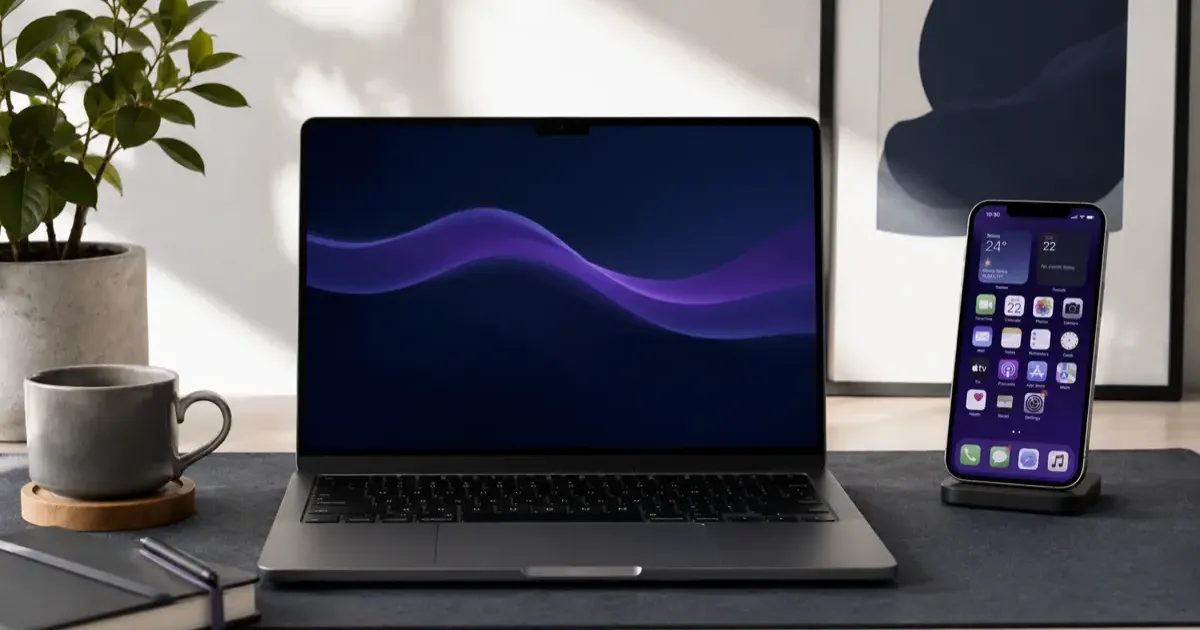
Your phone and laptop accumulate clutter the same way a junk drawer does: quietly, a little every day, until opening them feels heavier than it should. The end of the year is the perfect time to reset. This declutter takes one afternoon, needs no extra software, and leaves you with faster, calmer devices going into the new year.
(In the mood to reduce the physical pile too? Our guide on how to stop buying tech you do not need pairs well with this.)
Upgrading your workstation? See our all-in-one Desk Upgrade & Home Office Guide to build a comfortable, productive workspace.
The Afternoon Plan
Block three hours, put the phone on the desk next to the laptop, and work through the layers in this order. The early steps free up the most space, the later ones save the most money.
| Step | Device | Time | Payoff |
|---|---|---|---|
| 1. Desktop and Downloads | Laptop | 20 min | Faster to find things, often several GB back |
| 2. Photos | Phone + cloud | 45 min | Biggest storage win |
| 3. Apps | Phone + laptop | 20 min | Fewer notifications, less background drain |
| 4. Inbox and notifications | Both | 30 min | Calmer days |
| 5. Subscriptions | Phone + bank | 20 min | Real money, every month |
| 6. Browser and accounts | Laptop | 30 min | Fewer tabs, fewer old logins floating around |
| 7. Physical desk | Desk | 15 min | Everything feels new |
1. Clear the Desktop and Downloads
Start with the two folders that collect the most junk.
- Desktop: file the handful of things you need, delete the rest, and aim for a clean background. A tidy desktop genuinely feels better to open every morning.
- Downloads: this folder is almost always a graveyard of installers, PDFs, and screenshots. Sort by size first and delete the big installers you will never run again, then sort by date and clear everything older than a month that you have not touched.
Both operating systems have a built-in view that shows where the space actually goes. On a Mac, open System Settings, then General, then Storage, and the Documents and Applications rows list the largest files. On Windows, Settings, then System, then Storage does the same and can turn on Storage Sense to empty the Recycle Bin and Downloads automatically.
2. Back Up and Cull Your Photos
Photos are the biggest space hog on most phones, and the biggest source of guilt, because nobody wants to delete a memory by accident. The fix is to back up first and delete second.
- Confirm the backup. Open iCloud Photos or Google Photos and make sure the last few days of pictures are already there before you delete anything locally.
- Merge duplicates with the built-in tool. On an iPhone with iOS 16 or newer, open Photos, go to Albums, scroll to Utilities, and tap Duplicates. Each pair shows side by side, and Merge keeps the best version and moves the rest to Recently Deleted. The album only appears once the phone has found actual duplicates, so give it a day after a big import.
- Let Google Photos clear the phone. If your library lives in Google Photos, tap your profile picture and choose “Free up space on this device.” It removes only the photos that are already backed up and keeps the last 30 days on the phone.
- Hunt screenshots and blurry shots by hand. Both apps have a Screenshots album. Most of those were useful for a day and are useless now.
- Make three or four albums for the keepers (trips, family, the dog) so the good pictures are actually findable next year.
3. Uninstall Apps You Do Not Use
Scroll through your phone and laptop and be honest: if you have not opened an app since the summer, it is safe to remove. Fewer apps means fewer notifications, less background activity, and a home screen you can actually navigate.
A faster way than scrolling: the storage screens from step 1 list apps by size and, on the phone, by last used date. Start from the bottom of the “last used” list. Anything you have not opened in three months goes, unless it is a bank, an airline, or something you only need twice a year on purpose.
While you are there, pull the apps you keep into a few folders by job (Money, Travel, Reading) and leave the home screen with the six you open daily.
4. Tame Your Inbox and Notifications
- Unsubscribe instead of deleting. Search your inbox for “unsubscribe” and work through the senders you never read. Most newsletters have a one-click link at the bottom, and Gmail and Apple Mail both show an unsubscribe button at the top of the message.
- Turn off notifications per app, not globally. Keep messages, calendar, and whatever you use for work. Silence shopping apps, games, and anything that only ever tells you about a sale.
- Archive the backlog. Select everything older than a month, archive it, and start from a clean inbox. Search still finds the old mail if you ever need it.
5. Cancel Forgotten Subscriptions
This is the step that pays for the afternoon. Both phone platforms keep every app subscription in one place, which is where most forgotten trials hide.
- iPhone and iPad: open Settings, tap your name at the top, then Subscriptions. Every active and expired subscription is listed with its renewal date, and Cancel is one tap away.
- Android: open the Play Store, tap your profile picture, then Payments and subscriptions, then Subscriptions. The same list is at play.google.com/store/account/subscriptions in a browser.
- Everything else: scroll your last three bank or card statements for recurring charges. Streaming services, cloud storage you upgraded once, and software you tried for a month tend to bill outside the app stores.
Most people find at least one charge they had forgotten about. Cancel it now, before the January renewal.
6. Browser and Old Accounts
Half an hour here removes clutter you no longer see because it has become normal.
- Tabs: bookmark the five you actually need, close the rest. The ones you were “going to read” have been open since spring.
- Extensions: remove anything you do not remember installing. Each one is a small performance cost and a potential privacy problem.
- Old accounts: think of the services you signed up for this year and never used again, and delete the accounts rather than just the apps. Fewer accounts means fewer places your email and password can leak from. Your password manager’s list is the easiest inventory, and while you are in there, update any password it flags as reused or weak.
7. Tidy the Physical Side
While you are at it, spend fifteen minutes on the desk itself: coil the cables, wipe the screens, and clear the clutter. Our cable management tips make the wires disappear, and a clean screen makes everything feel new. If you want tools for the software side, our best free macOS software list has a few tidy-up helpers.
Keep It From Piling Back Up
A big declutter only lasts if you add a tiny habit:
- Weekly: empty the downloads folder and close the tab hoard (five minutes).
- Monthly: delete apps you stopped using and glance at the subscriptions screen.
- Year-end: the full reset above.
The Bottom Line
A year-end digital declutter is one afternoon of work for a full year of lighter, faster devices. Clear your desktop and downloads, merge duplicate photos with the built-in tools, drop unused apps, quiet your notifications, and cancel forgotten subscriptions from the subscription screen on your phone. Then protect it with a five-minute weekly habit, and January will feel a lot calmer.
Related Articles
The Top 10 Must-Have Gadgets to Upgrade Your Commute in 2026
From intelligent noise-canceling headphones to smart travel mugs, these 10 gadgets will make your daily commute more productive, comfortable, and enjoyable.
Dumb Phones for Deep Work: Reclaiming Focus in 2026
Why high-performers are intentionally ditching their flagship smartphones for minimalist 'dumb phones' to reclaim their attention, focus, and productivity.
TRMNL: The E-Ink Dashboard That Reclaims Your Desk and Focus
Is your desk setup missing something? Discover TRMNL, the minimalist E-ink display that gives you glanceable data without the distraction of a standard monitor.