
Home Office Setup Guide: $500, $1,000, and $2,000 Builds
Three complete home office setups at $500, $1,000, and $2,000. Full shopping lists with specific desks, chairs, monitors, and peripherals at real prices.

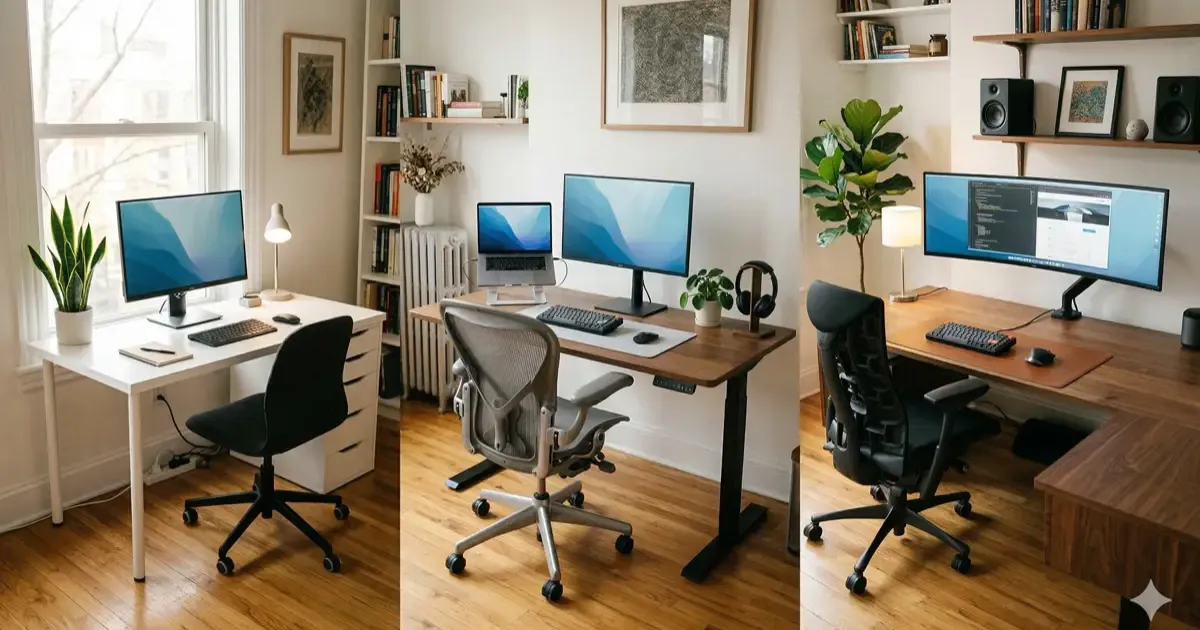
When I started working from home full-time, my “office” was a kitchen chair, a wobbly side table, and my 13-inch laptop. Within two weeks my back was screaming, my neck was stiff every morning, and I was squinting at a tiny screen for nine hours a day.
So I did what any reasonable person would do: I went down a rabbit hole of Reddit threads, YouTube reviews, and spreadsheets comparing every desk, chair, and monitor on the market. Spent way too long on it. But I came out the other side with a setup that actually works, and I learned exactly where to spend and where to save.
Here are three complete home office builds at three budgets: $500, $1,000, and $2,000. Not vague suggestions, actual products, actual prices, actual shopping lists. Pick the tier that fits your wallet and buy the whole thing.
If you are also upgrading piece by piece, check out the complete desk upgrade guide for a broader overview of the WFH upgrade path.
Tier 1: The $500 Starter Setup
This is the “I need a real workspace but I’m not made of money” tier. Every item here punches above its price. You will not get standing desk features or premium peripherals, but you will get a genuinely comfortable, productive workspace that beats any kitchen-table-and-laptop combo.
Shopping List
| Item | Product | Price |
|---|---|---|
| Desk | IKEA LAGKAPTEN / ADILS (55” x 24”) | ~$70 |
| Chair | Hbada Office Chair (mesh back, flip-up arms) | ~$130 |
| Monitor | Dell P2425H (24” FHD IPS, 100Hz) | ~$170 |
| Keyboard + Mouse | Logitech MK370 Combo | ~$40 |
| Desk Pad | Large felt or leather desk mat (Amazon) | ~$15 |
| Cable Management | Cable clips + under-desk tray | ~$20 |
| Lighting | Basic LED desk lamp with adjustable color temp | ~$25 |
| Total | ~$470 |
That leaves about $30 of breathing room for tax or shipping.
Why These Picks
The IKEA LAGKAPTEN/ADILS desk is boring and that is exactly the point. For $70, you get a 55-inch tabletop on sturdy legs. It is not fancy. It does not wobble. It gives you plenty of space for a monitor, laptop, and some notebooks. The desk is rarely the thing that makes or breaks a setup, save your money here and put it into the chair.
The Hbada mesh chair is one of the better budget office chairs you can find under $150. Breathable mesh back, adjustable lumbar support, flip-up armrests (so you can tuck it under the desk), and a decent foam seat cushion. Is it a Herman Miller? Obviously not. But it is leagues better than whatever dining chair you are currently using. For more options in this range, I compared a bunch of them in best office chairs for WFH.
The Dell P2425H is a 24-inch 1080p IPS panel with a 100Hz refresh rate. At around $170 from Best Buy, it is hard to beat for a budget WFH monitor. Crisp text, good viewing angles, and a fully adjustable stand (height, tilt, swivel, pivot). You do not get 4K at this price, but 1080p on 24 inches is perfectly fine for spreadsheets, documents, and video calls. Want to explore more monitor options? See the full best monitors for working from home roundup.
The Logitech MK370 is a full-size wireless keyboard and mouse combo for about $40. Silent mouse clicks, Logi Bolt receiver, Bluetooth, and it just works. Battery lasts over a year. At this budget you do not need a mechanical keyboard, that is a want, not a need.
Toss in a desk mat (protects the surface, looks cleaner, feels better under your wrists) and some basic cable management clips to keep things tidy. A simple LED desk lamp with warm/cool color temperature adjustment rounds it out.
Tier 2: The $1,000 Ergonomic Upgrade
This is the sweet spot. You are spending enough to get genuinely good ergonomics, a proper standing desk, a real ergonomic chair, a bigger monitor, without going overboard. If your employer offers a WFH stipend, this is the tier to aim for.
Shopping List
| Item | Product | Price |
|---|---|---|
| Desk | FlexiSpot E7 standing desk (48” x 24”) | ~$500 |
| Chair | Autonomous ErgoChair Core | ~$299 |
| Monitor | Dell S2725QC (27” 4K, USB-C, 120Hz) | ~$300 |
| Keyboard | Keychron V6 (full-size mechanical, wired) | ~$89 |
| Mouse | Logitech MX Master 3S | ~$100 |
| Light Bar | Quntis Monitor Light Bar | ~$40 |
| Cable Management | Under-desk cable tray + Velcro ties | ~$25 |
| Total | ~$1,353 |
OK, I know. That is $353 over $1,000. Here is how you bring it closer to budget: skip the mechanical keyboard and use the Logitech MK370 combo from Tier 1 (saves $130), or wait for the FlexiSpot E7 to go on sale (they run promotions constantly, $100 off is common). Also, the Keychron V6 drops to around $70 during sales. Point is: these are the right products even if you need to wait for deals or substitute one item.
Why These Picks
The FlexiSpot E7 is a dual-motor standing desk with a solid steel frame, programmable height presets, and a 48-inch bamboo or laminate top. Alternating between sitting and standing throughout the day makes a huge difference, I noticed it within the first week. The E7 is one of the best-reviewed standing desks under $600 and holds its own against desks twice the price. For a deeper look at standing desks, see best standing desks for WFH.
The Autonomous ErgoChair Core at $299 is a serious step up from budget chairs. Adjustable lumbar support, seat depth, armrests, backrest tilt, and headrest. The mesh back keeps you cool during long sessions. It does not have the brand cachet of a Steelcase or Herman Miller, but for the money, the adjustability is excellent.
The Dell S2725QC is a 27-inch 4K monitor with 120Hz, USB-C with 65W power delivery, and built-in dual 5W speakers. One cable from your laptop charges it and drives the display. At around $300, this is one of the best value 4K USB-C monitors you can buy right now. The jump from 24-inch 1080p to 27-inch 4K is dramatic, text is razor-sharp, and you can comfortably fit two documents side by side.
The Keychron V6 is a hot-swappable, full-size mechanical keyboard with QMK/VIA support starting at $89. If you have never typed on a mechanical keyboard, you are missing out. The tactile feedback alone is worth it, and the V6 keeps costs down without sacrificing build quality. Check out best mechanical keyboards for beginners for more options.
The Logitech MX Master 3S at ~$100 is the gold standard of productivity mice. Quiet clicks, MagSpeed scroll wheel (free-spin through long documents), ergonomic shape, and it connects to three devices simultaneously. Once you use one, going back to a regular mouse feels painful.
A monitor light bar replaces your desk lamp, sits on top of the monitor, lights your desk without creating screen glare, and frees up desk space. The Quntis at ~$40 does the job well. For premium alternatives, see best monitor light bars.
Tier 3: The $2,000 Premium Build
This is the “I work from home permanently and I want to do it right” tier. Every piece is either best-in-class or close to it. The chair will last 15+ years. The monitor is gorgeous. The peripherals are top of the line. You are building something you will not need to upgrade for a very long time.
Shopping List
| Item | Product | Price |
|---|---|---|
| Desk | FlexiSpot E7 Pro standing desk (60” x 30”) | ~$600 |
| Chair | Steelcase Leap V2 | ~$1,399 |
| Monitor | Dell S2725QC (27” 4K, USB-C, 120Hz) | ~$300 |
| Monitor Arm | VIVO Dual Monitor Arm (STAND-V002) | ~$30 |
| Keyboard | Logitech MX Keys S | ~$130 |
| Mouse | Logitech MX Master 3S | ~$100 |
| Light Bar | BenQ ScreenBar | ~$109 |
| Cable Management | Full under-desk kit (tray + ties + cable spine) | ~$40 |
| Total | ~$2,708 |
Yeah, that is over $2,000 too. The Steelcase Leap V2 is the culprit at $1,399 new. Here are your options to bring it closer to budget:
- Buy the Leap V2 refurbished from BTOD or Crandall Office (~$649), saves $750. These come with new foam, new fabric, and a warranty. Honestly, this is what I would recommend for most people.
- Swap the BenQ for the Quntis light bar, saves $69.
- Skip the monitor arm for now, saves $30.
With a refurbished Leap V2, the total drops to around $1,960. That is within striking distance.
Why These Picks
The FlexiSpot E7 Pro with a 60-inch top gives you a massive work surface. Dual monitors, a laptop, notebooks, plants, a coffee mug, all without feeling cramped. The wider, deeper desk matters once you add a monitor arm and start spreading out your workspace. The upgraded column and frame handle heavier loads, which matters at this size.
The Steelcase Leap V2 is the chair. It has been the go-to recommendation from ergonomics experts for over a decade. The LiveBack technology flexes with your spine as you move. Every part is adjustable, seat depth, armrest height/width/depth/pivot, lumbar firmness, and recline tension. It regularly lasts 15-20 years with basic maintenance. The $1,399 retail price is brutal, which is why the refurbished market exists. A refurbished Leap V2 from a reputable seller is functionally identical to new.
The Dell S2725QC appears again because it is genuinely that good at its price. At the premium tier, you might be tempted to add a second one for a dual-monitor setup. If so, adding a monitor arm like the VIVO STAND-V002 (~$30) frees up desk space and lets you position each screen at the perfect height and angle.
The Logitech MX Keys S at ~$130 is a low-profile wireless keyboard with backlit keys, smart illumination (lights up when your hands approach), and the same multi-device switching as the MX Master 3S mouse. The typing experience is quiet, fast, and satisfying. Pair it with the MX Master 3S and you have a seamless ecosystem, switch both devices between your work laptop and personal computer with a single button.
The BenQ ScreenBar at ~$109 is the original and still one of the best monitor light bars. Auto-dimming sensor, no screen glare, solid build quality, USB-powered. It is noticeably better-built than the budget alternatives, but if $109 feels steep for a light bar, the Quntis at $40 gets you 80% of the way there.
Where to Save and Where to Splurge
After building and rebuilding my own setup (and helping a few friends do the same), here is what I have learned about where money actually matters.
Splurge On These
Chair. This is non-negotiable. A bad chair causes real back problems that cost way more than a good chair to fix. Even at the $500 tier, I would rather downgrade the monitor than the chair. If you can afford one premium item, make it the chair. A Steelcase Leap V2 or Herman Miller Aeron (starting around $1,399-$1,895 new) will outlast everything else in your setup combined.
Monitor. The screen is where you spend your entire workday. The jump from a laptop display to a proper 24-inch external monitor is the single biggest productivity boost. The jump from 24-inch 1080p to 27-inch 4K is the second biggest. A good monitor lasts 7-10 years, so the per-year cost is lower than you think.
Save On These
Desk. Unless you specifically want a standing desk, any flat, stable surface works. An IKEA tabletop on simple legs is $70 and does the same job as a $300 “executive desk” from Wayfair. Even with a standing desk, the FlexiSpot E7 delivers 90% of the experience of desks costing twice as much.
Peripherals (at first). A $40 Logitech combo gets the job done. You can always upgrade to mechanical keyboards and premium mice later. These are quality-of-life upgrades, not necessities.
Cable management. Velcro ties and adhesive cable clips from Amazon cost under $15 total. You do not need a $50 “cable management system.” A simple under-desk tray and some ties will keep things clean.
Monitor arms. The VIVO STAND-V002 has been the best-selling monitor arm on Amazon for years and costs around $30. The $200+ premium arms from Humanscale or Ergotron are smoother and prettier, but the VIVO holds your monitor just fine.
Skip These Entirely (For Now)
- Webcam, Your laptop camera is good enough until someone complains about video quality. Nobody has ever complained.
- Desk shelf or monitor riser, Get a monitor arm instead. Same benefit, more adjustability, less desk clutter.
- RGB lighting, You are working, not streaming. If you want ambient light, the monitor light bar handles it.
- Footrest, Only if your chair height creates a problem. Try adjusting the chair first.
The Upgrade Path
Not everyone can drop $1,000+ at once. Here is how I would build up incrementally:
Month 1: Chair + monitor. These are the two items that affect your health and productivity the most. Use whatever desk or table you already have.
Month 2-3: Desk. If you want a standing desk, this is when you buy it. If not, grab the IKEA LAGKAPTEN and call it done.
Month 4-6: Peripherals. Mechanical keyboard, nice mouse, monitor arm. The fun stuff that makes your setup feel polished.
Whenever: Light bar, cable management, desk mat, second monitor. These are incremental improvements you add as budget allows.
The key is not buying everything at once and ending up with a cheap chair because the standing desk ate half your budget. Get the chair right first. Everything else can be upgraded over time.
Final Thoughts
You do not need to spend $2,000 to have a great home office. The $500 tier handles the fundamentals. The $1,000 tier is the sweet spot for most full-time remote workers. The $2,000 tier is for people who want to buy once and forget about it for the next decade.
Whatever tier you pick, the order of importance stays the same: chair, monitor, desk, everything else. Get those first two right and the rest is just polish.
For the full rundown on every component mentioned here, start with the desk upgrade guide, it ties together all the individual product roundups and helps you plan upgrades piece by piece.
You can also use generative AI to visualize floor plans using our AI room redesign guide.
Related Articles
Dual Monitor Setup: Cables, Settings & Ergonomics (2026)
Step-by-step guide to setting up dual monitors for your home office. Cables, settings, ergonomic positioning, and the mistakes most people make.
Cable Management Tips: How to Hide Desk Cables (2026 Guide)
Transform your messy desk into a clean workspace. Practical cable management tips, best products, and step-by-step guide to hiding cables under your desk.

7 Best WFH Monitors in 2026, Tested & Ranked
I tested 7 monitors for working from home across every budget ($240–$1,020). Best 4K, ultrawide, and USB-C picks, plus one clear top choice for most people.