
The Complete Kindle Guide (2026): Setup, Books, Tips & Tricks
Complete Kindle guide for 2026. Setup, free books, customization, sideloading, accessories, tips, and tricks, everything you need to master your Kindle.

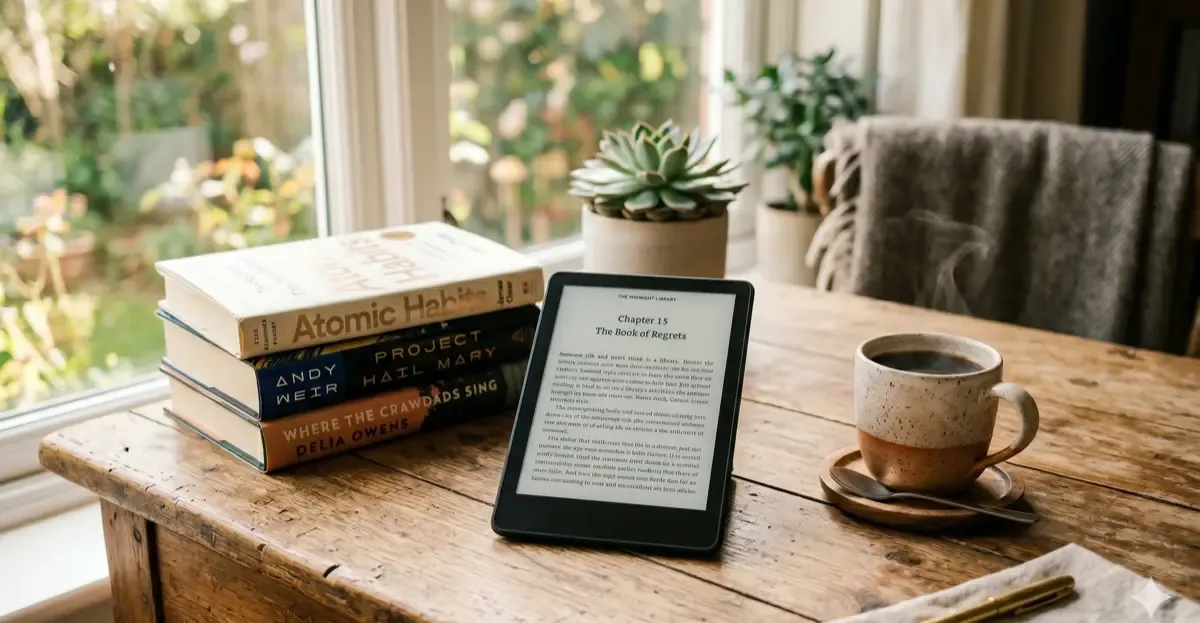
So you got a Kindle, or you’re thinking about getting one. Either way, this is the guide you’ll want bookmarked. Everything from your first book to advanced sideloading tricks, organized in the order you’ll actually need them.
Kindle is more than a device, it’s an ecosystem of books, subscriptions, reading apps, and accessories. Amazon’s been refining it for nearly 20 years, and in 2026 the experience is as polished as it gets. Here’s how to get the most out of it.
Quick navigation:
- Is it worth it?, The honest answer before you spend
- Which Kindle to buy, Quick picks (not a full comparison)
- Getting started, First-time setup
- Getting books, Free, paid, and borrowed
- Reading experience, Tips and customization
- Advanced, Sideloading, jailbreaking
- Accessories, What’s actually worth it
Is a Kindle Actually Worth It?
Before you commit, make sure it’s right for you. Kindles are excellent for readers who finish 5+ books per year, especially fiction and non-fiction without heavy images or footnotes.
They’re not great if you:
- Read mostly PDFs or technical books with large figures (a tablet is better)
- Only read 1-2 books a year (just borrow physical books)
- Need to annotate heavily for academic work (the Kindle Scribe is an exception)
For a deeper look at the trade-offs, including comparisons to phones and tablets, read our full breakdown: Is a Kindle Worth It?
And if you already have a phone you read on, here’s the honest comparison: Kindle vs iPad for reading.
Which Kindle Should You Buy?
This guide isn’t a full product comparison, for that, see our dedicated best e-readers comparison which covers every model from Amazon, Kobo, Boox, and reMarkable with specs and prices.
But if you want the short version:
- Kindle Paperwhite (~$160), The right choice for 90% of readers. 7-inch 300 PPI screen, warm light, waterproof, 16 GB.
- Base Kindle (~$110), Fine if you’re on a tight budget. Smaller 6-inch screen, not waterproof.
- Kindle Scribe (~$400), Only if you need note-taking and PDF annotation. See our Kindle Scribe review for the honest take.
- Kindle Colorsoft Signature (~$280), For comics, magazines, and cookbooks. Color E Ink is impressive but not cheap. See Kindle Colorsoft vs Paperwhite to decide whether color is worth the premium.
Studying or in school? The right model depends on whether you need note-taking and PDF support. We break it down in best Kindle for students.
Considering Kobo instead? Kobo has better library integration, open EPUB support, and no ads. Read Kindle vs Kobo or the specific Kindle Paperwhite vs Kobo Clara head-to-head to decide.
Getting Started
First-Time Setup
Out of the box, setup takes about 5 minutes:
- Charge it, USB-C on newer models, micro-USB on older ones. First charge usually ships at 30–40%.
- Connect to Wi-Fi, Required to register and download books.
- Sign into your Amazon account, If you don’t have one, you can create it during setup.
- Skip the tutorial, It’s optional and mostly obvious.
- Choose “without ads”, If you’re buying new, pay the extra $20 to remove lockscreen ads. Worth it.
Essential Settings to Change Immediately
- Warm light (Paperwhite+): Set it to auto or schedule it. Reduces eye strain at night.
- Airplane mode when reading: Conserves battery when you’re not downloading new books. Crucial: In mid-2026, keeping Airplane Mode on is the only way to prevent firmware 5.18.1.1.1+, which blocks many current modding exploits.
- Disable “Popular Highlights”: Settings → Reading Options. They’re distracting.
- Page refresh: Set to “every page” for cleaner rendering. Minor battery hit, worth it.
Full setup walkthrough with 20+ customization options: Kindle Tips and Tricks.
Getting Books: Free, Paid, and Borrowed
This is where most new Kindle owners go wrong, they assume everything costs $10–15 through Amazon. In reality, there are four ways to fill your library, and three of them are free.
1. Your Library (Free, Unlimited)
Most US, UK, and European public libraries offer ebook lending. Download the Libby app (or OverDrive), connect your library card, and borrow books that sync directly to your Kindle.
- Loan period: 7–21 days depending on library
- Waitlist: Popular books may have a queue, just like physical books
- Cost: $0 if you have a library card
This is the single biggest money-saver for Kindle users. Expect to save $200–500 per year compared to buying.
2. Public Domain Classics (Free, Legal)
Everything published before 1929 (in the US) is free to download. Sources:
- Project Gutenberg, 70,000+ titles, basic formatting
- Standard Ebooks, Professionally formatted classics, gorgeous typography
- Amazon’s free classics, Pre-formatted for Kindle, one-click download
Full list of legitimate free sources and how to use them: Free Books for Kindle.
3. Kindle Unlimited (Subscription, Sometimes Worth It)
$12/month for unlimited reads from Amazon’s Kindle Unlimited catalog. Strong in:
- Romance (massive selection)
- Self-published fiction and fantasy
- Self-help and productivity
- Cookbooks
Weak on: new releases from major publishers, bestsellers, classic literary fiction.
Only worth it if you read 2+ books per month and your taste matches the catalog. Full breakdown: Is Kindle Unlimited Worth It?.
4. Buying (When You Have To)
Amazon’s prices are usually competitive, but not always the cheapest:
- Amazon Kindle Store, Integrated, one-click download. Best for convenience.
- Humble Bundle, Frequent DRM-free ebook bundles at huge discounts.
- eBooks.com / Kobo Store, Often cheaper, but requires sideloading (see below).
Pro tip: Add books to your Amazon wishlist and wait for sales. Kindle books go on sale often, typically dropping to $1.99–$3.99.
Getting the Most Out of Reading
Typography and Display
Kindles give you surprising control over the reading experience:
- Font: Bookerly (default), Literata, Amazon Ember, and several others. Bookerly is optimized for E Ink.
- Font size: Eight levels. Don’t be afraid to go larger, Kindle isn’t a textbook.
- Line spacing and margins: Tighter margins mean more words per page. Looser means less eye movement.
- Orientation lock: Portrait only for most books, landscape for comics and PDFs.
Reading Speed and Focus
- Word Wise: Adds small definitions above difficult words. Helpful for English learners, distracting otherwise.
- Page Flip: Let you preview pages ahead without losing your place.
- Dictionary lookup: Press and hold any word. Works offline.
- Wikipedia lookup: Same gesture, shows a Wikipedia snippet.
- X-Ray: Amazon’s character/place/topic tracker. Great for complex novels.
Reading Stats and Goodreads
Your Kindle quietly tracks everything you read, time, speed, completion rate. View it at amazon.com/readinginsights.
Kindle also integrates with Goodreads for reviews and reading goals, though in 2026 many readers prefer StoryGraph as a Goodreads alternative.
All 20+ tips and customizations: Kindle Tips and Tricks.
Advanced: Sideloading and Modding
Once you’re comfortable with the basics, two power-user techniques unlock serious flexibility.
Sideloading Non-Amazon Books
Sideloading lets you add books from non-Amazon sources, other stores, borrowed files, converted formats. Methods:
- Send to Kindle (easiest), Email files as attachments to your Kindle address, or use the Send to Kindle website. Works with EPUB, PDF, DOCX, MOBI, TXT, and most image formats.
- USB transfer, Plug in via USB-C, drag files to the Documents folder. Fastest for bulk transfers.
- Calibre (most powerful), Converts between formats, strips DRM from books you own, manages metadata, and syncs to Kindle via Wi-Fi.
Step-by-step walkthrough for all three methods: How to Sideload Books on Kindle.
Modding and Jailbreaking
For the advanced user, jailbreaking opens up:
- KOReader, A completely different reading app with EPUB support, custom layouts, and OPDS library support
- Custom fonts, Full typography control beyond Amazon’s defaults
- Screensavers, Replace the default Amazon ads with your own images
- Basic terminal access, For Linux-inclined users
As of June 2026, Nosebleed is the recommended method for modern models (PW5, K11) on firmware up to 5.18.6. This isn’t for everyone and voids your warranty. But for tinkerers, it turns a Kindle into a much more flexible device. Full instructions: Kindle Modding Guide.
Accessories Worth Buying
Most Kindle accessories are unnecessary. But a few genuinely improve the experience:
- Case, Protects the screen and adds a stand. Amazon’s official case is overpriced; third-party cases are $15–20. See our tested Kindle case picks by model.
- Reading light, Only for base Kindles without backlight. Paperwhite owners can skip this.
- Finger grip / popsocket, Surprisingly useful for one-handed reading.
- Matte screen protector, Only if you plan to use the Scribe with its stylus.
Skip: branded lanyards, expensive leather sleeves, bookmarks (the Kindle saves your place automatically).
Full breakdown with recommendations at every price point: Best Kindle Accessories.
Kindle vs Other E-Readers
If you’re still deciding between Kindle and alternatives, here are the key comparisons:
- Kindle vs Kobo, The two main competitors. Kobo wins on library integration; Kindle wins on ecosystem depth.
- Kindle Paperwhite vs Kobo Clara, Head-to-head at the $140–160 price point.
- Kindle vs iPad for reading, E Ink vs LCD. Different tools for different jobs.
- Best E-Readers (full comparison), Every major option with specs and prices.
Frequently Asked Questions
How long do Kindles last?
Hardware: 5–8 years for most models. The main failure point is the battery, which degrades noticeably after year 4. Amazon doesn’t officially offer battery replacements, but third-party services exist.
Software: Kindles receive firmware updates for roughly 5–6 years after release. Older models lose some features (like Send to Kindle updates) but remain fully functional for reading.
Important Legacy Note: On May 20, 2026, Amazon ended store and sync support for “legacy” models (1st-5th Gen). These devices can no longer download books over Wi-Fi, but remain functional via USB sideloading and jailbreaking.
Can I share Kindle books with family?
Yes, through Amazon Household. Two adults and up to four teens/children can share books, audiobooks, and apps. Setup at amazon.com/myh.
Do I need an Amazon Prime membership?
No. Kindle works fully without Prime. Prime adds Prime Reading (a small rotating catalog of free books), First Reads (one free book per month), and monthly free lending from the Kindle Owners’ Lending Library, but all of these are nice-to-haves, not essential.
Can I read Kindle books on my phone or computer?
Yes. The Kindle app is free on iOS, Android, Mac, Windows, and web. Books sync across devices via Whispersync, so you can start reading on Kindle and pick up on your phone automatically.
What happens when I buy a Kindle book, do I own it?
Not quite. You own a license to read it, not the file itself. Amazon can technically revoke access, though in practice this almost never happens outside of publisher disputes. If true ownership matters to you, buy DRM-free ebooks from sources like Humble Bundle or Standard Ebooks.
Your Kindle Starter Checklist
If you’re just getting started, do these in order:
- Complete initial setup (5 minutes)
- Adjust warm light and font preferences
- Install Libby and link your library card (free books forever)
- Download 2–3 free classics from Project Gutenberg or Standard Ebooks
- Set up Send to Kindle for easy file transfers
- Consider Kindle Unlimited for a 30-day free trial, decide before auto-renew
- Enable Goodreads or StoryGraph for tracking
- Order a basic case ($15–20) if you travel with it
That’s it. You’re now ahead of 90% of Kindle owners who never dig past the default experience.
Ready to go deeper? Start with Kindle Tips and Tricks for 20+ customizations, then check out Free Books for Kindle to fill your library without spending. For comparisons with other e-readers, see our best e-readers roundup.
Setting up a complete workspace? Pair this with our desk upgrade guide for the workstation itself, and our AI tools guide for the productivity stack you’ll actually use during reading breaks.
Shopping for younger family members? Read our detailed guide on the best Kindle for kids.
Related Articles
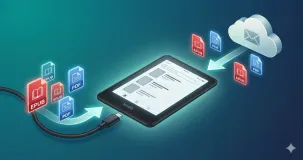
How to Sideload Books on Kindle: Every Method Explained (2026)
Learn six reliable ways to sideload EPUBs and PDFs on your Kindle. Step-by-step tutorial covering Send to Kindle, USB transfer, and Calibre management.
Kindle Won't Turn On or Charge? 9 Fixes That Work
Your Kindle won't turn on or won't charge? Here are 9 fixes, starting with the 40-second hard reset that revives most frozen or dead Kindles in minutes.
Is Kindle Unlimited Worth It? I Did the Math (2026)
I tracked 6 months of reading and crunched the numbers. Here's whether Kindle Unlimited is worth $11.99/month, and who should skip it.