
iOS 27 & macOS 27 Public Beta: Features & Install Guide
Discover the upcoming iOS 27 and macOS 27 updates. We break down the new features, performance upgrades, and how to safely install the public beta.

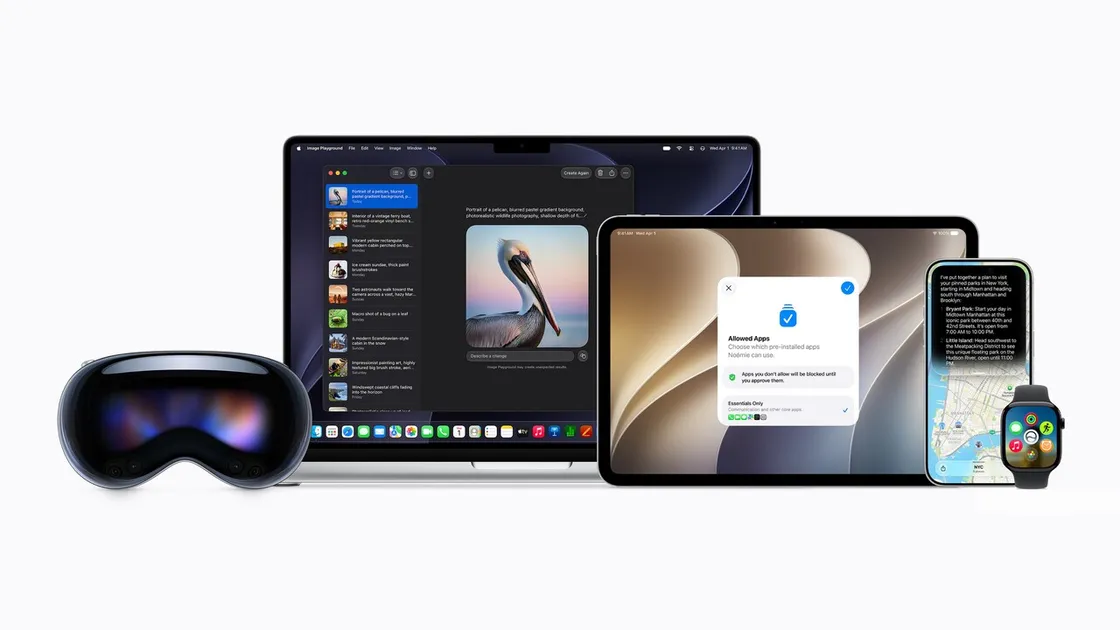
iOS 27 and macOS 27 Public Beta: What’s New and How to Install
The summer of 2026 has brought us one of the most anticipated updates in the Apple ecosystem. The public betas for iOS 27 and macOS 27 are finally here, giving enthusiasts and early adopters a chance to experience the future of Apple software before the official fall release. Whether you are an everyday user looking for quality of life improvements or a power user hoping to push your hardware to the absolute limit, these updates promise significant changes across the board. In this comprehensive guide, we will explore the standout features of both operating systems, discuss the performance enhancements, and provide a detailed, step by step tutorial on how to safely install the public beta on your devices. For the shipping version rather than the beta, see the macOS 27 and iOS 27 release guide.
The Evolution of iOS: What is New in iOS 27?
Apple has consistently refined its mobile operating system, but iOS 27 feels like a paradigm shift. Moving beyond simple UI tweaks, the development team has focused heavily on deeper integration of artificial intelligence (building upon the foundation of Apple Intelligence), personalization, and productivity tools that cater to modern workflows. Here are some of the most exciting features you can expect.
1. Dedicated Siri AI App & Contextual Awareness
One of the most groundbreaking additions in iOS 27 is the massive overhaul of Siri. Moving beyond a simple voice assistant, Siri AI is now a dedicated application with deep contextual awareness. It uses personalized on-device context to provide highly relevant assistance, anticipating your needs before you even ask. (Note: Due to regulatory requirements like the DMA, some of these features might have regional restrictions at launch.)
2. Apple Intelligence Expansion
The integration of generative AI continues to expand across the ecosystem. iOS 27 introduces improved Writing Tools for system-wide text generation and refinement. Furthermore, the Photos app now features advanced AI-powered editing capabilities, such as intelligent perspective adjustment and object removal, all processed securely via Apple’s Private Cloud Compute model.
3. The “Liquid Glass” UI Refinement
Apple is doubling down on the “Liquid Glass” design language. iOS 27 brings further optimization to this aesthetic, featuring more consistent UI elements, smoother animations, and improved customizability for home screen icons and widgets. It creates a visually stunning and cohesive experience across all native applications.
4. AI-Driven System Enhancements
Performance optimizations are a key focus, bringing general speed improvements to older devices. Apple has also integrated AI-driven features into core apps like Safari, Calendar, Messages, and Phone, allowing for smarter summarization, automated scheduling, and improved communication management.
5. Advanced Parental Controls
Managing device usage is easier than ever. iOS 27 introduces robust parental controls that leverage machine learning to better categorize content and screen time, providing parents with more granular tools to protect and manage their children’s digital well-being.
Transforming the Desktop: What is New in macOS 27 (Golden Gate)?
While iOS dominates the mobile space, macOS remains the powerhouse. macOS 27, officially codenamed “Golden Gate,” brings a suite of enhancements designed to streamline workflows and tighten integration. However, it also marks a significant transition in Apple’s hardware support.
1. The Apple Silicon Era (Intel Support Dropped)
macOS 27 (Golden Gate) marks the end of an era: it is the first version of macOS to run exclusively on Macs equipped with Apple silicon (M-series chips). Apple has officially dropped support for all remaining Intel-based Macs. This allows the operating system to be highly optimized for the neural engine and unified memory architecture of the M-series processors.
2. Overhauled Spotlight Search
Spotlight has received significant under-the-hood overhauls. These changes are designed to improve the reliability and speed of Spotlight search, making it faster than ever to locate files, launch applications, and query information directly from the desktop.
3. Unified UI: Corner Radius and Liquid Glass
Aligning with the aesthetics of iOS, macOS 27 adopts the “Liquid Glass” design language and a unified corner radius for all windows and applications. This subtle visual change brings a fresh, modern look to the desktop and ensures a consistent visual identity across Apple’s entire hardware lineup.
4. Improved “Recents” Accessibility
Workflow efficiency has been improved with better accessibility to the “Recents” list. Users can now utilize new keyboard shortcuts to quickly access their most recently used files and folders directly within open and save panels, significantly reducing friction during everyday tasks.
5. Enhanced Apple Intelligence
Just like its mobile counterpart, macOS 27 deeply integrates Apple Intelligence. Writing tools, smart summaries, and advanced image generation are all available system-wide, securely processed on-device or via Private Cloud Compute to ensure your data remains completely private.
How to Install the iOS 27 and macOS 27 Public Beta
Before you dive in, it is crucial to understand that beta software is inherently unstable. You may encounter bugs, battery drain, and incompatible applications. We strongly advise against installing a public beta on your primary device. Always back up your data before proceeding.
Prerequisites for Installation
- A compatible device: Ensure your iPhone or Mac is on the list of supported hardware for iOS 27 and macOS 27.
- A recent backup: Use iCloud or Finder to create a full backup of your device. Do not skip this step.
- An Apple Developer or Beta Software Program account: Registration is free and takes only a few minutes.
Installing iOS 27 Public Beta
- Open Safari on your iPhone and navigate to the Apple Beta Software Program website.
- Sign in with your Apple ID.
- Tap on the “Enroll your iOS device” link.
- Download the configuration profile.
- Go to Settings on your iPhone, tap “Profile Downloaded,” and follow the prompts to install it.
- Restart your iPhone.
- Go to Settings > General > Software Update.
- The iOS 27 Public Beta should appear. Tap “Download and Install.”
Installing macOS 27 Public Beta
- Open Safari on your Mac and navigate to the Apple Beta Software Program website.
- Sign in with your Apple ID.
- Click on the “Enroll your Mac” link.
- Download the macOS Public Beta Access Utility.
- Run the installer and follow the on screen instructions.
- Once the utility is installed, System Settings will automatically open to the Software Update section.
- The macOS 27 Public Beta will be available for download. Click “Update Now” and follow the prompts to complete the installation.
Important Considerations and Potential Risks
While the allure of new features is strong, participating in a public beta requires a level of technical comfort. Here are some critical things to keep in mind before you proceed:
- Third Party App Compatibility: Many developers have not yet updated their applications to support the new APIs in iOS 27 and macOS 27. You may find that your favorite banking app, essential productivity tool, or niche software crashes frequently or fails to open entirely. It is highly recommended to check community forums or developer pages for known compatibility issues with your most relied-upon software before installing the beta.
- Battery Degradation and Thermal Issues: Beta software often contains extensive diagnostic tools running in the background to send feedback to Apple. This telemetry can severely impact battery life. Do not be surprised if your device needs to be charged more frequently. Additionally, unoptimized background processes might cause your device to run hotter than usual during regular tasks.
- Data Loss and Corruption: While rare, catastrophic crashes can result in data loss or file corruption. This is why having a verified backup is non-negotiable. If you rely on iCloud Drive for your documents, be aware that beta bugs can sometimes cause syncing issues that might affect your files across all devices connected to that Apple ID.
- Incomplete Features: As it is a beta, many of the flagship features discussed, especially those tied to Apple Intelligence, might not be fully operational, could be delayed to later beta revisions, or might act unpredictably. You are essentially testing a work in progress.
- Downgrading is a Hassle: Reverting back to a stable version (like iOS 26 or macOS 26) is not as simple as clicking an “uninstall” button. It requires erasing your device and restoring from an archived backup. If you didn’t create a backup before installing the beta, you will not be able to restore your data, as backups created on iOS 27 are not backwards compatible with older software versions.
Conclusion: Should You Take the Plunge?
The iOS 27 and macOS 27 public betas offer a fascinating look into the future of Apple software. The integration of advanced AI, enhanced customization, and tighter ecosystem synergy make these updates incredibly compelling. However, the decision to install them depends entirely on your risk tolerance and whether you have a secondary device available. If you are a tech enthusiast eager to provide feedback and explore new frontiers, the beta program is a rewarding experience. For everyone else, waiting for the official release in the fall is the safest and most prudent choice.
Happy updating, and welcome to the next generation of Apple software! Let us know your thoughts on the new features in the comments below.
Related Articles

Apple HomeView: Specs, Siri AI, Pricing & Release Date
Apple has announced HomeView, a $299 smart display powered by Siri AI and A18 silicon. Discover the 7-inch screen, multi-user privacy, audio, and specs.
iPad Air 11 M4 Review: iPadOS 27 Powerhouse in 2026
Apple iPad Air 11-inch M4 review with iPadOS 27: benchmark performance, Apple Intelligence, Stage Manager 3.0, Apple Pencil Pro, and real battery life.

macOS 27 and iOS 27 Review: Everything New in 2026
Apple releases macOS 27 Golden Gate and iOS 27 on Sept 14, 2026. Discover Siri AI, Liquid Glass, Visual Intelligence, and next-gen Apple Intelligence features.