
How to Install KOReader on a Kindle (2026 Guide)
Step-by-step 2026 guide to installing KOReader on a jailbroken Kindle: prerequisites, the safe install method, EPUB and PDF support, and the risks.

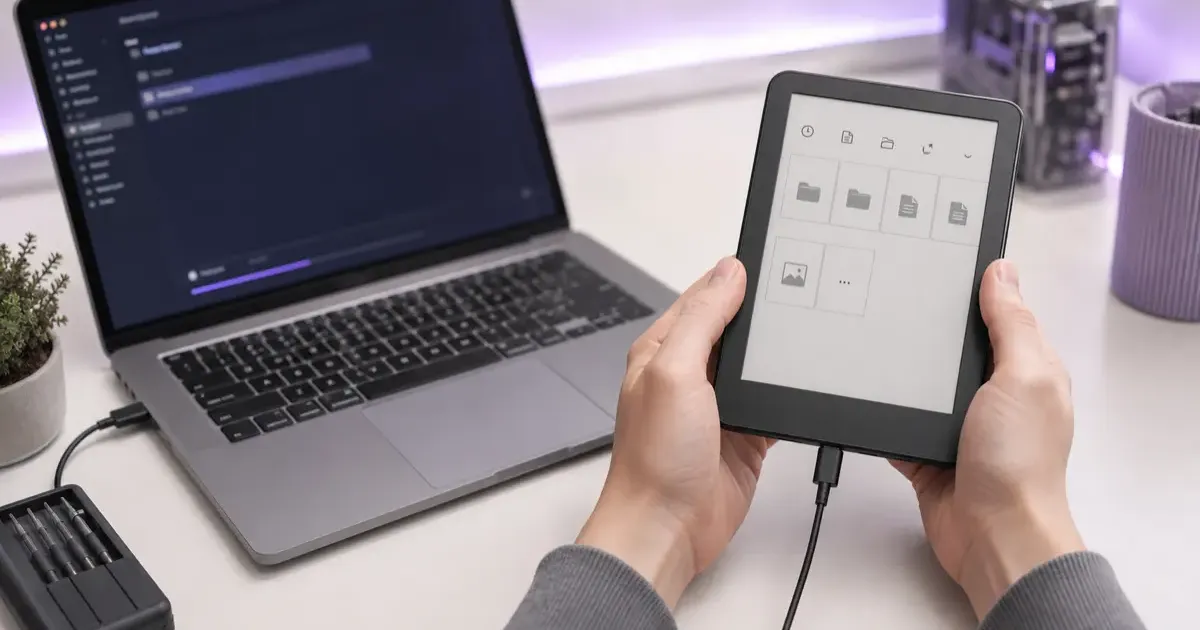
KOReader gives a Kindle native EPUB and PDF support, custom fonts, and margins Amazon will not let you set. It requires a jailbroken Kindle, so rule one is: never update the firmware if you plan to install it. Once the jailbreak is in place, the install itself takes about ten minutes, and the guide below walks through it with the checks that prevent a bricked device.
If you’ve ever wanted to read EPUB files natively, fix awkward formatting and margins, or open a massive PDF or comic book on your Kindle without fighting Amazon’s proprietary software, KOReader is the ultimate answer. It is a free, deeply customizable, open-source document reader that turns a locked-down, ecosystem-restricted Kindle into one of the most flexible and powerful e-readers you can own.
The catch, of course, is that Amazon does not want you installing third-party applications on their hardware. To run KOReader, your Kindle must be jailbroken. This guide will walk you through the entire process in detail: what KOReader actually does, the critical prerequisites you need to follow before you start, how to install it safely without breaking your device, and the post-installation setup that will completely change how you read.
This is a comprehensive deep dive specifically focused on KOReader. For the broader picture of every other Kindle modification available in 2026, be sure to check out our complete Kindle modding guide.
Quick Answer & Overview
Before we dive into the technical steps, here is a rapid-fire summary of what you need to know about modding your Kindle for KOReader:
- What it is: KOReader is a community-built, open-source reader supporting EPUB, PDF, CBZ/CBR comics, DjVu, and more. It offers far better typesetting controls, gesture customization, and file management than the stock Kindle software.
- Do you need a jailbreak? Yes. KOReader is an independent application and is not available in the Amazon store. It requires elevated system privileges to run.
- Risk level: Low, provided you follow the most current community instructions. The jailbreak step carries the only real risk of “soft bricking” your device.
- The golden rule: Never update your Kindle’s firmware if you plan to mod it. Amazon actively patches jailbreak vulnerabilities in their firmware updates.
- Time required: Roughly 10 to 15 minutes once your device is successfully jailbroken.
What Is KOReader? (And Why Do You Need It?)
KOReader is not just a different user interface; it is a complete paradigm shift for e-ink devices. Originally built for older Kindles and Kobo devices, it has evolved into a massive, feature-rich application maintained by a dedicated open-source community. While Amazon’s built-in reader is deliberately limited to funnel you into their storefront and ecosystem, KOReader is built by readers, for readers.
Here are the headline features that make KOReader an essential upgrade:
Native File Support (No More Converting!)
The biggest draw for most users is native EPUB support. If you borrow books from libraries, buy from independent publishers, or download from Project Gutenberg, you usually get an EPUB file. Normally, you have to use Calibre or Amazon’s “Send to Kindle” service to convert these files into a format the Kindle understands (AZW3 or KFX). KOReader bypasses this entirely. You simply drop the EPUB file onto your Kindle via USB, and KOReader opens it instantly with perfect formatting.
Unmatched PDF and Comic Handling
E-ink screens are notoriously terrible for reading PDFs. The text is usually too small, and zooming is laggy and frustrating. KOReader features a robust PDF rendering engine called K2pdfopt. It can automatically crop white margins, reflow PDF text into readable columns, and intelligently zoom into specific areas. Furthermore, if you read manga or western comics, KOReader handles CBZ and CBR files flawlessly, offering panel-by-panel zooming and contrast adjustment.
Deep Typesetting Control
Amazon gives you a handful of fonts, three margin sizes, and three line spacing options. KOReader gives you absolute control. You can adjust margins by the pixel, change line spacing by tiny percentages, force custom hyphenation rules, alter text contrast, and sideload hundreds of custom fonts. If you are meticulous about how your pages look, KOReader is a revelation.
Cloud Syncing, OPDS, and SSH
KOReader treats your Kindle like a real computer. You can connect it to OPDS catalogs (like Calibre’s content server) to browse and download books wirelessly over your local Wi-Fi. It has an SSH server built-in, meaning you can drop books onto your Kindle wirelessly using an FTP client without ever plugging in a cable. It even supports progress syncing across different devices, so if you run KOReader on an Android tablet and your Kindle, your reading position syncs perfectly.
Before You Start: Critical Prerequisites
This is the most important section of this guide. If you skip this, you will likely fail the installation or permanently lock yourself out of jailbreaking your device.
1. Check Your Exact Firmware Version
Go to your Kindle’s home screen, tap the three dots in the corner, and navigate to Settings > Device Options > Device Info. Note your exact firmware version (e.g., 5.16.4). Jailbreak compatibility depends entirely on this number.
As of mid-2026, the two main jailbreak exploits are:
- Nosebleed: The current gold standard exploit, which covers firmware versions roughly between 5.16.4 and 5.18.6. This covers modern devices like the Paperwhite 5 (11th generation), the standard 11th-gen Kindle, and the Oasis 3.
- WinterBreak: An older exploit that covers firmware up to 5.18.0 and a much wider range of legacy models going back several years.
If your Kindle has already updated to the latest patched firmware (for example, 5.18.1.1.1 or anything in the 5.19.x range), you are currently locked out. You cannot downgrade Kindle firmware easily. You must wait until the modding community discovers a new vulnerability. Jailbreak availability changes rapidly, so always confirm the current state on the MobileRead forums or the community wiki before proceeding.
2. Turn Off Automatic Updates Behavior
The golden rule of Kindle modding is: do not update your firmware. Amazon regularly patches the exact security holes that these jailbreaks utilize. Once you decide to modify your device, you must actively prevent your Kindle from grabbing the newest firmware from Amazon’s servers.
How do you do this? The safest and most reliable method is to keep your Kindle in Airplane Mode 99% of the time. Only turn Wi-Fi on when you specifically need to download a book, and then immediately turn it back off. Alternatively, many modders use a technique where they create a dummy folder named update.bin.tmp.partial in the root directory of the Kindle to block the system from downloading OTA updates.
3. Back Up Your Important Files
Jailbreaking is generally safe, but any system-level modification carries a small risk of a “soft brick” (where the device gets stuck in a boot loop). Fixing a soft brick usually requires performing a hard factory reset, which will wipe all user data.
If you have sideloaded books, personal documents, or custom dictionaries on the device, copy them to your computer first. Purchases tied to your Amazon account will remain in the cloud, but local files will be lost. If you are unfamiliar with managing local files, refer to our sideloading guide for instructions on moving files via USB.
How to Install KOReader: Step-by-Step
Once you have verified your firmware and accepted the risks, you can proceed with the installation. The community-maintained method has become incredibly streamlined over the years, eliminating the need for complex command-line tinkering.
Step 1: Jailbreak the Kindle
Before you can install KOReader, the device must be jailbroken. Because jailbreak methods change frequently based on firmware versions, we do not list the exploit steps here. You must follow the current, model-specific instructions from the Kindle Modding Wiki or the MobileRead Developer’s Corner.
Do not follow old blog posts or YouTube videos from years ago. Outdated steps are the number one cause of soft-bricked devices. This initial jailbreak process will also install KUAL (Kindle Unified Application Launcher). KUAL is a special “book” that appears in your Kindle library; opening it gives you a menu to launch third-party applications.
Step 2: Install the MobileRead Package Installer (MRPI)
While some hacks can be installed simply by unzipping them, the safest and cleanest way to install large packages like KOReader is through MRPI.
- Download the latest
MRPIzip file from the MobileRead forums. - Connect your Kindle to your computer via USB.
- Unzip the MRPI file and place the
extensionsandmrpackagesfolders into the root directory of your Kindle. - Safely eject the Kindle.
Step 3: Use MRPI to Install KOReader
Now we will install the actual KOReader application.
- Download the latest KOReader release specifically built for Kindle from the official KOReader GitHub releases page. It will be a file named something like
koreader-kindle-v2026.08.zip. - Connect your Kindle to your computer again.
- Drop that entire downloaded
.zipfile (do not unzip it!) into themrpackagesfolder you created on your Kindle in the previous step. - Safely eject the Kindle from your computer.
- On your Kindle, open your library and tap on KUAL.
- In the KUAL menu, select Helper, and then tap Install MR Packages.
- Your Kindle screen will flash, display some text indicating the installation progress, and then reboot or return to the home screen.
Step 4: First Launch and Configuration
Once the installation is complete, you will find KOReader listed inside the KUAL menu. Tap it to launch the application.
The first time KOReader opens, the interface might feel overwhelming. It looks nothing like the standard Kindle OS. Take five to ten minutes to navigate the menus. Tap the top of the screen to open the main menu bar, and tap the bottom of the screen to open the reading status and formatting bar. Point its built-in file browser to the documents folder where you keep your books, open an EPUB file, and adjust your fonts and margins to your liking.
Advanced Post-Installation Setup
To truly unlock the power of KOReader, you should explore its advanced features. Here are a few things you should configure immediately:
1. Configure Gesture Controls
KOReader allows you to map specific actions to screen gestures. For example, you can set it so that swiping up or down on the left edge of the screen adjusts the frontlight brightness, while swiping on the right edge adjusts the color temperature (if your Kindle supports it). You can also set a two-finger pinch to instantly change the font size without opening any menus.
2. Set Up Wi-Fi SSH File Transfers
Tired of plugging your Kindle into your computer every time you want to load a book? KOReader has an SSH server.
- Go to the top menu, navigate to the Network tab, and enable Wi-Fi.
- Start the SSH server within KOReader.
- Use an FTP client like FileZilla on your computer, connect to your Kindle’s IP address (displayed on the screen), and wirelessly drag and drop books straight into your Kindle’s storage.
3. Explore Built-In Plugins
KOReader comes pre-loaded with a massive library of plugins. Navigate to the Plugin Management menu to enable tools like Wallabag (for saving articles to read later, similar to Pocket), an Evernote exporter for your highlights, and a robust vocabulary builder that tracks words you look up in the dictionary.
Is Modding Worth the Risk?
For the right person, absolutely. KOReader fundamentally transforms what a piece of Amazon hardware is capable of doing. If you read library EPUBs, complex technical PDFs, manga, or if you simply detest Amazon’s restrictive user interface, jailbreaking is a weekend project that pays dividends every time you open a book.
If you are a casual novel reader who exclusively buys bestsellers directly from the Amazon Kindle Store and you are perfectly happy with the default reading experience, you probably do not need to bother. The stock software, paired with a few smart Kindle tips and tricks, will serve you just fine.
The honest summary of the risk profile is this: KOReader itself is incredibly stable and well-supported by brilliant developers. The only real danger lies in the initial jailbreak step. The single biggest mistake people make is impatience, they don’t read the firmware requirements, or they accidentally let their Kindle update itself overnight. Avoid that mistake, meticulously follow current instructions, and the modding process is a low-risk gateway to a vastly superior reading experience.
Related Guides
- Kindle Modding Guide, Every jailbreak and mod in one place.
- Sideload Books to Kindle, Learn how to get your own files onto any Kindle, modded or not.
- Kindle Tips and Tricks, Get more from the stock software before you resort to jailbreaking.
Disclaimer: Modding involves third-party software and carries an inherent risk to your device and warranty. Always follow the most current, up-to-date instructions from the community-run Kindle Modding Wiki and the official KOReader project. This guide is intended for owners modifying their own personal devices.
Related Articles

Kindle Won't Turn On or Charge? 9 Fixes That Work
Your Kindle won't turn on or won't charge? Here are 9 fixes, starting with the 40-second hard reset that revives most frozen or dead Kindles in minutes.

15 Kindle Tips and Tricks You Probably Didn't Know
15 hidden Kindle features and tips, custom fonts, Vocabulary Builder, Send to Kindle, reading stats, and more. Get the most out of your e-reader.

Kindle Scribe vs reMarkable 2026: Which Should You Buy?
Kindle Scribe vs reMarkable in 2026: price, note-taking, reading, and ecosystem compared, with a clear pick for writers, readers, and everyone in between.