
Mechanical vs Membrane Keyboards: Speed & Ergonomics
Does a mechanical keyboard actually boost your WPM and protect your wrists, or is a membrane board fine? Compare switches, typing speed, and ergonomics.

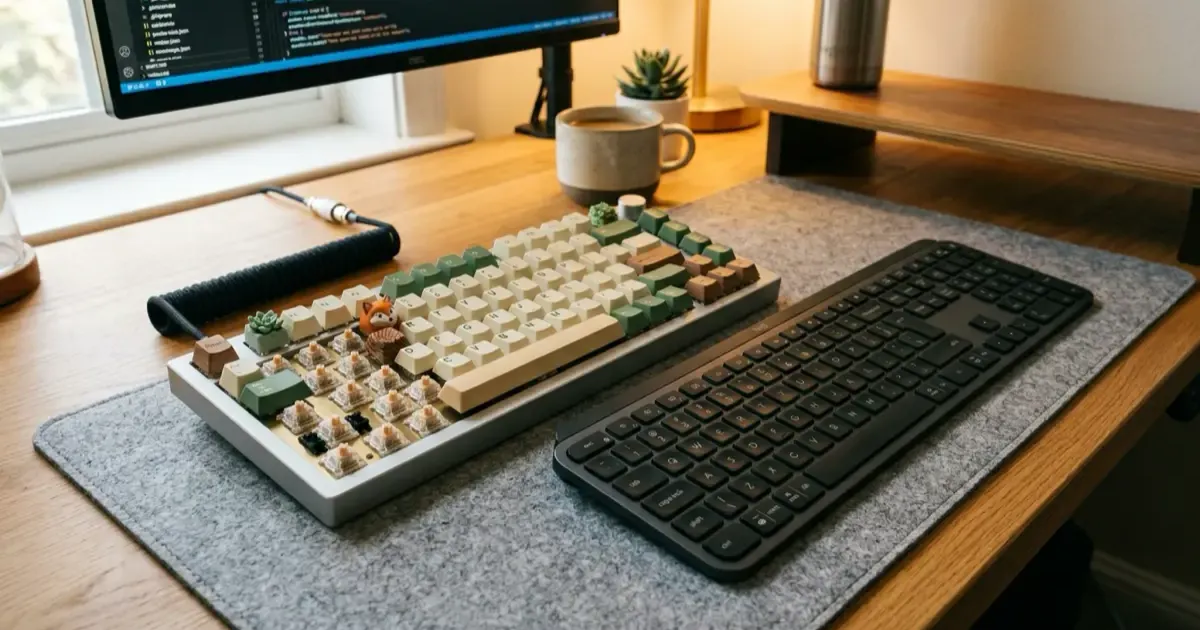
If you work at a desk in 2026, your keyboard is your primary interface with the world. Over an eight-hour workday, an average knowledge worker presses between 15,000 and 30,000 keys. Over a year, that totals more than 6 million physical impacts.
Yet, most people spend thousands of dollars on powerful laptops and 4K monitors while typing on a generic $15 plastic membrane keyboard that feels like pushing thumb-tacks into soggy mashed potatoes.
On the other side of the desk setup community sits the passionate mechanical keyboard subculture, where enthusiasts customize spring weights, lube switch stems, and install custom acoustic foams.
Is the mechanical keyboard hype justified? Does switching from a standard membrane board to mechanical switches actually make you type faster, reduce wrist fatigue, and improve productivity, or is it just expensive desk aesthetic decoration?
Let us break down the engineering, ergonomics, typing speed metrics, and acoustic realities of both keyboard technologies.
Upgrading your workstation ergonomics? Check our tested recommendations in the Best Home Office Gifts Under $100 guide (it doubles as a self-purchase list) and our guide on The Best Desk Mats for Productivity & Aesthetics.
Quick Summary: Mechanical vs. Membrane at a Glance
In a hurry? Here is the bottom-line comparison between mechanical and membrane keyboards:
- Choose Mechanical if: You type for 4+ hours daily, want to increase your WPM typing speed, suffer from finger fatigue caused by bottoming out, value long-term repairability (hot-swap), and enjoy tactile acoustic feedback.
- Choose Membrane / Scissor-Switch if: You need an ultra-thin portable keyboard for coffee shops (e.g., Logitech MX Keys / Apple Magic Keyboard), work in an environment with high spill hazards, or are on a strict sub-$30 budget.
- The Sweet Spot (2026): You no longer need to spend $250. Pre-lubed, gasket-mounted, hot-swappable mechanical keyboards from brands like Keychron, Epomaker, and MonsGeek offer enthusiast-grade typing for $60 to $90.
Mechanical vs. Membrane: Technical Comparison Matrix
| Feature / Metric | Mechanical Keyboard (Hot-Swap / Gasket) | Traditional Rubber Dome Membrane | Scissor-Switch Membrane (Logitech MX / Apple) |
|---|---|---|---|
| Actuation Mechanism | Individual physical metal leaf / hall-effect switch | Silicone rubber dome pushing circuit traces | Low-profile X-frame scissor over tiny silicone dome |
| Actuation Point | 1.2mm – 2.0mm (Mid-travel, no bottom-out needed) | 3.5mm – 4.0mm (Must slam to bottom) | 1.5mm – 1.8mm (Short bottom-out) |
| Typing Feel | Crisp, responsive, customizable (Linear/Tactile) | Mushy, spongy, inconsistent resistance | Snappy, tactile, flat laptop-style profile |
| Lifespan Rating | 50M to 100M keystrokes per switch | 5M to 10M keystrokes (domes degrade/harden) | 10M to 15M keystrokes |
| Repairability | 100% modular (replace switch, keycap, or cable) | Non-repairable (single failure = e-waste) | Non-repairable |
| Sound Profile | Tunable (Thocky, Clacky, or Whispering Silent) | Muffled thud, rattly stabilizers | Quiet, muted click |
| Price Range | $45 – $250+ | $15 – $35 | $70 – $130 |
1. How They Work: The Engineering Difference
The fundamental difference between these two technologies comes down to how a keystroke registers electrical contact.
Membrane Keyboards (Rubber Domes)
A standard membrane keyboard consists of three flexible plastic sheets printed with electrical circuit traces, separated by a rubber dome mat.
When you press a key:
- You push down against a silicone rubber dome.
- The dome resists, then abruptly collapses in a mushy “pop.”
- You must press the key all the way down until the top conductive trace forcefully impacts the bottom trace against the rigid plastic backplate.
Because the rubber degrades, hardens, and oxidizes over time, membrane keyboards become increasingly stiff and uneven as they age.
Mechanical Keyboards (Independent Switches)
A mechanical keyboard houses an independent physical switch mechanism beneath every single keycap. Inside each switch sits a plastic stem, a precision steel spring, and two copper contact leaves.
When you press a mechanical key:
- The stem glides smoothly down the housing channel.
- At roughly halfway through the keystroke (the actuation point), the stem separates or connects the metal leaves, instantly sending the keystroke signal to your computer.
- You do not need to bottom out. The keystroke registers in mid-air.
2. Typing Speed (WPM): Can a Keyboard Make You Faster?
Empirical typing tests consistently reveal that experienced touch-typists gain 5% to 15% higher Words Per Minute (WPM) and fewer typographical errors when transitioning from a mushy membrane board to a well-tuned mechanical keyboard.
Actuation Mechanics and Typing Effort:
- Membrane Keystroke: Finger presses down against rubber resistance, collapses the dome, and forcefully slams into the hard plastic plate at 100% travel depth. (High finger impact shock, sluggish key reset, muscle fatigue).
- Mechanical Keystroke: Finger glides smoothly down a precision steel spring, registers the keypress at roughly 50% travel depth in mid-air, and instantly rebounds. (Zero bottom-out required, faster stroke-to-stroke hand transitions).
Why Mechanical Switches Accelerate Speed:
- Immediate Tactile Feedback: Tactile switches (like Gateron Brown, Holy Panda, or Baby Kangaroo) provide a subtle physical “bump” the microsecond the key registers. Your fingers learn to float effortlessly across the keys, reversing direction without wasting time or energy bottoming out.
- Rapid Spring Rebound: The internal steel spring forcefully pushes the key back up into resting position instantly, resetting the switch faster than a sluggish silicone dome can pop back into shape.
- N-Key Rollover (NKRO): Most membrane keyboards suffer from “ghosting” (failing to register more than 3 or 4 simultaneous keypresses). Mechanical keyboards feature full NKRO anti-ghosting, ensuring every single keystroke is registered even during rapid 120+ WPM typing bursts.
3. Ergonomics and Joint Fatigue: Saving Your Wrists
Repetitive Strain Injury (RSI) and carpal tunnel syndrome are among the most common desk ailments. How do keyboard switches affect joint health?
The “Bottoming-Out” Shock Wave
When typing on a membrane keyboard, you slam your fingertips against a solid plastic substrate thousands of times a day. That impact energy travels directly up the flexor tendons of your fingers into your wrist joints and forearm muscles, contributing to inflammation and tendonitis.
Mechanical switches act like shock absorbers. Because the internal steel spring progressively increases resistance, your fingers naturally decelerate before hitting the bottom plate.
The Height Warning (Wrist Angle)
There is one major ergonomic caveat with mechanical keyboards: front height.
Standard mechanical keyboards sit 18mm to 22mm off the desk surface. If you bend your wrists upward (wrist extension) to reach high keycaps, you compress the median nerve inside the carpal tunnel:
- The Fix: Always pair a high-profile mechanical keyboard with a soft wooden or memory foam wrist rest, or use our recommended desk setup tips to maintain a neutral, floating forearm position.
- The Low-Profile Alternative: If you dislike wrist rests, choose a low-profile mechanical keyboard (such as the NuPhy Air75 V2 or Keychron K3 Max), which provides mechanical switch mechanics at the slim thickness of an Apple Magic Keyboard.
4. Understanding Switch Types: Linear vs. Tactile vs. Clicky
If you decide to go mechanical, you must choose a switch category that fits your work environment:
The 3 Core Mechanical Switch Types:
- Linear (Red / Yellow Switches): Completely smooth from top to bottom with zero bump. Whispering quiet, effortless gliding, and beloved by programmers, gamers, and rapid touch-typists.
- Tactile (Brown / Banana Switches): Features a distinct tactile bump at the actuation point. Ideal for writers and office workers who want tactile confirmation without loud noise.
- Clicky (Blue / Jade Switches): Produces a sharp mechanical click sound on every keystroke. Extremely satisfying for home offices, but strictly forbidden in shared open-plan offices.
5. The Scissor-Switch Exception: The Middle Ground
Not all membrane keyboards are created equal. Laptop keyboards and premium slim office boards (like the Logitech MX Keys S and Apple Magic Keyboard) use Scissor-Switch mechanisms.
Scissor-switches place a tiny mechanical X-shaped plastic stabilizer underneath the rubber dome. This eliminates the wobbly, uneven feeling of cheap membrane boards while keeping total travel very short (1.5mm).
- When Scissor-Switches Win: If you travel frequently, switch between coffeeshops, or prefer laptop-style zero-travel finger gliding, a premium scissor-switch keyboard is a fantastic, highly portable compromise.
Recommended Mechanical Keyboards Under $100 (2026)
You do not need to solder switches or spend $300 to enjoy phenomenal typing:
- Keychron V1 Max / V3 Max ($80–$95): The gold standard of entry-level custom keyboards. Features pre-lubed mechanical switches, acoustic sound-dampening foam, 2.4GHz wireless / Bluetooth, and hot-swap sockets.
- Epomaker x Aula F75 ($65–$75): Legendary out-of-the-box acoustic performance. Gasket-mounted structure that delivers a deep, creamy “thocky” sound without any manual modding.
- NuPhy Air75 V2 ($105): The ultimate slim, travel-friendly low-profile mechanical keyboard for Mac and Windows users.
Summary: Is the Upgrade Worth It?
If you type casually for 20 minutes a day to check emails, a basic membrane keyboard is perfectly adequate.
However, if you are a writer, programmer, student, or office professional spending 30+ hours a week in front of a monitor, your keyboard is your most important physical tool. Upgrading to a hot-swappable mechanical keyboard delivers:
- Faster, more confident typing cadence.
- Significantly reduced finger fatigue and tendon shock.
- Years of modular repairability instead of disposable e-waste.
- A tactile, deeply satisfying daily workday experience.
Related Articles
Related Articles

E-Ink vs. OLED for Reading: Eye Strain & Battery Tested
Is an E-Ink e-reader actually better for your eyes than an OLED tablet? Compare eye fatigue, PWM flicker, outdoor glare, battery life, and focus in 2026.
12 Best Back to School Tech Gadgets for Students (2026)
Discover the best back to school tech gadgets for 2026. Practical dorm, study, and productivity tools from ANC headphones to digital note-takers.
Standing Desk & Chair Black Friday Deals 2026: What to Expect
Standing desk and office chair Black Friday 2026: FlexiSpot, Uplift, Branch, Secretlab and Herman Miller prices, specs and warranties, plus when to buy.