
How to Share One Keyboard and Mouse Between Mac and PC
Discover the best hardware KVM switches and software tools like Barrier and Logitech Flow to seamlessly control a Mac and PC desktop setup.

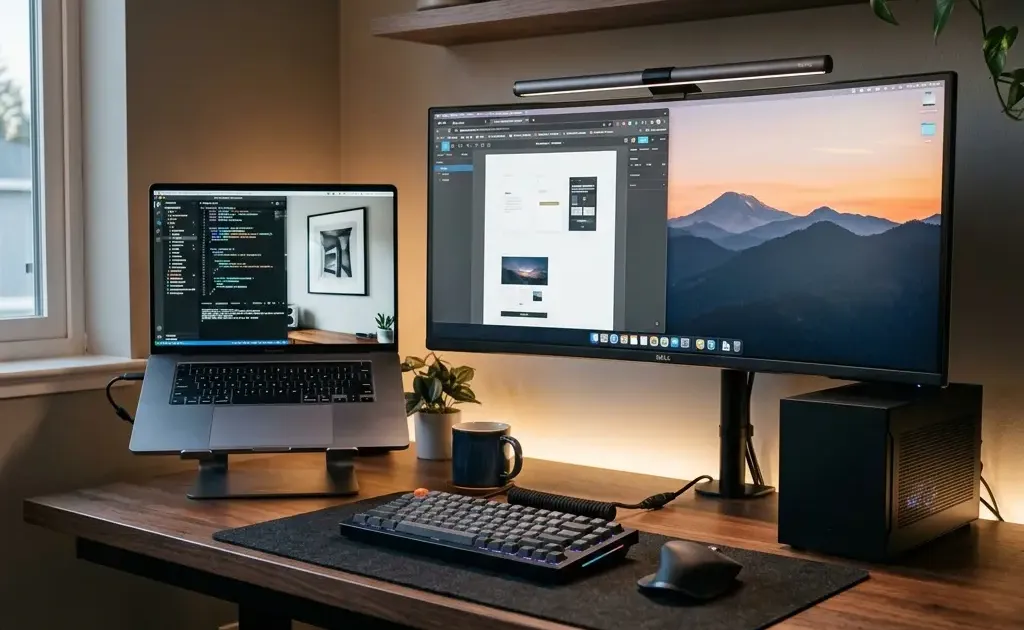
Working with both a MacBook for corporate tasks and a custom Windows PC for personal projects, creative work, or gaming is one of the most common desk configurations today. However, managing two separate sets of keyboards and mice on a single desk quickly leads to clutter, ergonomics issues, and constant switching friction.
Fortunately, modern hardware and software tools make it easy to control both operating systems with a single keyboard and mouse. Depending on your budget, peripheral choices, and security requirements, you can move your cursor seamlessly across monitors as if both computers were a single unified system.
In this guide, we break down the best software and hardware solutions to share input devices between macOS and Windows, analyze their trade-offs, and walk through step-by-step setup instructions.
Method 1: Software KVMs (Network-Based Cursor Sharing)
Software KVMs use your local network (Wi-Fi or Ethernet) to route keyboard inputs and mouse coordinates between computers. You designate one machine as the primary server (where your keyboard and mouse are physically plugged in) and the other as the client. When your cursor reaches the edge of the primary monitor, it automatically glides onto the secondary machine’s display.
1. Deskflow, the Successor to Barrier and Input Leap (Best Free Open-Source Option)
Barrier was for years the go-to free, open-source software KVM derived from Synergy, but it has not had a release since version 2.4.0 in November 2021, and its community fork Input Leap was archived in December 2025. The actively maintained successor is Deskflow, the open-source core that Synergy itself is built on. It is free (GPL-2.0), runs on macOS, Windows, and Linux, turns on TLS encryption by default, and stays network-compatible with Barrier and Input Leap, so mixed setups keep working. Everything below that says Barrier applies to Deskflow, which kept the same server and client model.
| Primary Server (MacBook Pro) | Local Encrypted TCP Connection | Secondary Client (Windows PC) |
|---|---|---|
| Physical Keyboard & Mouse Attached | <=============================> | Virtual Cursor & Keystroke Receiver |
| Defines screen boundary coordinates | Wi-Fi / Gigabit Ethernet LAN | Cursor seamlessly glides onto display |
- How it works: You install Deskflow (or legacy Barrier) on both computers, enable TLS encryption, and define screen layouts visually in the server grid.
- Pros: Completely free, lightweight, open-source, no account creation required, supports basic text clipboard sharing.
- Cons: Does not support drag-and-drop file transfers; requires configuring firewall rules on Windows.
- Best for: Users who want a free, secure, lightweight solution without proprietary ecosystem lock-in.
2. Logitech Flow (Best Out-of-the-Box Experience)
If you already use Logitech MX Master series mice (such as the MX Master 3S) or MX Keys keyboards, Logitech Flow is built directly into the official Logi Options+ software suite.
- How it works: Logitech Flow uses your local network to synchronize cursor movement while your mouse automatically commands compatible Logitech keyboards to switch Bluetooth/Unifying channels simultaneously.
- Pros: Effortless configuration, seamless cross-platform copy-paste, drag-and-drop file transfers between Mac and Windows.
- Cons: Requires proprietary Logitech MX hardware on both machines; occasional connection drops on congested Wi-Fi networks.
- Best for: Owners of Logitech MX peripherals who need cross-OS file transfer capability.
3. Symless Synergy 3 (Best Polished Commercial App)
Synergy 3 by Symless is the commercial application that originally inspired open-source alternatives.
- How it works: Provides an intuitive graphical drag-and-drop interface to position displays, handle hotkey shortcuts, and auto-detect nearby devices on your network.
- Pros: Polished interface, responsive customer support, reliable cross-platform clipboard synchronization, robust key remapping options.
- Cons: Requires a one-time paid license per user account.
- Best for: Remote workers who want a commercial-grade software setup with zero configuration headaches.
4. ShareMouse (Best for Drag-and-Drop File Sharing)
ShareMouse is another dedicated software utility designed specifically for Mac and Windows cross-desk integration.
- How it works: Auto-discovers machines on the local network and dims inactive screens to visually signal where keyboard input is currently focused.
- Pros: High-speed file transfer dragging, automatic screen dimming on non-active monitors, flexible modifier key translation (mapping Cmd to Ctrl).
- Cons: Free version has restricted features; pro license is required for multi-monitor rigs.
- Best for: Power users frequently transferring large assets and images between Mac and PC.
Method 2: Hardware KVM Switches and USB Selectors
While software KVMs offer fluid desktop transitions, they rely on active network connections. If your employer enforces strict corporate VPN policies or blocks peer-to-peer local network traffic, software solutions will fail to communicate. Physical hardware switches bypass network restrictions entirely.
1. Dedicated Hardware KVM Switches
A hardware KVM (Keyboard, Video, Mouse) switch is a physical box that accepts video and USB inputs from both your Mac and Windows PC, outputting to your shared monitors, keyboard, and mouse.
- How it works: You plug your peripherals and display cables into the KVM box, then press a physical toggle button or tap a keyboard hotkey to instantly switch control between machines.
- Pros: 100% network independent, works through corporate VPNs, zero latency, supports high-refresh-rate gaming monitors.
- Cons: Requires extra cable management behind the desk; doesn’t support automatic cursor gliding across screens (requires manual switching).
- Best for: Strict corporate security environments, high-performance gaming setups, and multi-monitor workstations.
When setting up a hardware switcher alongside monitor arms and cable trays, check out our guide on home office cable management tips for clean desktop routing.
2. Simple USB Switch Buttons (Budget Hardware Option)
If your monitors already have multiple display inputs (such as DisplayPort for PC and USB-C for Mac) and support auto-input switching, you do not need a full video KVM. A simple 2-port USB 3.0 selector hub costs under $20.
| Connected Peripherals | USB 3.0 Selector Hub | Active Output Machine |
|---|---|---|
| Shared Keyboard & Mouse | Toggle Button (Port 1 / Port 2) | MacBook Pro (Display via USB-C) |
| Webcam / Headset / DAC | Instant Physical Circuit Switch | Windows PC (Display via DisplayPort) |
- How it works: Your keyboard and mouse plug into the USB hub. A single button press toggles the USB connection between your Mac and PC while your monitors automatically detect the active video signal.
- Pros: Inexpensive ($15 to $25), reliable, zero software footprint.
- Cons: Manual button press required; slight 1 to 2 second USB handshake delay during switching.
- Best for: Budget-conscious users with dual-input monitors like those featured in our best monitors for working from home roundup.
3. Built-In Monitor KVMs
Many modern productivity monitors come equipped with integrated KVM switches and USB-C Power Delivery.
- How it works: Connect your laptop via a single USB-C cable (supplying power, video, and USB data) and your PC via DisplayPort plus a USB upstream cable. The monitor automatically switches your mouse and keyboard peripherals when changing video sources.
- Pros: Zero extra desktop boxes, minimal wiring clutter, high reliability.
- Cons: Higher initial monitor investment cost.
- Best for: Clean, minimalist desk setups paired with modern USB-C docking stations.
Software vs. Hardware Solutions: Comprehensive Comparison
| Metric / Feature | Software KVM (Barrier/Flow) | USB Selector Switch | Dedicated Hardware KVM | Built-in Monitor KVM |
|---|---|---|---|---|
| Average Cost | Free to $30 | $15 to $25 | $60 to $200+ | Built into monitor |
| Network Needed | Yes (Wi-Fi / LAN) | No | No | No |
| Switching Method | Seamless cursor edge glide | Physical button press | Button / Hotkey | OSD Menu or Hotkey |
| Works with VPN | Limited (Often blocked) | Yes (100%) | Yes (100%) | Yes (100%) |
| File Drag & Drop | Yes (Logi Flow / ShareMouse) | No | No | No |
| Input Latency | Very low (1 to 5 ms) | Zero | Zero | Zero |
| Desk Cable Clutter | Zero extra cables | Minimal | Moderate | Lowest |
Step-by-Step Guide: Setting Up Deskflow or Barrier (Open-Source)
Barrier and its successor Deskflow share the same server and client model, so the steps below work for both. On a new setup, install Deskflow (brew install deskflow on macOS) and read “Barrier” as “Deskflow”. Here is how to configure it between a Mac and a Windows PC in under 10 minutes.
Step 1: Install Barrier on Both Computers
- On your Mac, install Barrier using Homebrew terminal or download the
.dmgrelease from GitHub:Terminal window brew install --cask barrier - On your Windows PC, download and run the latest
.exeinstaller from the official release page.
Step 2: Configure the Primary (Server) Computer
Choose the computer where your keyboard and mouse are physically connected. We recommend using your primary workstation as the server.
- Launch Barrier and select Server (share this computer’s mouse and keyboard).
- Check the Enable SSL security box in the preferences.
- Click Configure Server… to open the screen layout grid.
- Drag the computer icon from the top-right corner into the grid positioning box adjacent to your primary screen.
- Double-click the newly placed screen icon and set its Screen name to match the exact computer name displayed on your secondary machine’s Barrier window.
| Left Position (Server Display) | Right Position (Client Display) |
|---|---|
| MacBook-Server (Primary) | Windows-Client (Secondary) |
| Physical Keyboard / Mouse host | Cursor enters when crossing right edge |
Step 3: Configure the Secondary (Client) Computer
- Launch Barrier on the client machine and select Client (use another computer’s mouse and keyboard).
- Uncheck Auto config if auto-discovery does not immediately find the server.
- Type the local IP address of your server computer (for example,
192.168.1.45). - Click Start on both machines. Accept the fingerprint security dialog on the client to establish an encrypted handshake.
Once connected, moving your cursor past the edge of your server screen will seamlessly cross onto your client monitor, transferring keyboard focus automatically.
Troubleshooting Common Setup Issues
Issue 1: Cursor Sticking at Screen Edges
If your cursor fails to transition smoothly or gets stuck on corners, check screen resolution scaling and alignment in your operating system display settings.
- Fix: In Barrier’s server configuration grid, ensure monitor boundaries align evenly. If your Mac display is 4K and your PC monitor is 1080p, adjust the virtual boundary height in Barrier settings to prevent dead zones along display edges.
Issue 2: Command and Control Key Mismatches
Mac keyboards use the Command (⌘) key for shortcuts, whereas Windows uses Control (Ctrl).
- Fix: Most software tools allow modifier key mapping. In Barrier or Synergy, navigate to screen settings and map
Super(Windows Key) toControl, or configure your hardware keyboard profiles. If you use specialized peripherals from our best ergonomic mice guide, store custom keymap profiles onboard the device memory.
Issue 3: Wi-Fi Disconnections and Corporate Firewalls
When working on a corporate laptop, company firewalls or active VPN tunnels often isolate local subnet traffic, severing software KVM connections.
- Fix: Create an incoming firewall rule for Barrier on port
24800. If your employer’s VPN enforces full-tunnel security, transition to a hardware USB selector switch or dedicated KVM.
Which Solution Should You Choose?
- Choose Logitech Flow if you already own MX Master series peripherals and want effortless cross-platform copy-paste capabilities.
- Choose Deskflow (or legacy Barrier) if you want a free, open-source software setup across Mac, Windows, or Linux without buying new hardware.
- Choose a USB Selector Switch if you want an inexpensive ($20), bulletproof hardware setup that works through corporate VPN restrictions.
- Choose a Dedicated KVM Switch or KVM Monitor if you manage multi-monitor high-refresh setups or competitive gaming rigs alongside your work laptop.
For more inspiration on designing an ergonomic, productive workspace, explore our complete desk upgrade guide.
Frequently Asked Questions
Can I copy and paste text and files between Mac and Windows?
Yes, software tools like Logitech Flow, Synergy 3, and ShareMouse support universal clipboard sharing and cross-platform file drag-and-drop over your local Wi-Fi or Ethernet network.
Will software keyboard sharing work through a corporate VPN?
Often corporate VPNs block local network peer-to-peer traffic. If your work Mac or PC forces a strict VPN connection, a physical hardware KVM switch or USB selector button is the most reliable solution.
Does sharing a mouse between Mac and PC introduce input lag?
Software solutions connected over gigabit Ethernet or fast Wi-Fi 6 introduce virtually imperceptible latency for office work. However, for competitive gaming, a physical hardware KVM switch or dedicated mouse with multi-device Bluetooth switching is recommended.
Is Barrier software safe and open-source?
Yes, Barrier is a free, open-source fork of Synergy. It encrypts client-server communications with SSL/TLS and runs entirely on your local network without transmitting data to cloud servers. Barrier itself has had no release since 2021, so for current security fixes use its actively maintained successor, Deskflow.
Related Articles
RemoveMacAI: How to Debloat Apple Intelligence on Mac
Reclaim up to 13GB of SSD space by turning off Apple Intelligence on Mac. Learn how open-source tool RemoveMacAI safely deletes models and stops telemetry.

E-Ink vs. OLED for Reading: Eye Strain & Battery Tested
Is an E-Ink e-reader actually better for your eyes than an OLED tablet? Compare eye fatigue, PWM flicker, outdoor glare, battery life, and focus in 2026.
Homebrew 7 Review: Official BrewUI App and Top Features
Homebrew 7 review: explore the official BrewUI native macOS app, vulnerability scanning with brew vulns, faster concurrency, and Intel Mac deprecation.