
RemoveMacAI: How to Debloat Apple Intelligence on Mac
Reclaim up to 13GB of SSD space by turning off Apple Intelligence on Mac. Learn how open-source tool RemoveMacAI safely deletes models and stops telemetry.

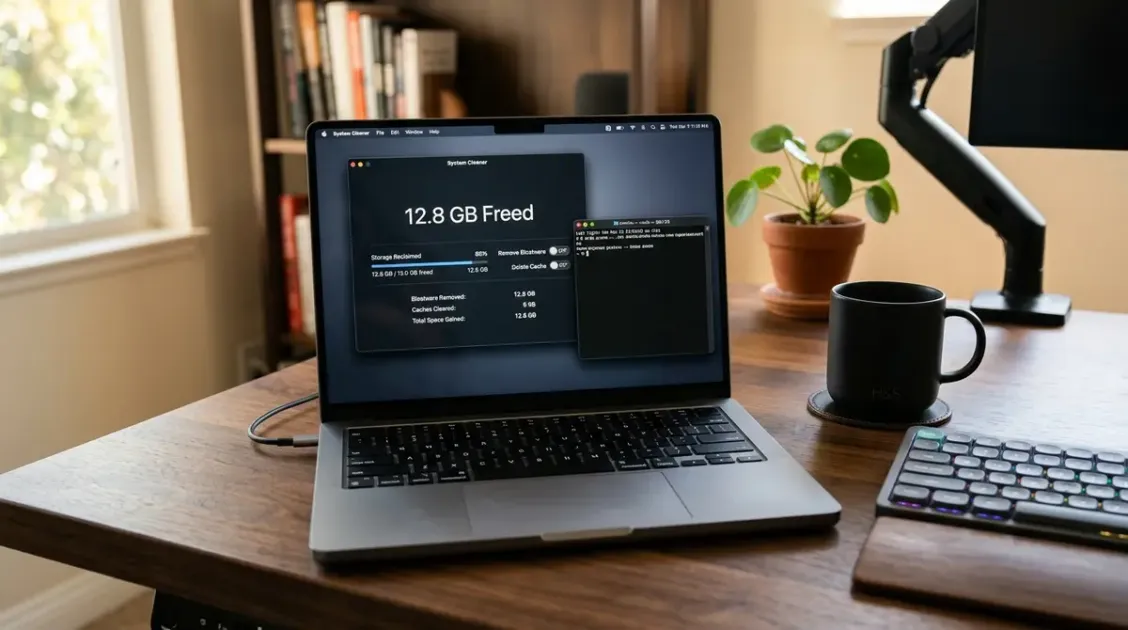
When Apple rolled out Apple Intelligence across modern macOS releases, it promised a subtle, privacy-centric AI layer integrated directly into the operating system. But for millions of users running base-tier 256GB or 512GB MacBooks, that promise arrived with an unadvertised storage tax: between 10GB and 13GB of non-removable local foundation models permanently parked on their internal solid-state drives.
Worse yet, Apple provided no clean deletion mechanism. If you open System Settings, navigate to Apple Intelligence & Siri, and toggle the feature off, macOS merely hides the visual entry points. The multi-gigabyte foundation model weights remain sitting in hidden cache directories, and background daemons continue running in the background.
Enter RemoveMacAI, an open-source macOS debloating utility created by developer Om Lahore. Built on foundational reverse-engineering work from the pared project by developer 4evy, RemoveMacAI allows Mac users to cleanly delete on-device Apple Intelligence models, block automatic re-downloads, shut down background analytics, and disable long-standing system annoyances.
Most importantly, it accomplishes all of this without disabling System Integrity Protection (SIP), without modifying the read-only Signed System Volume (SSV), and with full reversibility across every single setting.
Here is a comprehensive breakdown of what RemoveMacAI does, how it works under the hood, how much performance and storage you regain, and how to safely run it on your Mac.
Interested in local AI and Mac productivity? Explore our Complete Learn AI Guide to see how modern LLMs run efficiently, check out our Homebrew 7 and New GUI Guide for managing macOS packages, and browse our review of Best AI Tools for Office Work to streamline your workflow without bloated background daemons.
Quick Summary: RemoveMacAI at a Glance
| Feature / Metric | Default macOS Behavior | With RemoveMacAI |
|---|---|---|
| SSD Space Consumed by AI | 10.5 GB to 13.2 GB permanently reserved | 0 GB (Reclaimed for user files) |
| Foundation Models on Disk | Text 3B, Image Diffusion, Genmoji weights | Deleted and blocked from re-downloading |
| System Settings Toggle | Only hides UI; retains all weights | Deletes files and sets asset prevention policy |
| System Integrity Protection (SIP) | Enabled | Fully Enabled (Never compromised) |
| System Volume Modifications | None (Protected by SSV) | None (Zero read-only volume edits) |
| Background Analytics & Ads | Active telemetry pings to Apple servers | Disabled across analytics, search, and ads |
| Reversibility | N/A | 1-Click full restore or CLI undo |
| Distribution | Native macOS | Open source via GitHub, curl, or Homebrew |
Why Apple Intelligence Storage Matters on Mac
To understand why RemoveMacAI gained immediate traction across communities like Hacker News, Reddit, Ars Technica, and Daring Fireball, you have to look at the storage reality of modern Mac hardware.
Apple still charges premium upgrade prices for internal NAND flash storage. A base M-series MacBook Air or Mac mini often ships with 256GB or 512GB of non-upgradeable SSD capacity. When macOS itself consumes roughly 25GB to 35GB of system storage, surrendering an additional 13GB of fast internal drive space to features you might never touch is a frustrating compromise.
What Is Actually Inside That 13GB?
Apple Intelligence does not rely on a single massive cloud model. Instead, macOS runs a tiered hybrid architecture consisting of several specialized on-device models:
- Apple Foundation Model (AFM-on-device): A roughly 3-billion-parameter quantized language model designed for Writing Tools, text summarization in Mail and Notes, and smart notification filtering. This model alone takes up approximately 3.5GB to 4.5GB of storage.
- Diffusion Models for Image Generation: Dedicated visual diffusion networks powering Image Playground and Genmoji generation. These image generators require substantial weights, taking up another 4GB to 5GB.
- Clean Up & Spatial Segmentation: Machine learning vision models used in the Photos app to detect objects, calculate depth maps, and synthesize clean patches when erasing background items.
- Asset Cache and Delivery Buffers: Staging folders used by Apple’s MobileAsset framework to download model revisions, tokenizer vocabularies, and configuration profiles.
If you are an audio engineer storing Logic Pro sample libraries, a software developer maintaining Docker containers, or a photographer working on local Lightroom catalogs, that 13GB represents critical headroom.
| Apple Intelligence Subsystem | Disk Space Consumed | Primary Function |
|---|---|---|
| AFM Text Model (3B Q4) | ~4.2 GB | Writing Tools, mail summarization, notification digests |
| Diffusion / Image Playground | ~4.6 GB | On-device generative artwork, Genmoji synthesis |
| Photos Clean Up & Vision | ~2.4 GB | Background object removal, semantic segmentation |
| Asset Cache & Tokenizer Buffers | ~1.6 GB | MobileAsset staging folders and vocabulary files |
How RemoveMacAI Works Without Breaking macOS
The primary concern any knowledgeable Mac user has when running system debloaters is system stability. In earlier eras of OS X and macOS, aggressive debloating scripts routinely broke system updates by deleting binaries directly from /System/Library or requiring users to disable System Integrity Protection (SIP) via Recovery Mode.
RemoveMacAI operates under a modern, non-destructive philosophy.
1. Built on the Reverse-Engineered ‘pared’ Engine
RemoveMacAI is built on top of pared, an open-source project by developer 4evy. 4evy mapped out Apple’s MobileAsset service, cataloging the specific asset sets, model identifiers, and configuration plist keys that govern on-device AI features.
Rather than attacking system binaries, RemoveMacAI communicates with macOS using the exact configuration channels designed by Apple:
- Managed Configuration Profiles: It sets management policies that instruct the MobileAsset daemon (
mobileassetd) that Apple Intelligence assets are not permitted on the device. - Apple Asset Service Diversion: It prevents the operating system from querying Apple’s content delivery network (CDN) to fetch replacement weights once the active models are deleted.
- Targeted Cache Removal: It purges the model files located in user-accessible cache directories (such as
/System/Volumes/Data/private/var/db/MobileAsset/AssetsV2/) without modifying the read-only signed root system volume.
2. Zero SIP Disabling Required
You never need to reboot your Mac into Recovery Mode. You never need to run csrutil disable. Your Mac remains fully protected by Apple’s root-level cryptographic security checks, ensuring that banking applications, Apple Pay, and enterprise management tools continue running without security alerts.
3. Transparent and Reversible
Every action taken by RemoveMacAI is recorded in a local transaction log. If you decide six months from now that you want to test Apple’s latest notification summaries or image tools, running removemacai undo or toggling the switch inside the app instantly reverses the configuration profile and allows macOS to download the models again normally.
Everything RemoveMacAI Can Turn Off
While the utility is named RemoveMacAI, developer Om Lahore expanded the tool into a modular macOS control center. It organizes system adjustments into five distinct categories:
1. Apple Intelligence Components
You can selectively disable individual features or purge the entire AI stack at once:
- Siri AI Core: Disables next-generation conversational Siri features and contextual screen awareness.
- Writing Tools: Turns off system-wide text rewriting, proofreading, and summarization menus.
- Genmoji & Image Playground: Purges the local image generation models and removes their picker interfaces from Messages and Notes.
- Notification & Message Summaries: Stops background daemons from reading and condensing incoming alerts.
- Photos Clean Up: Removes local object-removal weights while keeping standard Photos editing tools intact.
- Xcode Predictive Code Completion: Disables on-device code generation models for developers who already use external tools like Cursor, Claude Code, or GitHub Copilot.
- ChatGPT Integration: Blocks the third-party Siri fallback routing.
2. Privacy & Telemetry Daemons
macOS silently collects diagnostic telemetry and search queries by default. RemoveMacAI can disable:
- Mac Analytics & Crash Reporter Daemons: Stops automated log uploads to Apple engineering servers.
- Personalized Advertising: Opts out of Apple’s ad-targeting platform across the App Store, Apple News, and Stocks.
- Improve Siri & Dictation: Prevents audio recordings and transcripts from being flagged for human quality review.
- Spotlight Internet Results: Restricts Spotlight search to local files and installed applications, stopping search queries from being sent to Apple and third-party partners.
- Safari & Look Up Suggestions: Keeps dictionary lookups strictly local.
3. macOS Interface Annoyances
Over recent updates, Apple has introduced several user interface behaviors that many longtime Mac users find disruptive:
- Wallpaper Click Hiding Windows: macOS Sequoia and Sonoma feature a setting where clicking your desktop wallpaper pushes all open application windows to the screen edges. RemoveMacAI lets you permanently disable this.
- Music App Media Key Hijacking: Pressing the play/pause key or connecting AirPods often causes the default Apple Music app to launch automatically. RemoveMacAI can suppress this hijack behavior.
- Desktop Widgets: Turns off widget rendering on the desktop background to save memory and CPU cycles.
- iPhone Mirroring Daemons: Disables background discovery daemons if you do not use cross-device screen mirroring.
4. Apple Bundled Apps
- Hide Apple Music catalog integration inside the Music app (reverting it to a local music player).
- Disable the commercial Book Store inside Apple Books.
- Remove unused default Apple applications from the Dock on fresh user accounts.
5. Finder Power-User Defaults
- Always show file extensions (preventing executable masking).
- Show hidden system files and dotfiles.
- Show Path Bar and Status Bar in all Finder windows by default.
- Sort folders on top of files alphabetically.
- Set Finder search to inspect the current folder instead of searching the entire Mac.
- Disable
.DS_Storefile creation on networked drives and SMB shares.
Step-by-Step Installation Guide
RemoveMacAI is distributed in two formats: a native graphical macOS application and an interactive command-line tool. Both packages contain identical core capabilities and share the same configuration engine.
Method 1: Installing the Native App (Recommended for Most Users)
To download and launch the native GUI app in a single command, open Terminal (located in Applications > Utilities) and paste:
curl -fsSL https://raw.githubusercontent.com/omlahore/RemoveMacAI/main/install.sh | bash -s appWhat this script does:
- Queries the official GitHub repository for the latest release asset (
RemoveMacAI.zip). - Verifies the cryptographic SHA-256 checksum to guarantee file integrity.
- Extracts the application bundle into your
/Applicationsdirectory. - Launches the utility.
Note on Gatekeeper: Because RemoveMacAI is an independent open-source project that does not pay Apple’s annual developer notarization fee, macOS Gatekeeper may display a dialog stating: “RemoveMacAI cannot be opened because the developer cannot be verified.”
To authorize it:
- Open System Settings > Privacy & Security.
- Scroll down to the Security section.
- Click Open Anyway next to the RemoveMacAI notice, then enter your Mac password.
| RemoveMacAI Toggle Setting | Status Applied | Reclaimed / Security Benefit |
|---|---|---|
| Foundation Models | Turned Off | Purges 4.2 GB of language weights |
| Image Playground & Genmoji | Deleted | Reclaims 4.6 GB of visual diffusion assets |
| Writing Tools Cache | Purged | Frees temporary MobileAsset storage |
| System Telemetry & Analytics | Disabled | Stops background diagnostic data reporting |
| Spotlight Remote Queries | Local Only | Restricts search results strictly to local disk |
Method 2: Running the Command-Line Tool (CLI)
If you prefer terminal-based system administration or want to inspect changes without placing a permanent application in /Applications, you can run the interactive CLI tool:
curl -fsSL https://raw.githubusercontent.com/omlahore/RemoveMacAI/main/install.sh | bashAlternatively, if you manage your Mac environment using Homebrew, install it via the official tap:
brew install omlahore/tap/removemacaiOnce installed via Homebrew, run:
removemacaiThe CLI launches a clean interactive menu with arrow-key navigation where you can toggle sections on or off, inspect current system values, and apply changes in batch mode.
How to Verify That Your Storage Was Actually Reclaimed
After using RemoveMacAI to turn off Apple Intelligence and delete the foundation models, you should verify that your internal SSD has indeed regained its space.
Step 1: Check System Storage in Settings
- Open System Settings > General > Storage.
- Examine the macOS and System Data categories.
- You should see System Data shrink by roughly 10GB to 13GB within a couple of minutes as macOS updates its local APFS volume snapshot calculations.
Step 2: Verify in Terminal
To check your primary APFS container directly without waiting for System Settings to re-index, run:
df -h /Compare the Avail column before and after running RemoveMacAI. You will notice immediate gains in available gigabytes.
Step 3: Inspect the MobileAsset Directory
If you want granular technical verification, inspect the root asset cache where Apple stores foundation model files:
ls -lh /System/Volumes/Data/private/var/db/MobileAsset/AssetsV2/Before running RemoveMacAI, this path contains large directory trees starting with identifiers like com.apple.MobileAsset.AppleIntelligenceModel. After running the purge routine, these subdirectories are emptied, and access permissions are set to block incoming downloads.
How to Undo Changes and Restore Apple Intelligence
One of the strongest architectural decisions in RemoveMacAI is its non-destructive rollback capability. The utility never makes unrecorded alterations to your system defaults.
Reverting via the App
- Open RemoveMacAI from your Applications folder.
- In the bottom bar, click Undo All Changes (or re-enable specific switches individually).
- Authenticate with your Mac password if prompted.
- Restart your Mac.
Reverting via the Command Line
If you installed the tool via Homebrew or curl, simply execute:
removemacai undoThe tool will read its transaction log, unregister the blocking configuration profiles, restore default analytics keys, and signal the MobileAsset daemon that downloads are permitted again. The next time you open System Settings and turn on Apple Intelligence, macOS will seamlessly download fresh model packages directly from Apple’s servers.
Performance and Battery Life Benefits
While storage reclamation is the headline feature of RemoveMacAI, secondary benefits emerge across system responsiveness and battery efficiency, particularly on lightweight machines like the MacBook Air:
1. Unified Memory Headroom
On Apple Silicon, CPU and GPU cores share a single pool of unified RAM. When Apple Intelligence features are active, background daemons reserve hundreds of megabytes of memory to keep tokenizer caches and model weights ready for instant text prediction. Disabling these features frees up precious memory bandwidth, preventing swap file creation on 8GB and 16GB machines.
2. Reduced Background Disk I/O
macOS indexing daemons frequently scan notification databases, Safari tabs, and Mail contents to build contextual summaries. By turning off local summarization, you eliminate persistent background disk read/write cycles, contributing to cooler operating temperatures and marginally extended battery longevity during unplugged coffee shop sessions.
3. Network Privacy
Blocking automated telemetry and Spotlight internet lookups ensures that keystrokes, application launch events, and search terms remain strictly contained on your local machine.
Should You Use RemoveMacAI?
RemoveMacAI is not an anti-technology tool; it is a user sovereignty tool.
If you actively rely on Apple Intelligence to rewrite business correspondence, proofread emails, clean up background distractions in vacation photos, or summarize notification stacks, you should leave those features enabled. Apple has engineered a capable local ecosystem for users who want on-device assistance.
However, if you:
- Own a 256GB or 512GB Mac and need every gigabyte of fast internal storage,
- Prefer using specialized external AI models like Claude, ChatGPT, or local Ollama instances,
- Care deeply about minimizing automated background telemetry and diagnostic uploads, or
- Simply prefer a clean, minimal operating system free of automated pop-ups and uninvited AI menus,
…then RemoveMacAI is currently the cleanest, safest, and most transparent utility available for macOS. It respects Apple’s security architecture, keeps SIP fully operational, and gives you back control over your own hardware.
Frequently Asked Questions (FAQ)
Is RemoveMacAI safe to use on my primary work computer?
Yes. Because RemoveMacAI does not disable System Integrity Protection (SIP) and does not modify the read-only Signed System Volume, it cannot corrupt core macOS binaries. Every change is restricted to preference plists, configuration profiles, and cache folders, and all modifications can be rolled back immediately.
Will macOS reinstall the models after a minor software update?
Minor point updates (for example, moving from macOS 15.1 to 15.1.1) generally respect existing configuration profiles. However, major annual updates often reset asset service configurations. If you notice Apple Intelligence models downloading again after an update, running RemoveMacAI takes less than 30 seconds to purge them anew.
Can I keep Photos Clean Up while deleting Siri and Writing Tools?
Yes. RemoveMacAI is modular. In both the native app and the CLI menu, each component has an independent toggle. You can choose to retain Photos Clean Up while purging Writing Tools, Genmoji, and Image Playground.
Where can I inspect the source code?
The complete codebase is publicly available under an open-source license on GitHub at omlahore/RemoveMacAI. You can inspect every shell script, Swift file, and configuration key before running anything on your computer.
Related Guides & Articles
Top Ranked Frontier AI Models
Empirical rankings sourced from Artificial Analysis, Arena.ai, LLM Stats & BenchLM.
Related Articles
Homebrew 7 Review: Official BrewUI App and Top Features
Homebrew 7 review: explore the official BrewUI native macOS app, vulnerability scanning with brew vulns, faster concurrency, and Intel Mac deprecation.

ArtCraft: Can AI Vibe Coding Rebuild the Adobe Suite?
ArtCraft promises 12 open-source Adobe clones built in Rust with AI. We analyze PhotoCraft, the vibe coding trend, and the future of paid software models.

Is the West Losing Its AI Lead? Global Shifts Explained
Explore why open-source breakthroughs, hardware shifts, and efficiency gains are challenging Western AI dominance. Here is what the global race means for 2026.