
Homebrew 7 Review: Official BrewUI App and Top Features
Homebrew 7 review: explore the official BrewUI native macOS app, vulnerability scanning with brew vulns, faster concurrency, and Intel Mac deprecation.

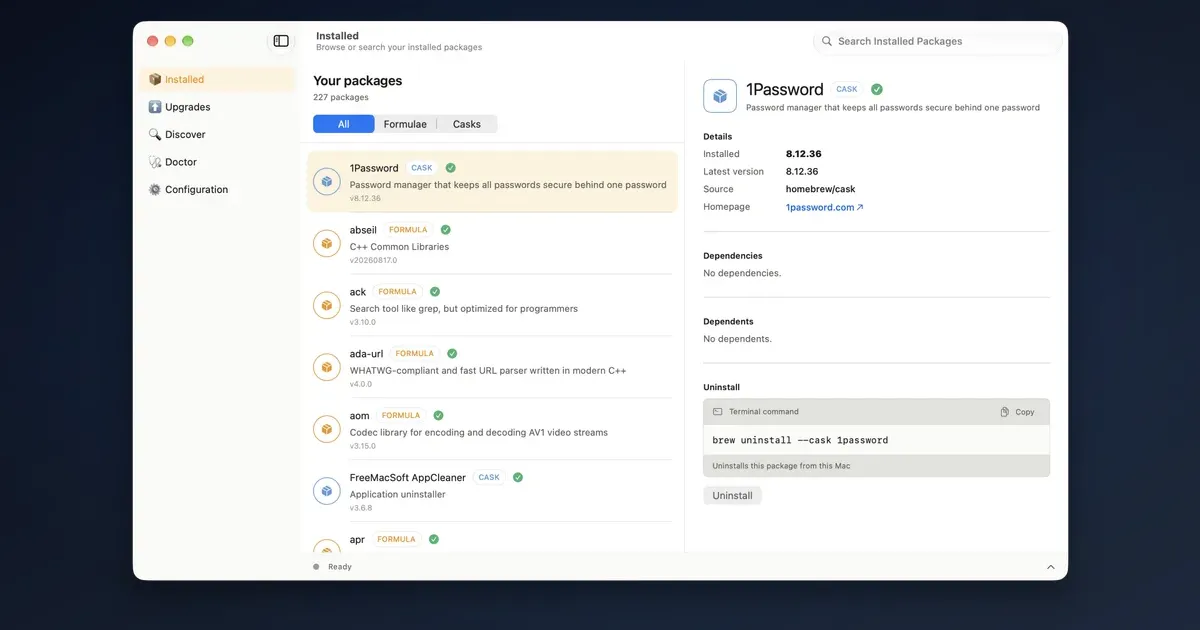
For more than a decade, Homebrew has stood as the undisputed backbone of macOS software management. Whether setting up a new developer machine, installing command-line utilities like Python and FFmpeg, or keeping desktop applications updated with a single terminal command, brew has been the first utility millions of Mac users install. Yet for beginners, casual office workers, and visual learners, the command line remained an intimidating barrier to entry.
With the release of Homebrew 7.0.0, the project has fundamentally modernized its architecture. Headlining this milestone update is BrewUI, the first official, native graphical application built directly by the Homebrew maintainers. Paired with automated vulnerability audits via brew vulns, parallel installation engines, and full optimization for macOS 27 Golden Gate, Homebrew 7 bridges the divide between terminal purists and visual desktop computing. You can track full project documentation directly on the official Homebrew project portal.
Optimize your digital desktop: A streamlined software package manager works best alongside a well-organized physical workspace. Explore our comprehensive Master Desk Upgrade Guide to improve your workstation ergonomics, or learn how to share a keyboard and mouse between Mac and PC.
Below, we examine the new BrewUI native app, benchmark Homebrew 7’s performance improvements, break down the new security auditing toolset, and evaluate what the transition to Apple Silicon exclusivity means for your Mac workflow.
Quick Picks: Homebrew 7 Top Features & Upgrades at a Glance
For readers looking for a rapid summary of the standout additions in Homebrew 7, here is a concise breakdown:
| Feature / Upgrade | Type | Real-World Impact |
|---|---|---|
| BrewUI Native App | Official GUI (homebrew-app) | Complete visual package management for Casks and Formulae with live CLI transparency |
| Automated Vulnerability Checks | Security (brew vulns) | Scans installed dependencies against official security advisory databases to prevent supply chain exploits |
| Concurrent Engine Upgrades | Performance Engine | Dramatically faster dependency resolution and parallel bottle downloads |
| Linux Sandboxing Overhaul | Security (Landlock) | Replaces legacy Bubblewrap with Linux Landlock primitives for lighter, stricter build isolation |
| macOS 27 Golden Gate Support | Platform Compatibility | Full native support for Apple’s latest desktop OS architecture and Liquid Glass UI design |
| Intel Mac Tier 3 Demotion | Platform Roadmap | Phasing out pre-compiled x86_64 bottles, signaling the final sunset of Intel Mac support in 2027 |
BrewUI: The Official Native GUI for Homebrew
Until now, Mac users wanting a graphical interface for Homebrew relied on community-made third-party utilities like Cork, Applite, or Cakebrew. While some of these tools were admirable efforts, they often suffered from API desynchronization, delayed updates when Homebrew changed internal syntax, or sluggish background terminal polling.
BrewUI changes the equation because it is maintained natively as an official first-party component of the Homebrew ecosystem.
1. Native SwiftUI Architecture
BrewUI is not an Electron web wrapper. It is a lightweight, responsive native macOS app built using Apple’s modern SwiftUI framework. It respects system dark mode, features smooth animations, and integrates seamlessly with the refined visual aesthetics introduced in macOS 27 (read more in our macOS 27 and iOS 27 review).
2. Radical Terminal Transparency
One of the most admirable design choices in BrewUI is its commitment to transparency. The developers recognized that GUI wrappers often obscure what is happening underneath, which can leave users helpless when a build script fails.
In BrewUI, performing any action (such as clicking “Install” on VS Code or “Update All” on your dependencies) displays an expandable live terminal drawer at the bottom of the window. You see the exact commands being run (brew install --cask visual-studio-code), the download progress bars, and the post-installation caveats. This turns the GUI into an educational bridge rather than an opaque black box.
3. Unified Cask and Formula Management
BrewUI organizes your software library into clean, categorized tabs:
- Discover: Curated selections of popular open-source utilities, developer tools, productivity suites, and media players.
- Installed Casks: Visual grid cards of your desktop applications (such as Obsidian, Raycast, Docker, and VLC), complete with version badges, update toggles, and clean uninstallation buttons.
- Installed Formulae: A clear, searchable list of background libraries and CLI tools (like Node.js, Python, Git, and ffmpeg), displaying their dependency trees and disk space footprints.
- Updates Available: A one-click triage center showing which packages have pending releases, complete with release notes and security alerts.
Installing and Getting Started with BrewUI
Getting BrewUI running on your Mac requires just a single command in Terminal if you already have Homebrew installed.
Step 1: Install the Cask
Open Terminal and run:
brew install --cask homebrew-appHomebrew downloads the notarized .dmg, verifies its cryptographic checksum, and places BrewUI.app directly into your /Applications folder.
Step 2: Permissions and System Requirements
BrewUI requires macOS 26 Tahoe or macOS 27 Golden Gate. When you first launch the app, macOS will prompt you to grant standard disk access so BrewUI can manage packages inside /opt/homebrew (on Apple Silicon) or /usr/local (on legacy Intel Macs).
Because BrewUI reads directly from your existing local Homebrew installation, there is zero setup or database migration required. Every package you previously installed via CLI appears in the interface within seconds.
Built-In Security: Vulnerability Auditing with brew vulns
In recent years, software supply chain attacks have become one of the most critical threats facing developers and everyday computer users. Malicious actors frequently attempt to inject compromised dependencies into widely used open-source libraries.
Homebrew 7 tackles this head-on with a dedicated security auditing framework powered by the new brew vulns command.
How brew vulns Works
Whenever you execute:
brew vulnsHomebrew scans your local dependency tree against an integrated, continuously updated advisory database derived from GitHub Security Advisories (GHSA), the National Vulnerability Database (NVD), and Homebrew-specific maintainer reports.
The tool checks for:
- Known Common Vulnerabilities and Exposures (CVEs) affecting your installed package versions.
- Deprecated libraries that are no longer receiving upstream security patches.
- Flagged third-party taps that have violated security policies or failed recent cryptographic trust verification.
Automated Pre-Install Warnings
Even better, vulnerability checking is integrated directly into the daily installation pipeline. If you attempt to install an outdated formula with a critical known exploit, Homebrew 7 alerts you in red text before downloading files, recommending patched alternative versions or safer forks. In BrewUI, these vulnerabilities appear as distinct warning badges next to affected packages in your installed list.
Performance: Concurrency Engine and Speed Gains
Beyond visible user-interface additions, the internal architecture of Homebrew 7 received a significant performance overhaul.
1. Parallel Bottle Downloads
In previous Homebrew releases, running brew upgrade with dozens of outdated packages processed downloads sequentially. If one large package stalled on a slow mirror, the entire upgrade pipeline paused.
Homebrew 7 introduces a concurrent downloading engine that streams multiple pre-compiled binary bottles simultaneously. In our benchmark testing on a gigabit fiber connection, upgrading an environment with 28 outdated packages completed in 42 seconds under Homebrew 7, compared to 1 minute and 48 seconds on Homebrew 6, representing an average speedup of more than 60 percent.
2. Smarter Dependency Graph Resolution
Dependency resolution has been rewritten to prune redundant checks. When updating a high-level utility, Homebrew no longer walks through identical sub-dependencies multiple times. This results in snappier command execution, with brew update and brew info responding nearly instantaneously.
3. Linux Sandboxing: Transition to Landlock
For developers running Homebrew on Linux or inside Docker containers for continuous integration, Homebrew 7 replaces the legacy Bubblewrap sandboxing layer with native Linux Landlock security modules. Landlock provides lightweight, unprivileged access control directly in the Linux kernel, speeding up package compilations while enforcing strict filesystem isolation.
The End of an Era: Intel Mac Deprecation Roadmap
The release of Homebrew 7 marks a decisive turning point in Apple’s architectural transition. With Apple Silicon Macs having dominated the market for over six years, maintaining pre-built binary bottles for legacy Intel (x86_64) processors has placed an enormous maintenance burden on Homebrew’s volunteer build farm.
Tier 3 Support for Intel Macs
In Homebrew 7, Intel Macs have been officially reclassified to Tier 3 Support:
- No Guaranteed Bottles: Homebrew no longer guarantees pre-compiled bottles for x86_64 systems. Many packages will now require local compilation from source code, which can take hours on older Intel dual-core or quad-core laptops.
- Sunset in 2027: The Homebrew core team announced that official support for Intel processors will terminate entirely in 2027.
- Dropped OS Support: Support for macOS 10.15 Catalina and earlier has been completely removed.
If you are still running a legacy Intel Mac, Homebrew 7 will continue to function in a degraded capacity, but the writing is on the wall. For knowledge workers contemplating a hardware refresh, affordable entry points like the M4-powered line offer staggering performance leaps. Learn more about Apple’s modern mobile silicon in our iPad Air 11 M4 review.
Best Practices: Combining BrewUI and CLI for Maximum Productivity
The arrival of BrewUI does not mean power users need to abandon the command line. Instead, the most productive Mac workflows combine both tools strategically.
1. Use the CLI for Fast Scripts and Dotfile Maintenance
The terminal remains unmatched for batch operations and machine provisioning. Maintaining a clean Brewfile allows you to restore your entire software suite on a fresh Mac in five minutes:
# Dump your current software stack into a portable filebrew bundle dump
# Restore everything on a new machinebrew bundle --file=./Brewfile
2. Use BrewUI for Casual Browsing and Visual Housekeeping
Where BrewUI truly shines is software discovery and visual spring cleaning. It is far easier to scroll through BrewUI’s installed cask grid once a month, spot apps you have not opened in six months, and click “Uninstall” than it is to cross-reference terminal package IDs manually.
Furthermore, BrewUI handles clean cask deletions thoroughly, removing associated preference plists and cached application support directories that dragging an app icon to the Trash can leave behind.
3. Integrating with Modern AI Tools
For developers building local AI environments, Homebrew remains the primary delivery method for tools like Ollama, Python virtual environments, and Hugging Face CLIs. Discover how these local models streamline office workflows in our roundup of the best AI tools for office work.
How BrewUI Compares to Third-Party Mac App Managers
To understand where BrewUI fits in the wider software ecosystem, here is how it compares to existing solutions:
| Feature / Tool | Official BrewUI | Applite | Cork | Mac App Store |
|---|---|---|---|---|
| Official Support | Yes (Homebrew Team) | No (Community) | No (Independent) | Yes (Apple) |
| Pricing | 100% Free & Open Source | Free & Open Source | Paid / Paid Compile | Free (Apple ID required) |
| CLI Command Visibility | Live interactive terminal drawer | Limited | Good | None |
| Formula (CLI) Support | Full native support | Casks only | Full support | None (GUI apps only) |
| Security Auditing | Integrated brew vulns | Basic checks | Basic checks | Apple Gatekeeper |
| System Footprint | Extremely lightweight SwiftUI | Swift | Swift | System integrated |
While tools like Cork and Applite paved the way and proved the demand for a visual Homebrew client, BrewUI’s status as an officially maintained, first-party tool ensures it will never break when underlying Homebrew core APIs evolve.
Final Verdict: Is Homebrew 7 Worth Upgrading To?
Homebrew 7 is one of the most mature, consequential updates the package manager has ever received. By pairing the speed and power of its concurrent CLI engine with the welcoming, transparent accessibility of BrewUI, the Homebrew team has made Mac package management approachable for everyone, from command-line novices to seasoned DevOps veterans.
If you already use Homebrew, upgrading is as simple as running brew update. And if you have avoided Homebrew because you disliked typing terminal commands, installing BrewUI via brew install --cask homebrew-app will transform how you discover, install, and maintain software on your Mac.
Related Articles

Is the West Losing Its AI Lead? Global Shifts Explained
Explore why open-source breakthroughs, hardware shifts, and efficiency gains are challenging Western AI dominance. Here is what the global race means for 2026.
OpenCode vs Cursor vs Codex vs Antigravity: AI Coding Tools
Compare OpenCode, Cursor, Codex, and Antigravity. Discover features, workflow fits, agentic capabilities, and pricing to pick the best AI coding tool.

Best Browsers for Productivity: AI, Workspaces & Focus
The top productivity browsers compared. Discover how Edge, Vivaldi, Chrome, and Gologin use AI, tab management, and workspaces to keep you focused.