
How to Sideload Books on Kindle: Every Method Explained (2026)
Learn six reliable ways to sideload EPUBs and PDFs on your Kindle. Step-by-step tutorial covering Send to Kindle, USB transfer, and Calibre management.

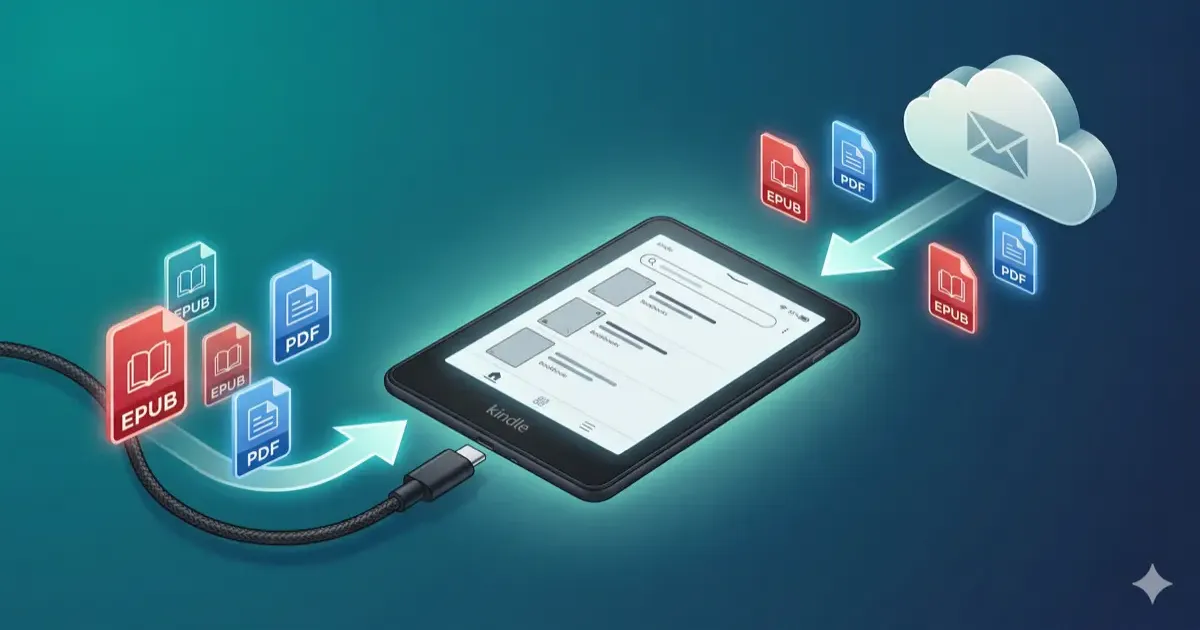
Three ways to get your own books onto a Kindle: Send to Kindle (web, email, or desktop app), a USB cable, or Calibre for a large library. Supported formats are EPUB, PDF, DOCX, TXT, RTF, HTML, and AZW3. For a handful of files, Send to Kindle is the fastest route; the guide below covers all six methods, what breaks with DRM-protected files, and how to fix formatting when a converted book looks wrong.
You’ve got a stack of EPUBs from Humble Bundle, work PDFs you actually want to read, and a couple of public domain classics from Project Gutenberg. They’re all sitting on your computer. Your Kindle is sitting on your desk. Getting them together shouldn’t be complicated, and in 2026, it really isn’t.
Here’s every method to sideload books onto your Kindle, from the simplest to the most powerful. (Already have a Kindle full of books? Check out our Kindle tips and tricks to get more out of it.)
Supported File Formats
Before you start, here’s what your Kindle can actually handle:
| Format | Supported | Notes |
|---|---|---|
| EPUB | ✅ | Native support since late 2022. Auto-converts to AZW3/KFX via Send to Kindle |
| ✅ | Works but not ideal for small screens | |
| DOCX | ✅ | Word documents |
| TXT | ✅ | Plain text |
| RTF | ✅ | Rich text |
| HTML | ✅ | Web pages |
| AZW3 / KFX | ✅ | Amazon’s native formats |
| MOBI | ❌ | Deprecated since August 2022 |
Important: DRM-protected EPUBs from other stores (Kobo, Barnes & Noble, etc.) won’t work on a Kindle. Only DRM-free EPUBs are supported. If you’re weighing both ecosystems, our Kindle vs Kobo comparison covers the format differences in detail.
As of January 2026, Amazon also allows you to download DRM-free EPUBs directly from their own store, a welcome change for people who don’t want to be locked into Amazon’s proprietary formats forever.
Method 1: Send to Kindle (Web)
Best for: Quick one-off uploads from your computer.
- Go to amazon.com/sendtokindle in any browser.
- Sign in with your Amazon account.
- Drag and drop your files (or click to browse). You can upload files up to 200 MB each.
- Choose which device to send to.
- The book appears in your Kindle library within a few minutes.
That’s it. No software to install, no email addresses to remember. Files sent this way sync across all your Kindle devices and apps.
Method 2: Send to Kindle Email
Best for: Sending files from your phone, or setting up quick workflows.
Every Kindle has a unique email address in the format yourname@kindle.com. You can find it in two places:
- On your Kindle: Settings > Your Account > Send-to-Kindle Email
- Online: Go to amazon.com/myk > Devices > select your Kindle
Once you know the address:
- Open your email app.
- Attach the file (EPUB, PDF, DOCX, etc.).
- Send it to your
@kindle.comaddress. - The book shows up on your Kindle within minutes.
Pro tip: Add your Kindle email to your contacts so you can send files in seconds. If you have a lot of free books from Project Gutenberg or Standard Ebooks, this is the fastest way to get them onto your device.
Amazon’s approved sender list used to cause headaches, but in 2026 any email from your Amazon account’s registered address works by default. You can add more approved addresses in your Amazon account settings if needed.
Method 3: Send to Kindle App (Desktop)
Best for: Batch-sending multiple files from your computer.
Amazon offers a free Send to Kindle desktop app for both Windows and macOS.
- Download the app from amazon.com/sendtokindle.
- Install and sign in with your Amazon account.
- Drag and drop files onto the app window, or right-click files in your file manager and choose “Send to Kindle.”
- Select your target device.
- Done.
This method is great if you regularly sideload files. You can drag in an entire folder of EPUBs and send them all at once. Like the other Send to Kindle methods, everything syncs across your devices.
Method 4: USB Transfer
Best for: Offline transfers, or when you don’t want files going through Amazon’s servers.
- Connect your Kindle to your computer via USB-C.
- Your Kindle appears as a removable drive.
- Open it and navigate to the documents folder.
- Drag your files (EPUB, PDF, AZW3, TXT, etc.) into that folder.
- Eject the Kindle and disconnect.
The books appear in your library immediately. No internet connection needed.
The catch: USB-transferred books don’t sync across devices. Your reading progress, bookmarks, and highlights stay on that one Kindle only. If you read on multiple devices (Kindle + phone app), use one of the Send to Kindle methods instead.
USB transfer is also the method you’ll use for sideloading custom fonts and screensavers, see our Kindle modding guide for those tweaks.
Method 5: Calibre
Best for: Power users who want full control over their ebook library.
Calibre is free, open-source software that manages your entire ebook collection. It’s the Swiss Army knife of ebook tools.
What Calibre can do:
- Convert between virtually any ebook format (EPUB to AZW3, PDF to EPUB, etc.)
- Edit metadata (titles, authors, covers)
- Send books directly to your Kindle via USB or email
- Manage a library of thousands of books
- Strip formatting issues and clean up messy files
How to set it up:
- Download Calibre (free for Windows, macOS, and Linux).
- Install and run the initial setup, select “Amazon Kindle” as your device.
- Import your ebooks into Calibre’s library.
- Connect your Kindle via USB, or configure your Send to Kindle email in Calibre’s preferences.
- Select the books you want to transfer and click “Send to device” or “Connect/share > Email.”
Calibre automatically converts files to the best format for your Kindle. If you’ve got a messy collection of EPUBs, PDFs, and random formats from various sources, Calibre is the tool that makes sense of it all.
It’s also the best option if you’ve downloaded books from places like Project Gutenberg or Standard Ebooks and want to clean up formatting before sending.
Method 6: Chrome Extension
Best for: Sending web articles and long-form content to read on your Kindle.
Amazon’s “Send to Kindle” Chrome extension lets you push web pages directly to your Kindle.
- Install the Send to Kindle extension from the Chrome Web Store.
- Navigate to any article or web page you want to read later.
- Click the extension icon.
- Choose your Kindle device and send.
The extension strips out ads and navigation, giving you a clean reading experience on your e-ink screen. Great for long articles you don’t want to read on your laptop during your lunch break.
Comparison Table: Which Method Should You Use?
| Method | Ease of Use | Syncs Across Devices | Format Conversion | Max File Size | Best For |
|---|---|---|---|---|---|
| Send to Kindle (Web) | ⭐⭐⭐⭐⭐ | ✅ Yes | ✅ Auto | 200 MB | Quick one-off uploads |
| ⭐⭐⭐⭐ | ✅ Yes | ✅ Auto | 200 MB | Sending from phone | |
| Desktop App | ⭐⭐⭐⭐ | ✅ Yes | ✅ Auto | 200 MB | Batch transfers |
| USB Transfer | ⭐⭐⭐ | ❌ No | ❌ Manual | Unlimited | Offline / privacy |
| Calibre | ⭐⭐ | ✅ Via email | ✅ Manual + auto | Unlimited | Large libraries, power users |
| Chrome Extension | ⭐⭐⭐⭐⭐ | ✅ Yes | ✅ Auto | N/A | Web articles |
Which Method Should You Use?
Start here:
- “I just want to get one book on my Kindle.” Use Send to Kindle (Web). Open the site, upload, done.
- “I’m on my phone and want to send a file.” Use the email method. Forward the file to your @kindle.com address.
- “I have 50 EPUBs from a Humble Bundle.” Use the desktop app or Calibre. Drag them all in at once.
- “I want to read offline and don’t care about syncing.” Use USB transfer. Plug in, copy, unplug.
- “I have books in weird formats and want to organize everything.” Use Calibre. It handles any format and keeps your library clean.
- “I want to read a web article on my Kindle.” Use the Chrome extension.
Most people only need the email method and the web upload. If you’re building a serious ebook collection, invest 20 minutes setting up Calibre, it pays for itself quickly.
Quick Troubleshooting
Book doesn’t appear after sending: Give it a few minutes. Make sure your Kindle is connected to Wi-Fi. Try syncing manually: Settings > Sync My Kindle.
EPUB won’t open via USB: If you copied an EPUB directly via USB, your Kindle might not read it properly. Use Send to Kindle (email or web) instead, Amazon auto-converts it to a compatible format.
DRM-protected EPUB won’t work: Files bought from Kobo, Barnes & Noble, or other stores with DRM protection can’t be loaded onto a Kindle. Only DRM-free EPUBs are supported.
File is too large: Send to Kindle methods cap at 200 MB per file. For larger files, use USB transfer or Calibre.
For more ways to get the most out of your e-reader, check out our best Kindle accessories roundup and our guide to the best e-readers on the market. Looking for an overview? Our complete Kindle guide ties everything together, setup, books, tips, and customization.
If Calibre is your Kindle’s best friend, see our best free macOS software list for similar power-user tools, and essential Mac apps 2026 for paid picks that round out the toolkit.
Related Articles

The Complete Kindle Guide (2026): Setup, Books, Tips & Tricks
Complete Kindle guide for 2026. Setup, free books, customization, sideloading, accessories, tips, and tricks, everything you need to master your Kindle.
Kindle Won't Turn On or Charge? 9 Fixes That Work
Your Kindle won't turn on or won't charge? Here are 9 fixes, starting with the 40-second hard reset that revives most frozen or dead Kindles in minutes.

Is Kindle Unlimited Worth It? I Did the Math (2026)
I tracked 6 months of reading and crunched the numbers. Here's whether Kindle Unlimited is worth $11.99/month, and who should skip it.