
Kindle Scribe vs reMarkable 2026: Which Should You Buy?
Kindle Scribe vs reMarkable 2 and Paper Pro in 2026: price, writing feel, front light, reading, and Connect subscription compared side by side.

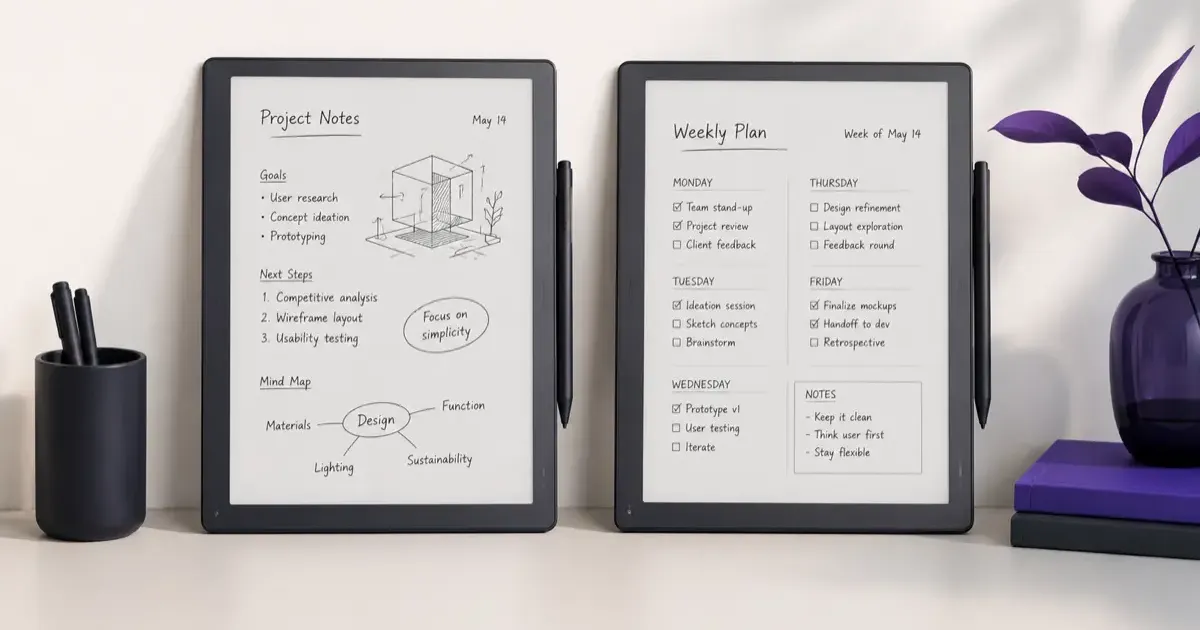
Buy the Kindle Scribe (from $429.99 as of November 2026, Premium Pen included) if you want one device that excels at reading books day or night and handles daily meeting notes without a monthly subscription. Buy the reMarkable 2 (from $379 with Marker) if handwriting and organizing work notebooks are 80% of your routine, or step up to the reMarkable Paper Pro ($579 with Marker) if you need an 11.8-inch color E Ink screen with a front light for annotating charts and PDFs.
In product photos, the Kindle Scribe and the reMarkable tablets look almost identical: ultra-thin aluminum slates with matte E Ink screens and magnetic styluses. In daily office life, they are built around opposite philosophies:
- Amazon built an e-reader first and added a capable digital notebook on top of the Kindle bookstore.
- reMarkable built a distraction-free paper notebook replacement that happens to open PDFs and DRM-free EPUBs, while intentionally keeping bookstores, web browsers, and notifications off the device.
Picking the wrong philosophy is a $400 to $600 mistake. Below, we compare all three current models across hardware specs, writing friction, reading comfort, PDF annotation, cloud sync workflows, and 3-year ownership cost. (If you want a deeper dive into Amazon’s tablet specifically, read our Kindle Scribe review for work notes, or check which Kindle you should buy if you decide you do not need a stylus at all.)
Quick Picks: Kindle Scribe vs. reMarkable Lineup at a Glance (November 2026)
| Feature / Metric | Kindle Scribe | reMarkable 2 | reMarkable Paper Pro |
|---|---|---|---|
| Base Price (Nov 2026) | From $429.99 (Pen with eraser included) | From $379 (Marker included; +$50 for Marker Plus) | From $579 (Marker included; +$50 for Marker Plus) |
| Display Size & Type | 11-inch glare-free monochrome E Ink | 10.3-inch monochrome Canvas E Ink | 11.8-inch Canvas Color E Ink (9 primary colors) |
| Pixel Density (Sharpness) | 300 PPI | 226 PPI | 229 PPI (2160 x 1620 px) |
| Built-In Front Light | Yes (Bright + adjustable warm amber light) | No (Requires ambient room light) | Yes (Soft adjustable white reading light) |
| Stylus Technology | Battery-free Wacom EMR (Premium Pen included) | Battery-free EMR Marker | Active rechargeable Marker (internal battery) |
| Ebook Ecosystem | Full Amazon Kindle Store, Kindle+, Audible | None (DRM-free EPUB & PDF via USB/cloud only) | None (DRM-free EPUB & PDF via USB/cloud only) |
| Cloud Subscription | $0/mo (Free WhisperSync & Send-to-Kindle) | Optional Connect ($3.99/mo or $39.90/yr) | Optional Connect ($3.99/mo or $39.90/yr) |
| Best For | Best All-Rounder (Reading + Office Notes) | Best Pure Monochrome Legal Pad Replacement | Best for Color PDF Markup & Academic Papers |
Visual Architecture: E-Reader First vs. Notebook First
Before comparing individual stylus nibs or software menus, look at how the three devices divide the E Ink tablet market:
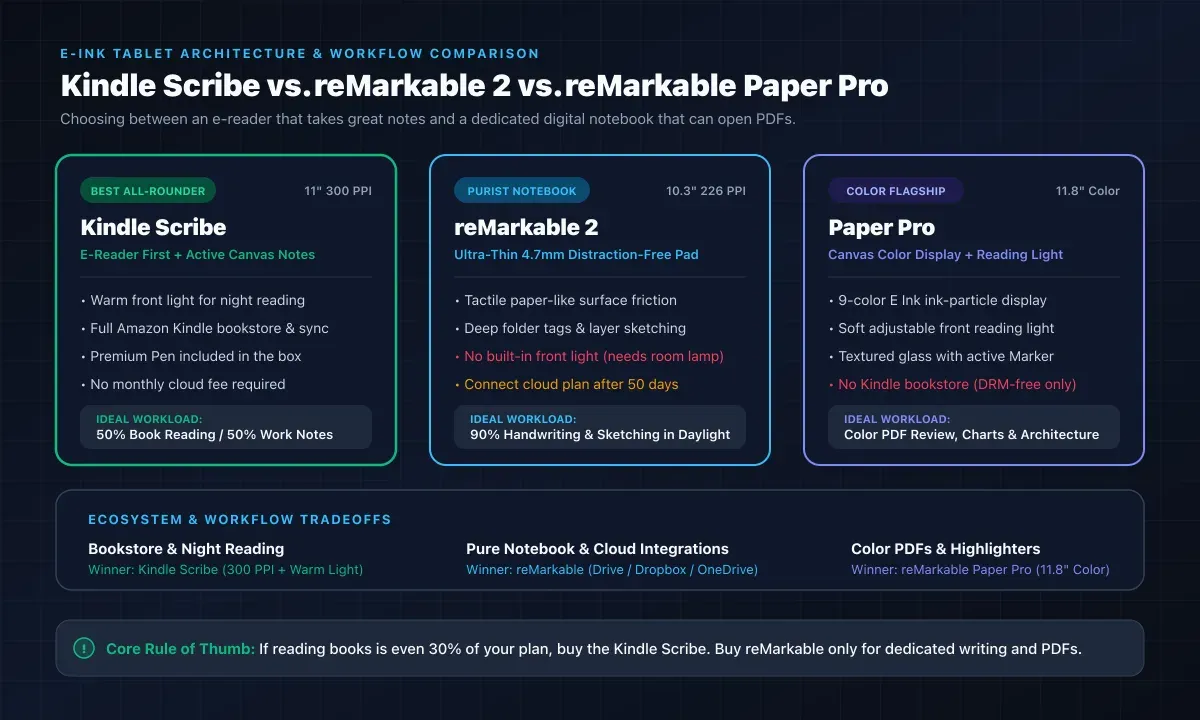
1. Hardware, Screen Sharpness, and the Front Light Gap
When you hold these devices side by side, three physical differences stand out immediately: screen resolution, lighting, and chassis thickness.
Display Crispness: 300 PPI vs. 226/229 PPI
The Kindle Scribe uses an 11-inch 300 PPI monochrome E Ink Carta panel. At normal reading distance, 300 PPI renders serif book typography, small footnotes, and dense two-column PDFs with laser-printer sharpness.
- The reMarkable 2 uses a 10.3-inch 226 PPI panel. While handwritten strokes look plenty sharp, small 9-point text on full-page PDFs looks noticeably softer and lower-contrast than on the Scribe.
- The reMarkable Paper Pro steps up to an 11.8-inch Canvas Color display (
2160 x 1620pixels, 229 PPI). Unlike standard Kaleido 3 color screens that place a dim RGB color filter array over a black-and-white panel (which darkens the background to newsprint gray), the Paper Pro moves physical colored ink particles inside each microcup. You get muted, pleasant pastel highlighters (yellow, green, cyan, magenta, red, blue) for color-coding notes and reading charts, at the cost of a slightly slower page refresh when color elements render.
The Front Light Factor
This is the single most common source of buyer’s remorse for reMarkable 2 owners: the reMarkable 2 has no built-in light whatsoever.
- Why did reMarkable leave it out? Removing the front-light waveguide layer lets the digital ink sit fractionally closer to the textured plastic top surface, reducing parallax (the tiny gap between your pen tip and the ink line). It also keeps the chassis at a razor-thin
4.7 mm. - The tradeoff: You cannot use the reMarkable 2 on a dim evening flight, in bed with the lights off, or in a dark lecture hall without clipping on a book light.
- Both the Kindle Scribe (
5.4 mmthin,400 g) and the reMarkable Paper Pro include front lights, but they behave differently. The Scribe’s front light goes bright enough for daylight glare and shifts from cool white to deep warm amber at night. The Paper Pro’s reading light is intentionally subtle, designed just to make the page legible in a dark room without glowing like an iPad.
2. Writing Feel and Stylus Technology
If your main goal is replacing a stack of paper Moleskines or yellow legal pads, writing feel and pen latency are everything.
Surface Friction: Plastic vs. Textured Glass
- reMarkable 2 (Passive EMR Marker): Uses a textured polymer surface that grips the felt-like Marker nib with genuine paper resistance. It produces a soft, scratchy acoustic feedback that feels remarkably close to a fine-liner pen on heavy cardstock. Because the stylus uses passive electromagnetic resonance (EMR), it never needs charging.
- reMarkable Paper Pro (Active Marker): Switches from a plastic top layer to a micro-etched textured glass screen paired with an active rechargeable Marker (which charges magnetically on the side of the tablet). The feel is firmer, more like a hard-lead pencil or ballpoint pen on a single sheet of paper over a wooden desk, with virtually imperceptible latency (12 milliseconds claimed by reMarkable).
- Kindle Scribe (Bundled Premium Pen): Uses a matte glare-free glass screen with a battery-free Wacom EMR stylus. In its latest generation, Amazon redesigned the screen bezel and upgraded the display controller to cut stroke latency by 40% over the first-generation Scribe. With the included felt replacement nibs, the Scribe offers smooth, controlled friction that easily beats writing on an iPad with a matte screen protector, sitting right between the reMarkable 2’s soft drag and the Paper Pro’s crisp glass tap.
Included Pen Value
Amazon includes its Premium Pen with every Kindle Scribe configuration (starting at $429.99). That pen has a customizable side shortcut button (which you can map to highlighter, sticky note, or pen type) and a rubberized top eraser. On both the reMarkable 2 ($379) and Paper Pro ($579), the base price includes the standard Marker (no eraser), while upgrading to the Marker Plus with a built-in top eraser adds $50 ($429 on reMarkable 2; $629 on Paper Pro).
3. Note-Taking Software, Organization, and AI Tools
Hardware friction is only half of the writing story; the other half is what happens when you have 150 pages of meeting notes across 12 projects.
Where reMarkable Wins: Deep Notebook Organization & Sketching
Because reMarkable’s entire operating system is a notebook, its organizational tools are far deeper than Amazon’s:
- Tags and Cross-Notebook Search: You can tag individual pages (for example,
#Q4-Budgetor#Action-Item) across different notebooks and filter them instantly. (With the Connect plan, you can also search directly inside your handwritten words.) - Layers and Drawing Tools: Like a simplified Adobe Illustrator for E Ink, reMarkable supports multiple layers, lasso-scaling, rotation, straight-line snapping, and a wider palette of pencils, calligraphy pens, shaders, and fineliners.
- Infinite Vertical Scroll: You can keep scrolling down a page continuously during a long brainstorming session instead of flipping pages mid-thought.
Where Kindle Scribe Wins: Active Canvas & On-Device AI Summaries
Amazon kept its notebook tools simpler (basic folders, templates, pen, highlighter, pencil, fountain pen, and lasso tool), but added two killer features tailored for office workers and heavy readers:
- Active Canvas (Write Directly Inside Books): On earlier e-readers, writing in a reflowable ebook meant opening a separate pop-up sticky note. With Active Canvas on the Kindle Scribe, you just start writing directly on the book page. The book’s typography automatically reflows and wraps around your handwritten margin box. Even if you change the font size later, your note stays anchored to that exact paragraph.
- AI-Powered Notebook Summaries & Refinement: After scribbling messy notes during a 45-minute meeting, the Scribe’s built-in AI notebook tool can condense multiple pages into a clean bulleted summary of key takeaways and action items, or convert your cursive into a formatted script font ready to email to colleagues.
4. Reading Books and Annotating Work PDFs
This is the dividing line that settles the decision for 90% of buyers.
Reading Books: Kindle Scribe Wins Hands Down
The Kindle Scribe is a first-class e-reader. You get:
- Instant access to the Amazon Kindle Bookstore, Kindle+ (formerly Kindle Unlimited), Amazon Kids+, and Audible audiobooks over Bluetooth.
- Whispersync: Read a chapter on your Scribe at home, then pick up on your phone or Kindle Paperwhite on the train at the exact same sentence.
- Two-Column Landscape Mode: Flip the Scribe horizontally and read books in a two-column open-book layout that reduces eye scanning across the wide 11-inch screen.
- Easy Sideloading: If you have your own EPUB library, you can drag and drop files via Send to Kindle or Calibre in seconds.
By contrast, neither reMarkable tablet has a bookstore and neither can open DRM-protected ebooks from Amazon, Kobo, or Libby. You can upload DRM-free EPUBs and PDFs via the reMarkable app, USB-C, or cloud integrations, but the built-in EPUB reader is rudimentary: typography controls are limited, dictionary lookup is missing or basic compared to Kindle’s X-Ray and Word Wise, and formatting changes can lag on long books.
Reading and Marking Up PDFs: A Close Split
Both platforms are fantastic for reviewing full-size 8.5 x 11-inch or A4 PDFs (contracts, academic papers, sheet music, slide decks):
- Pick Kindle Scribe if you want the sharpest 300 PPI text rendering on dense monochrome academic papers and the easiest email/Send-to-Kindle PDF delivery.
- Pick reMarkable Paper Pro if your PDFs rely on color charts, financial tables, architectural redlines, or multi-color highlighters (for example, yellow for definitions, red for risks, green for approvals) and you want direct two-way folder access with Google Drive, Dropbox, and Microsoft OneDrive.
5. Total Cost of Ownership & The Subscription Question (3-Year Math)
One hidden cost catches many reMarkable buyers off guard: the Connect subscription and official folio pricing.
What Works on reMarkable Without Paying Monthly?
You do not have to pay for Connect to use a reMarkable. Out of the box, for free, you get:
- On-device handwriting-to-text conversion (requires Wi-Fi)
- Cloud sync for notebooks opened or edited within the last 50 days
- Direct integrations with Google Drive, Dropbox, and OneDrive
- USB web-interface file transfers
What Does reMarkable Connect ($3.99/mo or $39.90/yr) Lock Behind a Paywall?
After your initial 50-day free trial ends, reMarkable requires Connect ($3.99/month or $39.90/year) if you want:
- Unlimited cloud sync for older archive notebooks untouched for more than 50 days (they stay on your tablet locally, but stop syncing to the cloud until opened again).
- Note taking and editing inside the desktop and mobile apps (without Connect, the desktop/phone apps are view-only unless you subscribe).
- Handwriting search across all your handwritten notes and PDFs.
- Extended 3-year device protection plan coverage.
On the Kindle Scribe, cloud syncing of all your notebooks, books, and PDF annotations through your Amazon account is 100% free forever, with no 50-day archive cutoff.
3-Year True Price Comparison (With Eraser Stylus & Cloud Sync)
| Cost Component | Kindle Scribe | reMarkable 2 | reMarkable Paper Pro |
|---|---|---|---|
| Tablet Base Price (Nov 2026) | $429.99 | $379.00 | $579.00 |
| Stylus with Built-In Eraser | Included ($0) | +$50.00 (Marker Plus) | +$50.00 (Marker Plus) |
| 3 Years of Full Cloud Sync | Included ($0) | +$119.70 (3 yrs Connect @ $39.90/yr) | +$119.70 (3 yrs Connect @ $39.90/yr) |
| 3-Year Total Cost (No Case) | $429.99 | $548.70 ($429 without Connect) | $748.70 ($629 without Connect) |
Even though the reMarkable 2 looks $50 cheaper than the Kindle Scribe on the storefront headline ($379 vs. $429.99), matching the Scribe’s included eraser pen and unlimited cloud sync makes the reMarkable 2 more expensive over three years.
Final Verdict: Which E Ink Tablet Should You Buy?
Buy the Kindle Scribe (from $429.99) if:
- You want one device that replaces both a dedicated Kindle e-reader and a desk notepad.
- You read books at night or on flights and need a bright, warm-adjustable front light and a razor-sharp 300 PPI screen.
- You want an eraser-equipped stylus included in the box and refuse to pay a monthly cloud fee to sync your own notes.
- You want to scribble margin notes directly inside Kindle books using Active Canvas or generate quick AI meeting summaries.
Buy the reMarkable 2 (from $379) if:
- You are a purist writer, sketcher, or bullet-journaler who wants the thinnest (
4.7 mm), most tactile paper-like pad on the market. - You consider access to a bookstore a distraction rather than a feature, and you always work in well-lit rooms where the missing front light is never an issue.
Buy the reMarkable Paper Pro (from $579) if:
- Your work revolves around color-coded PDF markup, technical diagrams, slide decks, or academic papers where a monochrome screen strips away vital information.
- You want reMarkable’s deep folder/tag organization and Google Drive/OneDrive integrations, but require a built-in reading light and a larger 11.8-inch canvas.
What if you mostly just want to read books? Skip all three of these large-format tablets. An 11-inch slate weighing 400+ grams gets heavy after 30 minutes of one-handed reading in bed. Buy the 7-inch Kindle Paperwhite ($199.99) instead, or compare every compact model in our best e-readers buying guide and our best Kindle for seniors guide.
Related Articles
Which Kindle Should You Buy in 2026? Full Lineup Compared
Which Kindle should you buy in 2026? Compare the base Kindle, Paperwhite, Colorsoft, and Scribe by price, screen, and use case, with a pick for every reader.
Kindle vs Kobo (2026): Which E-Reader Should You Buy?
Kindle vs Kobo compared for 2026. Explore hardware differences, OverDrive library borrowing, format support, and pricing to pick your perfect e-reader.
Kindle Paperwhite vs Kobo Clara BW: Which One to Buy?
Kindle Paperwhite vs Kobo Clara BW compared, specs, display, ecosystem, library support, and value. A clear recommendation for each type of reader.